
Overview
SilkQuote generates a PDF quote directly from an Opportunity record with a single Quick Action click. The resulting PDF is formatted from your configured template, populated with live Salesforce data, and attached to the Opportunity as a Content Document, all without leaving Salesforce.
This is the primary workflow reps use every day. No external tools, no copy-pasting, and no manual formatting.
Before Generating
To generate a quote, the following must be in place:
- SilkQuote is installed in your org.
- You have the SilkQuote permission set assigned to your user. See Grant Access with the Permission Set.
- At least one template exists in the Configuration Manager.
- The Generate Quote Document Quick Action is on your Opportunity page layout. If you do not see the button, contact your admin. See Add the Generate Quote Quick Action to Opportunity.
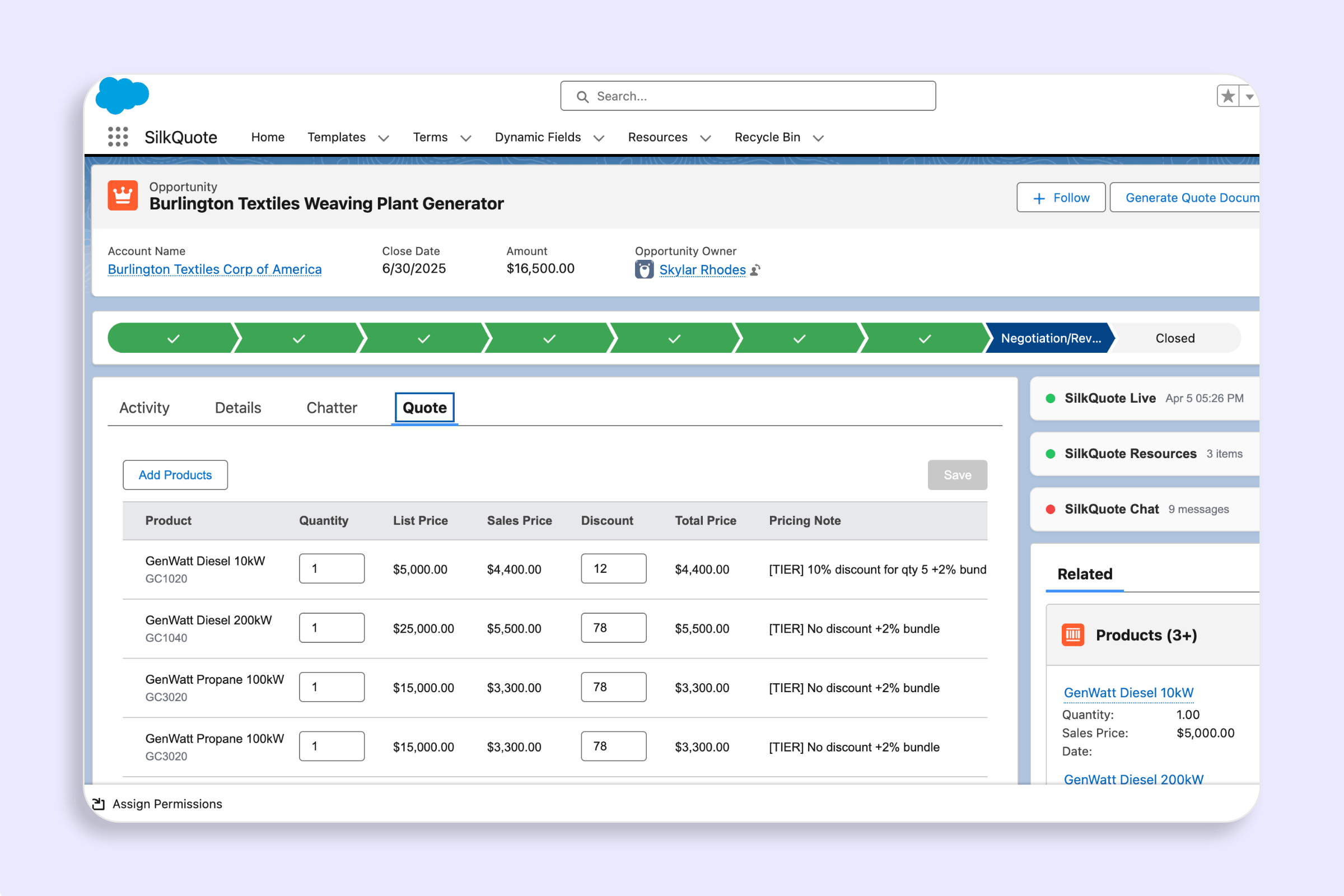
- The Opportunity has at least one Opportunity Product (line item). Quotes without products will render with an empty line items section.
Steps
- Open the Opportunity record in Salesforce Lightning.
- Click the Generate Quote Document Quick Action button in the actions bar or Highlights Panel.
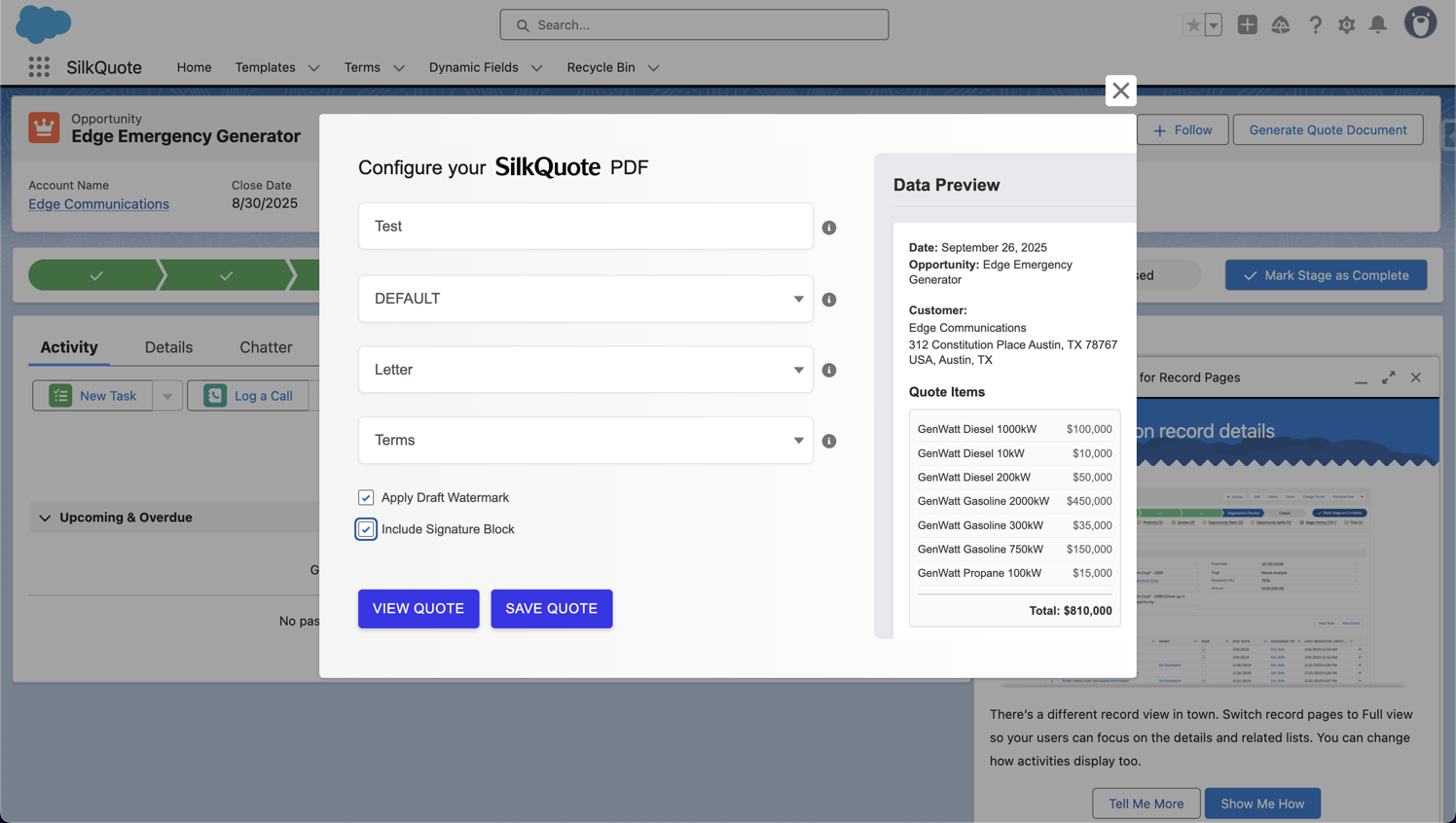
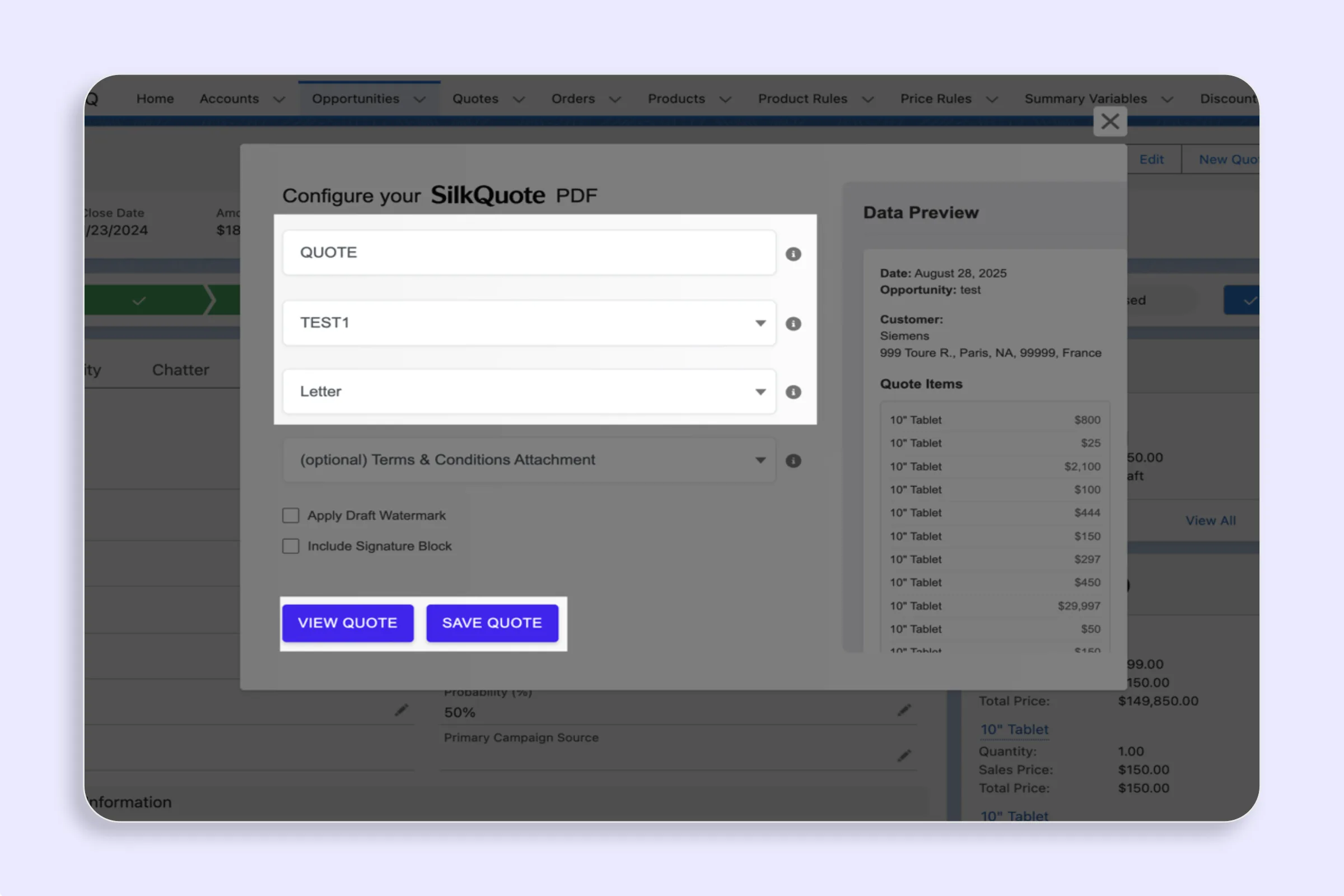
- The generation dialog opens. Fill in the following:
- Quote Name: A descriptive name for this version of the quote (e.g., “Acme Corp - Q2 2026 Proposal”). This name appears in the PDF and in the Opportunity Files list.
- Template: Select the quote template to use. If only one template applies to this Opportunity, it may be pre-selected.
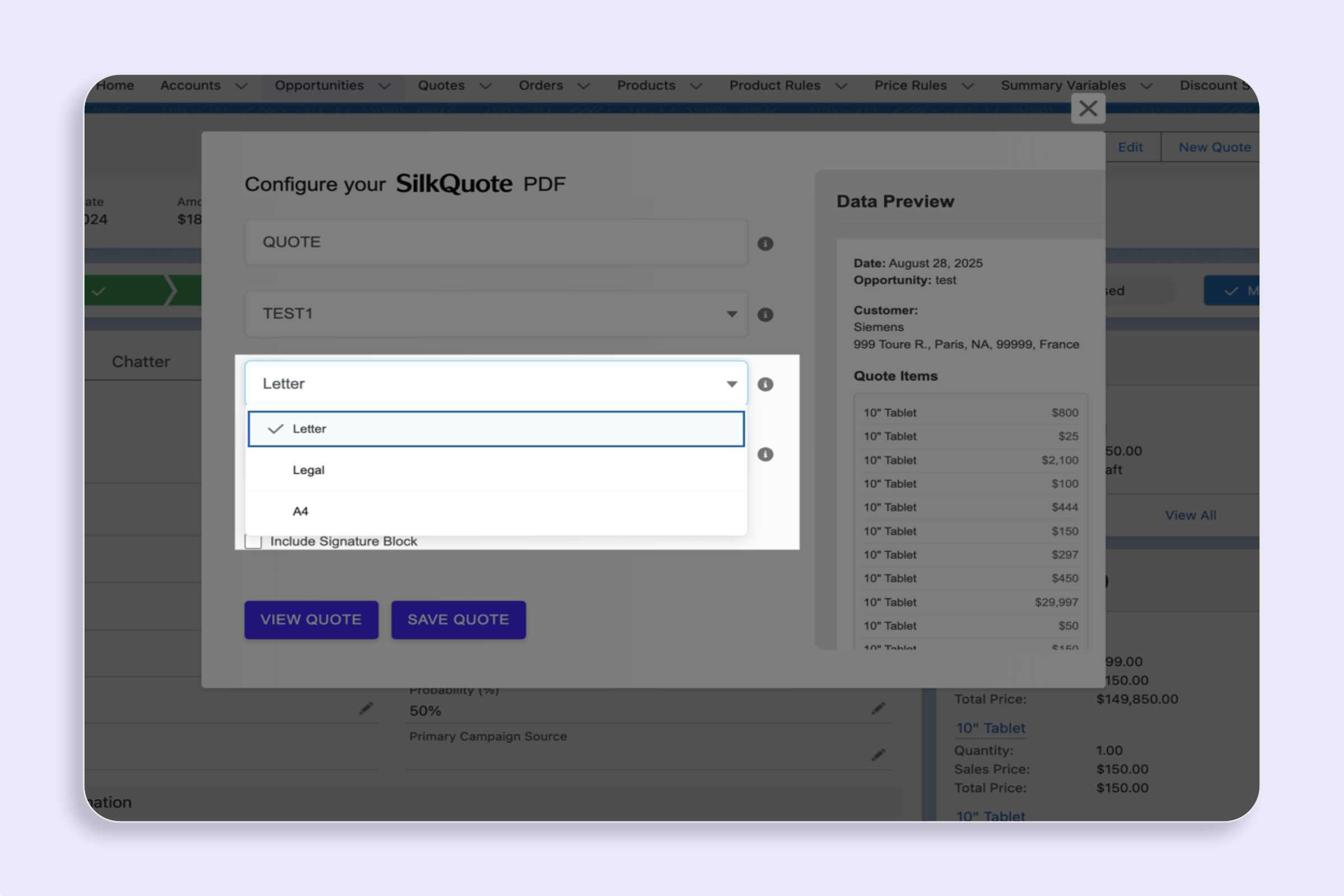
- Paper Size: Choose Letter, Legal, or A4 based on the prospect’s region and whether they are likely to print.
- Optionally configure additional options:
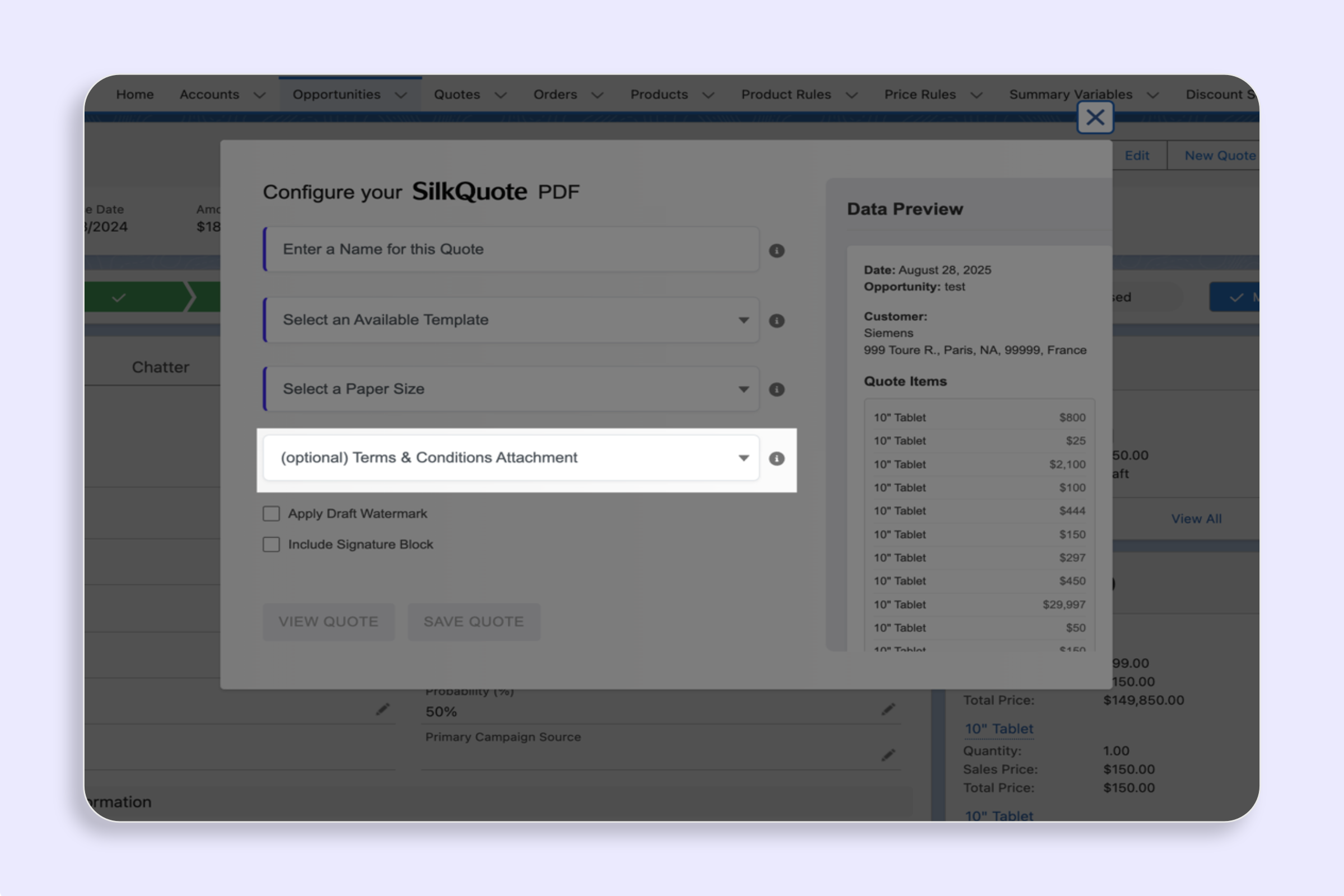
- Terms and Conditions: Select applicable terms to append as a final page.
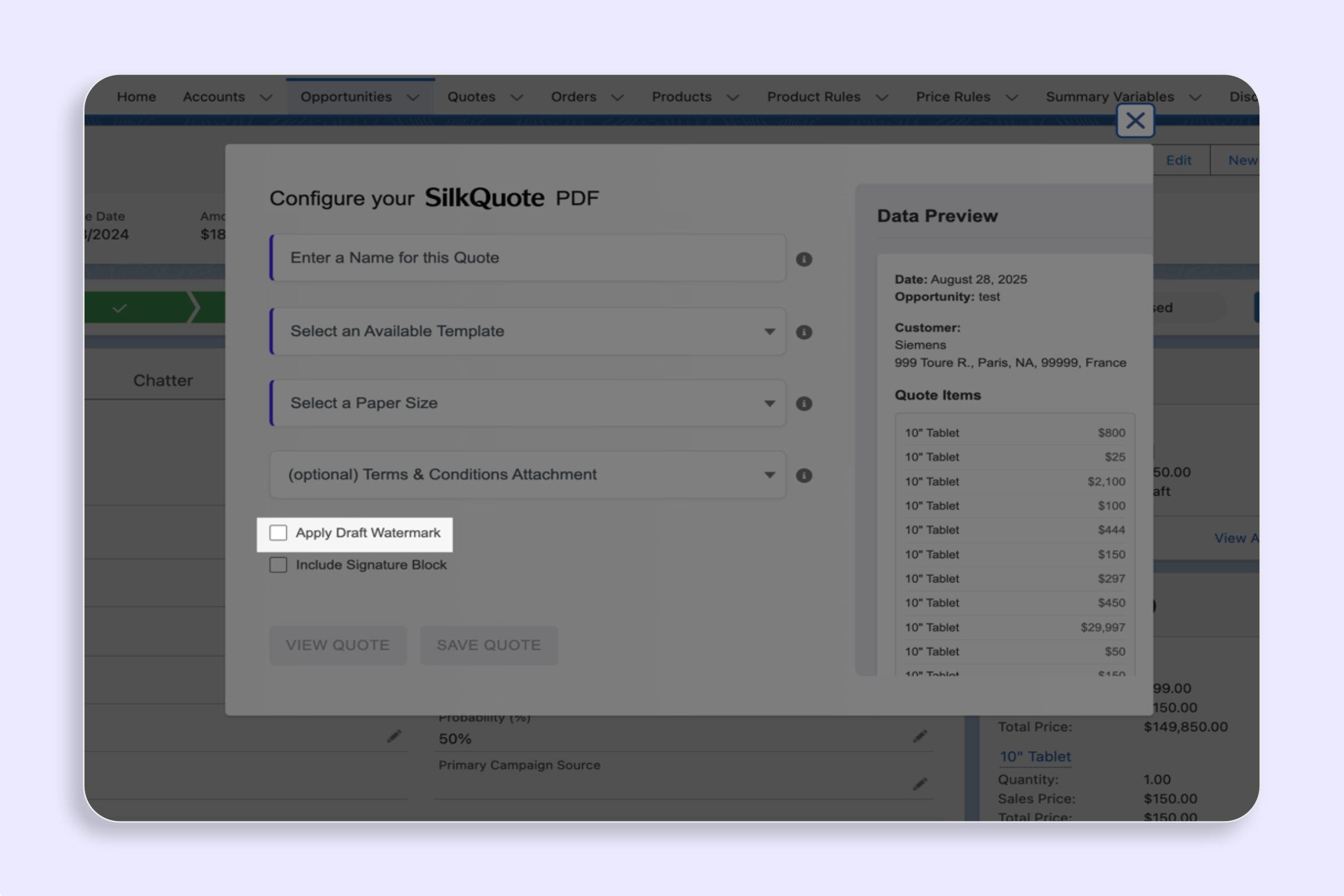
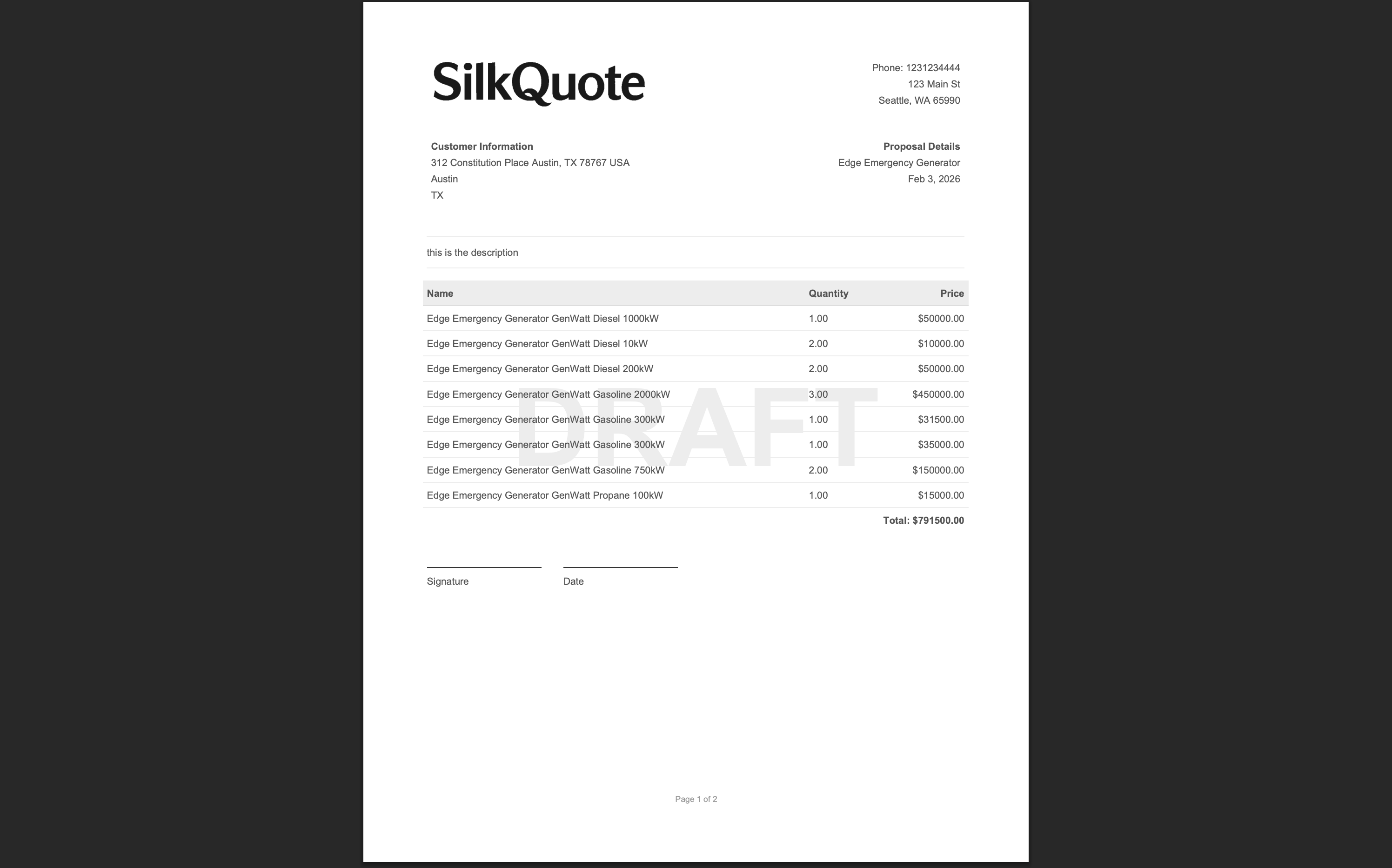
- Draft Watermark: Check to stamp “DRAFT” across all pages (for internal review).
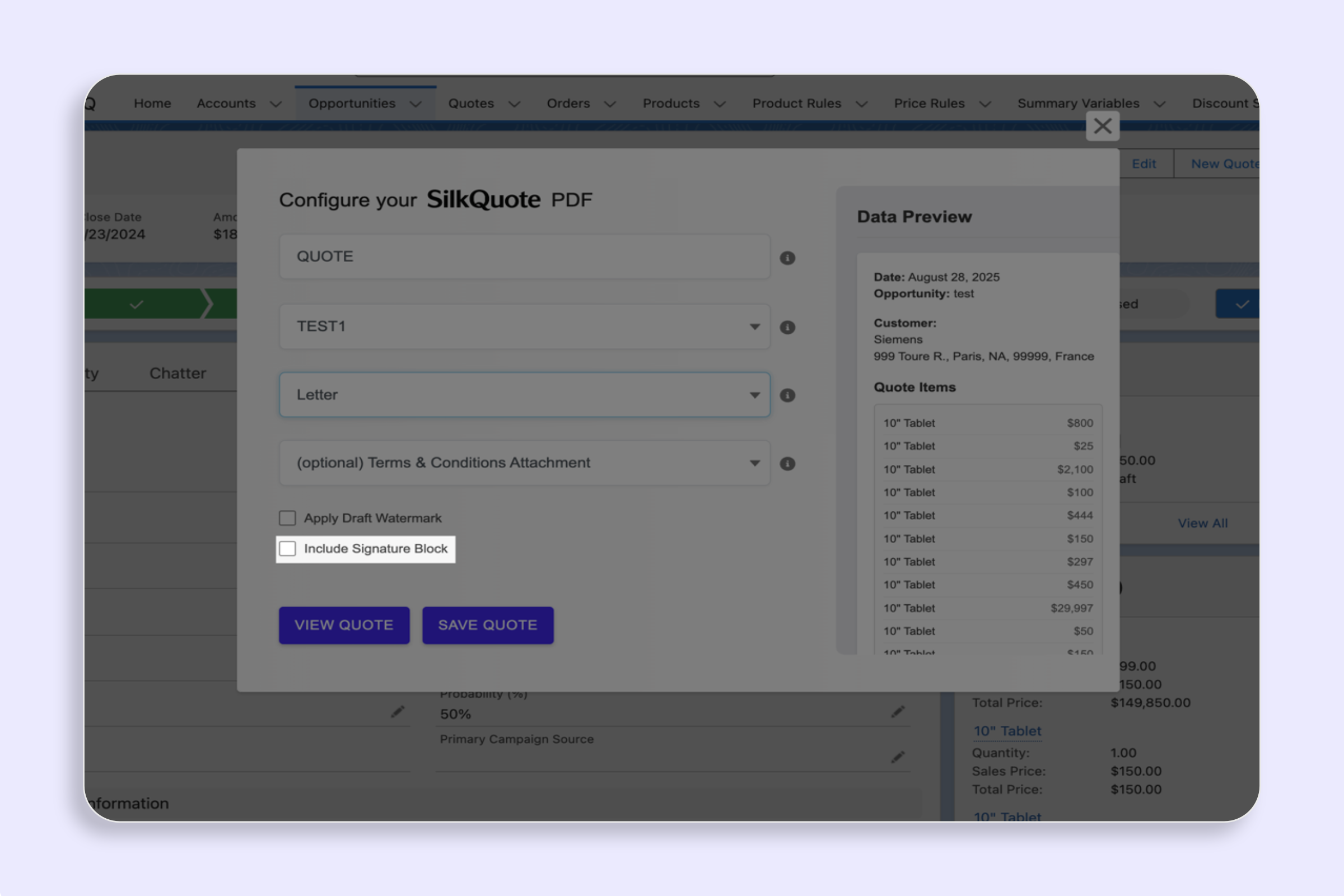
- Signature Block: Check to include a signature line section at the end of the PDF.
- Click Save PDF.
After Generation
A success notification appears. The PDF is now attached to the Opportunity as a Content Document and is immediately visible in the Files section on the Opportunity record.
Click the toast notification link to open the PDF directly. You can also navigate to the Files related list on the Opportunity to find it.
Sharing the Quote
After saving, you can:
- Download and email: Click the file to open it and download to share via email as an attachment.
- Use the SilkQuote share link: Generate a hosted link to share with the prospect. The link tracks views and captures formal acceptance or decline without the prospect needing a Salesforce account.
Version Management
Every time you click Save PDF, a new Content Document is created on the Opportunity. Multiple versions accumulate in the Files section over the course of a deal. This is by design: it preserves the history of what was sent and when.
To avoid confusion, use consistent and descriptive Quote Names (e.g., include a date or version number). Remove obsolete versions by deleting them from the Files section if needed.
Tips
- Preview first: Use the View Quote button (not Save PDF) to preview the PDF in a new tab before committing. Nothing is saved during preview. See Preview a Quote without Saving.
- Missing action button: If the Generate Quote Document button is not visible on the Opportunity, the Quick Action has not been added to the page layout. Contact your Salesforce admin.
- Empty line items: If the generated PDF shows no products, verify that Opportunity Products are added to the Opportunity record before generating.