
Overview
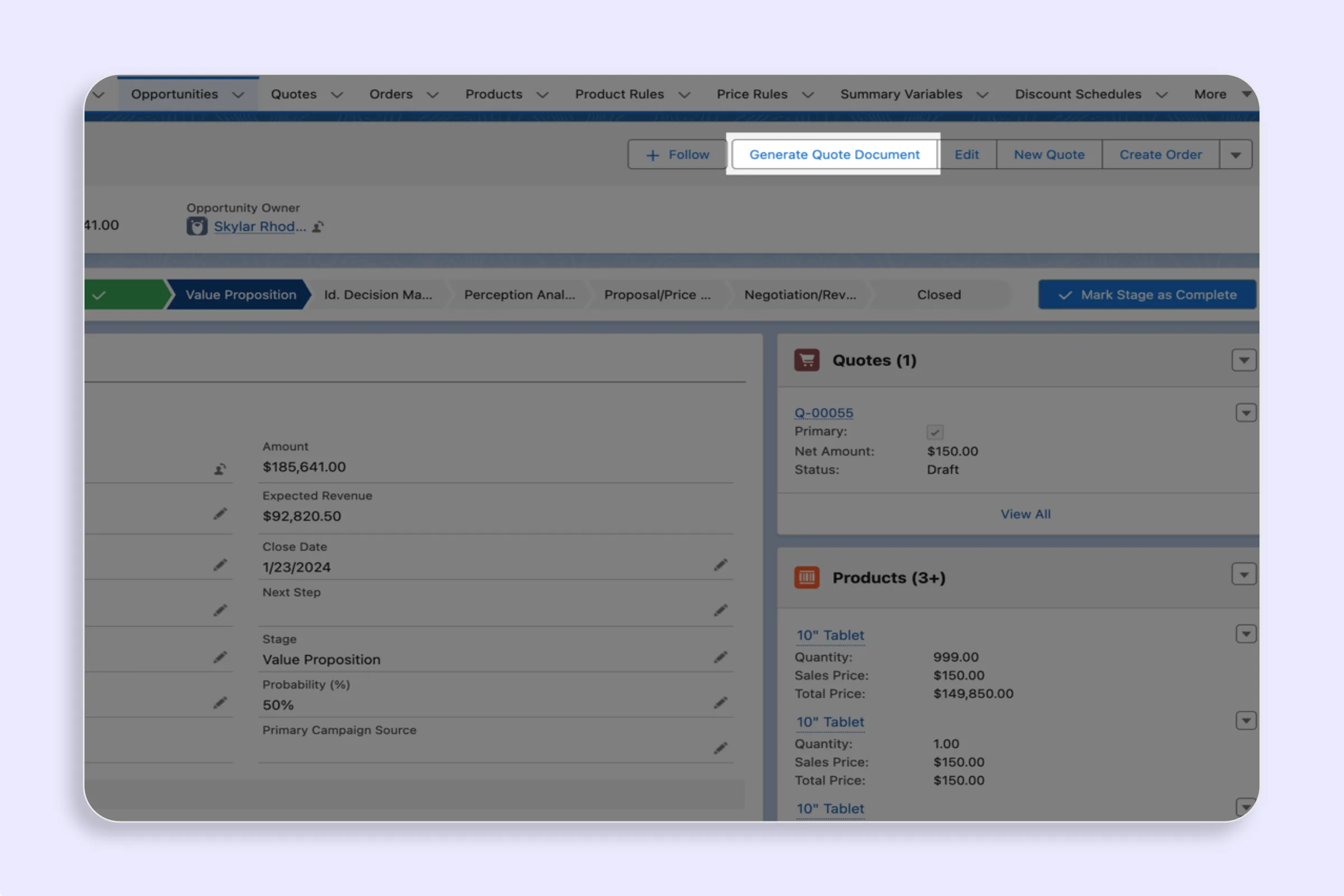
The Generate Quote Document Quick Action is the button reps click to trigger quote generation from an Opportunity record. SilkQuote installs this action automatically, but an admin must add it to the Opportunity Page Layout before reps can see and use it.
This is a one-time setup step performed after installing SilkQuote. Once the action is on the layout, every rep with the SilkQuote permission set sees the button on every Opportunity.
Before You Begin
Confirm that:
- SilkQuote has been installed from the AppExchange.
- You are logged in as a Salesforce System Administrator.
- At least one SilkQuote template has been configured (reps need a template to generate a quote).
Steps
Verify the Action Exists
- Go to Setup (gear icon → Setup).
- In the Quick Find box, type Object Manager and open it.
- Click Opportunity in the object list.
- Click Buttons, Links, and Actions in the left sidebar.
- Confirm that Generate Quote Document appears in the list. If it does not, re-check that SilkQuote is fully installed.
Add the Action to the Page Layout
- In the Opportunity object, click Page Layouts in the left sidebar.
- Select the page layout used by your sales team (the one reps see when opening Opportunity records).
- In the layout editor, scroll to the Salesforce Mobile and Lightning Experience Actions section.
- In the palette at the top of the editor, click Mobile & Lightning Actions.
- Find Generate Quote Document in the action list.
- Drag it into the Salesforce Mobile and Lightning Experience Actions section on the layout.
- Click Save.
Test the Action
- Open any Opportunity record in Lightning Experience.
- Look for the Generate Quote Document button in the Highlights Panel or the actions list.
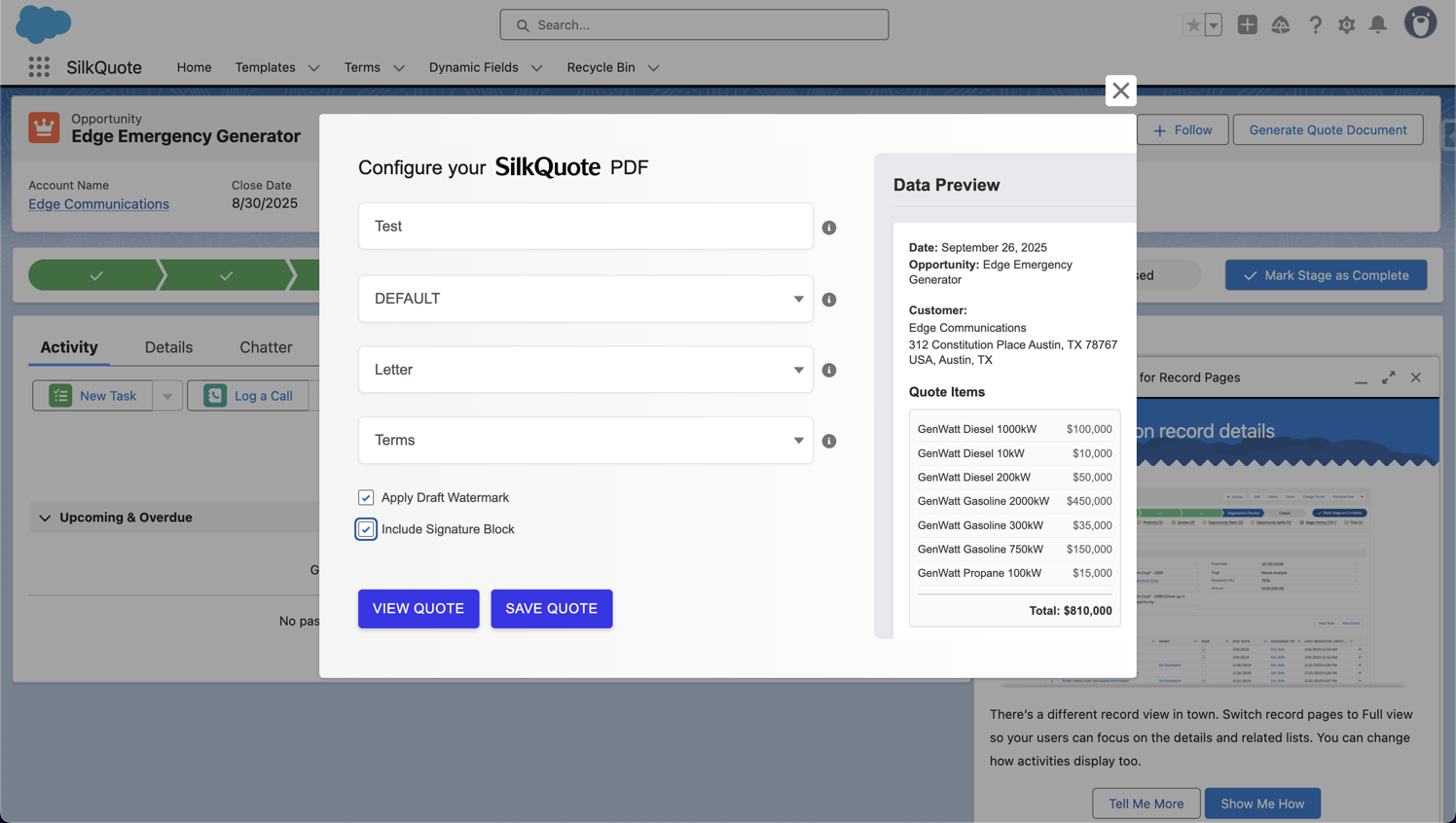
- Click it to confirm the generation dialog opens.
Lightning App Builder Consideration
If your Opportunity page uses a custom Lightning page built in Lightning App Builder (rather than the standard page layout), the Salesforce Mobile and Lightning Experience Actions on the page layout may not surface automatically. In that case:
- Open Lightning App Builder from Setup.
- Find and edit the Lightning page used for Opportunities.
- Add a Highlights Panel component or ensure the existing one is configured to show page layout actions.
- Activate the page.
Tips
- Multiple page layouts: If your org has different Opportunity page layouts for different record types or profiles, add the Quick Action to each layout that reps use.
- Positioning: Place the action prominently in the actions list. If it is buried behind a “More” dropdown, reps may not discover it. Drag it to one of the first positions in the actions bar.
- Mobile users: The action works in Salesforce Mobile as well. Test it from the mobile app if your team uses it in the field.