
Overview
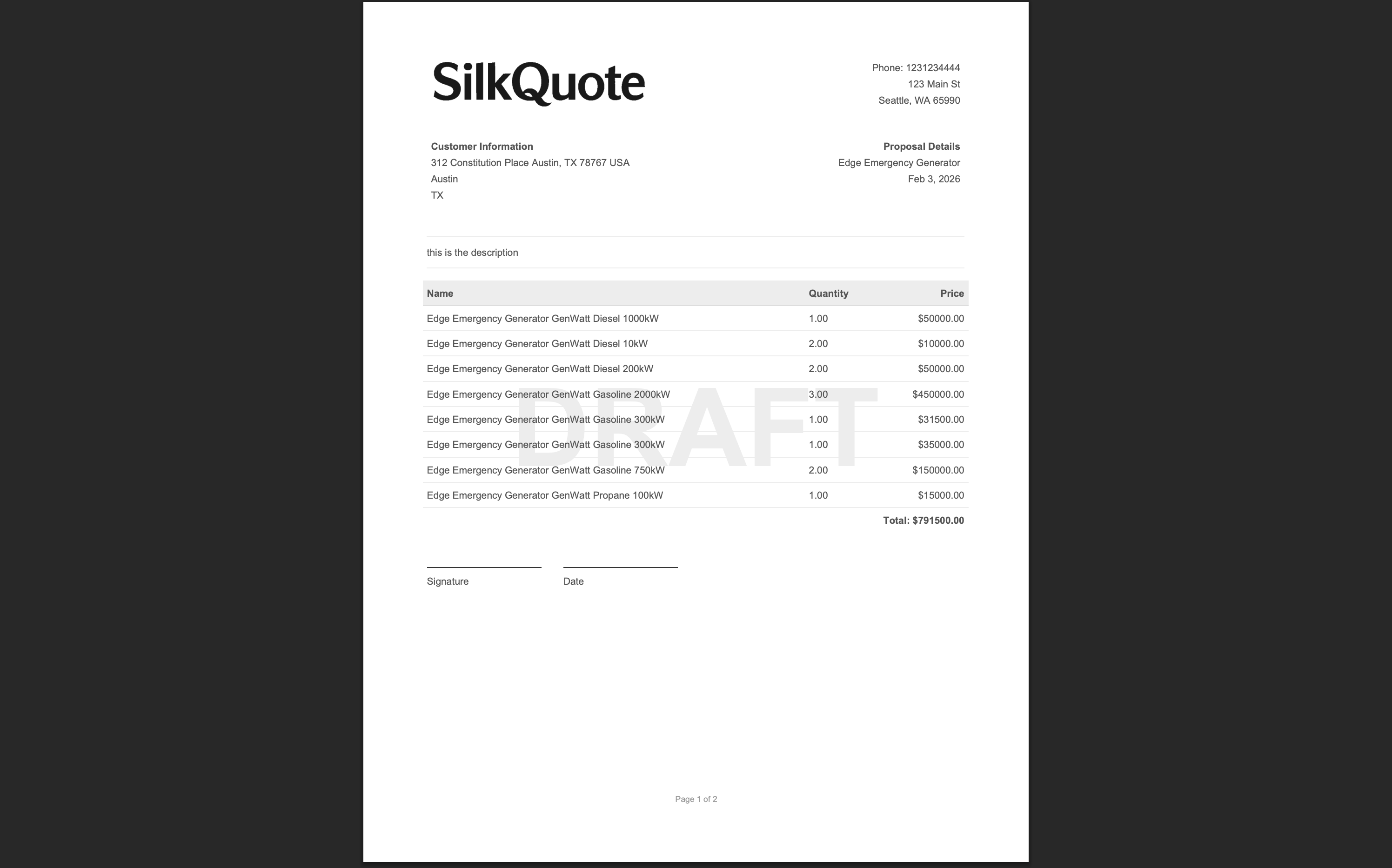
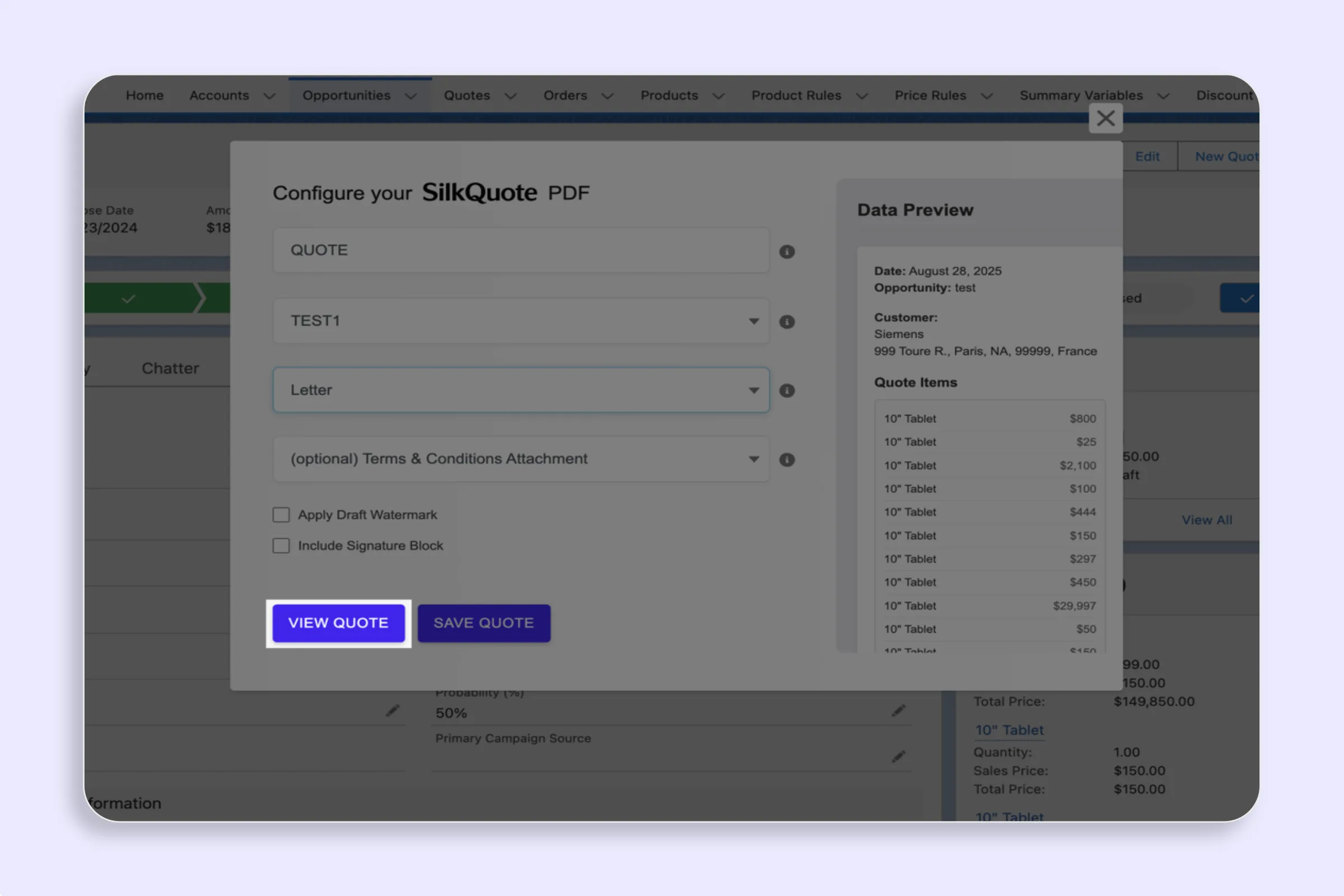
The Quote Preview feature generates a temporary PDF from an Opportunity without attaching it to the record as a saved file. It opens in a new browser tab, giving reps a way to verify the quote content and layout before committing. The preview document is not stored, does not appear in the Opportunity’s Files, and leaves no record of having been generated.
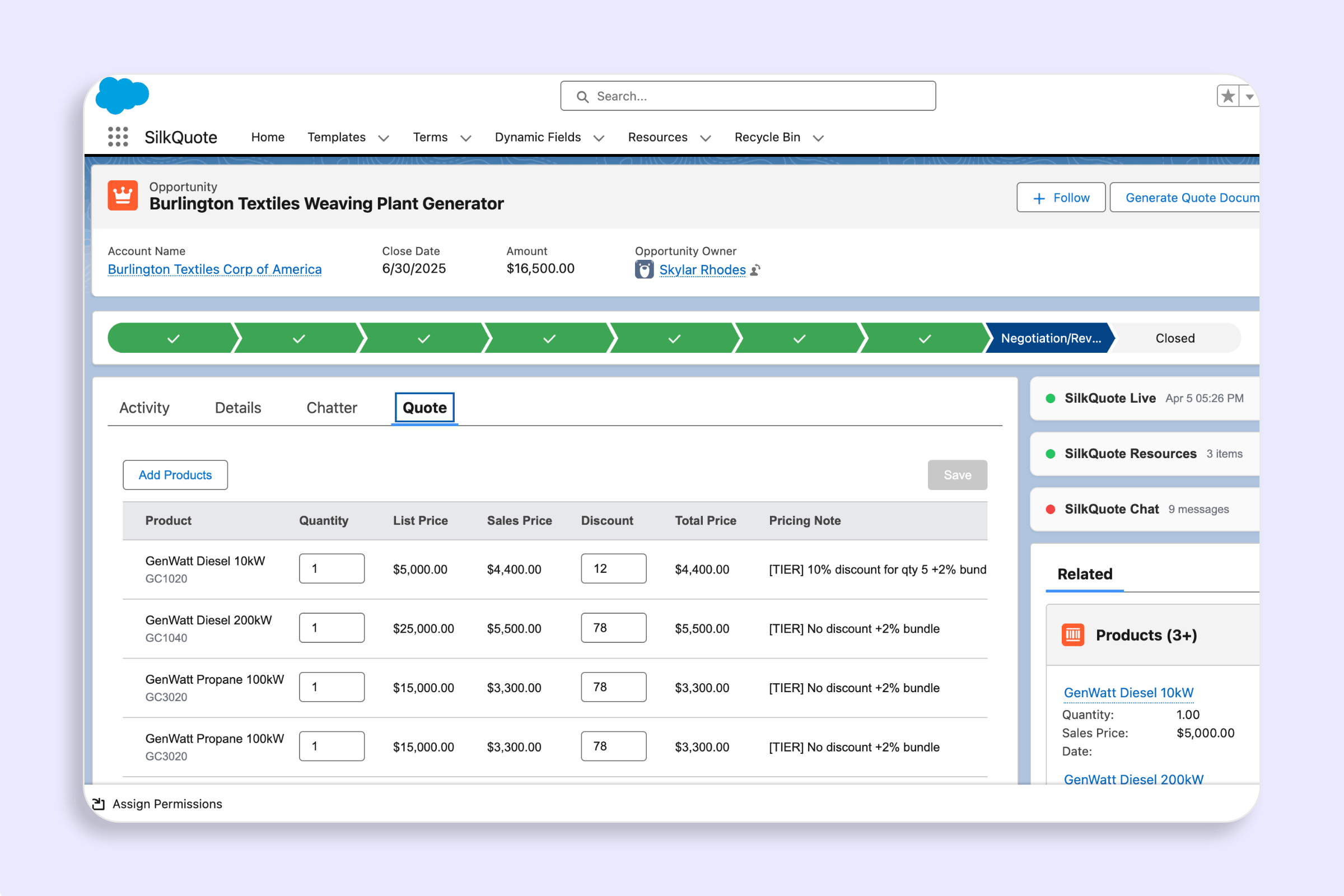
This is especially useful when adjusting Opportunity data (product quantities, pricing, or custom fields) and wanting to see how changes will render before saving a final version.
When to Use Preview
Use the preview option when:
- Verifying field mappings: Checking that all mapped fields are pulling the correct data from the Opportunity, Account, Contact, or Products.
- Reviewing layout: Confirming that sections, line items, and totals look correct before the final version is attached.
- Testing a new template: Before rolling out a newly configured template, use preview to see the output with real Opportunity data. For admin-level template testing, see also Preview a Template with Real Data.
- Exploring terms options: Selecting different terms combinations to see how they affect the document before committing.
Steps
- Open any Opportunity record in Salesforce Lightning.
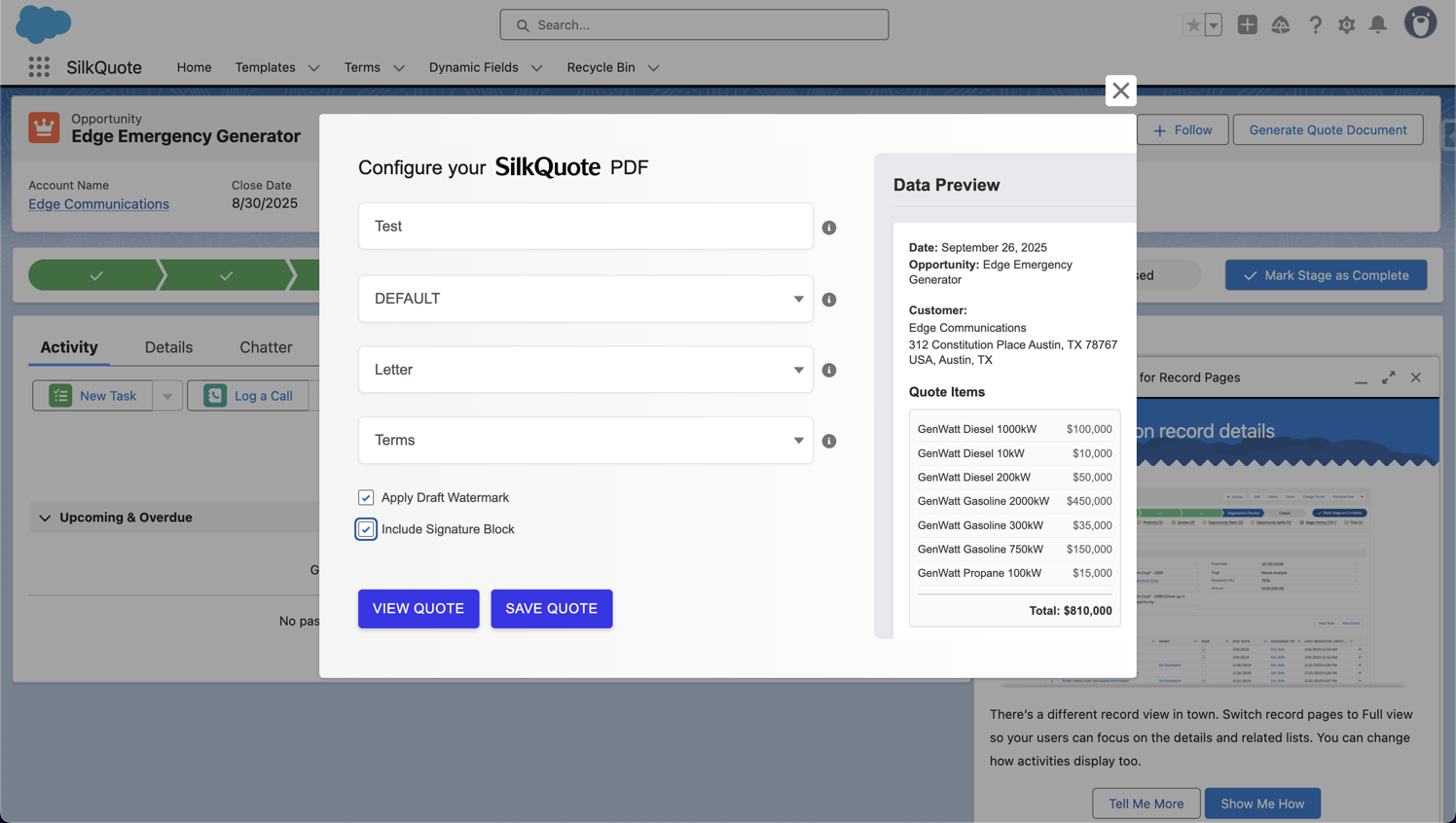
- Click the Generate Quote Document Quick Action button.
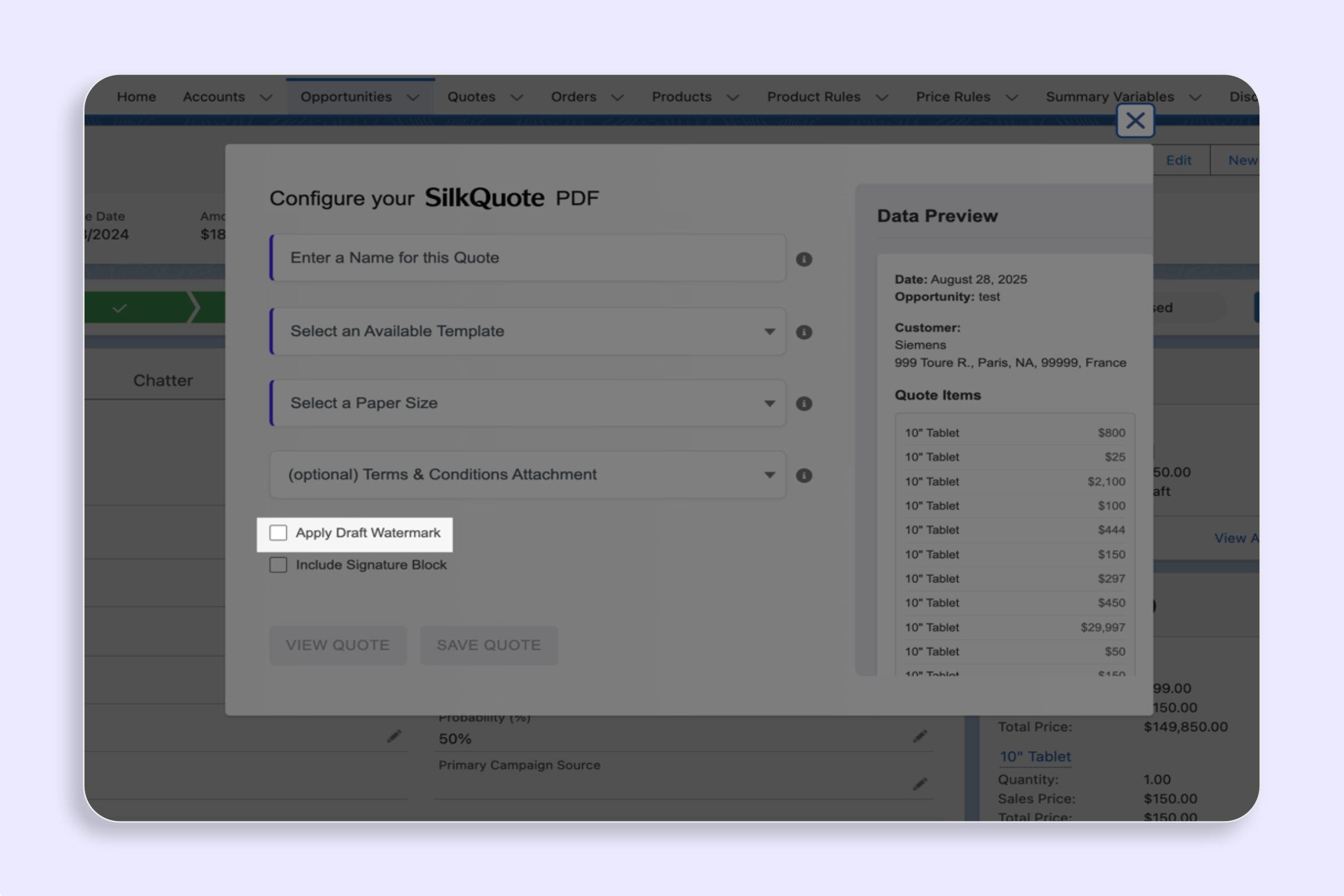
- Enter a Quote Name (required even for preview).
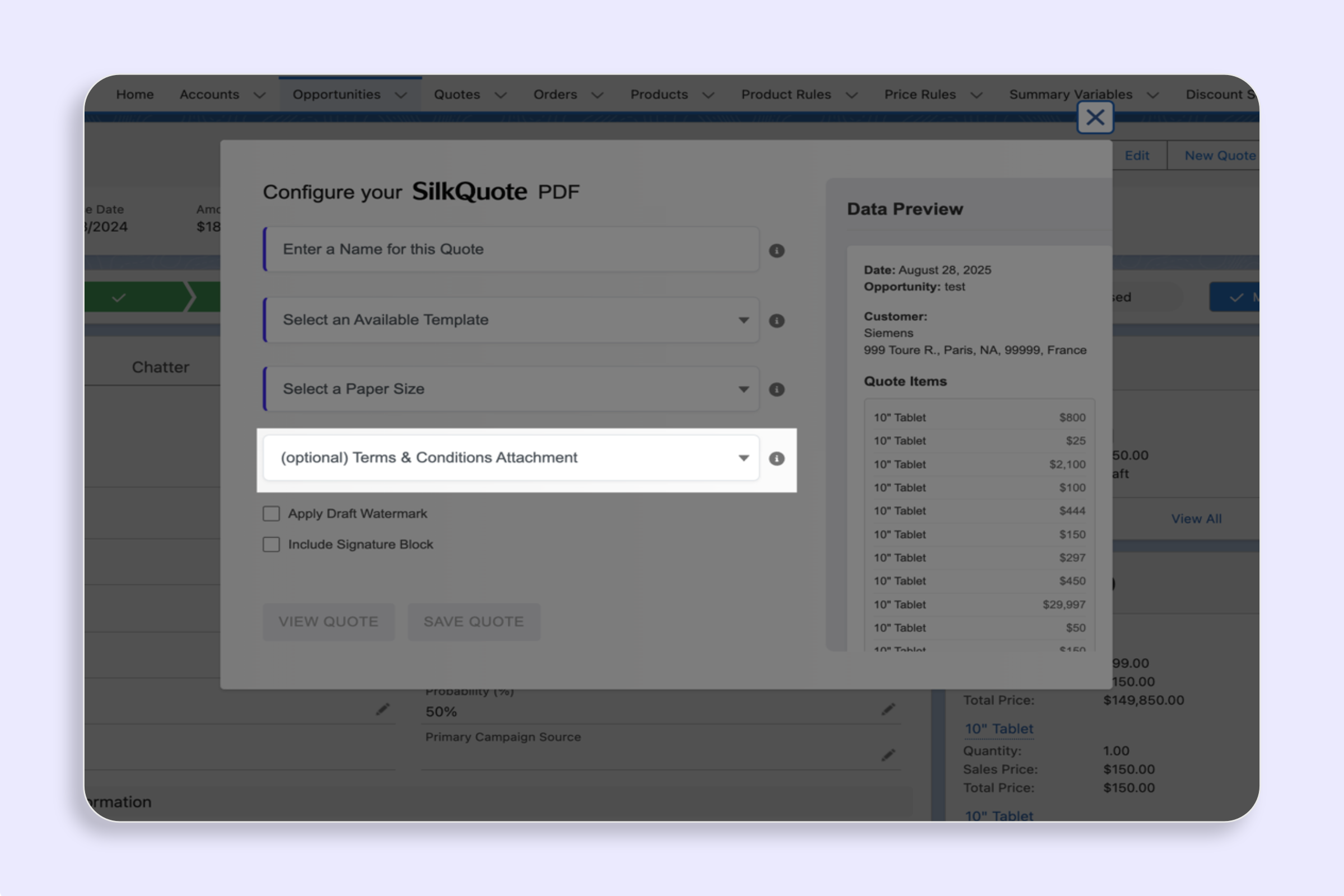
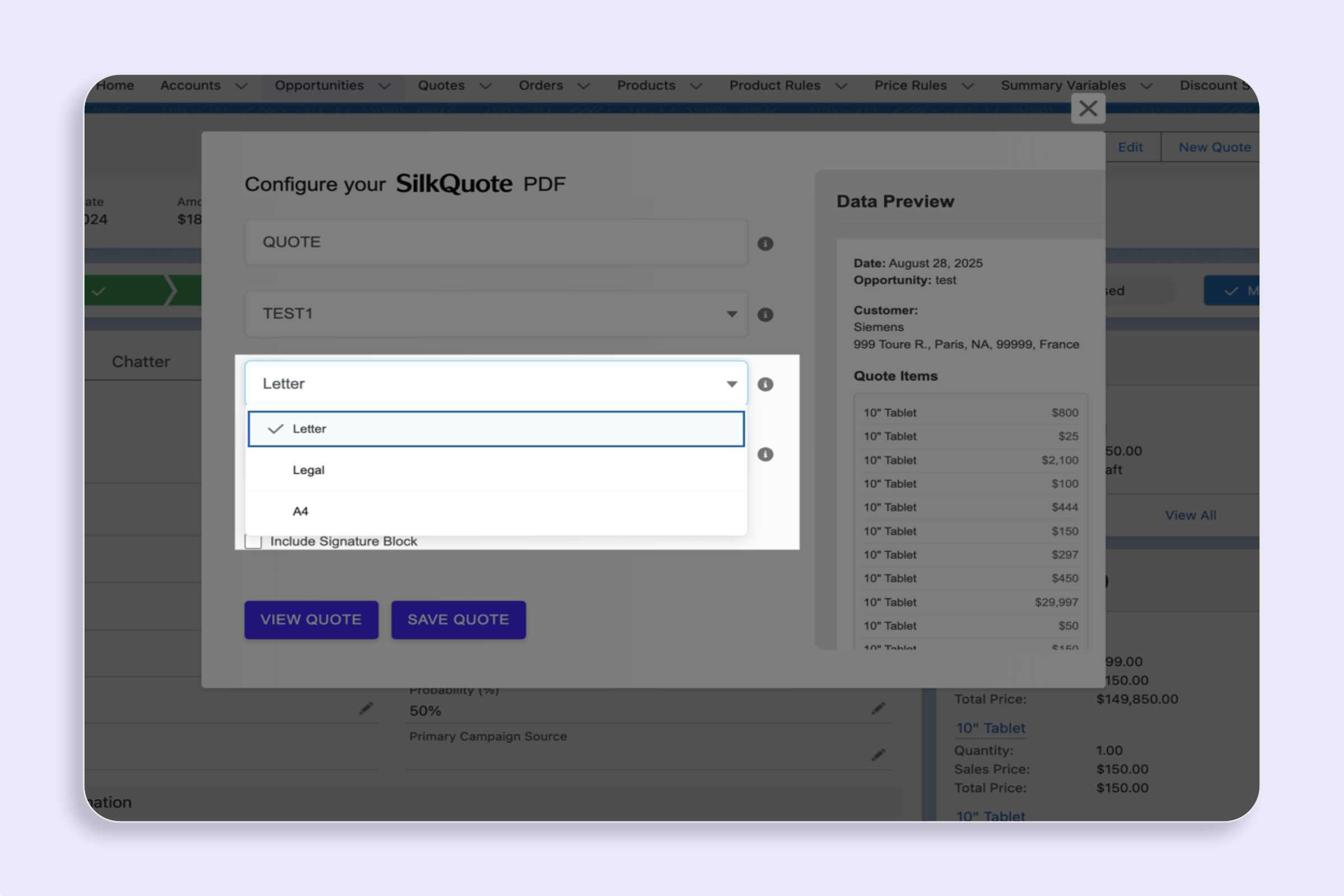
- Select a Template, Paper Size, and any optional Terms or settings.
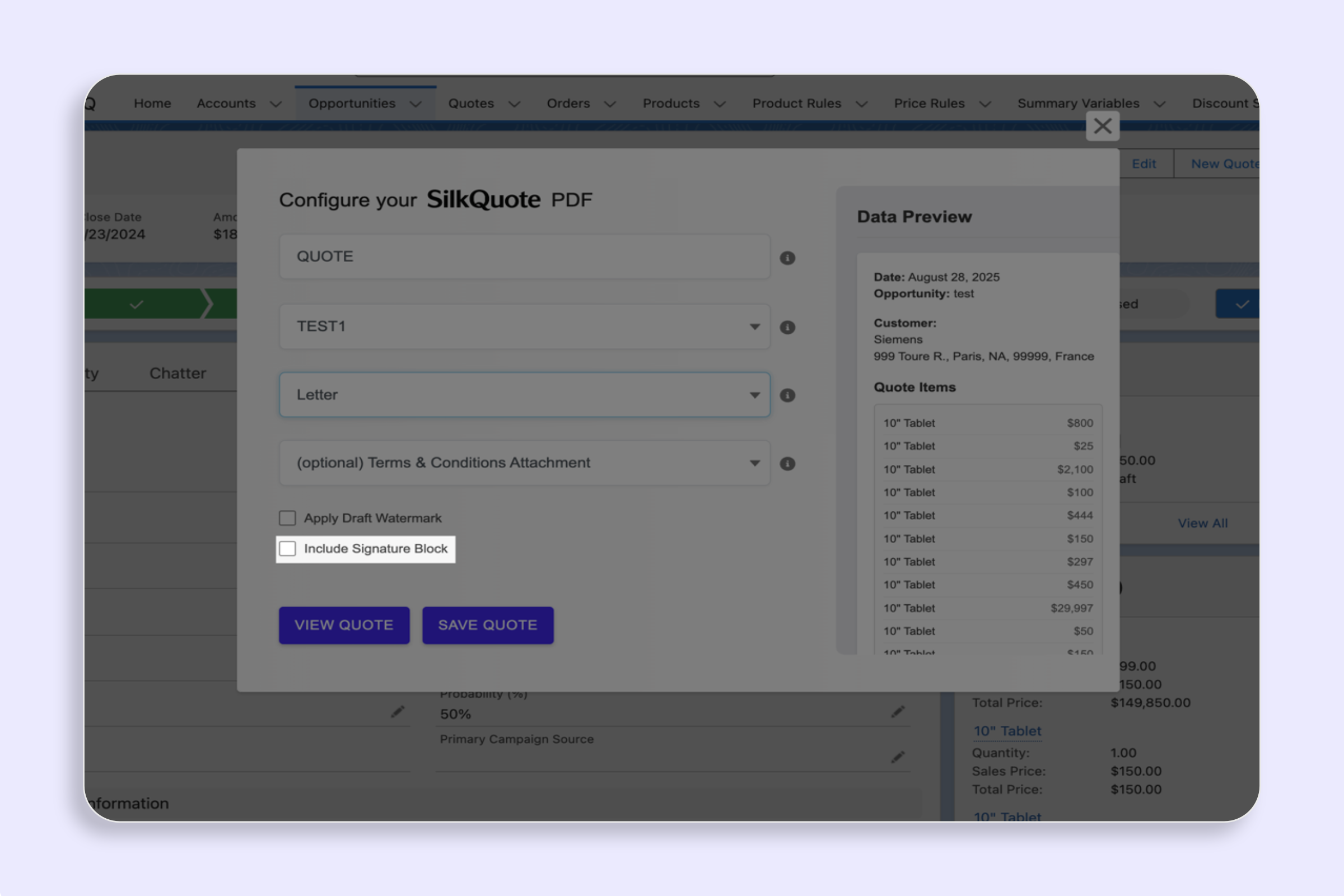
- Click View Quote (not “Save PDF”).
The PDF opens in a new browser tab. Review the content, then close the tab. Nothing is saved to the Opportunity.
Browser Popup Requirement
The preview opens in a new browser tab using a popup. If your browser is blocking popups for your Salesforce domain, the preview will not open.
To allow popups:
- Chrome: Click the popup blocked icon in the address bar, then select “Always allow popups from [your Salesforce domain].”
- Firefox: Click the notification bar that appears and select “Allow popups for this site.”
- Safari: Go to Safari → Settings → Websites → Pop-up Windows and allow your Salesforce domain.
Once popups are allowed for your Salesforce domain, preview will open immediately every time.
Difference Between Preview and Save
| Action | Saves PDF | Appears in Files | Can Be Shared |
|---|---|---|---|
| View Quote (Preview) | No | No | No |
| Save PDF | Yes | Yes | Yes |
Use preview for verification and “Save PDF” when you are ready to create the official quote file.
Tips
- Adjust and re-preview freely: Because preview does not save anything, you can iterate: edit Opportunity Products, return to the Quick Action, and preview again until the output looks right.
- Preview before every major change: Whenever a template is updated or Opportunity data is significantly revised, preview before saving to avoid accumulating unwanted PDF versions in the Files section.