
Overview
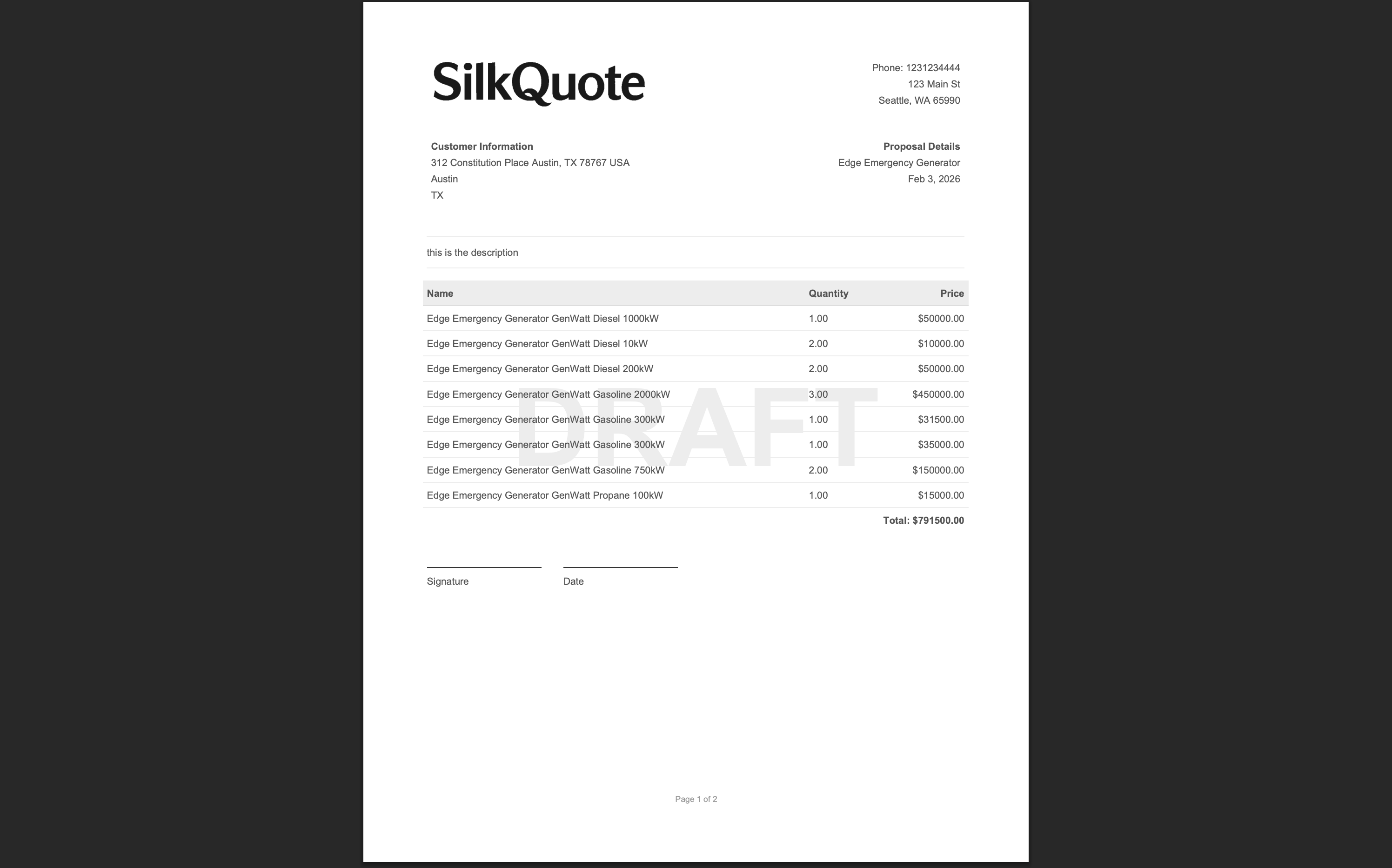
A Draft watermark adds a large diagonal “DRAFT” stamp across every page of a generated quote PDF. It signals to anyone who sees the document that the quote has not yet been approved or sent to the prospect, preventing reps from accidentally forwarding an in-progress version.
The watermark is applied at generation time rather than built into the template. This means the same template can produce clean final quotes or draft-marked review copies depending on whether the option is checked when generating.
When to Use a Draft Watermark
Use the Draft watermark whenever a quote needs internal review before reaching the prospect:
- Pricing approval: The rep has assembled the quote but a manager or finance team must sign off before it can be shared externally.
- Legal review: Terms and conditions attached to the quote need review before the prospect sees them.
- Template testing: An admin is previewing a new template with real Opportunity data and does not want test PDFs confused with live quotes.
- Multi-version comparison: Multiple quote versions are under internal comparison before one is selected for delivery.
A clearly watermarked PDF significantly reduces the chance of a draft escaping the review process.
Steps
- Open the Opportunity record in Salesforce Lightning.
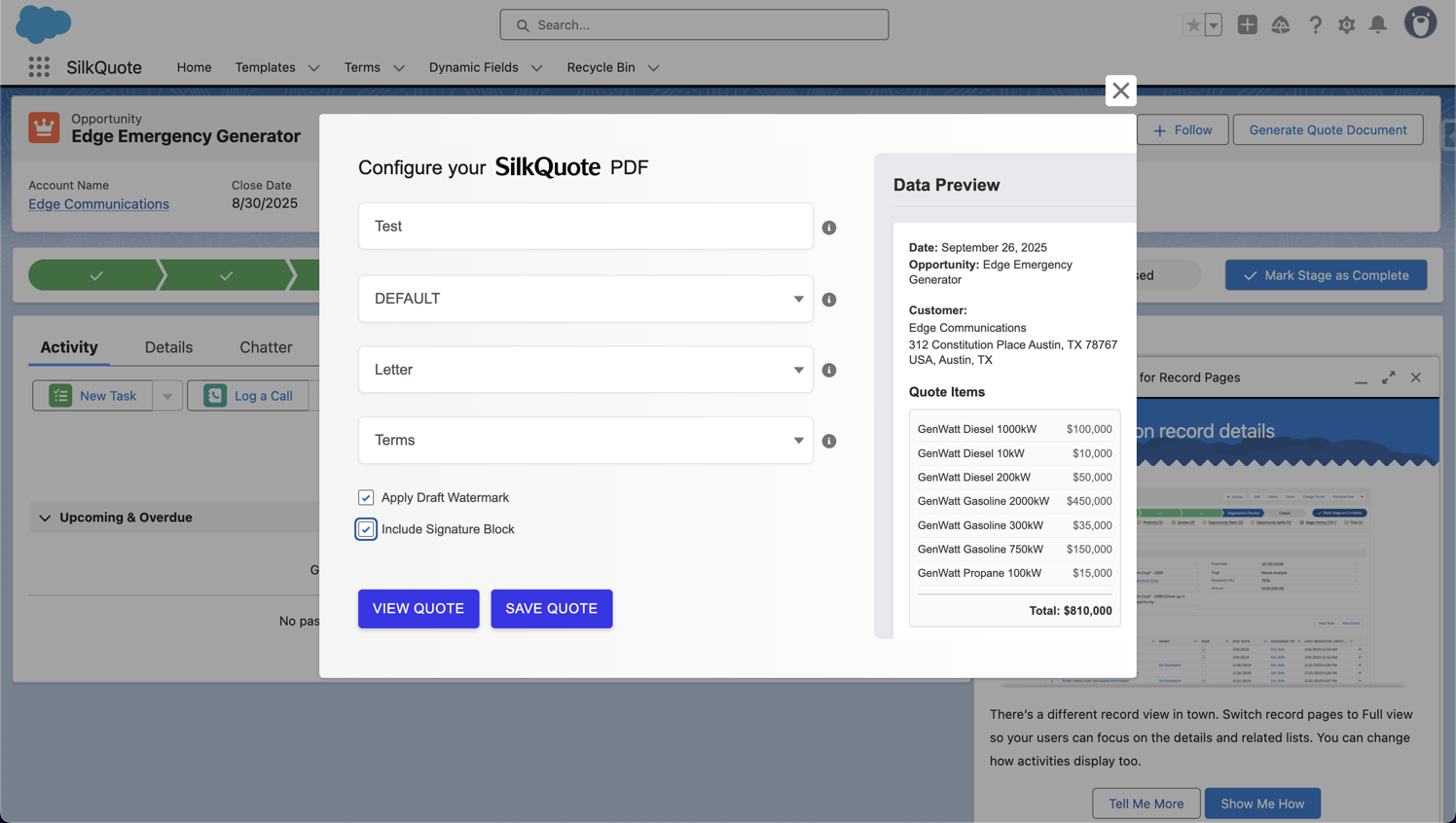
- Click the Generate Quote Document Quick Action button.
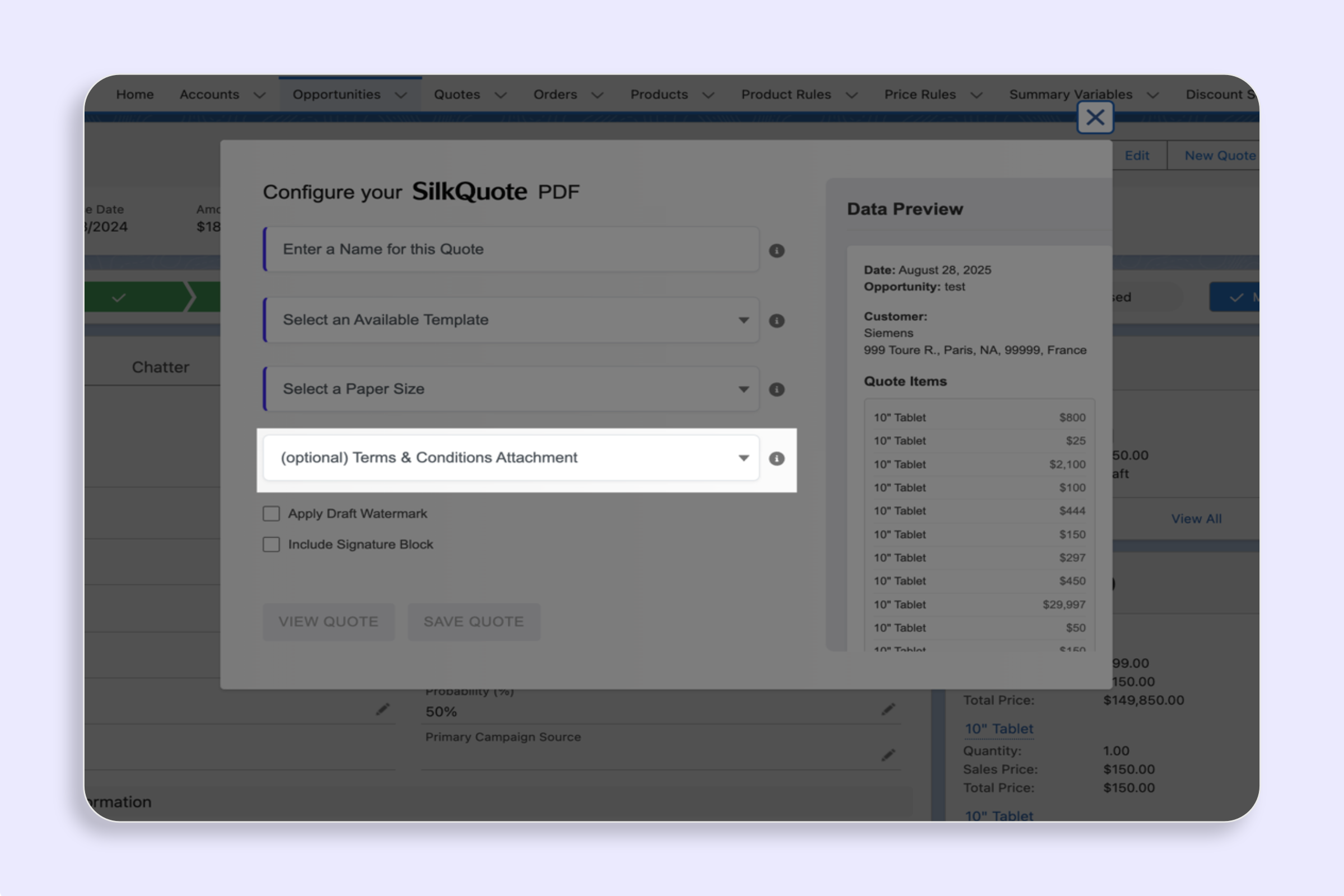
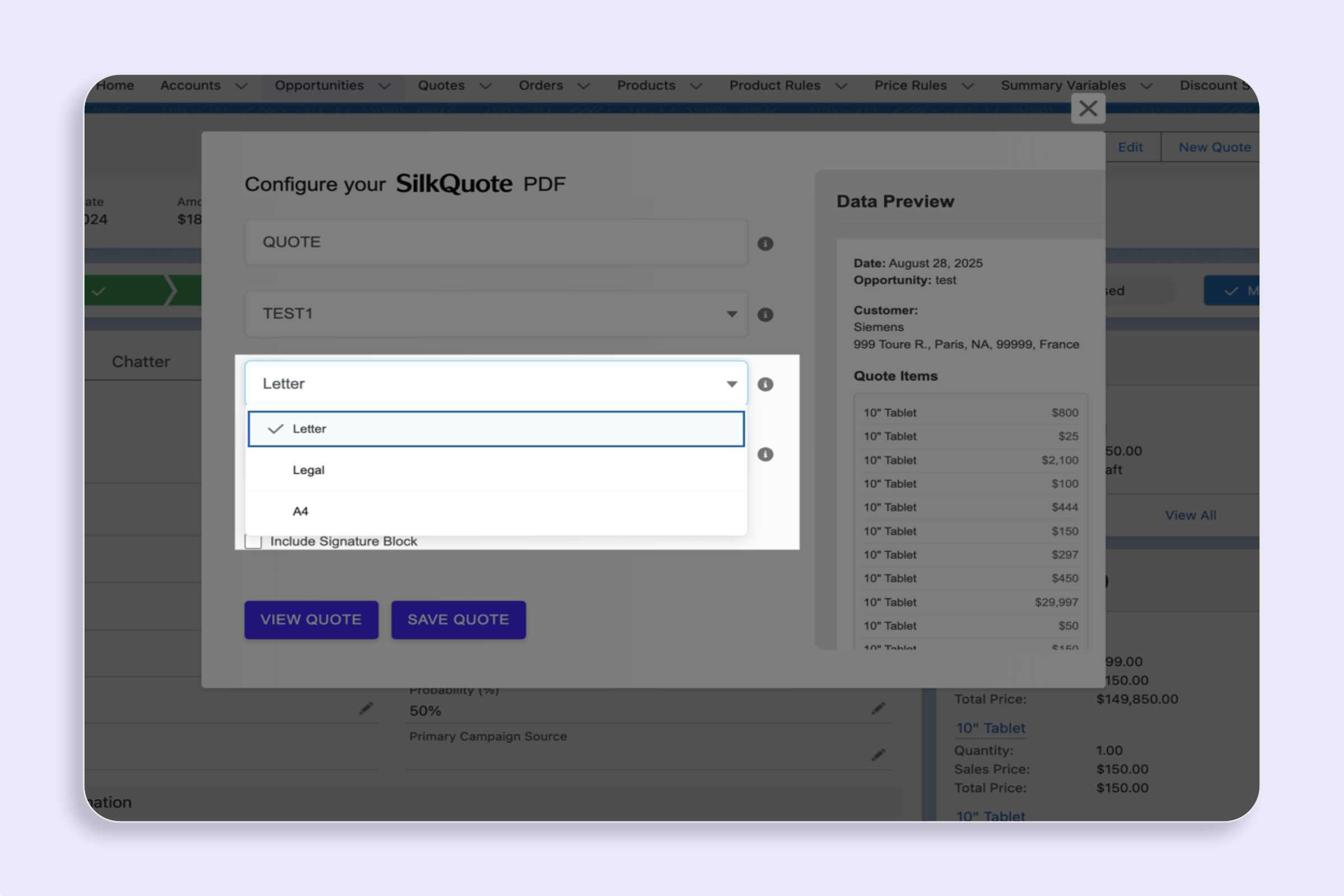
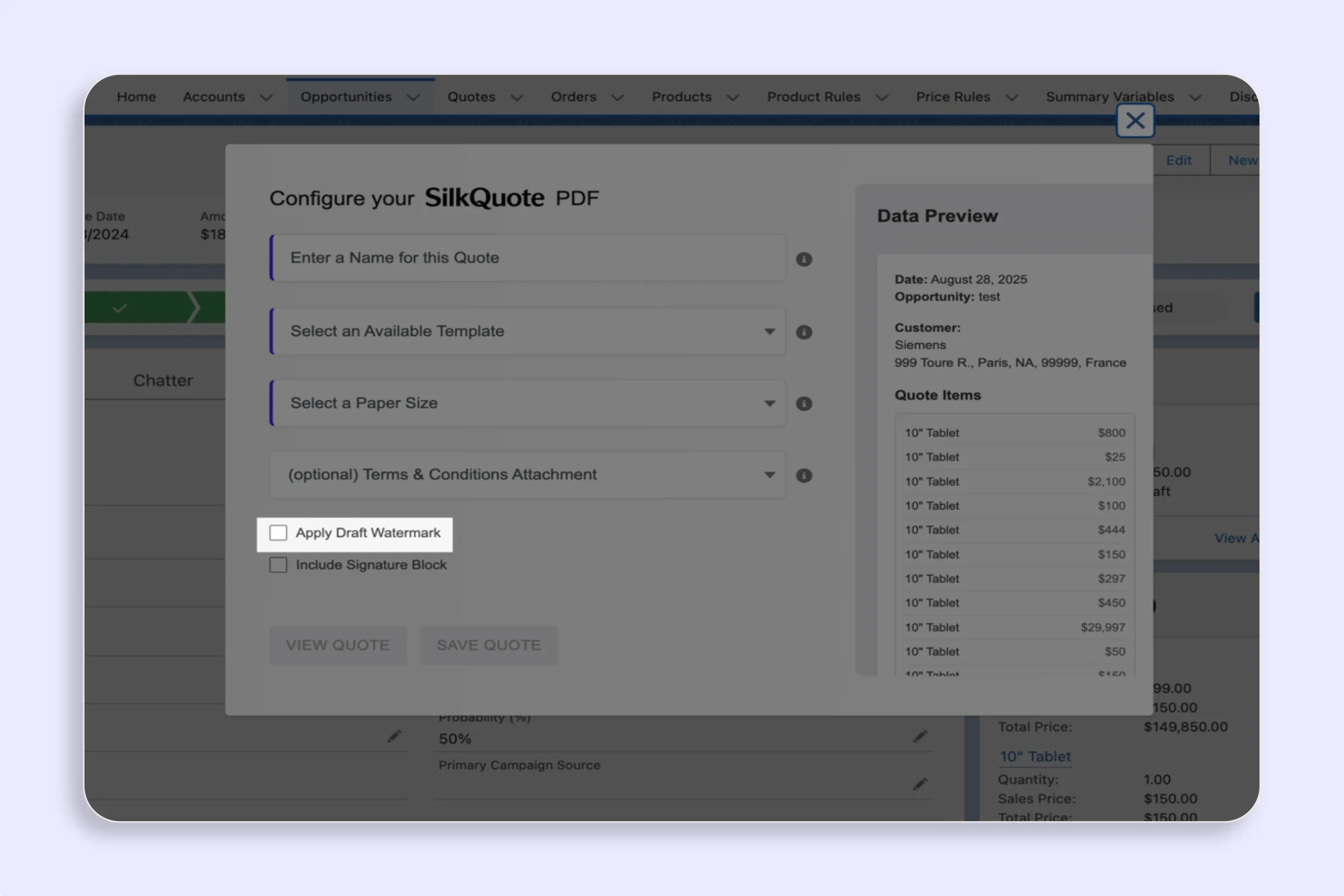
- Fill in the Quote Name and select a Template and Paper Size.
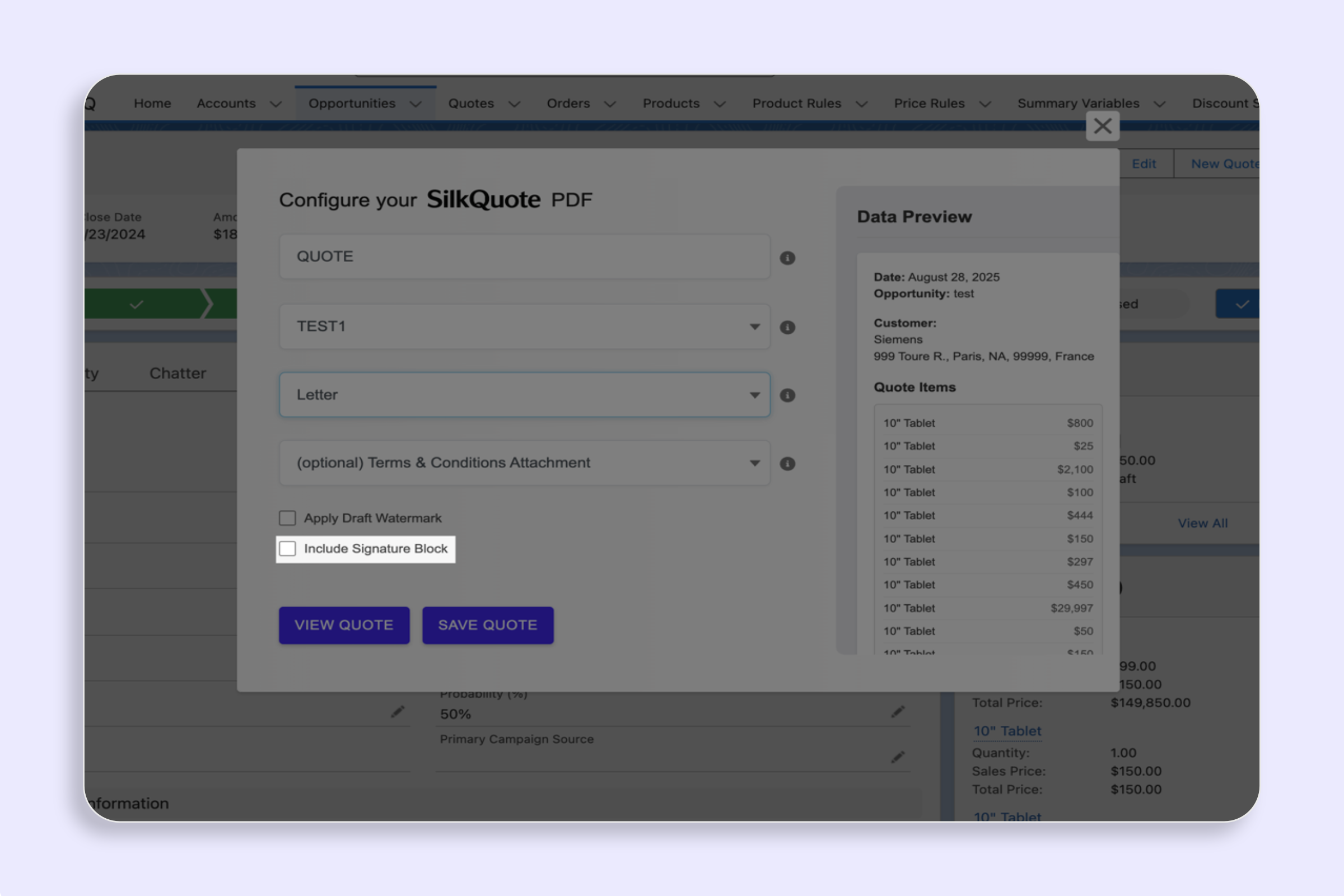
- Check the Apply Draft Watermark checkbox.
- Click Save PDF to attach the PDF to the Opportunity, or View Quote to preview only without saving.
The PDF will display a diagonal “DRAFT” watermark across every page. The watermark is baked into the rendered PDF and cannot be removed from the file after generation.
Generating the Final Version
When the quote is approved and ready to send to the prospect:
- Return to the Generate Quote Document Quick Action on the same Opportunity.
- Select the same template. You may reuse the quote name or add a version suffix.
- Leave Apply Draft Watermark unchecked.
- Click Save PDF.
The clean, watermark-free PDF attaches alongside any previously generated draft versions. All versions remain in the Opportunity Files section for audit and reference.
Tips
- Name drafts clearly: Include a “- DRAFT” suffix in the Quote Name field (e.g., “Acme Corp Q2 Proposal - DRAFT”) so versions are easy to identify in the Files list.
- Keep drafts on the record: Retain draft PDFs after generating the final version. They document what was reviewed internally.
- Share only final versions: If you use SilkQuote’s link-sharing feature, generate and share only the final non-draft version. Sending a watermarked quote link to a prospect creates a poor first impression.