
Overview
SilkQuote can append a Terms and Conditions page to any generated quote PDF. Terms are configured by an admin as named rules with optional conditions. The system can automatically include different terms based on the Opportunity data, or present the rep with a selection of applicable options at generation time.
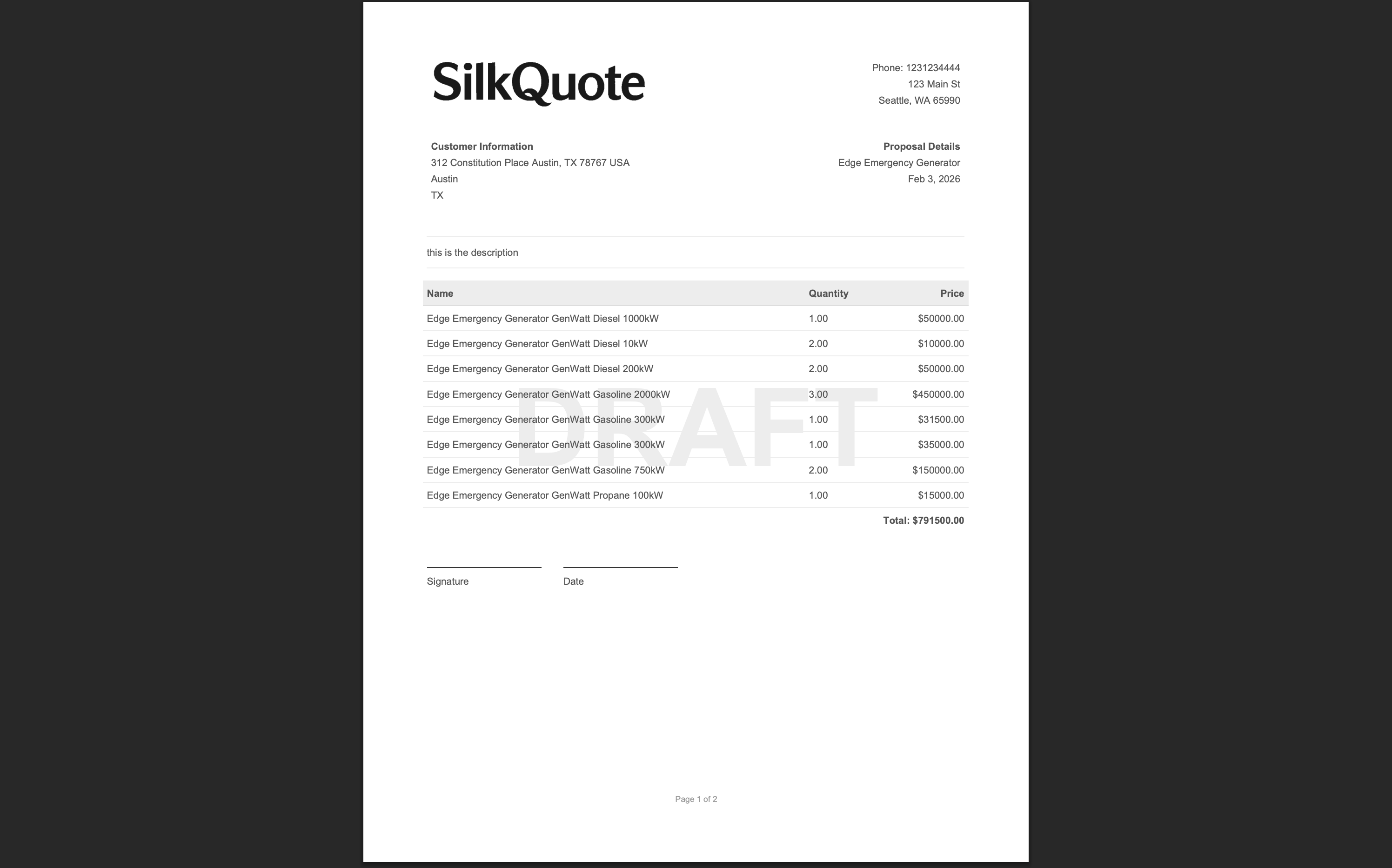
Terms appear as a separate page at the end of the quote PDF, after the line items and totals. This keeps the main quote clean and readable while ensuring the legal or contractual language is always included in the same document.
How Terms Work
An admin creates Terms rules in the SilkQuote Configuration Manager. Each rule has:
- Name: Identifies the terms option in the generation dialog.
- Terms Text Body: The actual terms content (supports rich text).
- Condition: An optional Opportunity field condition that controls when this rule applies (e.g., only show “Enterprise Terms” when
Opportunity.Type = Enterprise). - Required: If checked, the rule is automatically included and cannot be deselected by the rep.
- Precedence: Controls the display order when multiple terms options are available.
When a rep generates a quote, any Required terms are automatically included. Optional terms that match the Opportunity conditions appear as checkboxes the rep can select.
To set up Terms rules, see Create Terms Rules.
Steps
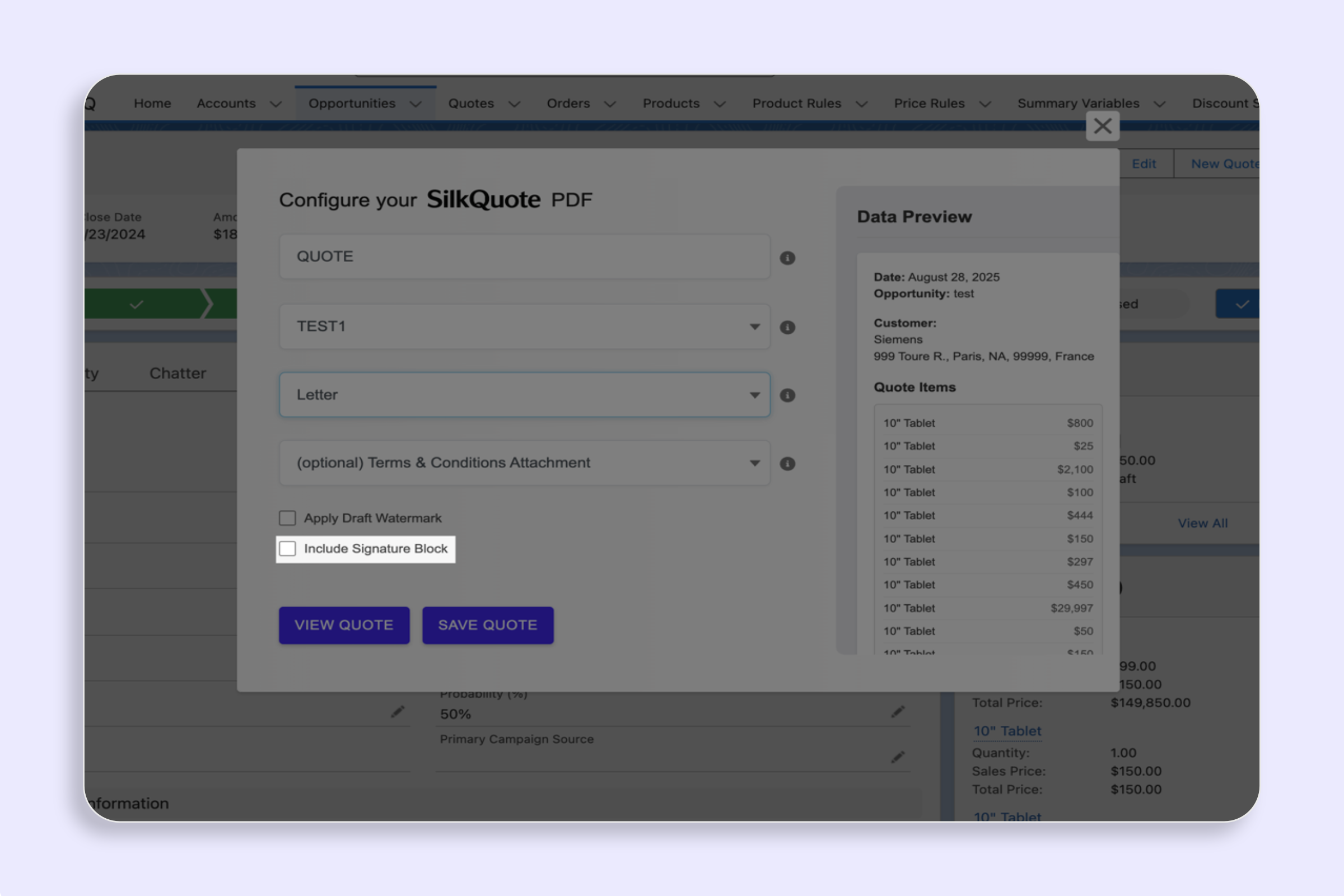
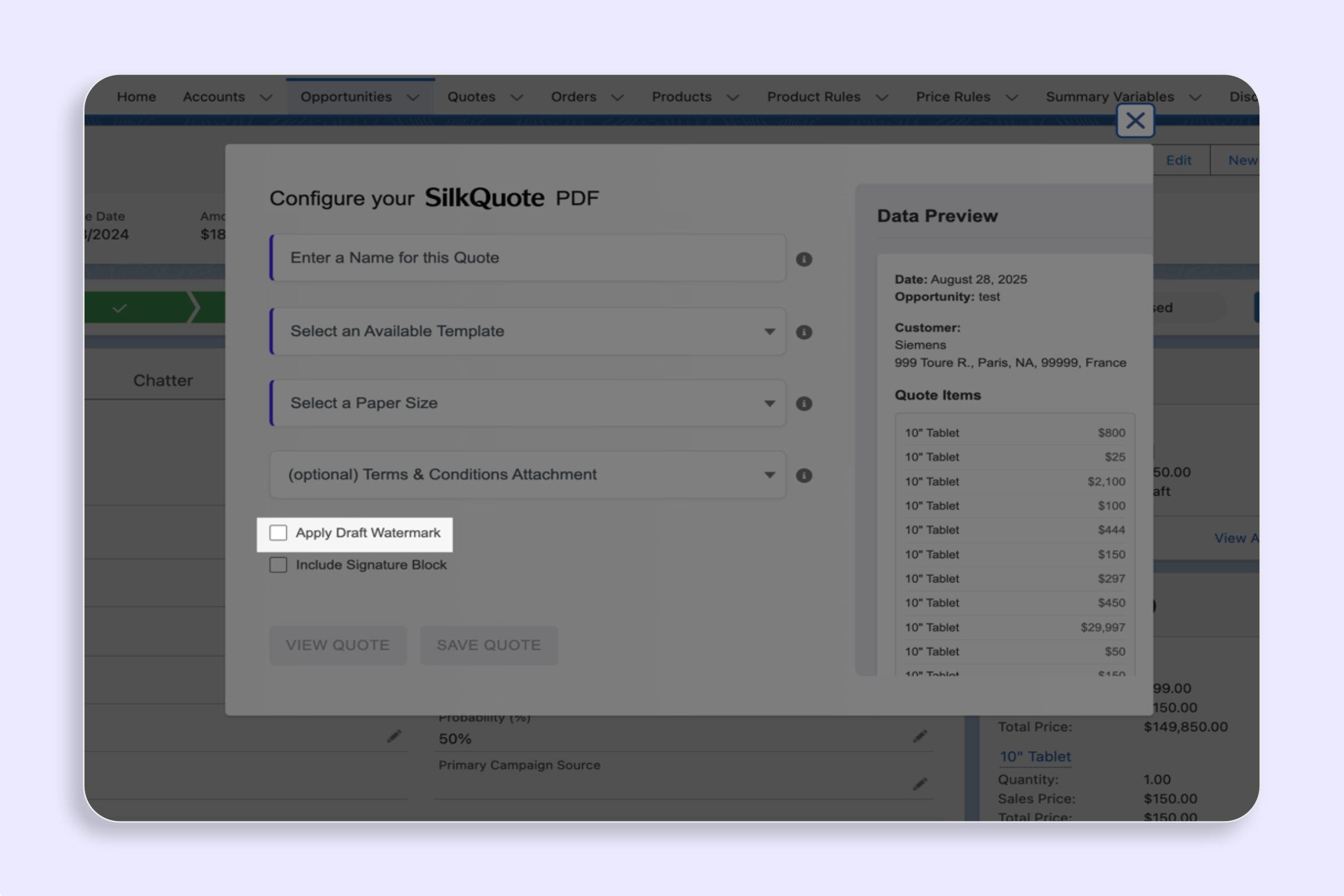
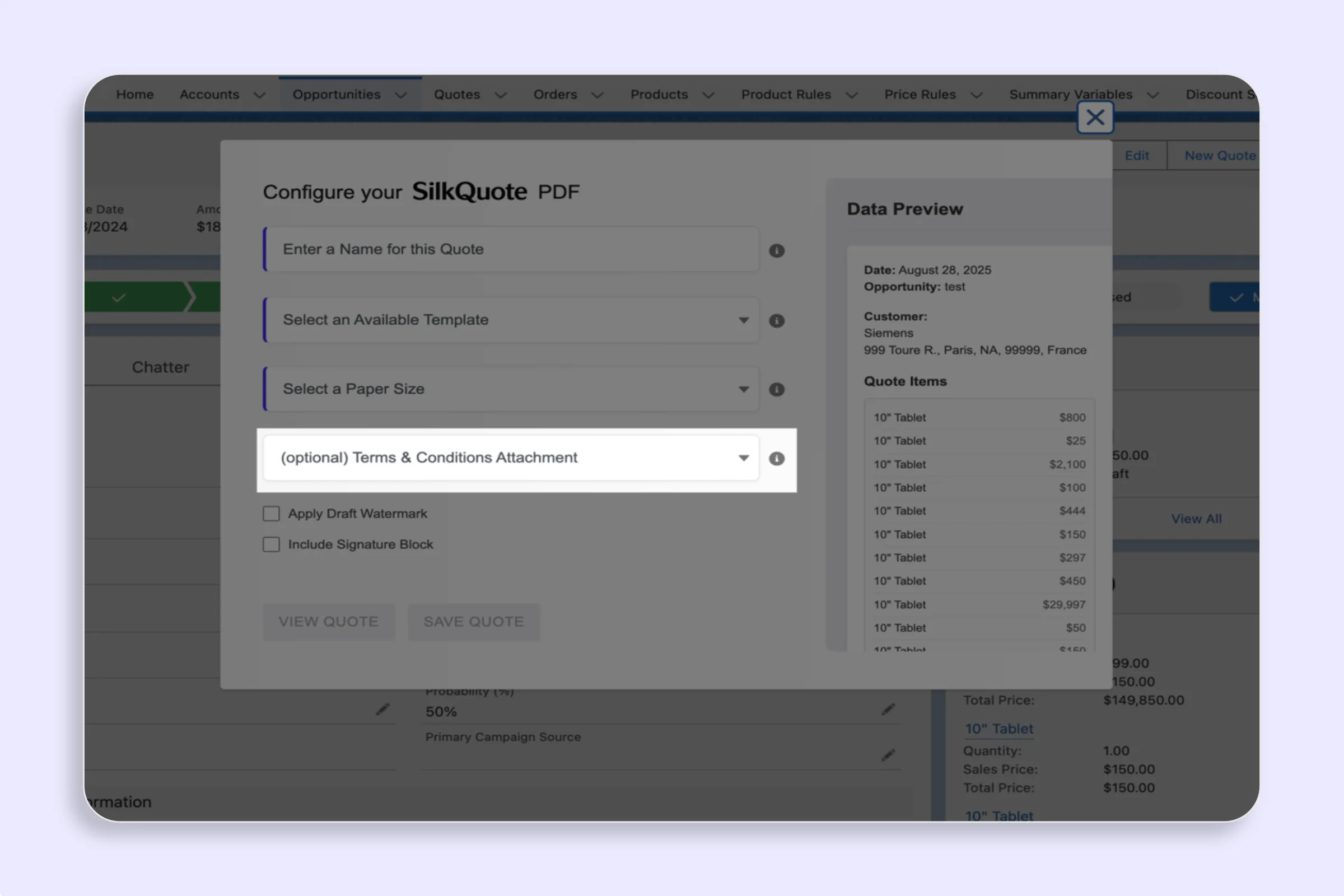
- Open the Opportunity record and click the Generate Quote Document Quick Action.
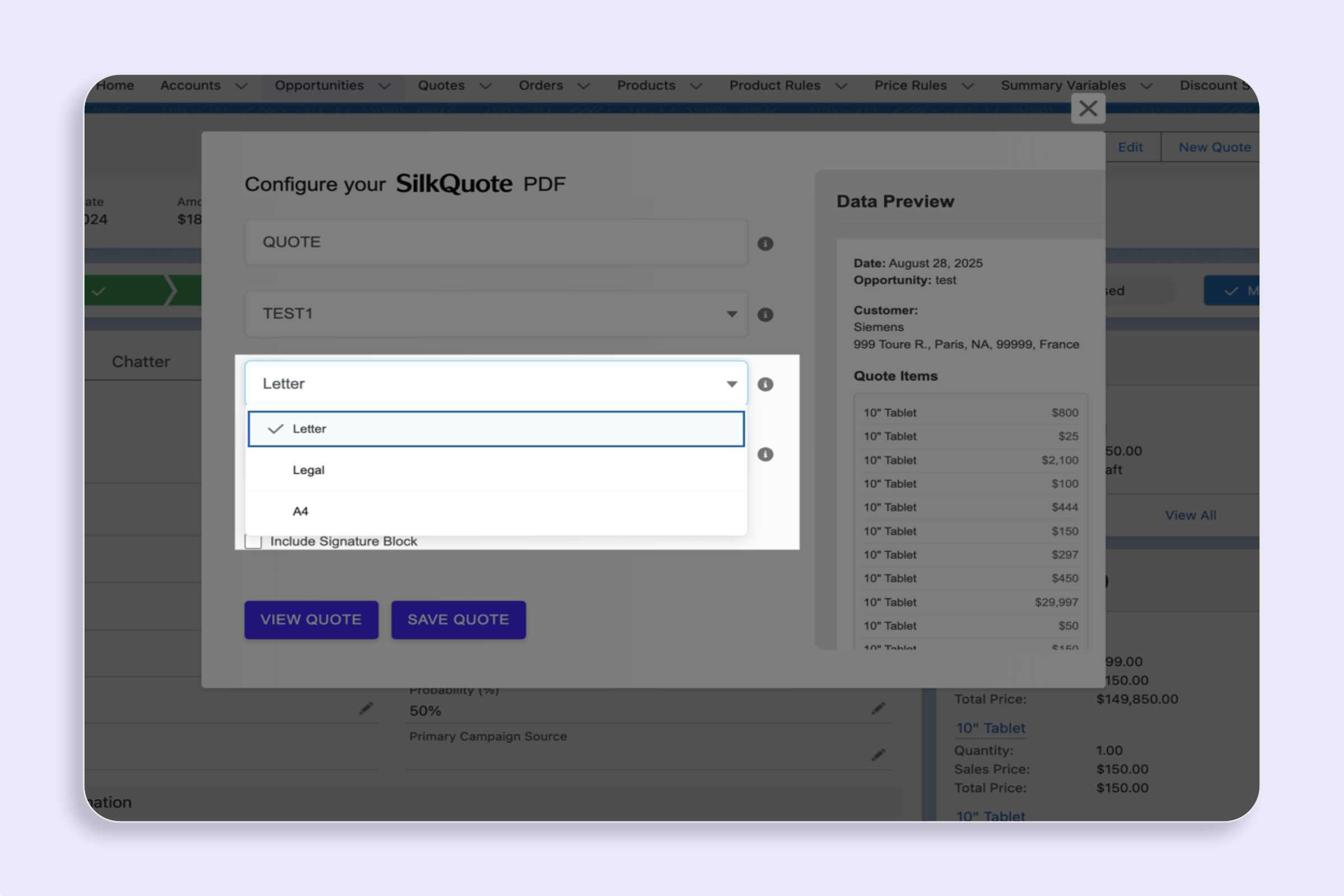
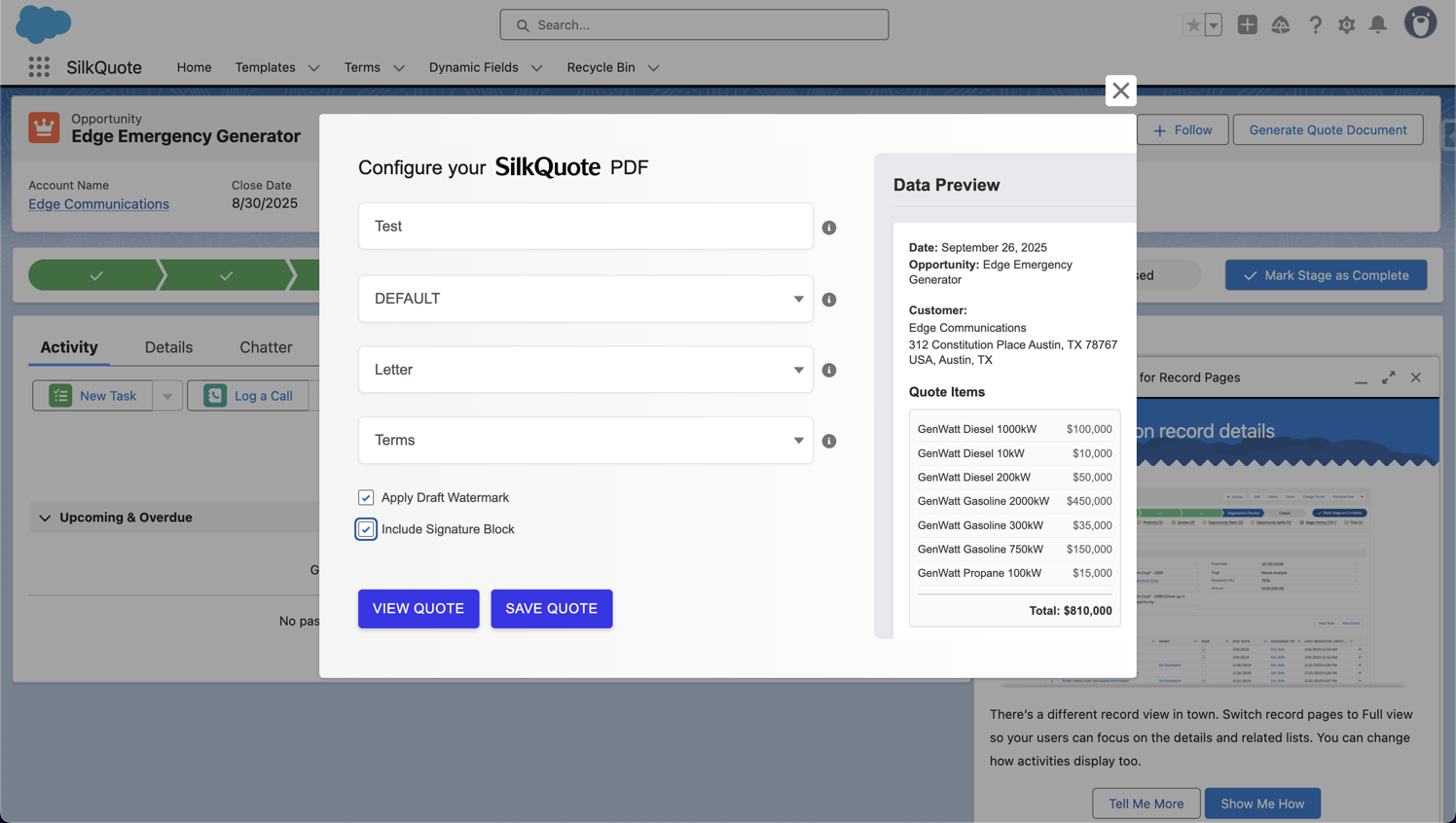
- Fill in the Quote Name, Template, and Paper Size.
- In the Terms and Conditions section of the dialog:
- Required terms are shown pre-selected and cannot be removed.
- Optional applicable terms appear as selectable checkboxes. Check any you want to include.
- Click Save PDF or View Quote.
The selected terms appear as a dedicated page at the end of the PDF.
What Reps Can and Cannot Do
Reps can select or deselect optional terms at generation time. They cannot edit the terms content; that is managed by the admin. Required terms are always included; reps cannot remove them.
This design ensures legal and compliance teams can enforce the terms that must always appear on certain quote types while giving reps flexibility to include optional addenda when relevant.
Tips
- Use conditions to auto-filter terms: If you have region-specific or deal-type-specific terms, use Opportunity field conditions so reps only see terms relevant to each deal. This prevents the wrong terms from being accidentally selected.
- Required terms for standard deals: Mark your standard terms as Required so they are always included without rep action.
- Preview before sending: Use the View Quote preview to verify the correct terms are appended before saving the final PDF.