
Overview
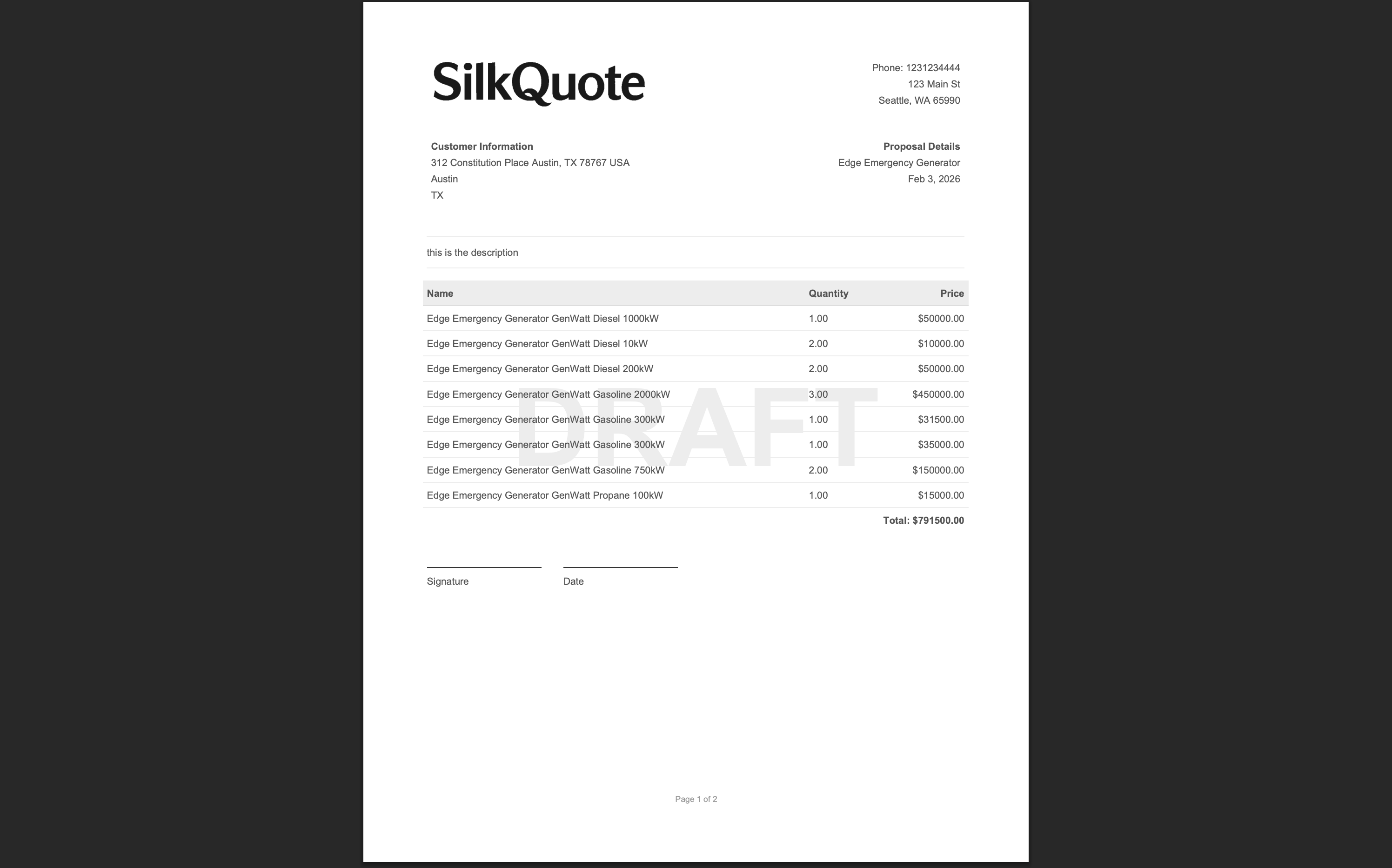
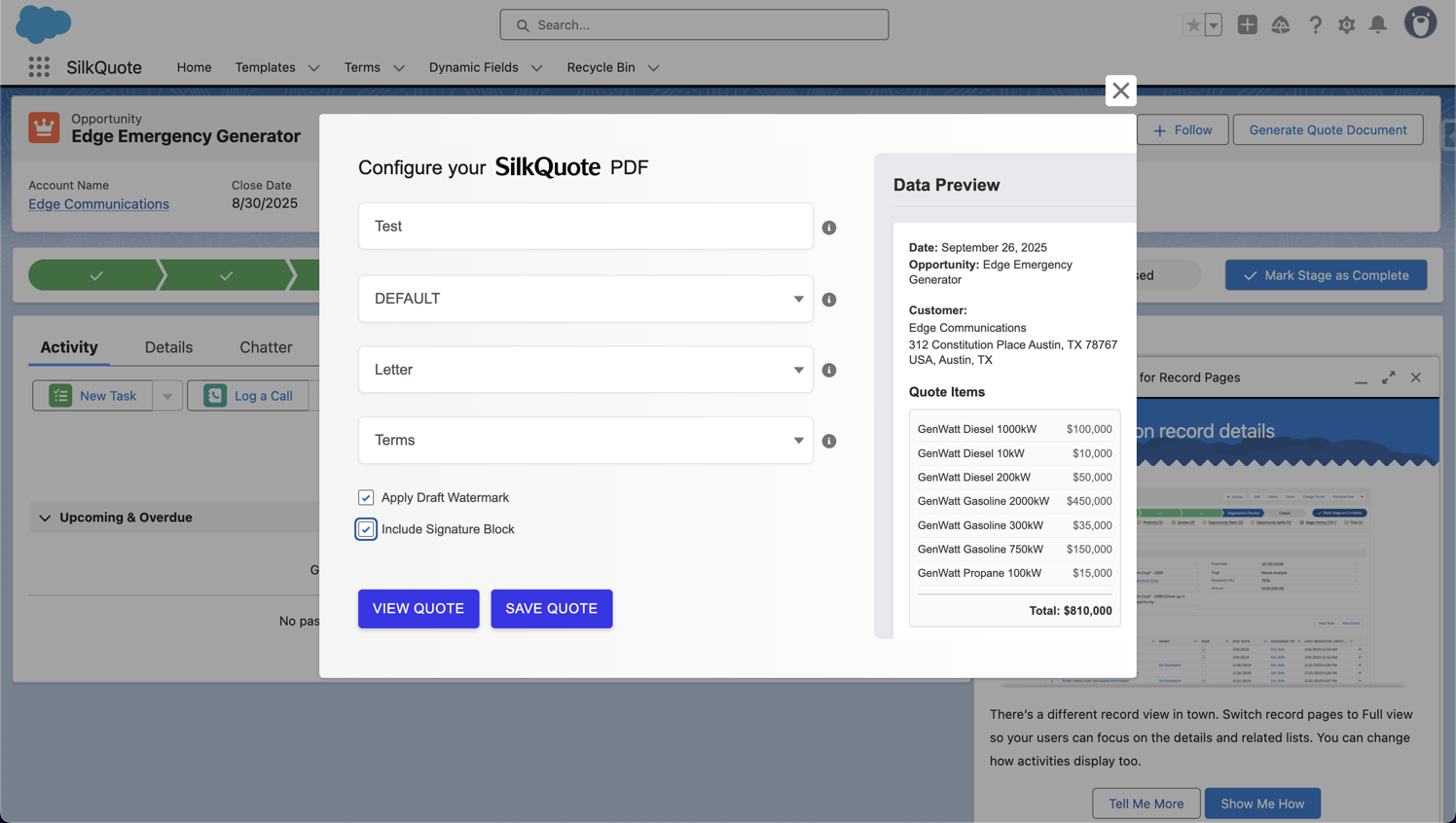
The Template Preview in the Configuration Manager lets admins render a full PDF from any Opportunity record without leaving the template editor. Unlike the rep-facing quote preview (which is triggered from the Opportunity), this preview is designed for template validation during the design and configuration phase.
Previewing with real data is the most reliable way to confirm that a template is ready for production use. It surfaces field mapping errors, logo display issues, line item grouping problems, and formatting inconsistencies that are impossible to detect from the configuration interface alone.
When to Use Template Preview
Use this preview:
- After creating a new template: Before releasing a template to reps, verify it produces the expected output with real Opportunity data.
- After editing a template: Any time you modify field mappings, adjust section order, change the accent color, or update grouping settings, preview the result before reps use it.
- When troubleshooting: If a rep reports that a quote looks wrong, use Template Preview to reproduce the issue in the admin interface without generating and saving a file to the Opportunity.
- When testing edge cases: Preview with an Opportunity that has many products, missing fields, or unusual data to verify the template handles those conditions gracefully.
Steps
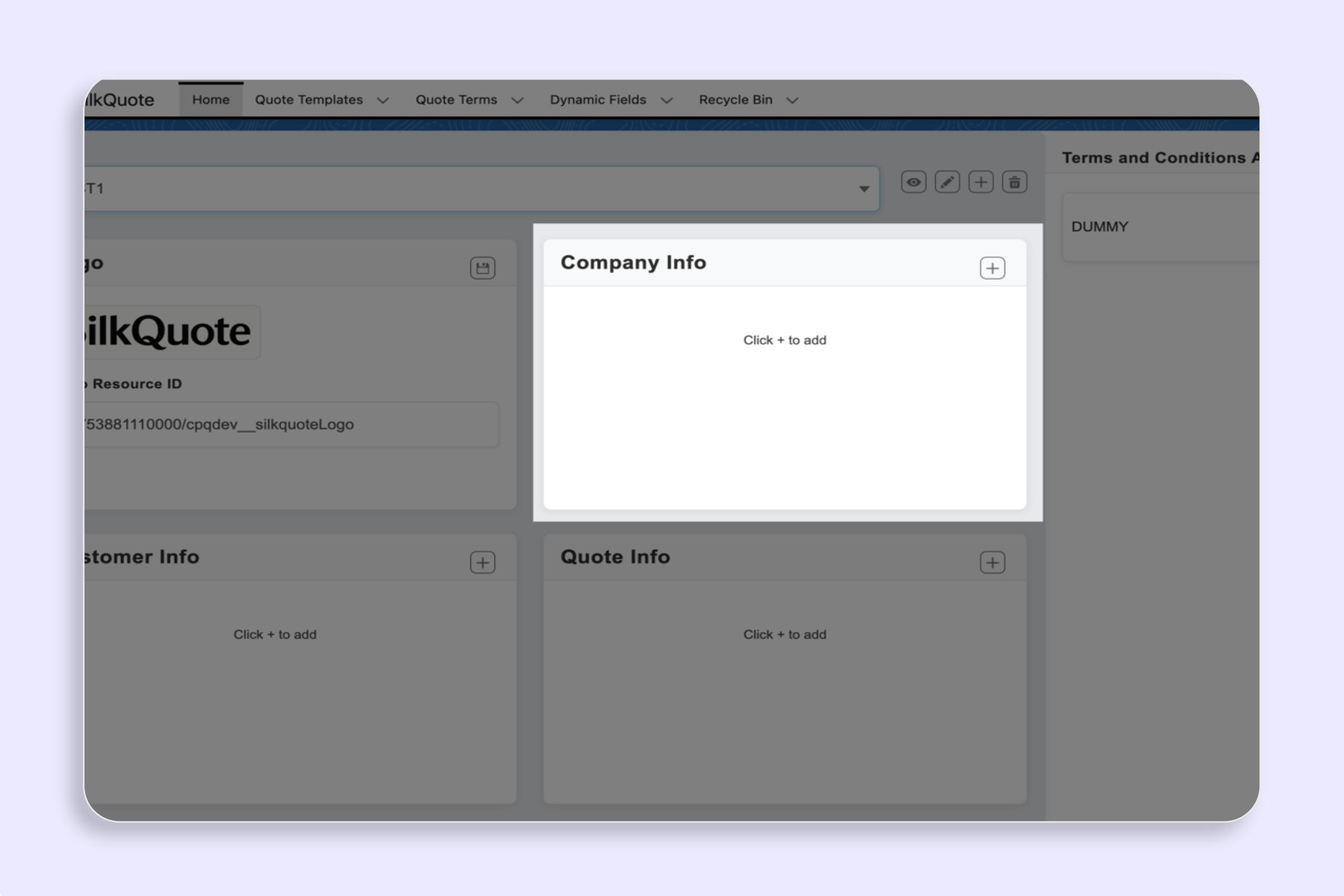
- Open the SilkQuote Configuration Manager from the App Launcher.
- Select the template you want to preview from the template dropdown.
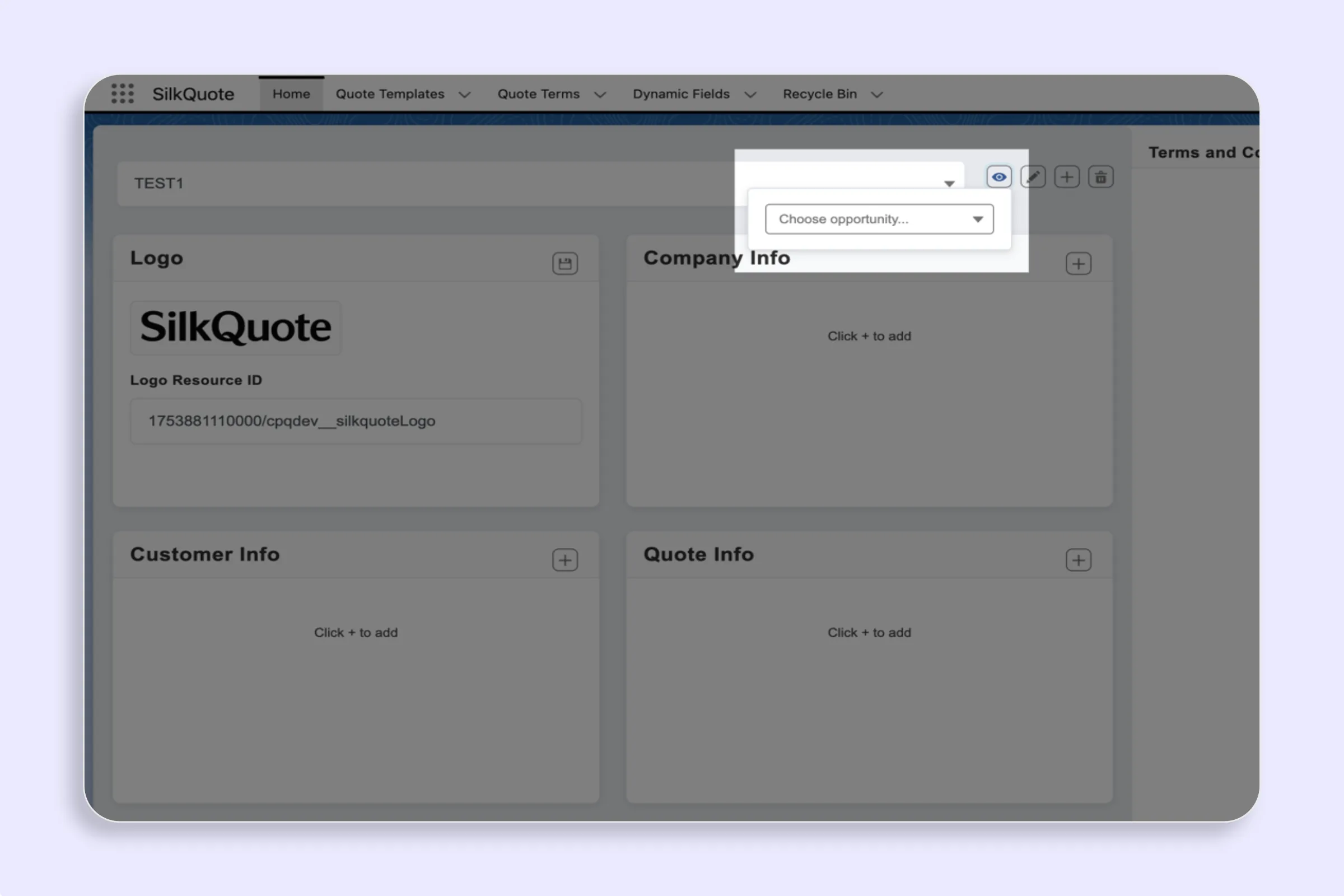
- Click the Preview icon (eye icon) in the template toolbar.
- In the preview dialog, select an Opportunity from the dropdown. The list shows available Opportunities in your org.
- The template renders as a PDF in a preview panel or new tab.
- Review the output for layout, field values, logo display, line item grouping, and section organization.
What to Check in the Preview
Use a systematic checklist when reviewing:
- Company and customer fields: Are the account name, contact, address, and rep information displaying correctly?
- Line items: Are all Opportunity Products shown? Are quantities, prices, and totals accurate?
- Line item grouping: If Group By is configured, are products organized into the correct labeled groups with accurate subtotals?
- Logo: Does the logo appear at the correct size and position? If no logo appears, verify the Logo Resource ID in the template settings.
- Accent color: Are the header bands and highlights showing the correct brand color?
- Conditional fields: If any fields have conditional display rules, use an Opportunity that meets those conditions to verify they show correctly, and one that does not, to verify they hide correctly.
- Section order: Are sections in the expected order (company header, products, totals, terms)?
Tips
- Use a representative test Opportunity: Choose an Opportunity with a full product list, complete account data, and custom field values populated. Sparse data produces a preview that does not reflect real-world output.
- Test multiple templates with the same Opportunity: If you have multiple templates for different deal types, previewing them with the same Opportunity makes it easy to compare layout differences.
- Preview is not saved: Like the rep-facing preview, the admin template preview does not create a file or affect any record in Salesforce.