
Overview
Terms Rules define the Terms and Conditions content that can be appended to generated quote PDFs. As an admin, you create one rule per terms variant: standard terms, enterprise terms, region-specific addenda, or product-specific conditions. At quote generation time, reps select from the applicable rules, and required rules are included automatically.
Terms rules give legal and compliance teams control over what language appears on quotes without requiring rep judgment about which terms to include.
Fields in a Terms Rule
Each Terms Rule has the following fields:
- Name: The label displayed to reps in the generation dialog (e.g., “Standard Terms”, “Enterprise SLA”, “EU Data Terms”).
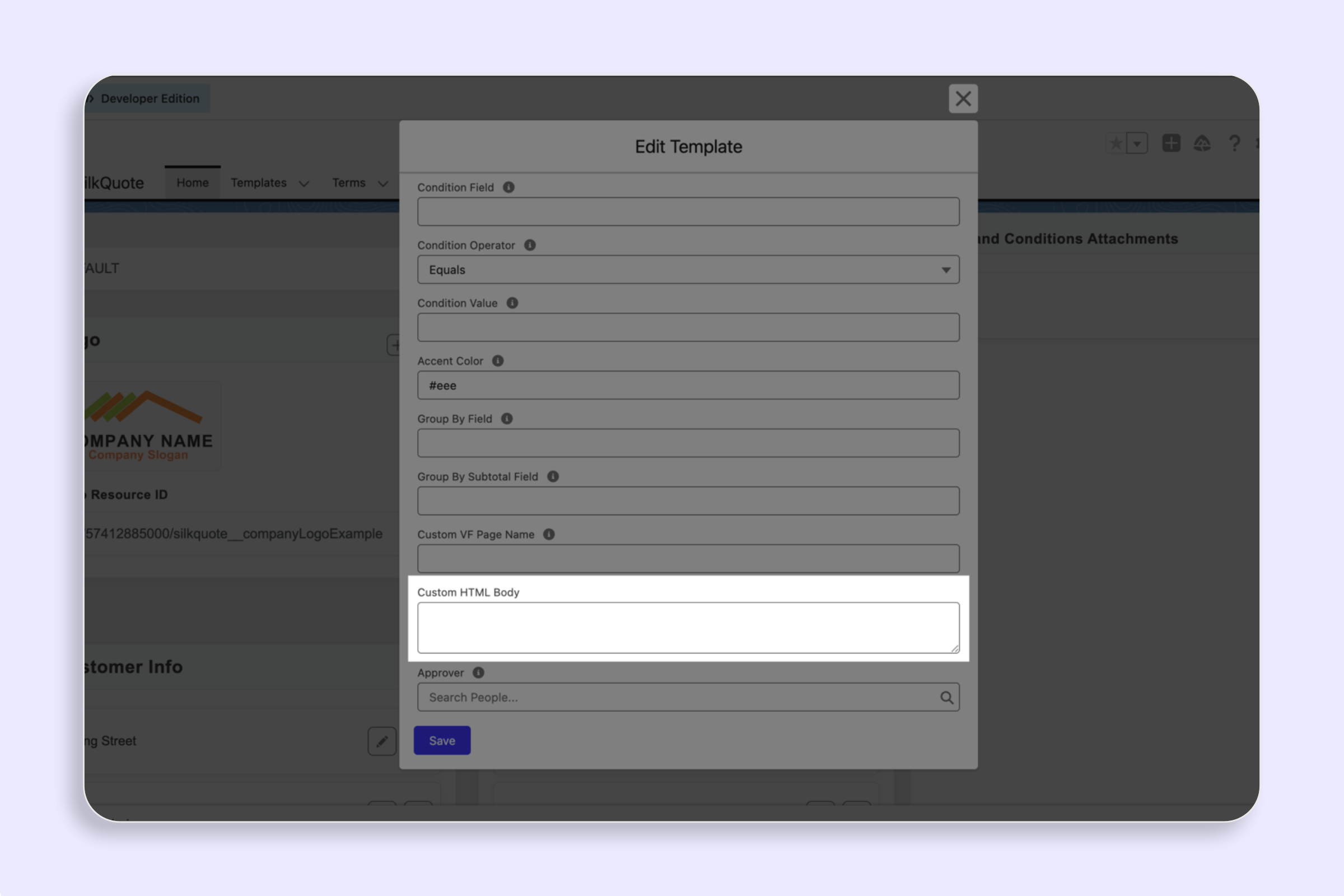
- Terms Text Body: The full terms content. Supports rich text including formatting, numbered lists, and paragraph structure.
- Condition Field / Operator / Value: An optional Opportunity field filter. When set, this rule only appears in the generation dialog when the Opportunity matches the condition (e.g.,
Region__c = Europe). Leave blank to show the rule for all Opportunities. - Required: When checked, this rule is automatically included and marked “(Required)”; reps cannot deselect it.
- Precedence: Controls display order when multiple rules appear. Lower numbers appear first.
Steps
- Open the SilkQuote Configuration Manager from the App Launcher.
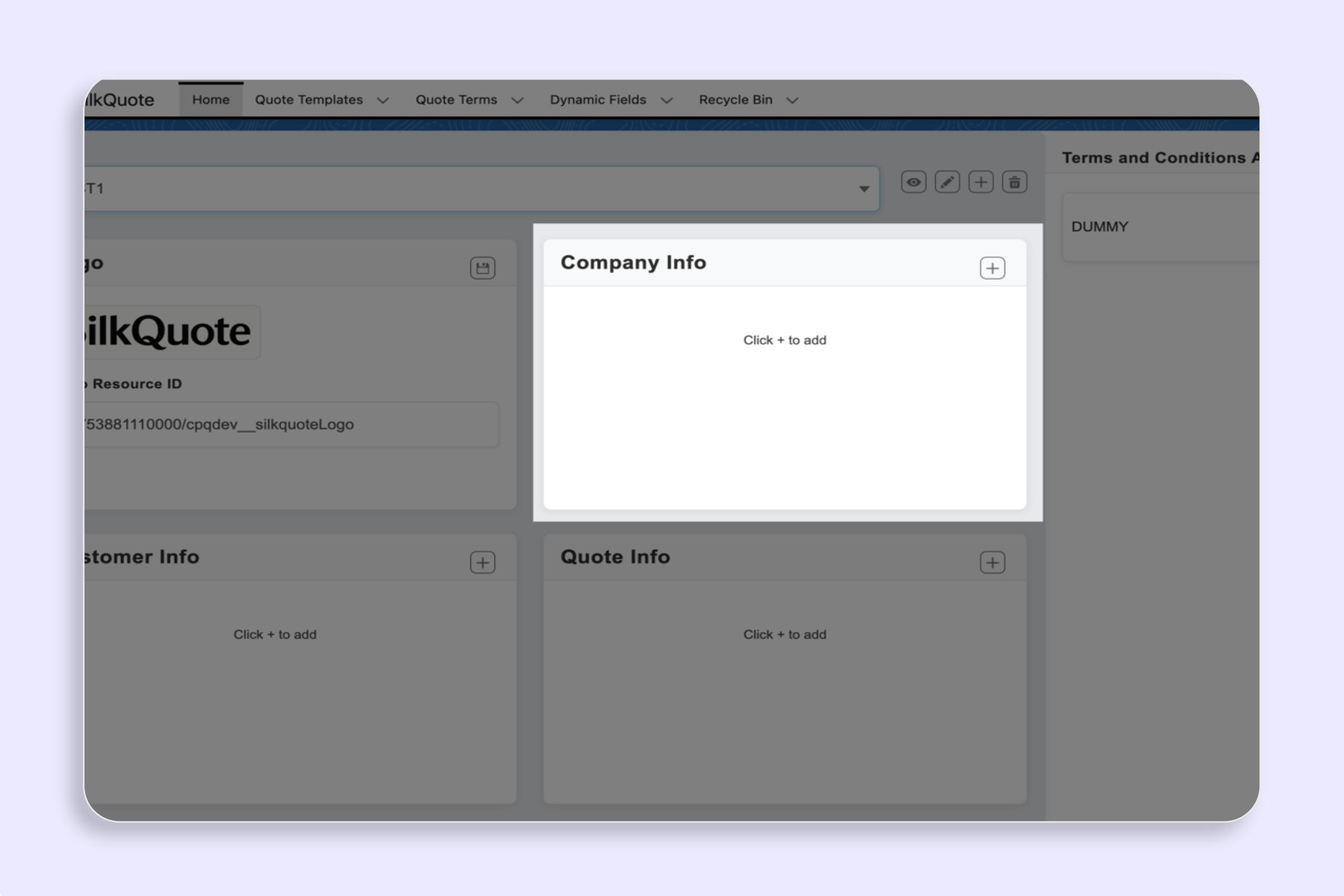
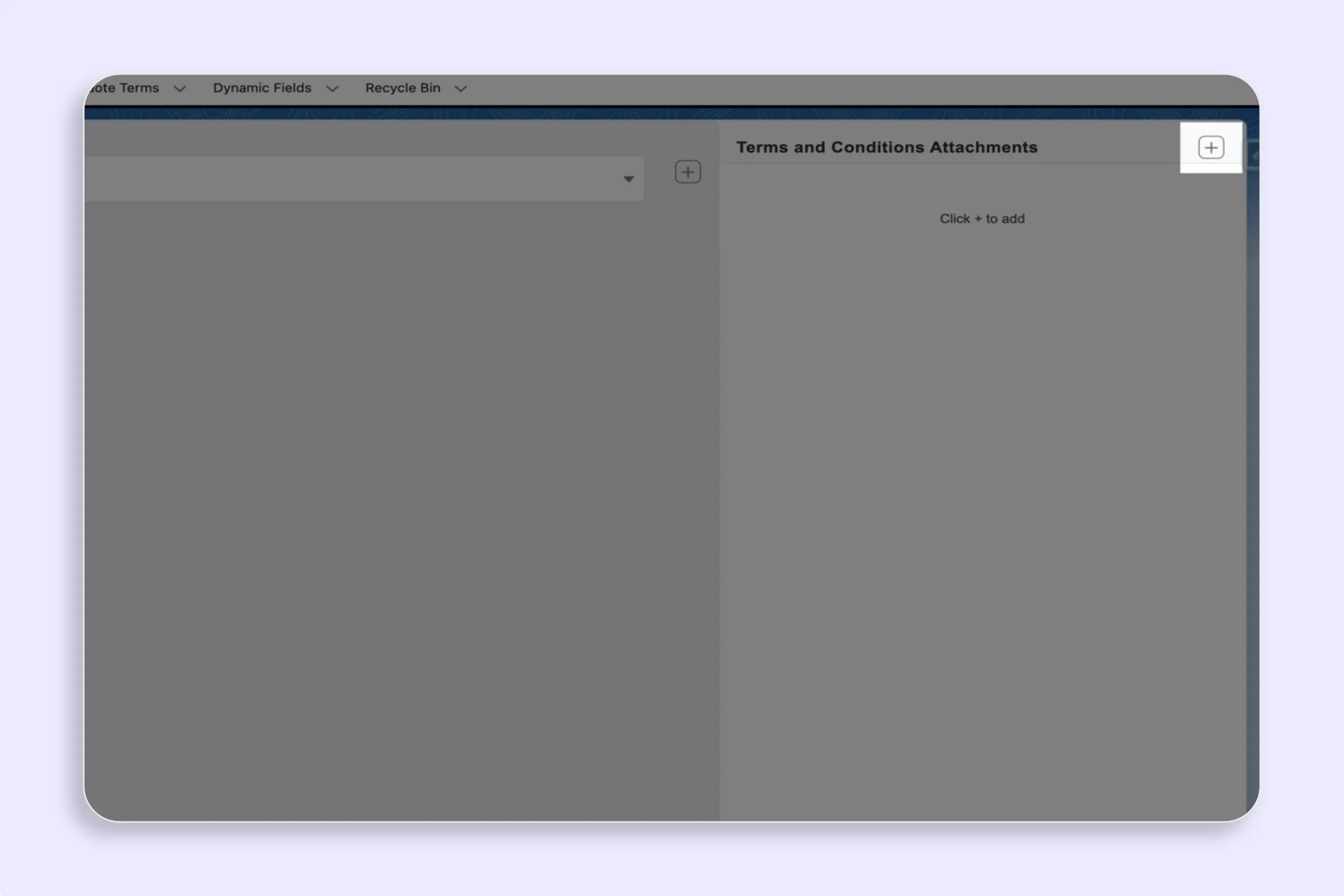
- Navigate to the Terms and Conditions Attachments section.
- Click New Terms Rule.
- Enter a descriptive Name for the terms.
- Paste or type the full terms content into the Terms Text Body field.
- Optionally set a Condition Field, Operator, and Value to filter when this rule appears.
- Check Required if these terms must always be included when the condition is met.
- Set a Precedence value to control display order (lower = shown first).
- Click Save.
How Terms Appear to Reps
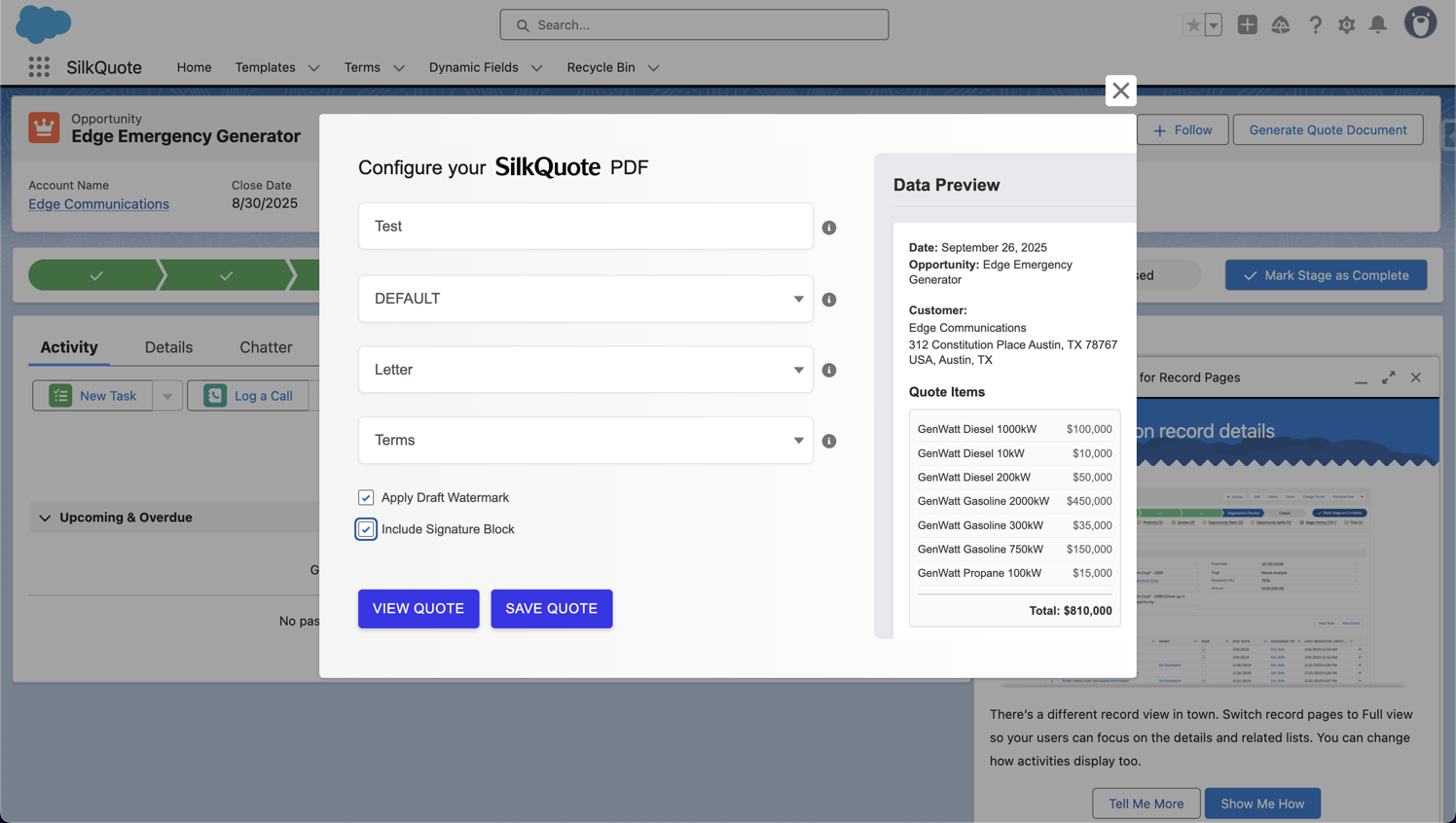
When a rep opens the Generate Quote Document dialog:
- Required rules that match the Opportunity conditions are shown pre-checked and labeled “(Required)”. The rep cannot remove them.
- Optional rules that match the conditions appear as unchecked boxes. The rep can select whichever are relevant.
- Rules whose conditions do not match the Opportunity are not shown at all.
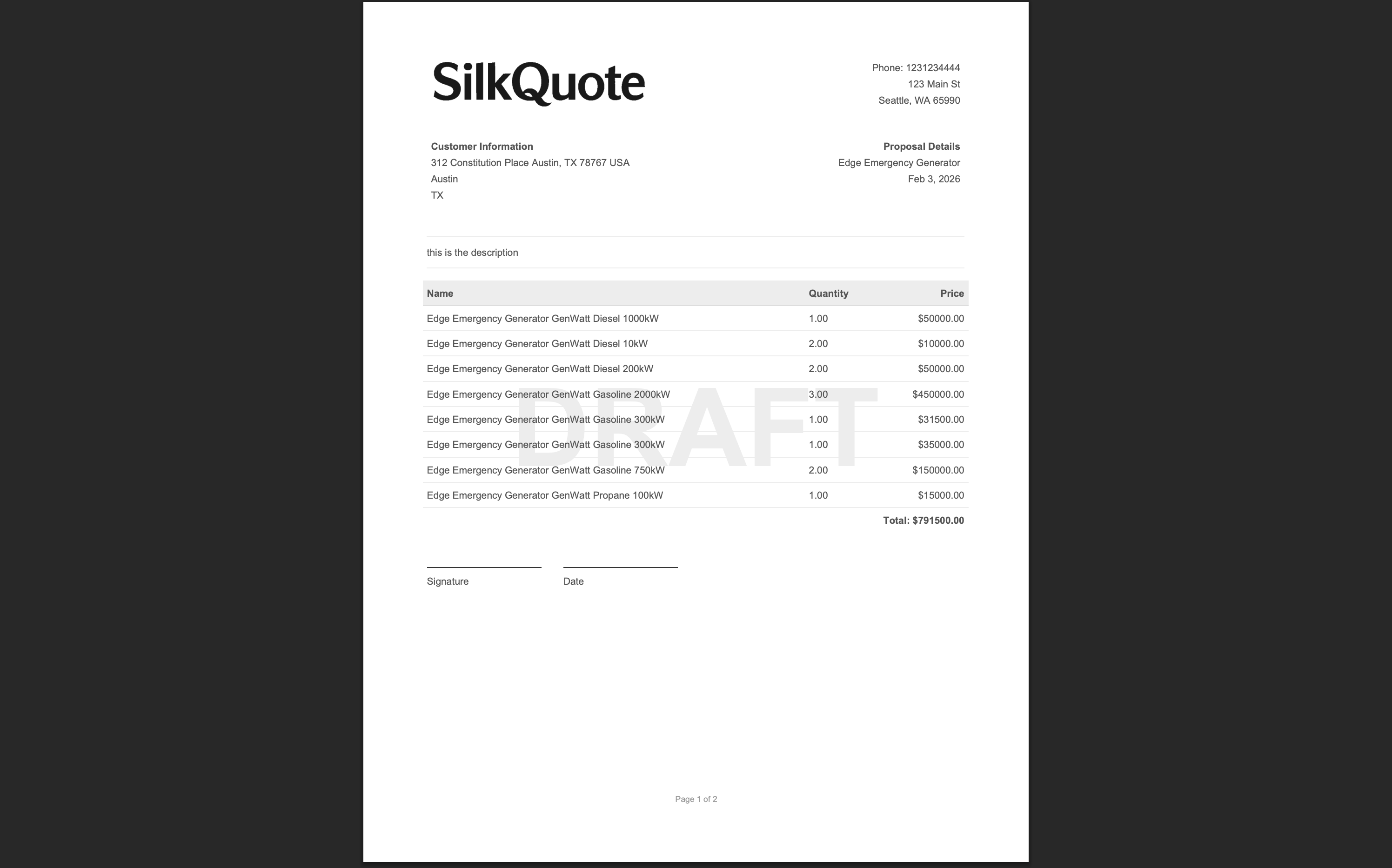
The selected terms render as a full page at the end of the PDF, after the line items and totals.
Common Use Cases
- Standard terms for all deals: Create one Required rule with no condition. These terms always appear on every quote.
- Enterprise-specific SLA: Create a rule with condition
Type = CustomerandAnnual_Revenue__c > 500000. Only appears on large customer deals. - Jurisdiction-specific terms: Create rules conditioned on a Region or Country field. EU deals get EU data terms, US deals get US terms.
- Product addenda: Create rules conditioned on the presence of a specific product family, surfaced through a custom Opportunity field.
Tips
- Keep rule names short and clear: Reps see the rule name in a dropdown. “EU Data Processing Addendum” is better than “EU-DPA-Rev3-2025”.
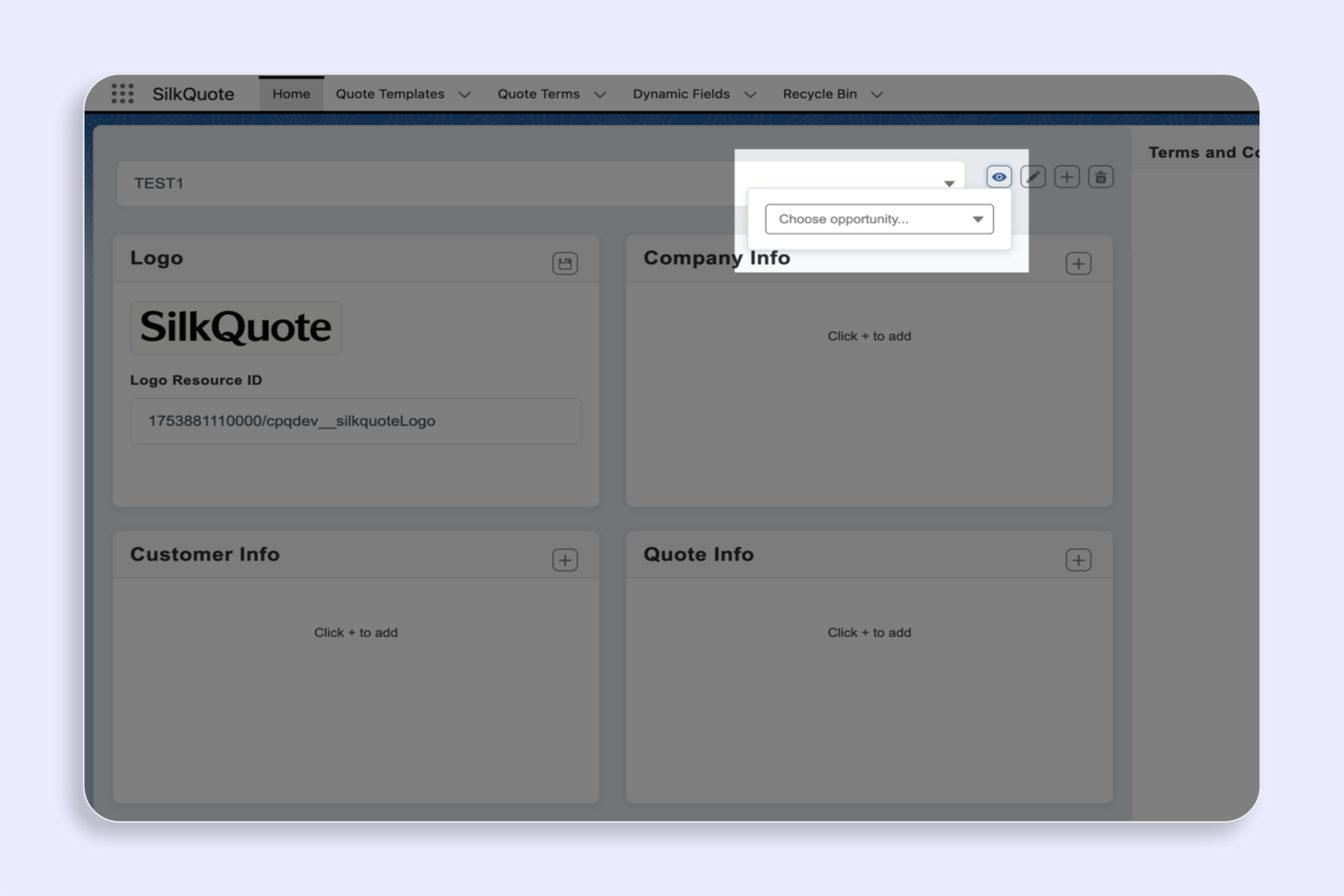
- Test with preview: After creating rules, generate a test quote using the View Quote preview to verify the terms appear as expected.
- Review terms content periodically: Terms language can become outdated. Set a reminder to review rules annually or when legal guidance changes.