
Overview
The SilkQuote Configuration Manager is the central admin interface for all quote template management. From the Configuration Manager, admins create and edit templates, configure section field mappings, set logos, manage Terms rules, and preview the PDF output with real Salesforce data.
The Configuration Manager is a Lightning Web Component (LWC) that can be added to any Lightning App as a Tab or App Page. It needs to be set up once after SilkQuote is installed.
Access Methods
The Configuration Manager can be surfaced in two ways depending on your org setup:
Option A: As a Lightning Tab
A Lightning Tab is the most common setup. It adds the Configuration Manager as a permanent navigation tab in a Salesforce app.
- Go to Setup → Tabs.
- In the Lightning Component Tabs section, click New.
- In the Lightning Component dropdown, select
c:silkquoteConfigurationManager(or search for “SilkQuote Configuration Manager”). - Enter a Tab Label (e.g., “SilkQuote Configuration”) and select an appropriate Tab Style.
- Click Next, then set visibility for the relevant profiles.
- Click Save.
- Go to Setup → Apps → App Manager, find your Salesforce App, and click Edit.
- Under Navigation Items, add the new tab to the selected items.
- Click Save.
The Configuration Manager tab now appears in the app navigation for users with admin permissions.
Option B: As a Lightning App Page
If you prefer a dedicated page rather than a tab:
- Go to Setup → Lightning App Builder.
- Click New.
- Select App Page.
- Enter a page name (e.g., “SilkQuote Configuration”) and choose a single-region layout.
- In the component palette, search for “SilkQuote Configuration Manager” and drag it onto the page.
- Click Save, then Activate.
- In the activation dialog, add the page to a Lightning app.
Accessing the Configuration Manager
Once set up, open the Configuration Manager by:
- Clicking the SilkQuote Configuration tab in your app navigation (if set up as a tab), or
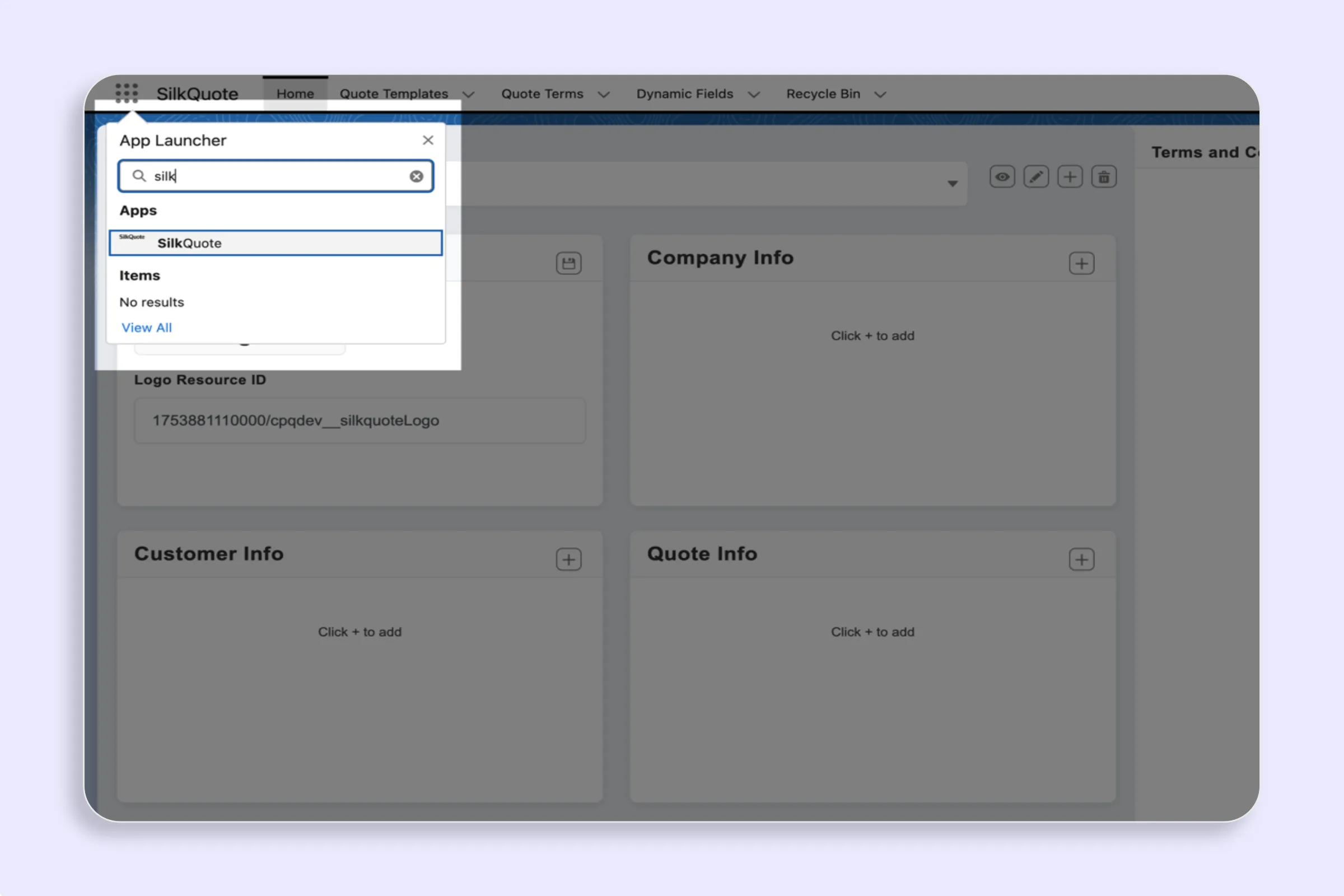
- Searching “SilkQuote Configuration” in the App Launcher (nine-dot grid).
What You Can Do in the Configuration Manager
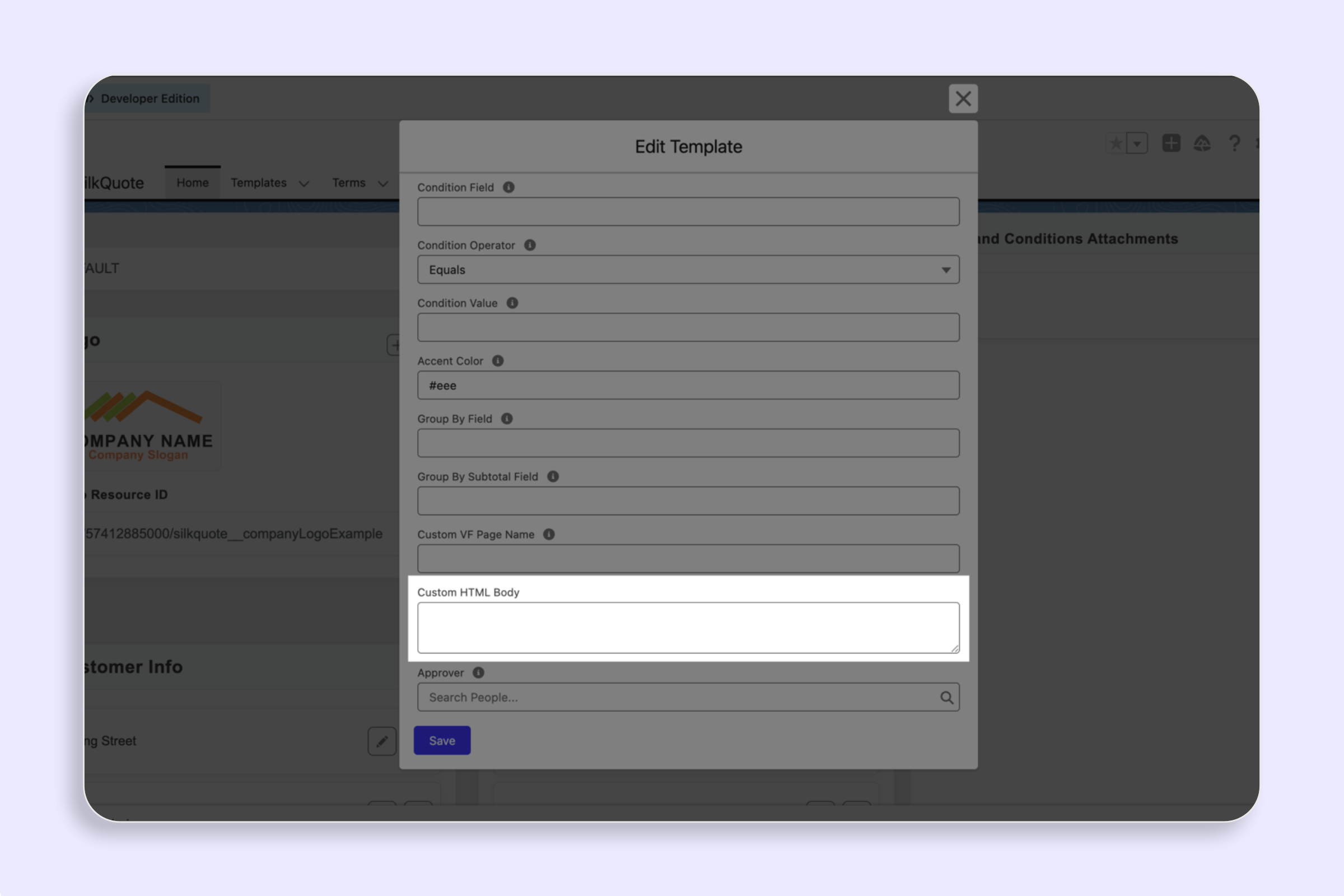
- Create and edit templates: Define quote layouts, accent colors, grouping options, and conditional auto-selection rules.
- Configure sections and fields: Map Salesforce fields from Opportunity, Account, Contact, and Products to each section of the PDF.
- Set logos: Assign a Static Resource logo to each template.
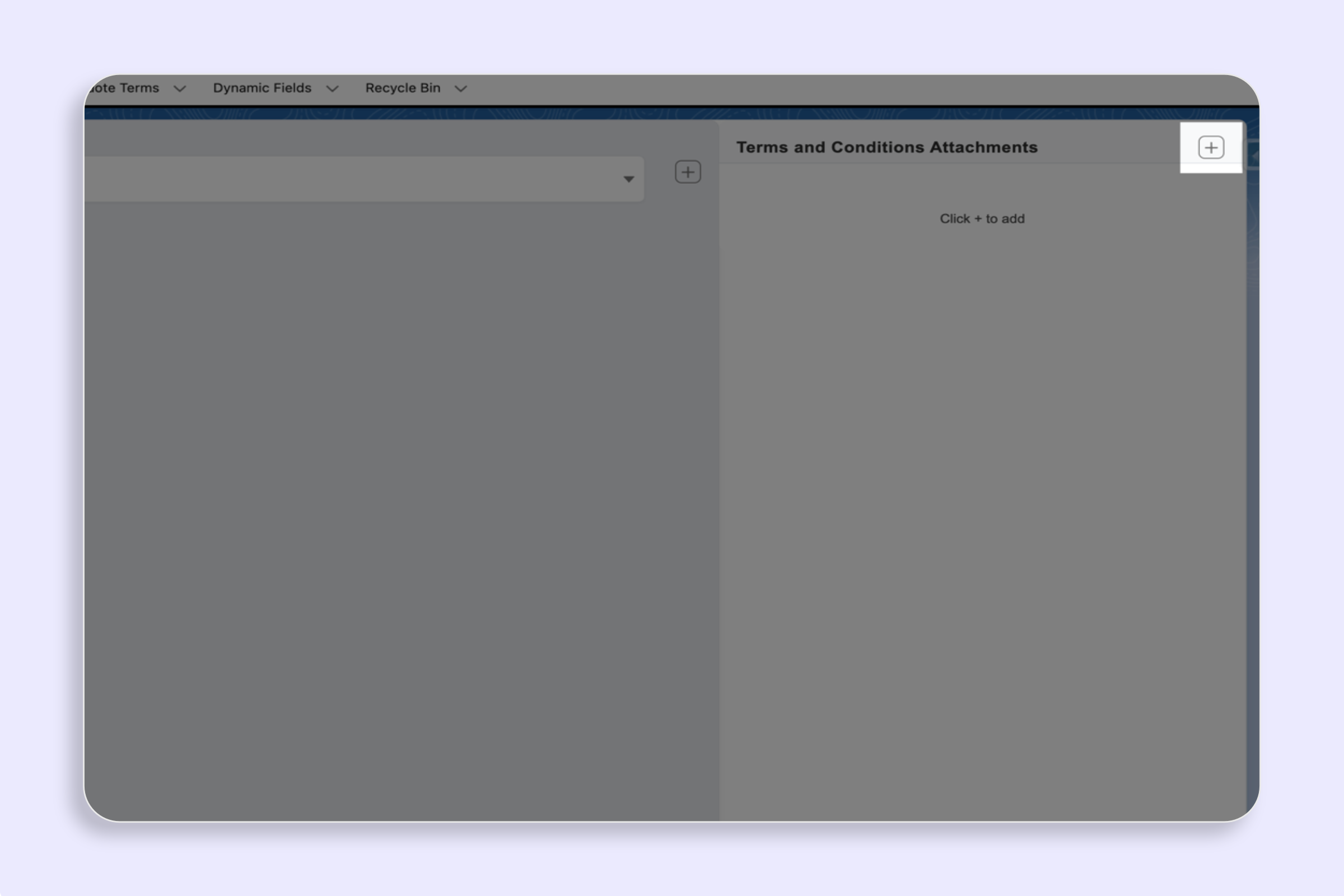
- Manage Terms rules: Create, edit, and delete Terms and Conditions rules with conditional logic.
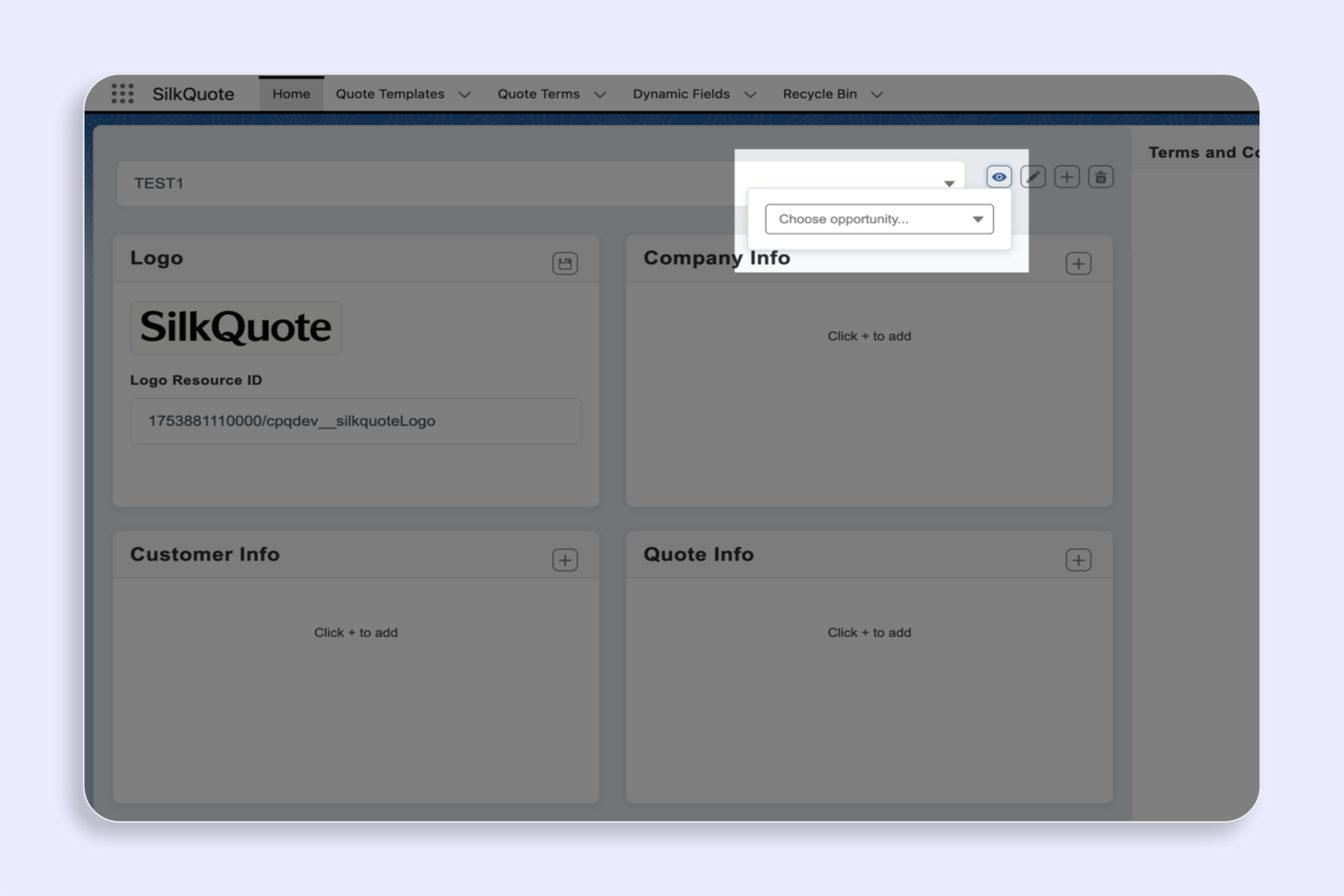
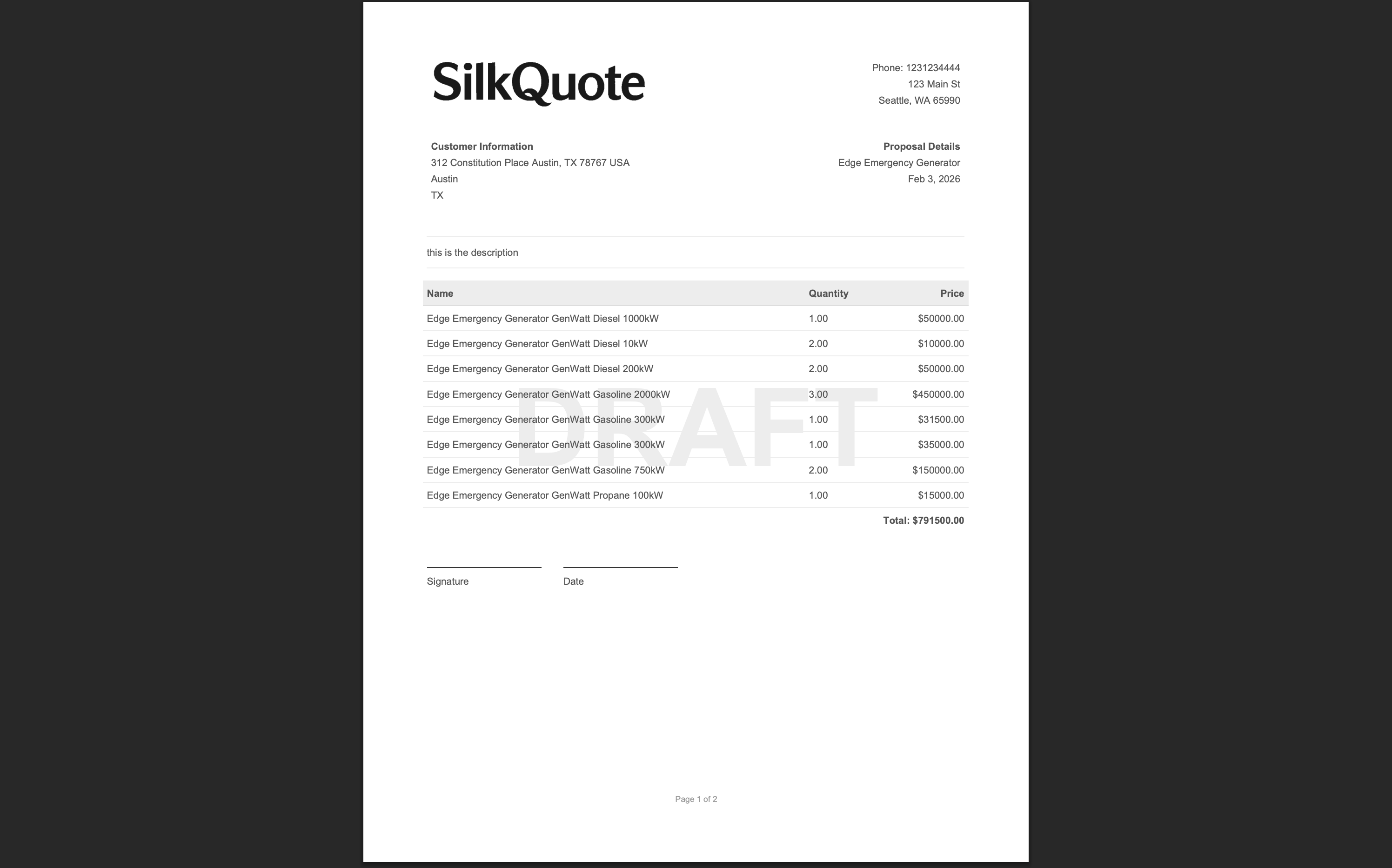
- Preview templates: Render a full PDF preview using any Opportunity in the org.
Tips
- Restrict access: Only users with the SilkQuote admin permission should have access to the Configuration Manager tab or page. Configure tab visibility and page access accordingly.
- Bookmark the URL: Once set up, bookmark the Configuration Manager URL for quick access during template maintenance sessions.