
Overview
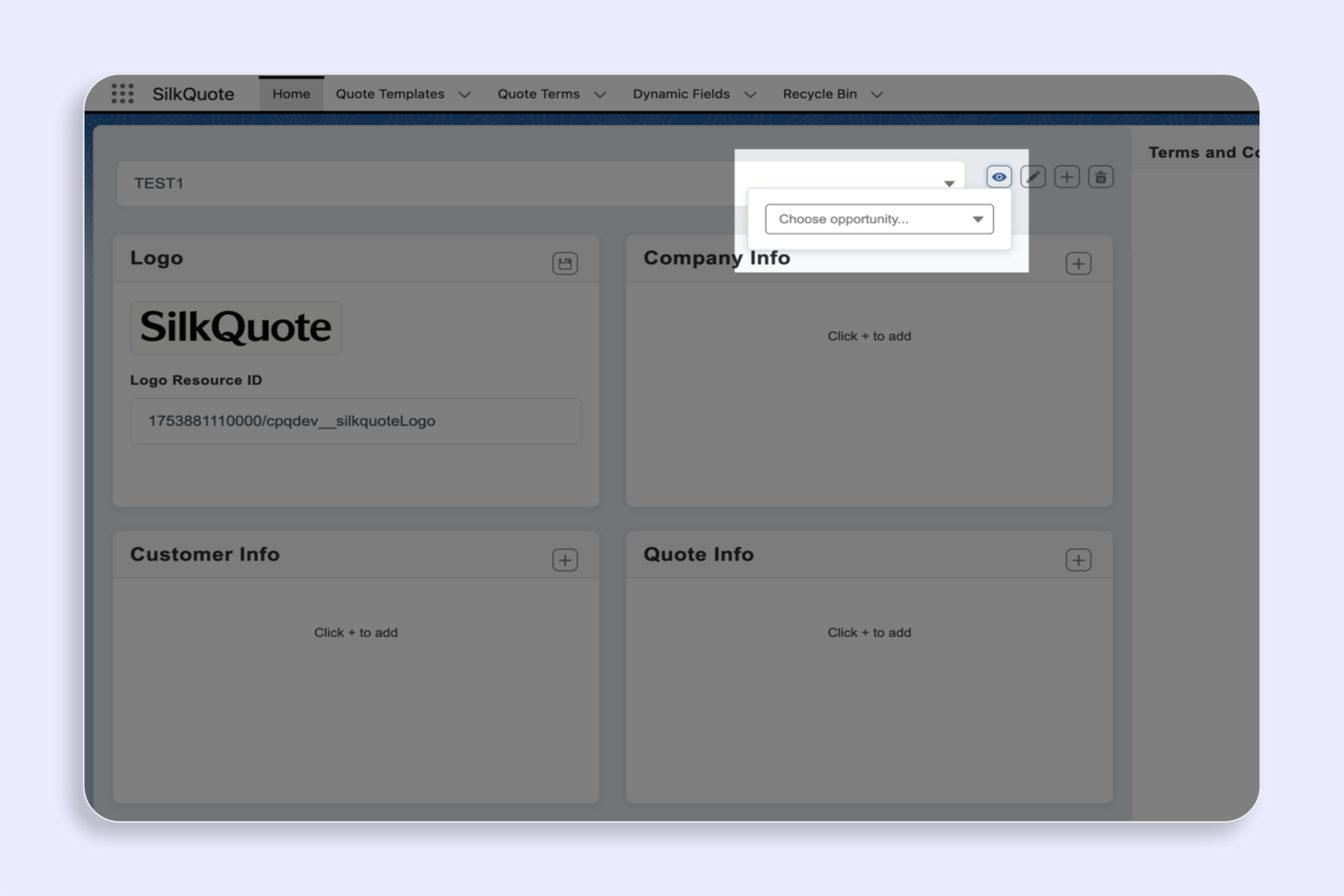
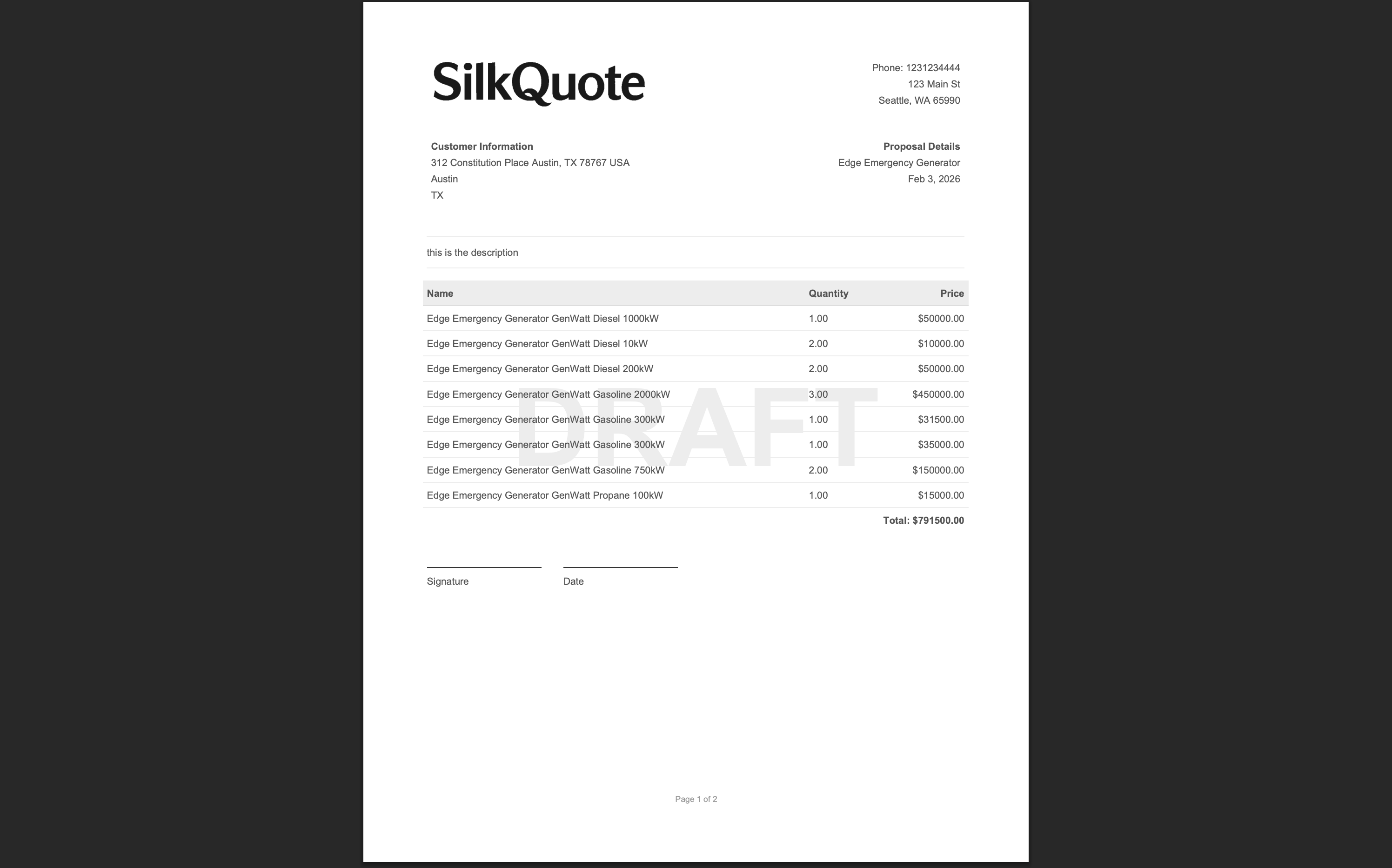
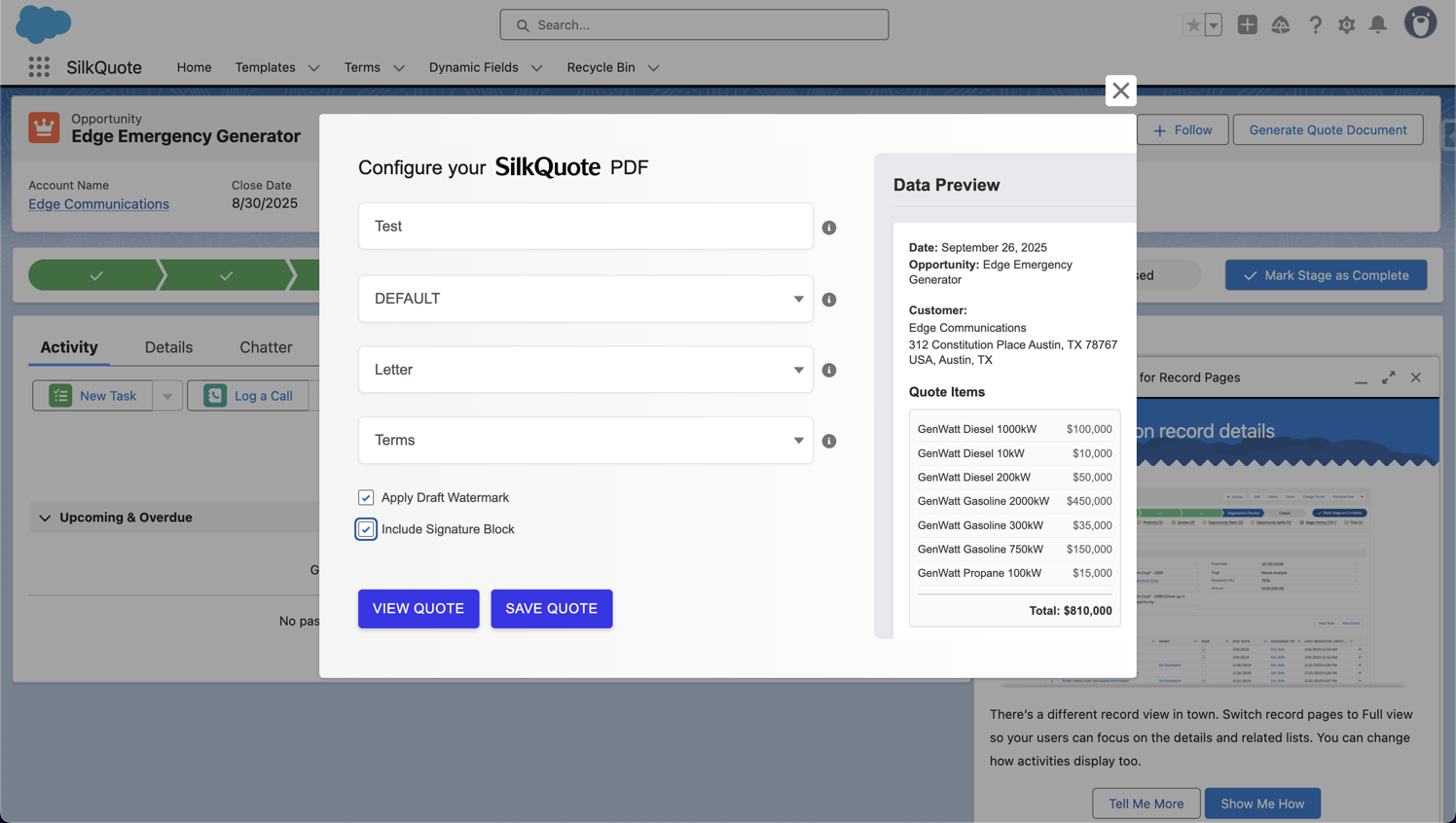
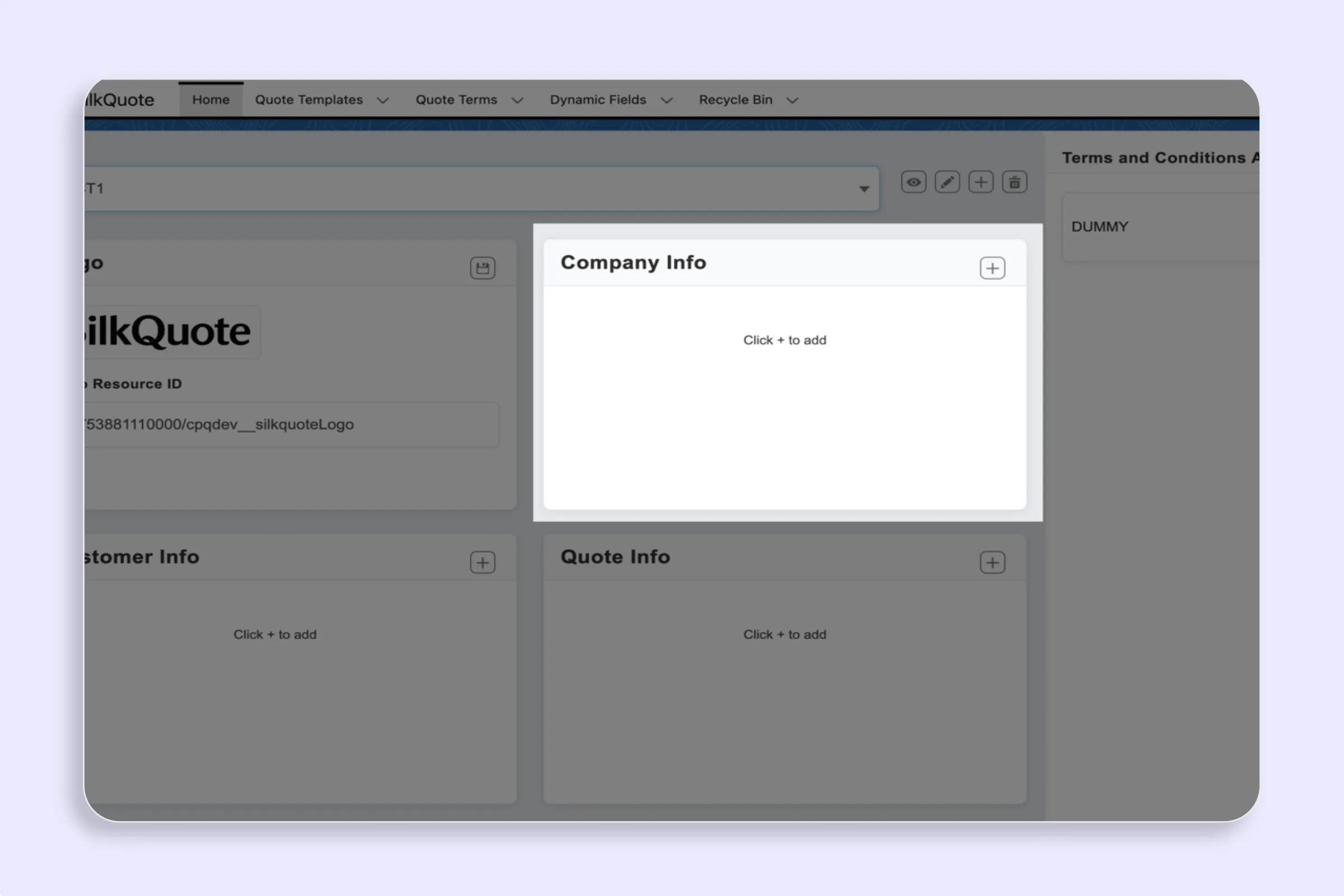
Sections and field mappings define the content of a SilkQuote PDF quote. Each template is divided into named sections (such as Company, Customer, Quote Details, Line Items, Totals, and Description), and each section contains a set of mapped Salesforce fields that populate the corresponding area of the PDF.
Configuring sections and fields is the core of template design. Everything the prospect sees in the quote comes from this configuration.
Section Types
SilkQuote templates use several section types, each with different behavior:
- Company / Customer / Quote: Label-value pair sections that display Salesforce field data in a structured layout. Typically used for header information (account name, contact, quote date, rep details).
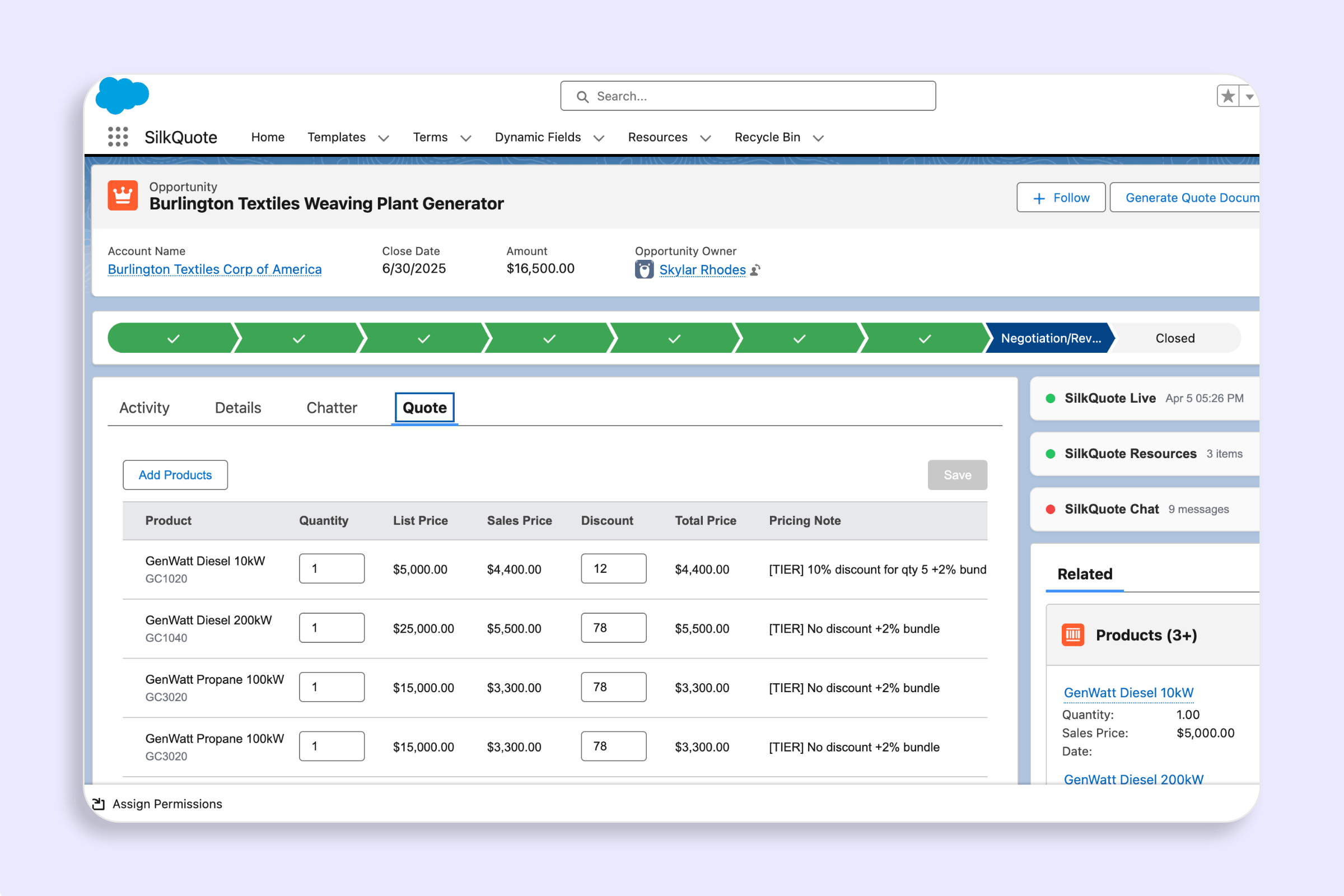
- Item Columns: Controls which Opportunity Product fields appear as columns in the line items table (e.g., Product Name, Quantity, Unit Price, Total Price, Description).
- Totals: Controls the fields displayed in the pricing summary area (e.g., Subtotal, Discount, Tax, Grand Total).
- Description: A full-width narrative block that displays free-text or merged field content. Used for executive summaries, scope descriptions, or notes.
Adding a Field to a Section
- Open the SilkQuote Configuration Manager from the App Launcher.
- Select the template you want to configure.
- Navigate to the section where you want to add a field.
- Click + Add Field.
- Fill in the field configuration:
- Name: The label displayed next to the field value in the PDF (e.g., “Account Name”, “Valid Until”).
- Field API Name: The Salesforce API field name (e.g.,
Name,CloseDate,BillingCity). Use the Salesforce Object Manager to look up API names. - Source Object: The Salesforce object the field comes from. Options typically include Opportunity, Account, Contact, and Opportunity Products.
- Section Identifier: Which section of the template this field belongs to. Must match the section type (e.g., a totals field goes in the Totals section).
- Display Order: A number controlling where this field appears relative to others in the same section. Lower numbers appear first.
- Show Label: Whether to display the field label next to the value, or show the value alone.
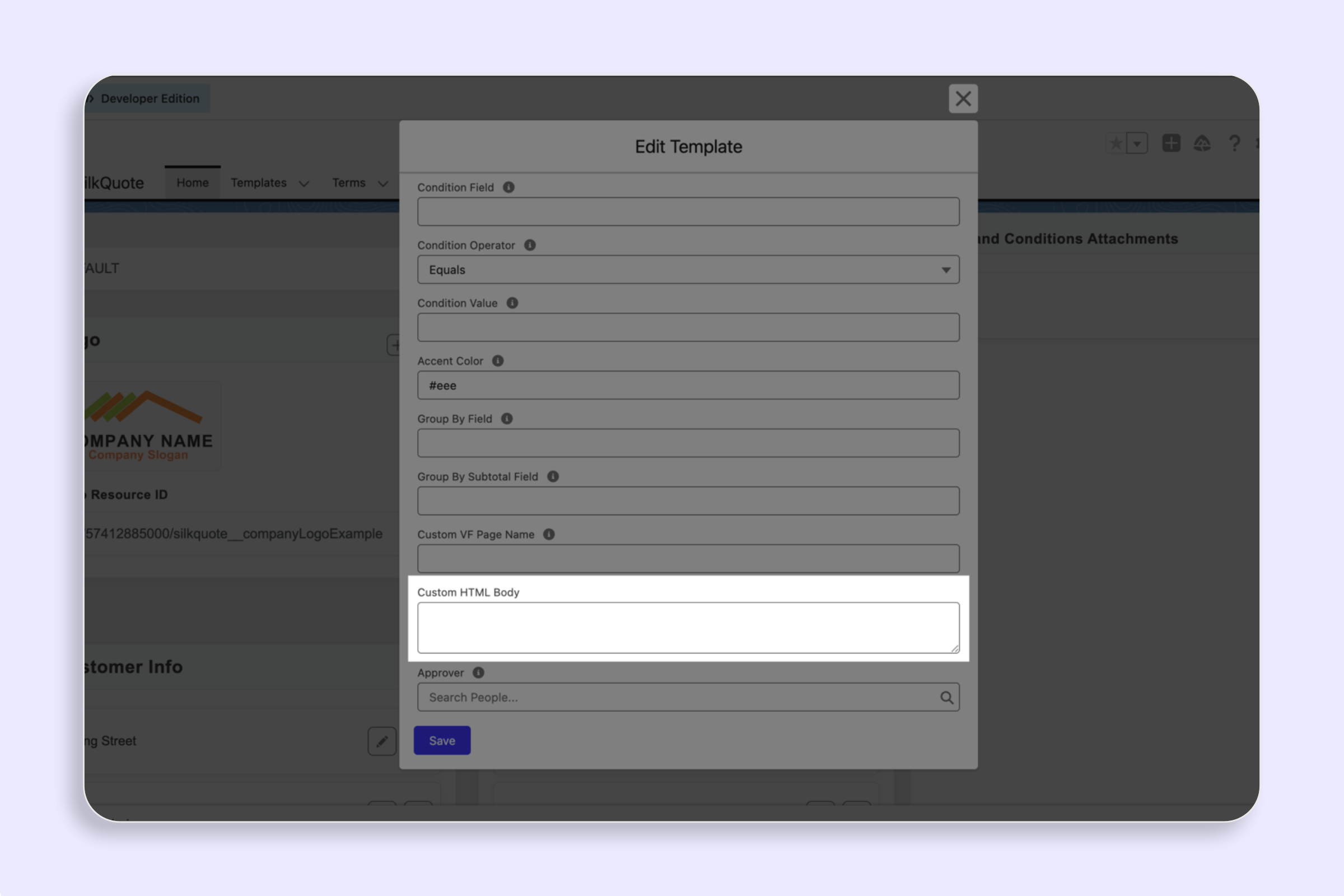
- Condition: An optional Opportunity field condition. The field only renders when the condition is met (e.g., only show “Discount” when
Discount__c > 0).
- Click Save.
Reordering Fields
After adding fields, drag and drop them within the section to adjust their display order. The PDF renders fields in the order shown in the Configuration Manager.
Common Field Mapping Examples
| Section | Field Name | Field API Name | Source Object |
|---|---|---|---|
| Company | Company Name | Name | Account |
| Customer | Contact Name | Name | Contact |
| Quote Details | Quote Date | CreatedDate | Opportunity |
| Quote Details | Valid Until | CloseDate | Opportunity |
| Item Columns | Product | Name | Opportunity Product |
| Item Columns | Quantity | Quantity | Opportunity Product |
| Item Columns | Unit Price | UnitPrice | Opportunity Product |
| Totals | Grand Total | Amount | Opportunity |
Tips
- Use Show Label sparingly in Item Columns: In the line items table, column headers serve as labels. Enabling “Show Label” on individual cells adds redundant text.
- Test with Preview after every change: After adding or reordering fields, use Preview a Template with Real Data to verify the output before reps generate quotes.
- Use conditions for optional fields: Rather than creating separate templates for slight variations, use conditional fields to show/hide specific details based on Opportunity field values.