
Overview
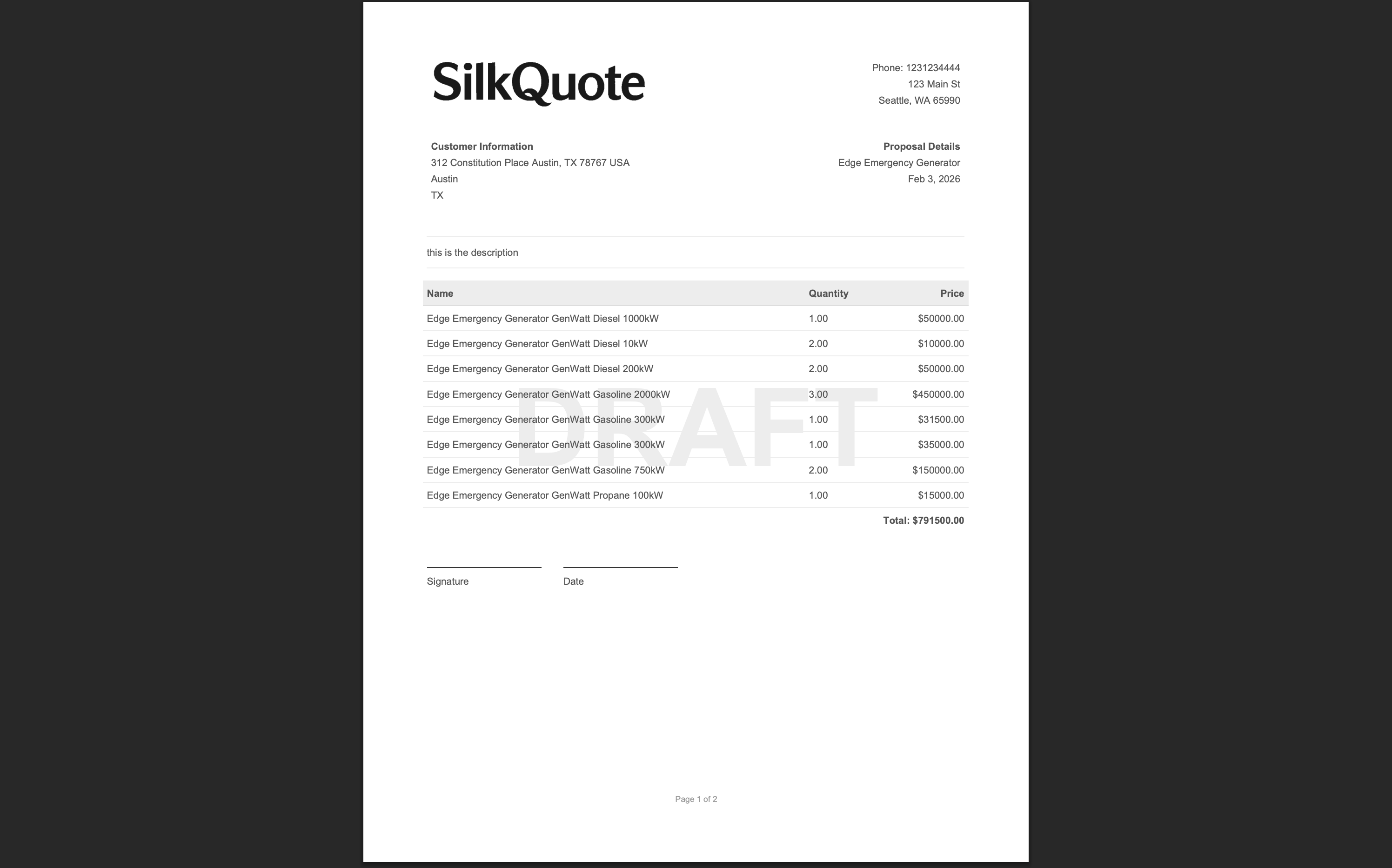
Each SilkQuote template can display a company logo at the top of the generated PDF quote. The logo is set per template using a Salesforce Static Resource, a hosted file stored inside your Salesforce org that SilkQuote references when rendering the PDF.
Different templates can use different logos, which is useful when a single Salesforce org supports multiple brands, subsidiaries, or white-label products.
Preparing Your Logo
Before setting the logo in SilkQuote, upload your logo file as a Salesforce Static Resource:
- Go to Setup → Static Resources in Salesforce.
- Click New.
- Enter a Name for the resource (e.g.,
CompanyLogo). This name must be unique in your org and contain only alphanumeric characters and underscores. - Set Cache Control to Public.
- Click Choose File and upload your logo image (PNG, JPG, or SVG recommended).
- Click Save.
Note the Name you gave the resource, as you will need it in the next step.
Setting the Logo in the Template
- Open the SilkQuote Configuration Manager from the App Launcher.
- Select the template you want to configure.
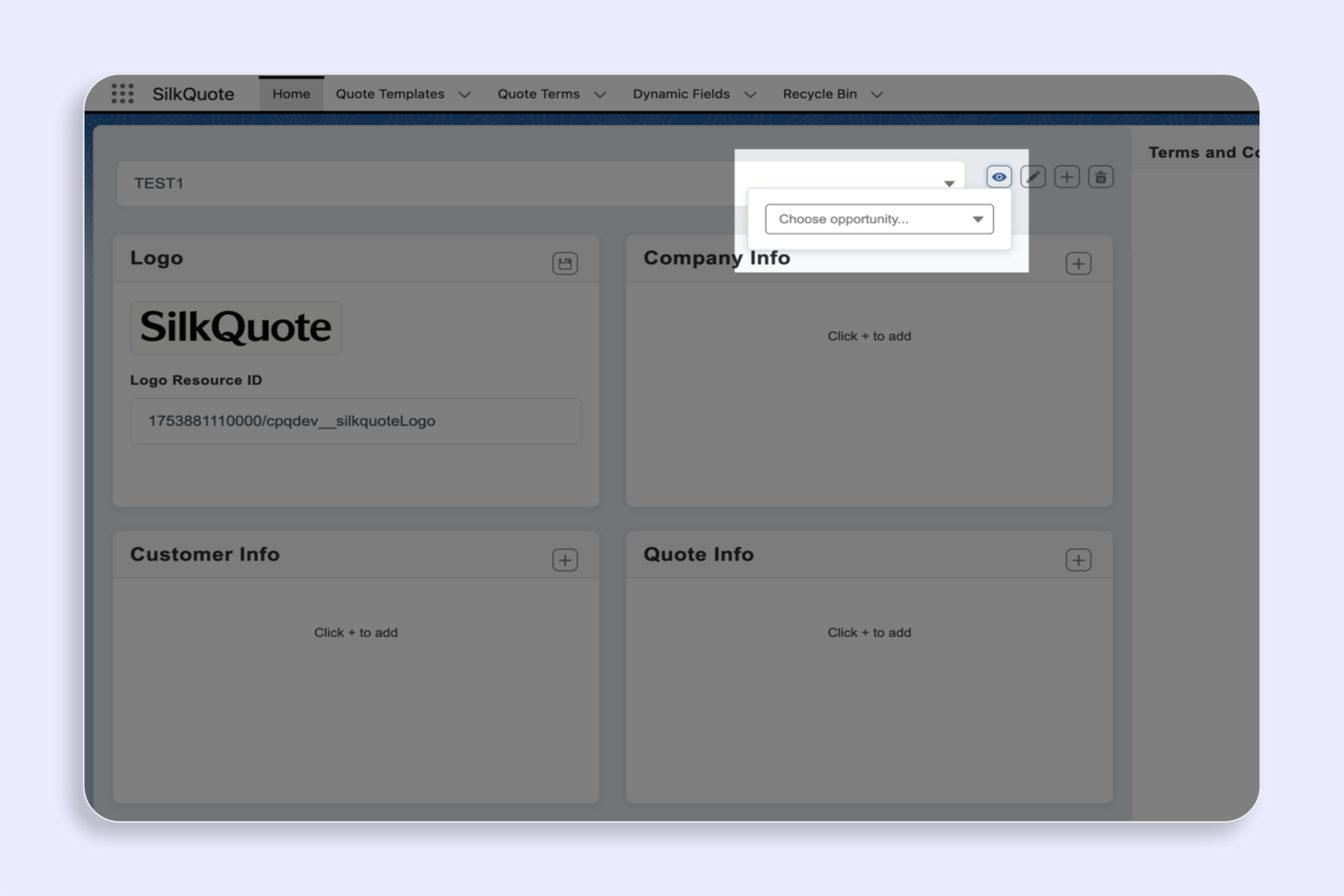
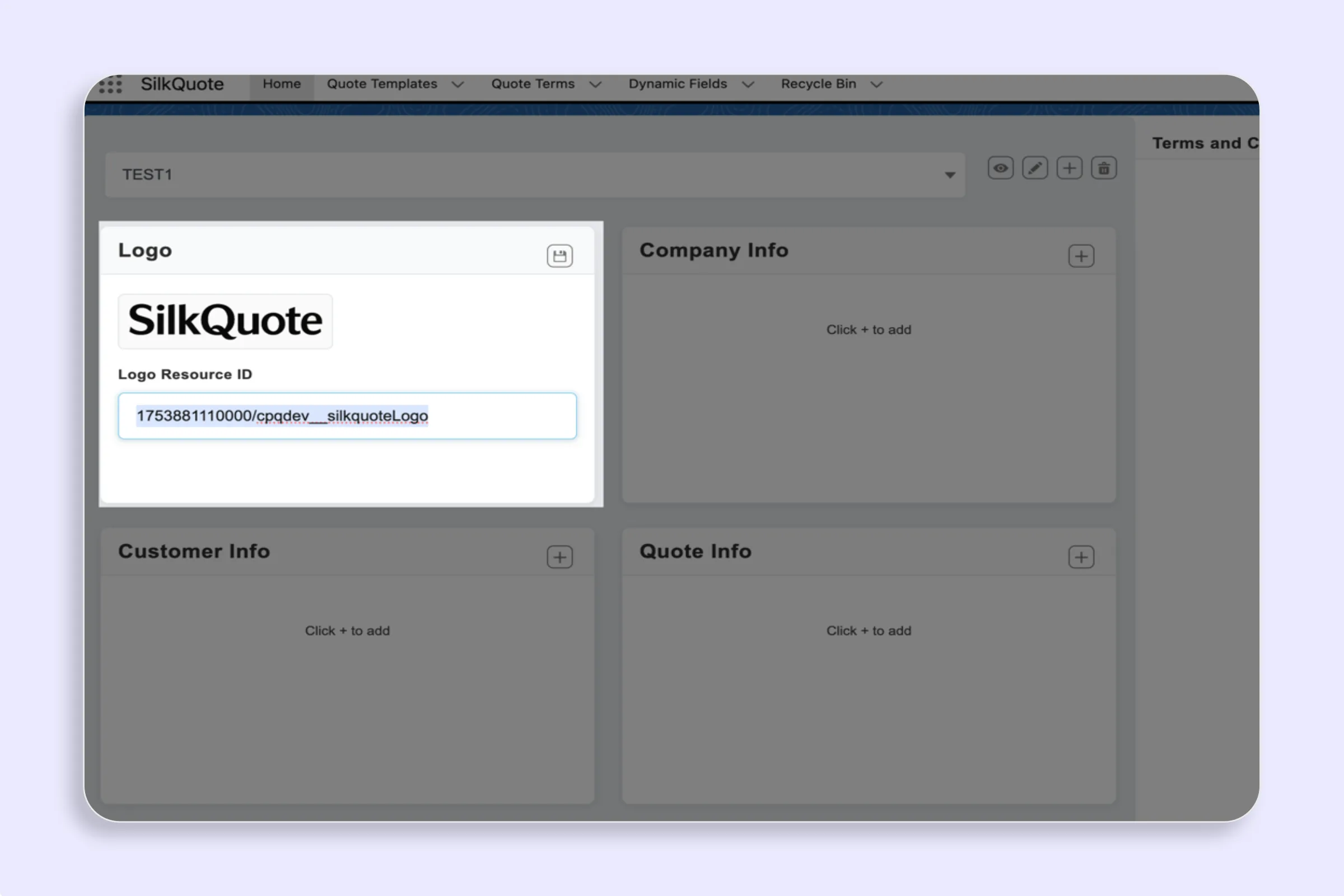
- Locate the Logo card in the template settings panel.
- In the Logo Resource ID field, enter the name of the Static Resource you created (e.g.,
CompanyLogo). - Click the Save icon (checkmark) next to the field.
- Use the Template Preview to verify the logo appears correctly in the PDF output.
Changing an Existing Logo
To update a logo (for example, after a rebrand):
- Upload the new logo image as a new Static Resource in Salesforce Setup, or replace the existing one by editing the Static Resource record and uploading a new file.
- If you uploaded a new resource with a different name, update the Logo Resource ID in the template accordingly and save.
- If you replaced the existing resource file (keeping the same name), the change takes effect automatically with no template update needed.
Logo Display Tips
- Use a transparent PNG: Logos with transparent backgrounds render cleanly against the PDF’s colored header band.
- Keep dimensions reasonable: A logo around 300–500px wide at 150dpi renders clearly in PDF output without being oversized.
- Avoid very tall logos: Logos with a tall aspect ratio can push the header band height and affect overall page layout. A wide, horizontal logo format works best.
- Test with preview: After setting the logo, always use Preview a Template with Real Data to confirm the logo renders at the expected size and position before going live.