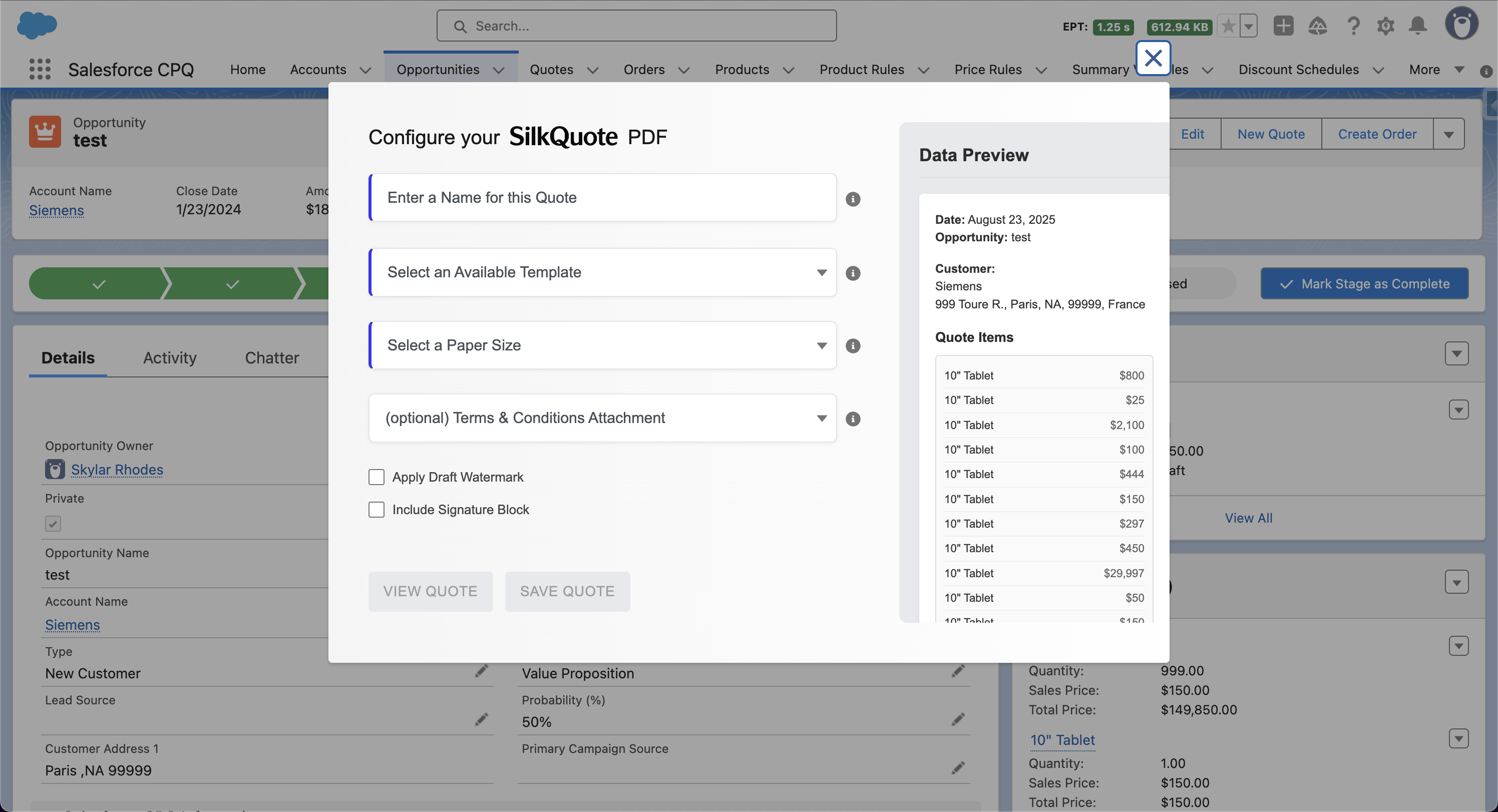
A Salesforce quote template is the blueprint for every PDF quote your team generates. It determines what information appears in the document, how it is organized, and how it looks to the prospect. Getting the template right means every rep can generate a professional, on-brand proposal in seconds — without touching a design tool or copying data by hand.
This guide walks through the anatomy of a Salesforce quote template, how to configure one from scratch using SilkQuote, and the most common customization needs.
What Goes Into a Salesforce Quote Template
A quote template is composed of sections, and each section maps to a specific area of the PDF output. Standard sections include:
- Company — Your company’s information: name, address, website, phone. Maps from Account or a custom field.
- Customer — The prospect’s information: contact name, title, email, company address. Maps from Contact and Account.
- Quote Details — Metadata about the quote: quote date, valid until date, quote number, rep name. Maps from Opportunity.
- Item Columns — The product line items table. Each column maps to an Opportunity Product field (product name, quantity, unit price, total, description).
- Totals — The pricing summary: subtotal, discount, tax, grand total. Maps from Opportunity amount fields.
- Description — A free-text or merged narrative block for scope summaries, executive summaries, or notes.
Not every template needs all sections — you configure only what your quote requires.
Setting Up Your Template in SilkQuote
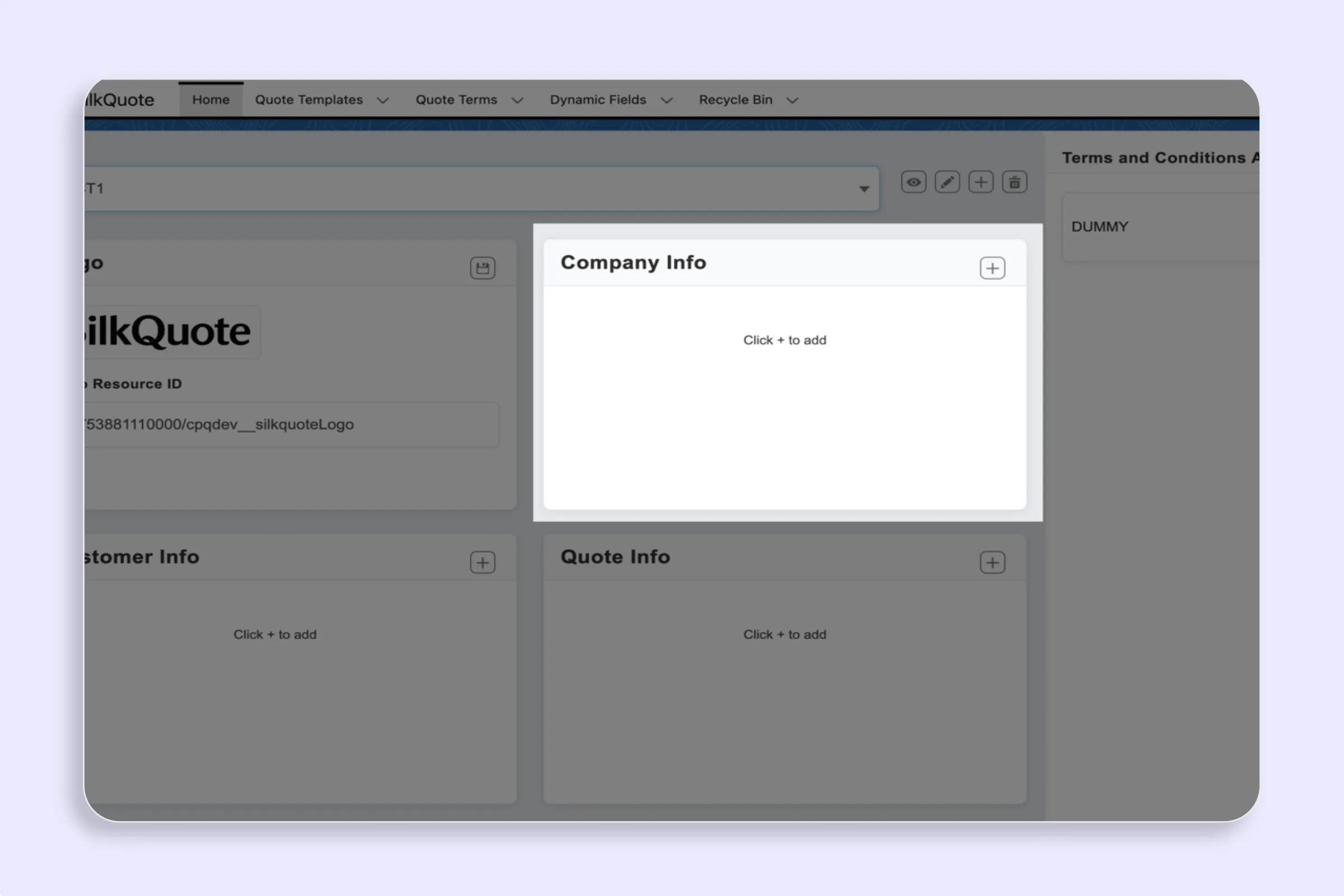
SilkQuote’s Configuration Manager is the admin interface for all template management. Here is the end-to-end process for building a new template.
Step 1 — Open the Configuration Manager
From the Salesforce App Launcher, search for SilkQuote Configuration and open it. If you have not set it up yet, see Open the SilkQuote Configuration Manager.
Step 2 — Create a New Template
Click New Template and fill in:
- Template Name — Used in the generation dialog so reps can identify it (e.g., “Standard Proposal”, “Renewal Quote”).
- Accent Color — A hex color code applied to section headers and table borders in the PDF.
- Logo — The name of the Static Resource containing your logo image. See Set or Change the Template Logo.
- Paper Size — Default paper size for this template (Letter, A4, or Legal).
Save the template before adding sections.
Step 3 — Configure Each Section
For each section (Company, Customer, Quote Details, etc.), add the fields you want to appear:
| Field Setting | What It Controls |
|---|---|
| Name | The label shown next to the value in the PDF (e.g., “Account Name”) |
| Field API Name | The Salesforce field API name (e.g., Name, BillingCity, CloseDate) |
| Source Object | Which object the field comes from (Opportunity, Account, Contact, Opportunity Product) |
| Display Order | Where the field appears relative to others in the section |
| Show Label | Whether to display the label or just the value |
| Condition | An optional rule — only render this field when an Opportunity field meets a condition |
See Configure Template Sections & Fields for full field mapping documentation.
Step 4 — Preview with Real Data
Before handing the template to reps, use the Preview option in the Configuration Manager to render a full PDF using a real Opportunity from your org. This shows exactly what the output will look like with live data populated. See Preview a Template with Real Data.
Common Template Configurations
Standard New Business Proposal
A typical new business template includes all six sections: Company, Customer, Quote Details, Item Columns, Totals, and a Description block for the scope summary. This produces a complete proposal document that covers everything a prospect needs to evaluate and sign.
Renewal Quote
A renewal template often omits the Description section and simplifies the Company/Customer sections to show only the most essential identifying information. The focus is on the renewal line items and new pricing totals.
One-Pager / Summary Quote
For simple deals with one or two products, a condensed template with Company, Quote Details, Item Columns, and Totals produces a clean single-page summary. Omit the Description and reduce field counts in each section.
Template Customization Tips
Use conditions to avoid blank fields. If some Opportunities have a Discount field populated and others do not, add a condition to the Discount row so it only renders when Discount__c > 0. This keeps the PDF clean rather than showing an empty row.
Test with edge cases. Generate a preview against an Opportunity with many line items (to check pagination) and one with very long field values (to check truncation). Adjust display order and section layout based on what you see.
Keep Item Column headers short. The line items table column headers are derived from the field names you configure. Long column names reduce the space available for values — use concise labels like “Product”, “Qty”, “Unit Price”, “Total”.
Create separate templates for distinct audiences. If your team sells to both enterprise and SMB, consider separate templates — the enterprise version might include a formal scope description block and custom Terms, while the SMB version is a shorter, faster read.
Native Salesforce Quote Templates vs. SilkQuote
Salesforce includes a built-in quote template editor, but it has significant limitations:
- Fixed layout — sections and fields cannot be freely reordered
- No support for custom fonts, colors, or flexible branding
- No conditional field rendering
- No Terms and Conditions management
- Generates from the Quotes object, not directly from Opportunities
SilkQuote’s template system is purpose-built for the kinds of customization real sales teams need: full branding control, any Opportunity field in any section, conditional rendering, and multi-template management from a single admin interface.
Next Steps
Frequently Asked Questions
What is a Salesforce quote template?
A Salesforce quote template defines the layout, sections, and field mappings used to generate a PDF quote from Opportunity data. It controls which fields appear, in what order, and how they are presented — from company information and line items to totals and Terms and Conditions.
Can I have multiple quote templates in Salesforce?
Yes. With SilkQuote you can create multiple templates — for example, one for new business proposals, one for renewal quotes, and one for a specific product line. Templates can be manually selected by the rep at generation time, or automatically selected based on Opportunity field values.
Do I need to know how to code to build a Salesforce quote template?
No. SilkQuote's Configuration Manager is a point-and-click interface. You select field API names from dropdowns, set display order with drag-and-drop, and preview the result instantly — no Apex, Visualforce, or HTML required.
What Salesforce objects can I pull fields from in a quote template?
SilkQuote templates can pull fields from Opportunity, Account, Contact, and Opportunity Product (line items). This covers the full standard quoting data model — company details, contact information, deal specifics, and product line items with pricing.
How do I add a logo to my Salesforce quote template?
Upload your logo as a Salesforce Static Resource (Setup → Static Resources), then assign it to the template in the SilkQuote Configuration Manager under the logo field. Each template can have its own logo, which is useful when managing multiple brands or subsidiaries.