A Salesforce quote PDF is the final deliverable of your quoting process — the document that represents your company to a prospect at the moment they are deciding whether to buy. Yet for many Salesforce users, generating that document is still a manual, error-prone process involving copy-paste and desktop design tools. It does not have to be.
This guide covers what a Salesforce quote PDF should contain, how to generate one automatically using SilkQuote, and how to customize and share it effectively.
What Should a Salesforce Quote PDF Contain?
A professional quote PDF serves two purposes: it communicates pricing clearly, and it represents your brand credibly. The best quote PDFs share a consistent structure:
Header / Brand Block
Company logo, sender name and contact details, quote date, and quote number. The logo and branding in the header signal professionalism before the prospect reads a single line of content.
Customer Information
The prospect’s company name, contact name, title, and address. Personalizing the document to the recipient makes it feel like a real proposal rather than a generic printout.
Quote Details
Quote validity date, rep name, and any reference numbers. This is the metadata that helps the prospect file and act on the document.
Line Items Table
A clean table of the products or services being quoted — product name, description, quantity, unit price, and extended total. This is the section prospects look at most closely. Clear column formatting and consistent number alignment matter.
Pricing Summary / Totals
Subtotal, any applicable discount, tax (if shown), and grand total. The totals block should be visually distinct from the line items — typically right-aligned with the grand total in bold.
Terms and Conditions
Standard T&Cs or a reference to them. For deals of any significance, the prospect’s legal team will ask for these. Having them in the document eliminates a follow-up email.
Signature Block (Optional)
A signature area with lines for name, title, date, and signature. Including this invites the prospect to sign and return rather than just acknowledge receipt.
How Native Salesforce Quote PDFs Fall Short
Salesforce has a Quotes object that can generate PDFs, but its template editor is limited in ways that matter in practice:
- Layout is fixed — you cannot freely reorder sections or change column widths
- Branding is minimal — only a logo can be added; colors and fonts are not configurable
- No conditional content — a field either appears or it does not, regardless of Opportunity data
- No Terms and Conditions management — must be added manually or pasted into a text field
- Output feels generic — most reps and customers can tell it came from an out-of-the-box system
For internal tracking, the native PDF is fine. For anything that represents your company to a prospect, it typically falls short.
Generating a Salesforce Quote PDF with SilkQuote
SilkQuote generates branded, professional PDFs from Opportunity records with a single action. The process:
- Open the Opportunity in Salesforce Lightning.
- Click Generate Quote Document — the Quick Action in the highlights panel or action bar.
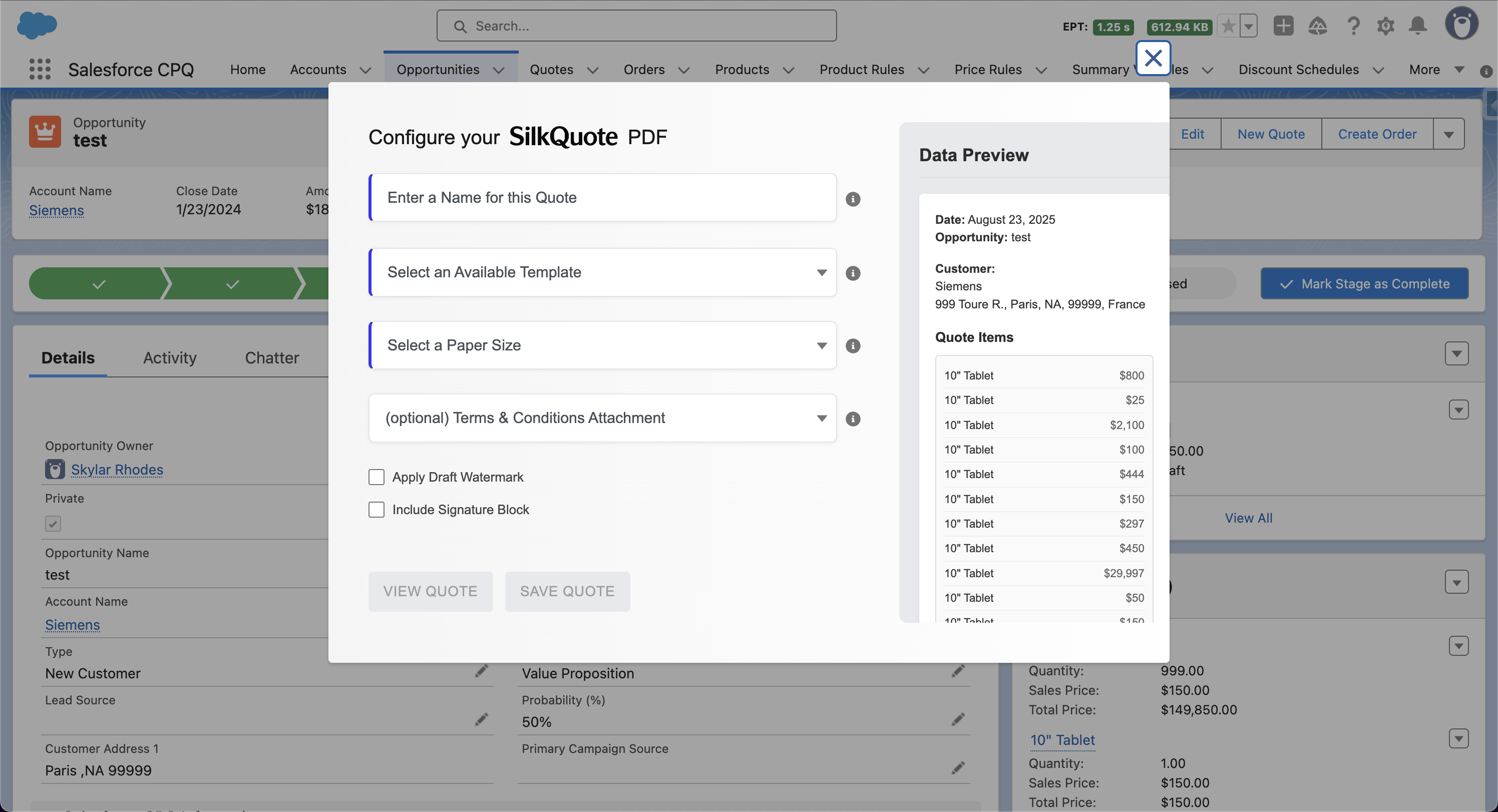
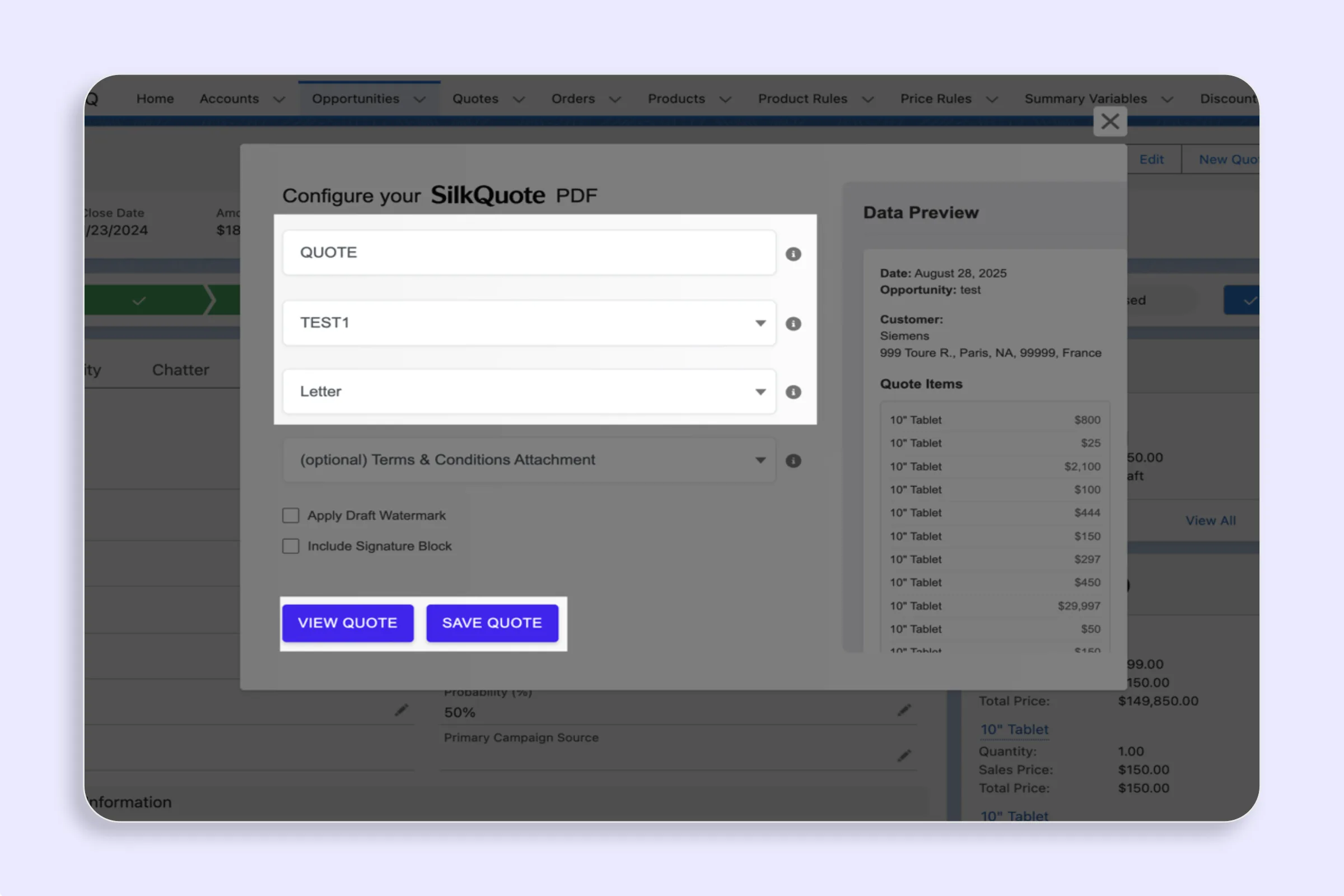
- Fill in the generation dialog:
- Quote Name — the label used for the file in Salesforce (include the date or version)
- Template — select which configured template to use
- Paper Size — Letter, A4, or Legal
- Optional settings:
- Terms and Conditions — attach pre-configured T&Cs
- Draft Watermark — stamps DRAFT on every page
- Signature Block — appends a signature section
- Click Save PDF — the PDF is generated and saved to the Opportunity Files in seconds.
The rep never leaves Salesforce. The PDF is immediately available in the Files related list. See Generate a Quote PDF from an Opportunity for the full walkthrough.
Customizing Your Salesforce Quote PDF
Template Configuration
Every aspect of the quote PDF is controlled by the template configured in the SilkQuote Configuration Manager. Admins define:
- Which sections appear and in what order
- Which Salesforce fields map to each section
- The field label, display order, and whether to show the label
- Conditional field rendering (e.g., only show Discount when
Discount__c > 0)
See Salesforce Quote Template: How to Build and Customize Yours for a complete template configuration guide.
Branding
Each template supports:
- Logo — uploaded as a Salesforce Static Resource, assigned per template
- Accent color — applied to section headers and table borders
- Paper size default — set per template but overridable at generation time
If you manage multiple brands or subsidiaries, you can create a separate template per brand, each with its own logo and accent color.
Conditional Content
SilkQuote supports field-level conditions — a field only renders in the PDF when an Opportunity field meets a specified condition. Common uses:
- Show a Discount row only when a discount is applied
- Show a multi-year pricing footnote only when
Contract_Length__c > 12 - Show region-specific Terms only when
Billing_Country__c = 'UK'
This keeps the PDF clean and relevant regardless of deal variation.
Sharing the Quote PDF
Once the PDF is saved to the Opportunity:
- Download and email — Open the file from the Files related list, download, and attach to an email.
- Chatter or internal sharing — Share a link internally via Salesforce Chatter for review and approval.
Using descriptive quote names (e.g., “Acme Corp - April 2026 Proposal”) makes the Files list readable as multiple versions accumulate across a deal’s lifecycle.
Managing Quote PDF Versions
Every time you click Save PDF in SilkQuote, a new Content Document is created on the Opportunity. This is intentional — it preserves the full history of what was sent and when, which matters for deal documentation and legal reasons.
Best practices:
- Include the date or version number in every Quote Name
- Delete outdated versions from the Files section to avoid prospect confusion if they access the record directly
- Use the Draft Watermark for internal review versions so the final version is clearly distinguishable
Next Steps
Frequently Asked Questions
How do I generate a PDF from a Salesforce quote?
With SilkQuote, you generate a quote PDF directly from the Opportunity record by clicking the Generate Quote Document Quick Action. The PDF is created from your configured template, populated with live Salesforce data, and saved to the Opportunity as a Content Document in one step.
Where is the quote PDF saved in Salesforce?
SilkQuote saves the generated PDF as a Content Document attached to the Opportunity record. It appears in the Files related list on the Opportunity immediately after generation and is accessible to any user with access to the record.
Can I preview the quote PDF before saving it?
Yes. The SilkQuote generation dialog includes a View Quote button that renders a full PDF preview in a new browser tab without saving anything to Salesforce. Use this to review formatting and content before committing.
Can I add a watermark to my Salesforce quote PDF?
Yes. SilkQuote includes a Draft Watermark option in the generation dialog. When checked, a DRAFT watermark is stamped across every page of the PDF — useful for internal reviews or quotes shared before final pricing is confirmed.
What information can I include in a Salesforce quote PDF?
A SilkQuote quote PDF can include any field from the Opportunity, Account, Contact, and Opportunity Product objects. Standard content includes company name and address, contact name and title, quote date and validity period, product line items with pricing, totals, a description or scope block, and Terms and Conditions.