
Overview
As your quoting process evolves, templates need to be updated to reflect new branding, revised field mappings, changed conditions, or updated paper size preferences. You may also need to remove templates that are no longer in use to keep the selection list clean for reps.
Both editing and deleting are managed in the SilkQuote Configuration Manager. Only users with the appropriate SilkQuote admin permissions can modify or remove templates; reps cannot change templates at generation time.
Editing a Template
To update a template’s settings (name, accent color, conditions, group/sort options):
- Open the SilkQuote Configuration Manager from the App Launcher.
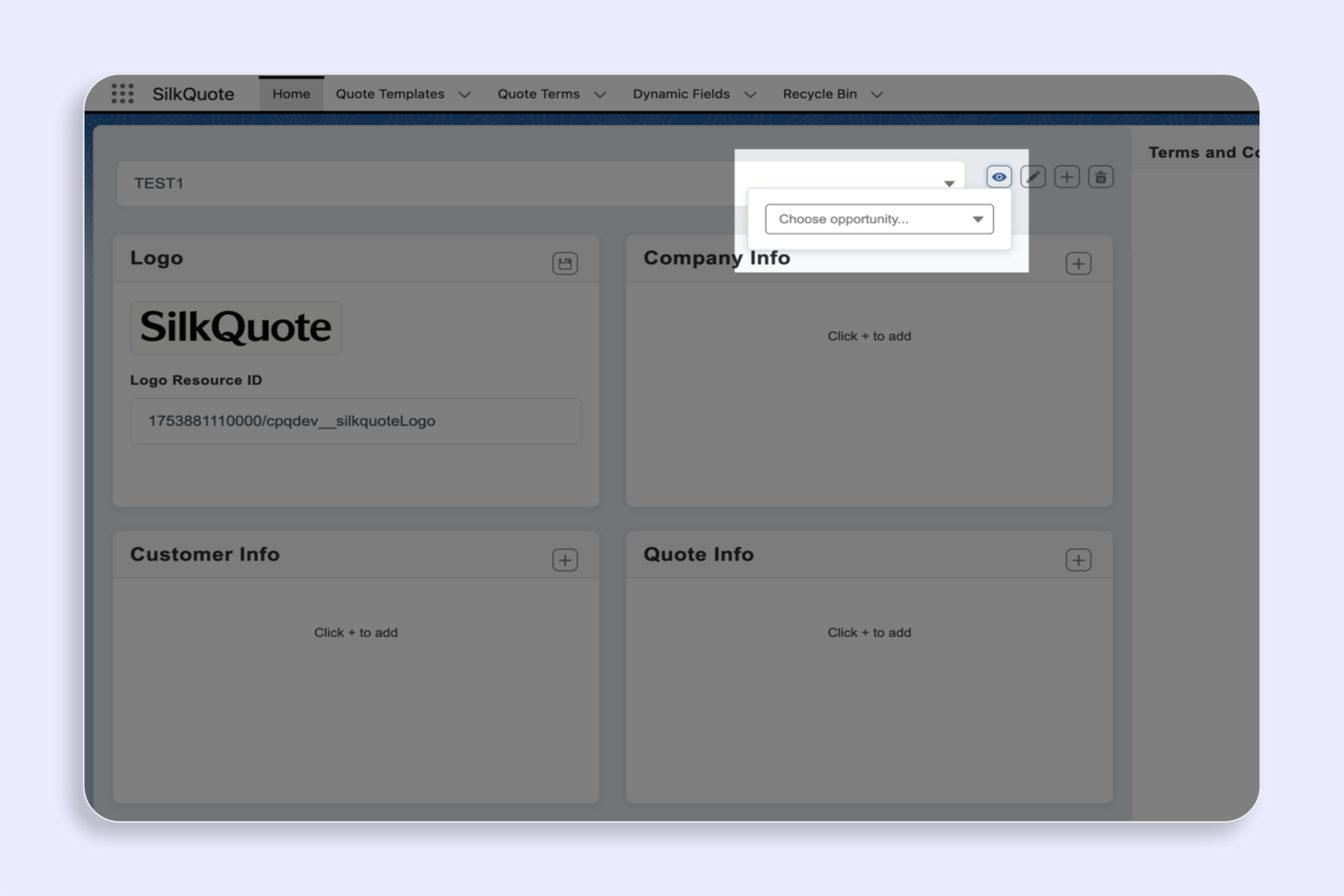
- Select the template you want to edit from the template dropdown selector.
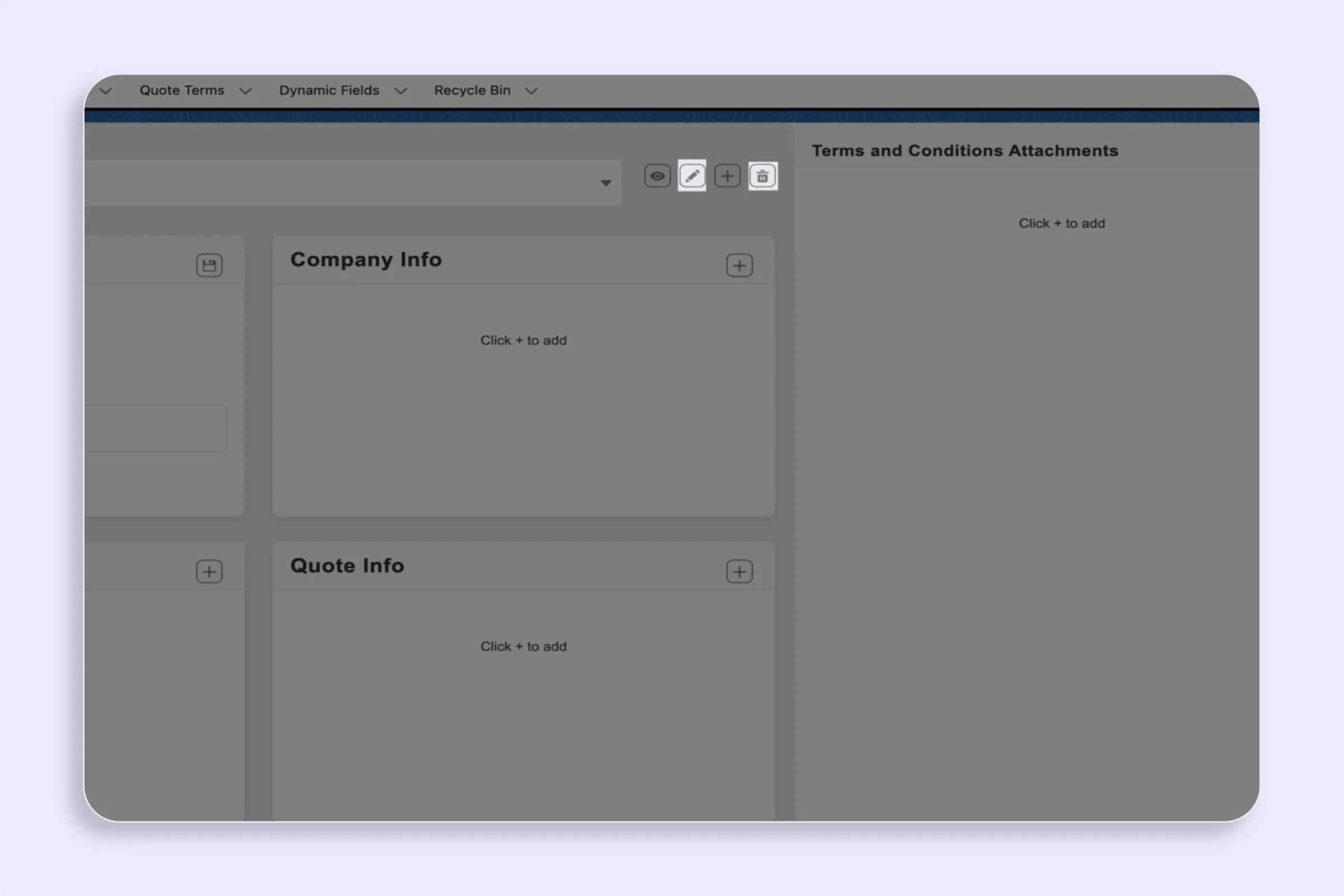
- Click the Edit button (pencil icon) next to the template name.
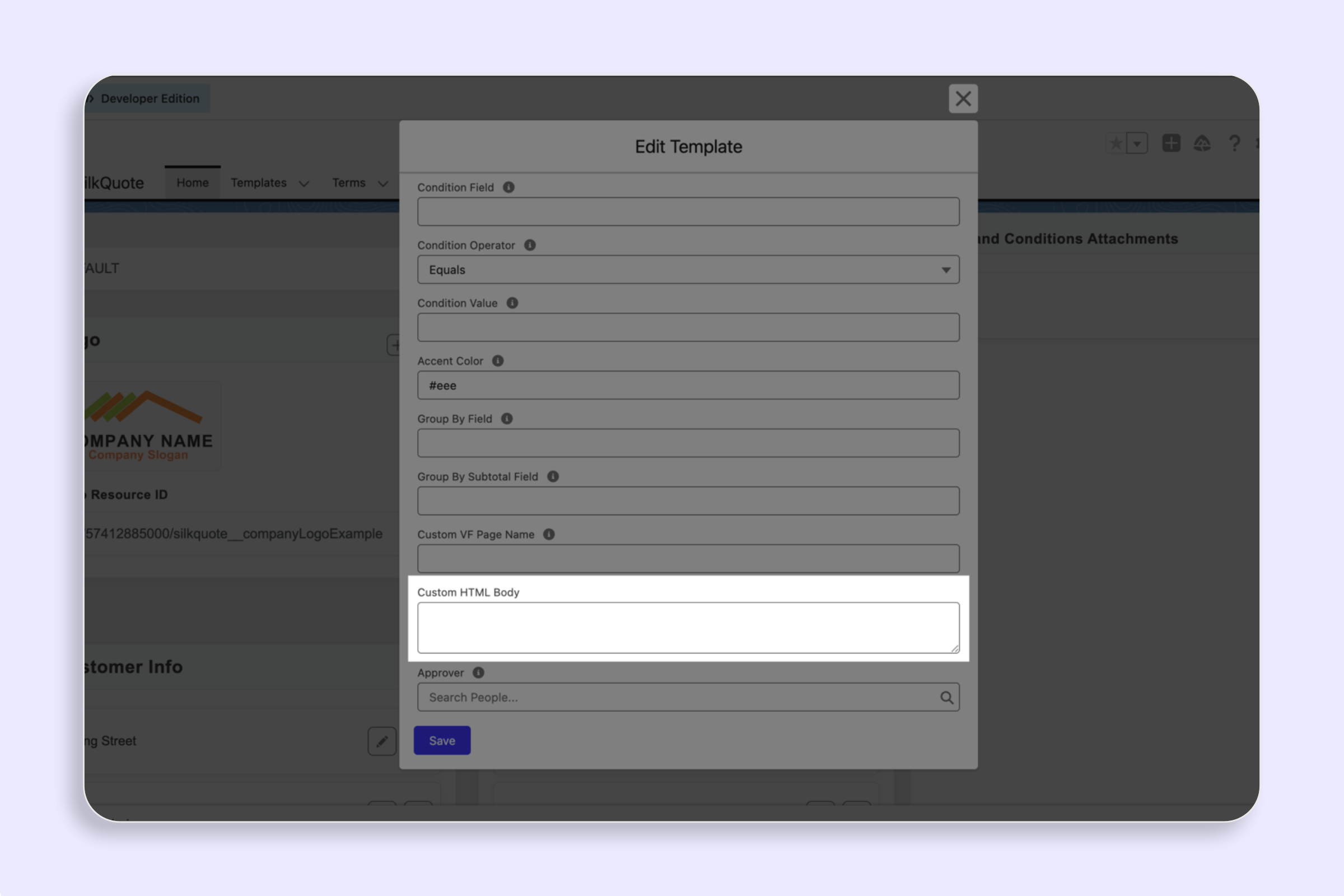
- Update any of the available fields: Name, Accent Color, Condition, Required, Precedence, Group By, Order By.
- Click Save.
Changes take effect immediately for all future quote generation. Previously generated PDFs are not affected.
Editing Sections and Fields
Template settings control the overall template properties, but section and field content is edited separately. To change which Salesforce fields appear in the quote or how they are organized:
- Select the template and navigate to the relevant section (e.g., Company, Customer, Line Items).
- Use the field configuration panel to add, remove, or reorder fields.
- Save the section.
See Configure Template Sections & Fields for detailed steps on field mapping.
Deleting a Template
Deleting a template permanently removes it and all its associated section field mappings. Before deleting:
- Confirm the template is no longer in use by checking with your sales team.
- Consider whether any in-progress deals have quotes generated from this template that reps may need to regenerate.
To delete:
- Select the template from the template dropdown.
- Click the Delete button (trash icon) next to the template name.
- Confirm the deletion in the prompt.
The template is removed immediately and will no longer appear in the generation dialog for reps.
Tips
- Archive rather than delete: If you are unsure whether a template is still needed, rename it with an “- ARCHIVED” suffix (e.g., “Old SMB Template - ARCHIVED”) instead of deleting. This keeps it visible for reference without cluttering the active template list.
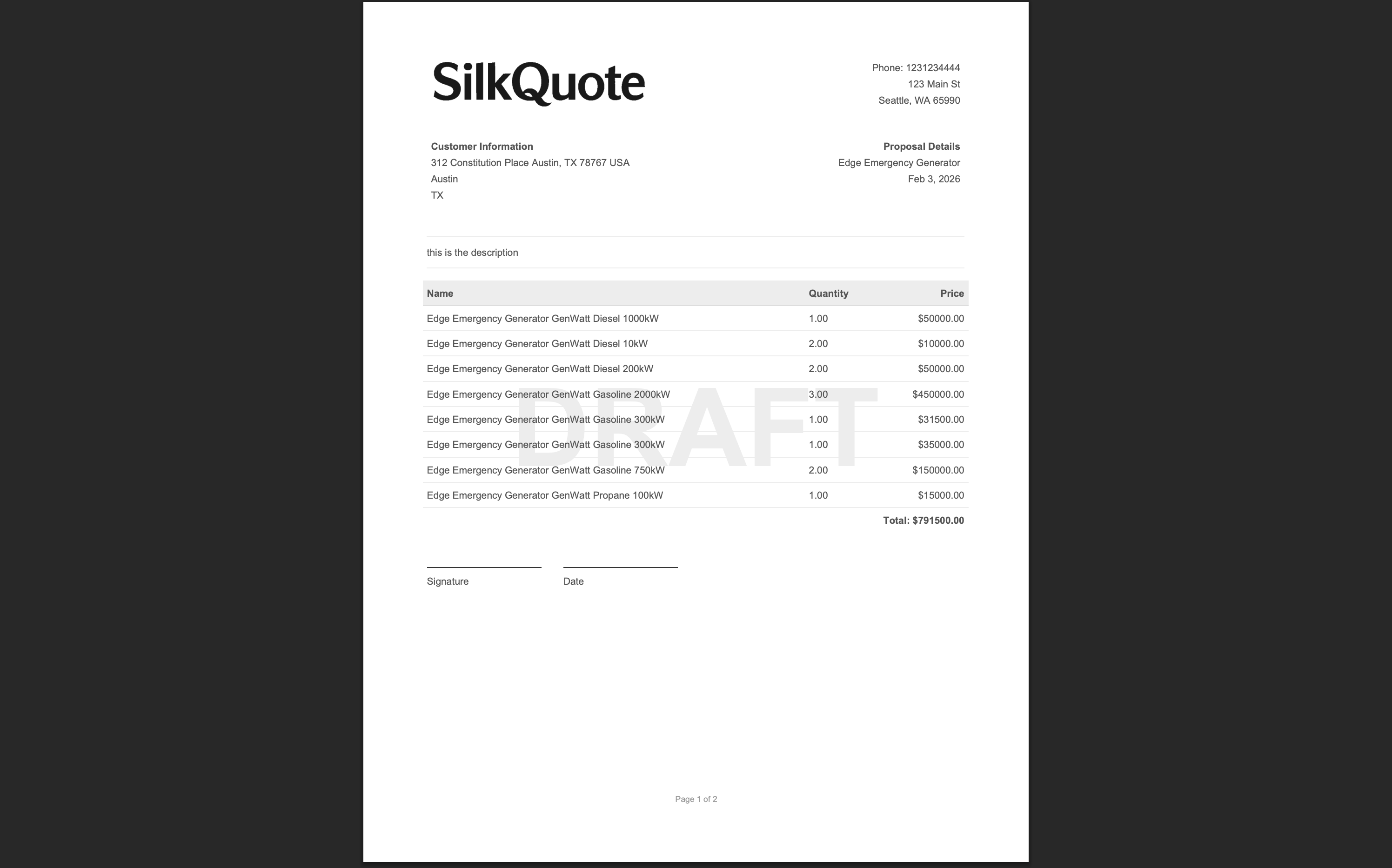
- Test edits before rollout: After editing a template, use the Preview feature to verify the changes look correct before reps generate live quotes. See Preview a Template with Real Data.
- Communicate changes to reps: If you change a template’s name or output format significantly, let reps know so they understand what to expect when they generate their next quote.