Creating a professional PDF quote from a Salesforce Opportunity sounds like it should be straightforward — your CRM already has all the data. But if you have tried to do it with native Salesforce tools, you know the result rarely looks like something you want to send to a prospect. This guide walks through your options and shows the fastest path to a polished, branded quote PDF directly from Salesforce.
The Problem with Native Salesforce Quote PDFs
Salesforce includes a Quotes object that can produce a PDF, but it comes with significant limitations that make it unsuitable for most client-facing use cases:
- Fixed layout — The native quote template uses a rigid, two-column format with no way to reorder sections or adjust spacing.
- Limited branding — Adding a logo requires uploading a specific file type; fonts and colors cannot be changed.
- No conditional logic — You cannot show or hide sections based on Opportunity field values.
- No Terms and Conditions — Appending T&Cs requires manual editing or a separate document.
- No draft watermarking or signature blocks — Both common in a real sales workflow.
For internal tracking, the native PDF is adequate. For anything you send to a prospect, you typically need more control.
Option 1: Salesforce CPQ
Salesforce CPQ (Configure, Price, Quote) includes a powerful PDF generation engine. It supports custom templates, product bundles, pricing rules, and output formatting. But CPQ comes with substantial cost and complexity:
- CPQ licensing starts at around $75 per user per month, on top of your existing Salesforce subscription.
- Implementation typically takes several weeks and often requires a consulting partner.
- Maintenance is ongoing — pricing rules, approval workflows, and product catalogs require dedicated admin time.
CPQ makes sense for companies with complex product catalogs, tiered pricing structures, or guided selling requirements. For teams that mostly need to generate a clean, branded proposal from an Opportunity with line items, CPQ is overkill.
Option 2: Third-Party Document Generation Tools
Tools like Conga Composer, S-Docs, and Nintex Drawloop allow you to generate PDFs from Salesforce using Word or Google Doc templates. They are flexible but introduce their own complexity:
- Template creation requires learning a merge tag syntax specific to each tool.
- Templates live outside Salesforce (in Google Drive, Box, or the tool’s own storage), creating version control challenges.
- Licensing costs vary but typically start at $20–$40 per user per month.
These tools work well for teams that already have existing Word templates they want to preserve. For teams starting fresh, they often add unnecessary overhead.
Option 3: SilkQuote (Recommended for Most Teams)
SilkQuote is a free, native Salesforce app that generates professional PDF quotes directly from Opportunity records. It was built specifically to solve the gap between Salesforce’s data richness and its poor native quoting output.
How SilkQuote Quote PDF Generation Works
- A rep opens an Opportunity record in Salesforce Lightning.
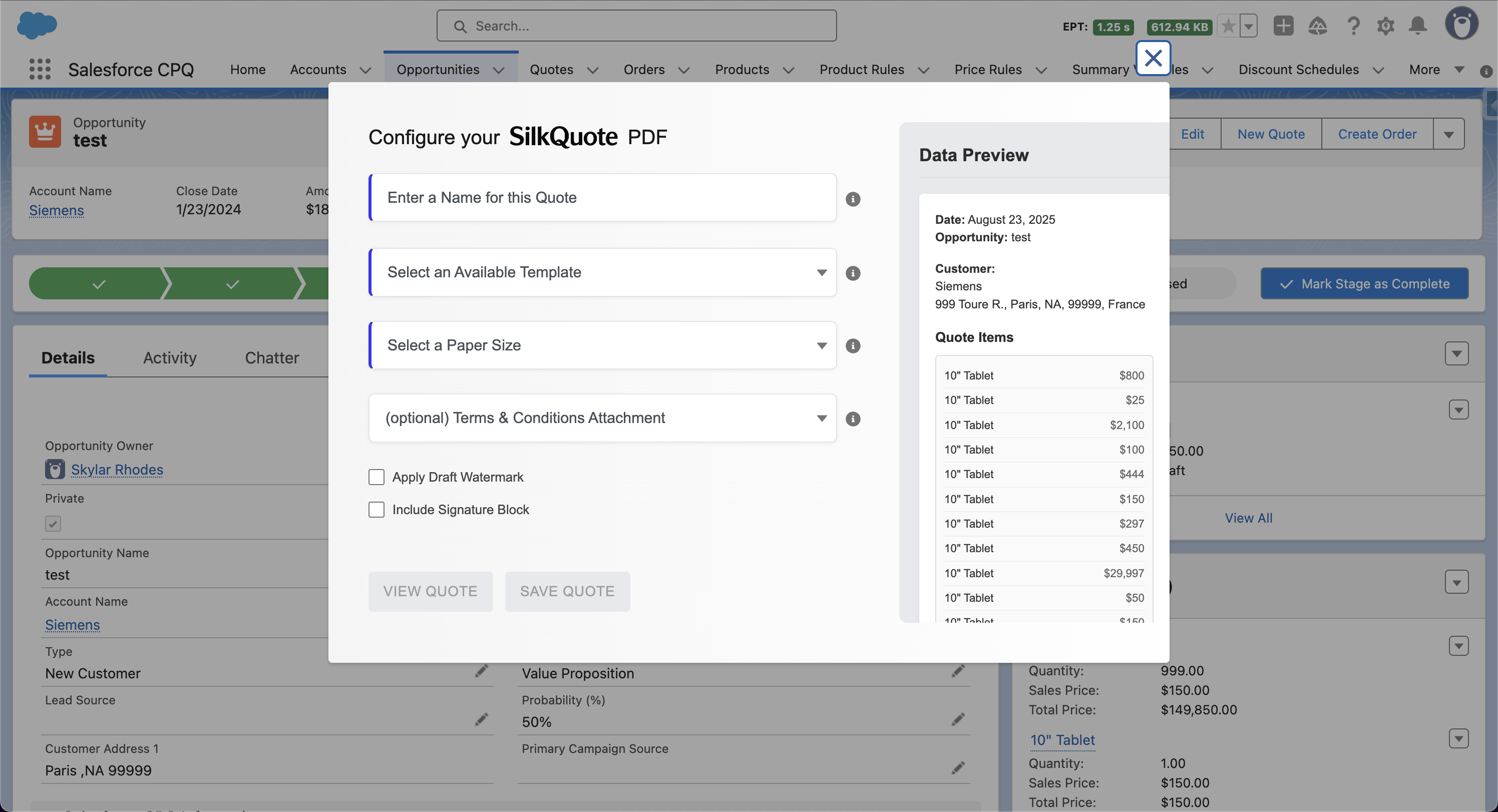
- They click the Generate Quote Document Quick Action in the highlights panel.
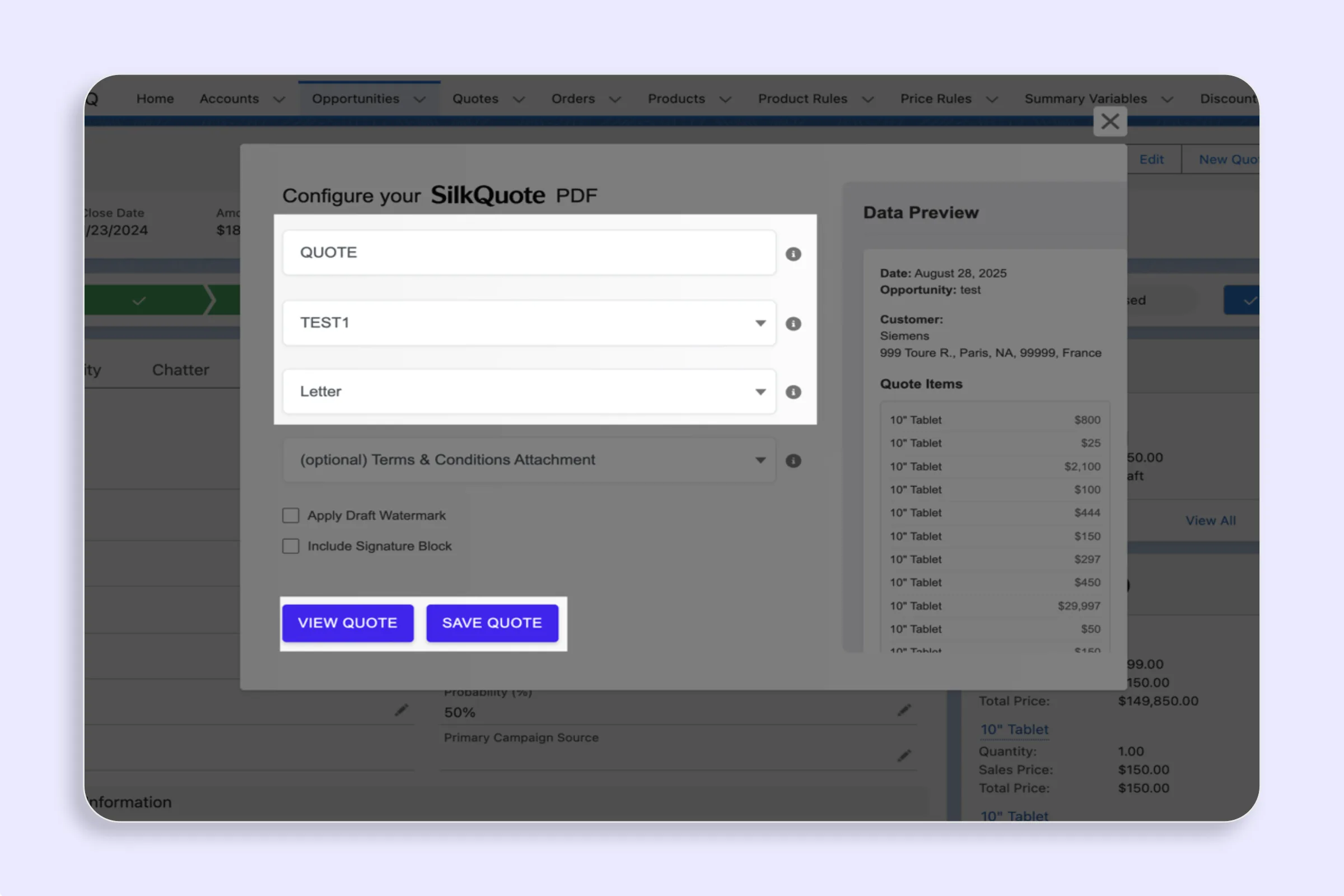
- A dialog appears where they name the quote, select a template, choose paper size, and optionally add Terms and Conditions, a draft watermark, or a signature block.
- They click Save PDF.
- The PDF is generated server-side, formatted from the configured template, and automatically attached to the Opportunity as a Content Document.
The entire process takes under 30 seconds. No external tools, no copy-pasting, no leaving Salesforce.
Step-by-Step: Creating Your First Quote PDF with SilkQuote
Step 1 — Install SilkQuote
Install SilkQuote from the Salesforce AppExchange. See How to Install SilkQuote for the full walkthrough.
Step 2 — Assign the Permission Set
After installation, assign the Quote Generation Access permission set to any rep who needs to generate quotes. See Grant Access with the Permission Set for instructions.
Step 3 — Add the Quick Action to Opportunity
The Generate Quote Document button must be added to the Opportunity page layout before reps can use it. See Add the Generate Quote Quick Action to Opportunity.
Step 4 — Configure Your Template
Open the SilkQuote Configuration Manager from the App Launcher and create a template. At minimum, configure:
- Template name and accent color
- Company section — maps Account fields (company name, address)
- Customer section — maps Contact fields (name, email, title)
- Quote Details section — maps Opportunity fields (quote date, rep name, valid until)
- Item Columns — maps Opportunity Product fields (product name, quantity, unit price)
- Totals section — maps Opportunity amount fields
See Configure Template Sections & Fields for the full field mapping guide.
Step 5 — Generate the PDF
Open an Opportunity that has at least one Opportunity Product added. Click Generate Quote Document, fill in the quote name, select your template, and click Save PDF. The PDF appears in the Files section on the Opportunity immediately.
Comparing Your Options
| Feature | Native Salesforce | CPQ | SilkQuote |
|---|---|---|---|
| Custom branding | Limited | Yes | Yes |
| Field mapping control | No | Yes | Yes |
| Conditional sections | No | Yes | Yes |
| Terms & Conditions | No | Yes | Yes |
| Draft watermark | No | Yes | Yes |
| Signature block | No | Yes | Yes |
| Installation time | Included | Weeks | Under 1 hour |
| Cost | Included | ~$75/user/mo | Free |
Tips for Better Quote PDFs
- Preview before saving — Use the View Quote button (not Save PDF) to check formatting against a real Opportunity before committing. See Preview a Quote without Saving.
- Use consistent quote names — Include the date or version number (e.g., “Acme Corp - March 2026 - v2”) to keep the Files section organized as deals progress.
- Set up Terms rules early — If your company has standard T&Cs, configure them as a Terms rule in SilkQuote so reps can attach them in one click rather than as a separate email attachment.
Next Steps
Ready to start generating professional quote PDFs from Salesforce?
Frequently Asked Questions
Can Salesforce natively generate a PDF quote?
Salesforce has a built-in Quotes object that can generate a basic PDF, but it is limited to a fixed layout, minimal branding options, and no support for custom field mappings or conditional logic. Most sales teams find it insufficient for client-facing proposals.
Do I need Salesforce CPQ to create a quote PDF?
No. Salesforce CPQ is an enterprise-grade configure-price-quote tool that includes PDF generation, but it is expensive and complex. SilkQuote provides professional PDF quote generation without CPQ — for free, natively in Salesforce.
How long does it take to set up SilkQuote for PDF generation?
Most teams are generating their first quote PDF within an hour of installing SilkQuote from the AppExchange. Template configuration, permission assignment, and adding the Quick Action to the Opportunity page layout can all be completed in a single admin session.
Where does the generated PDF get saved in Salesforce?
SilkQuote saves the generated PDF as a Content Document attached directly to the Opportunity record. It appears in the Files related list on the Opportunity and is immediately available to download or share.
Can I add a logo and custom branding to my Salesforce quote PDF?
Yes. Each SilkQuote template supports a custom logo (uploaded as a Salesforce Static Resource), accent color, and configurable layout sections. Every PDF can reflect your company branding without any code.