Sending a quotation is often the moment that determines whether a deal moves forward. A vague, inconsistently formatted, or manually assembled document creates doubt. A precise, professional quotation, with accurate pricing, clear line items, and consistent branding, signals that your company has its process together.
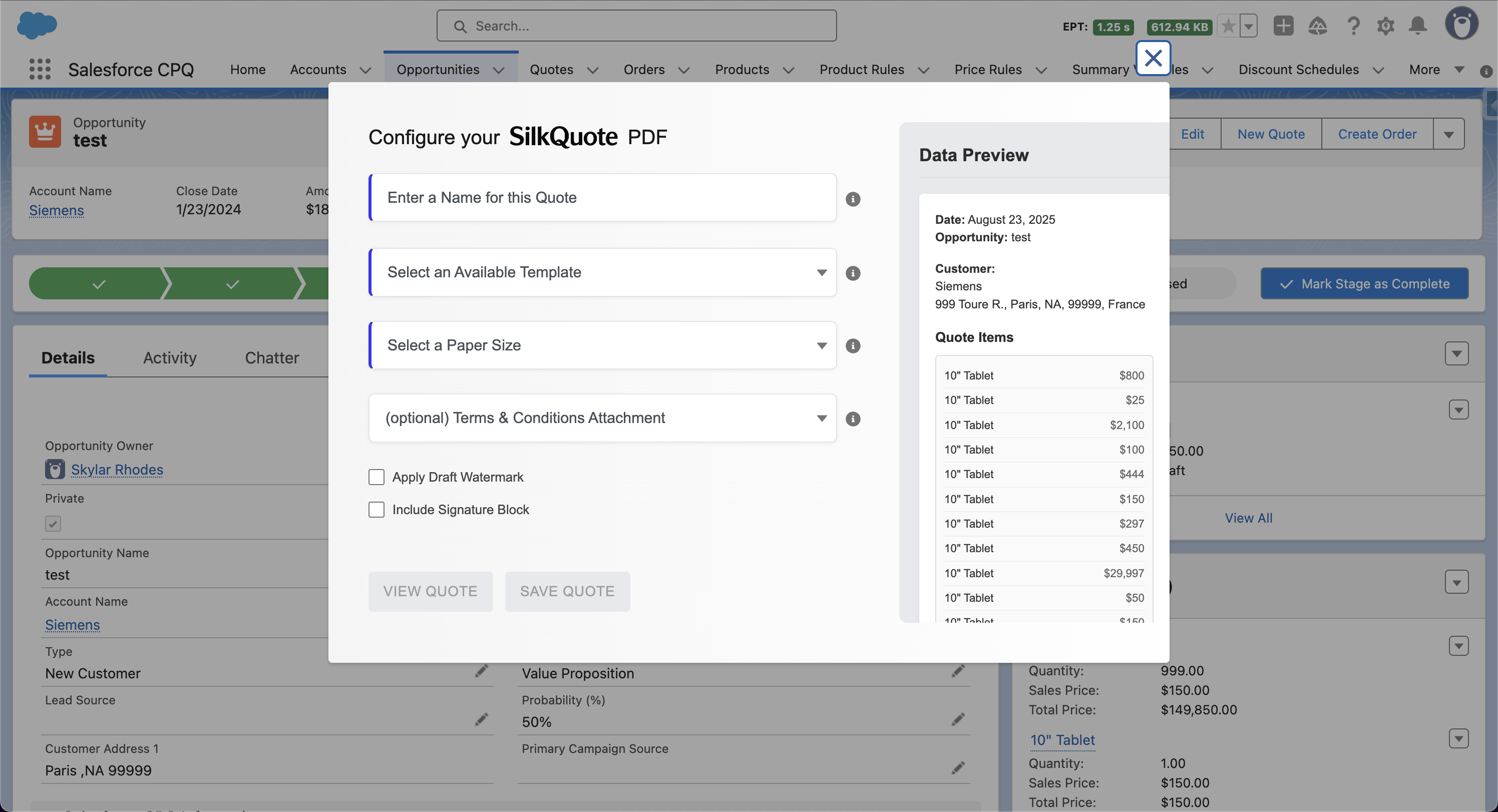
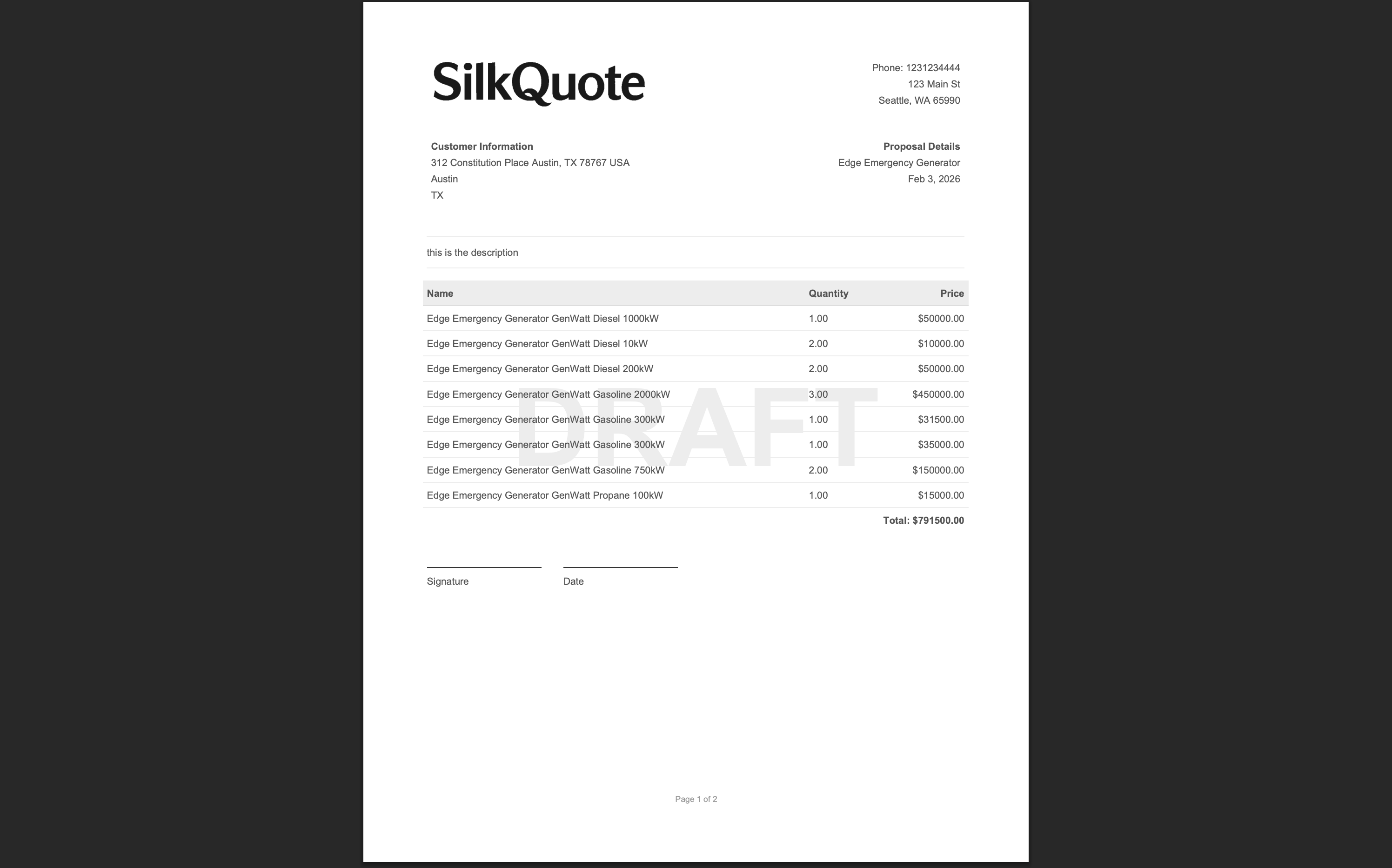
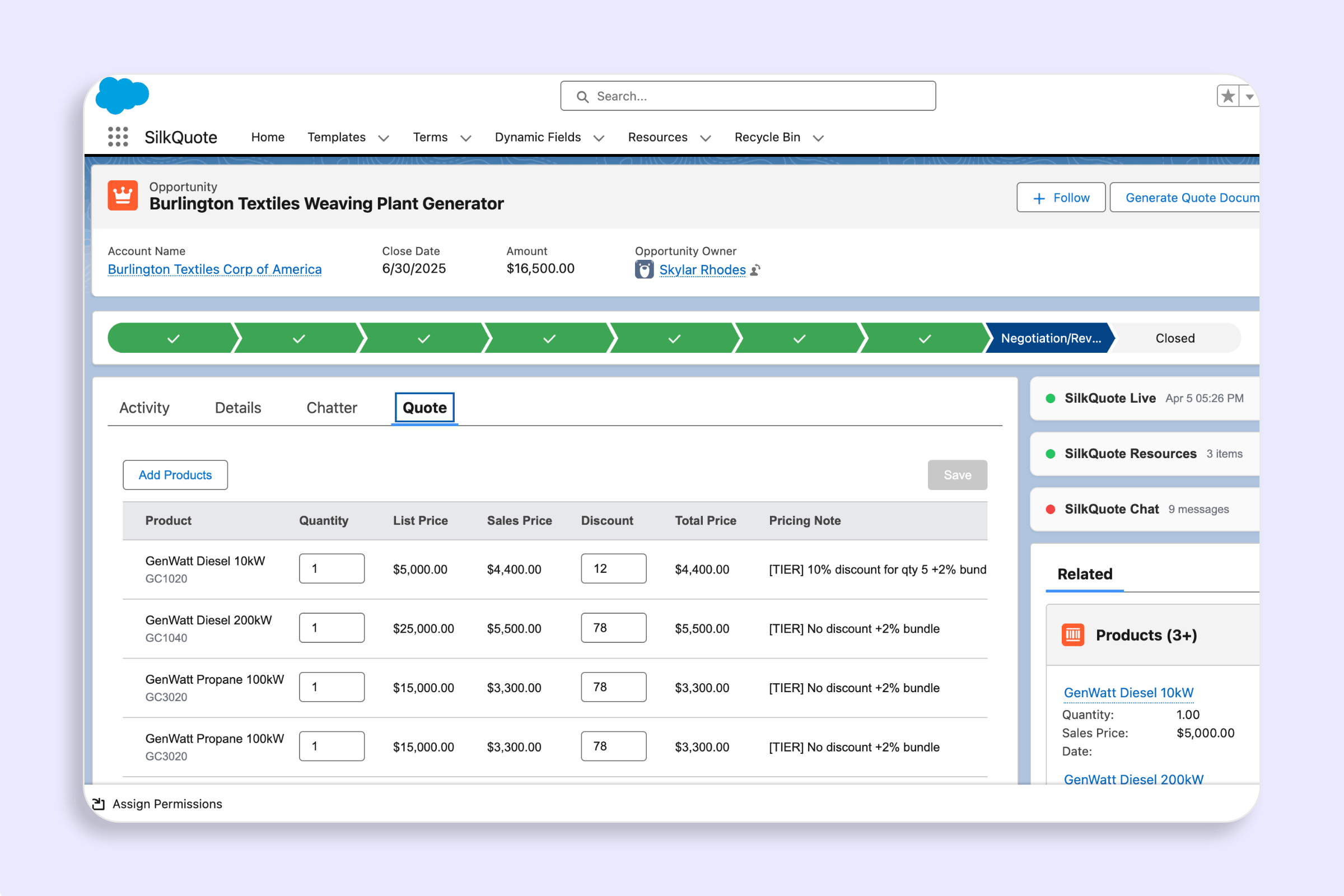
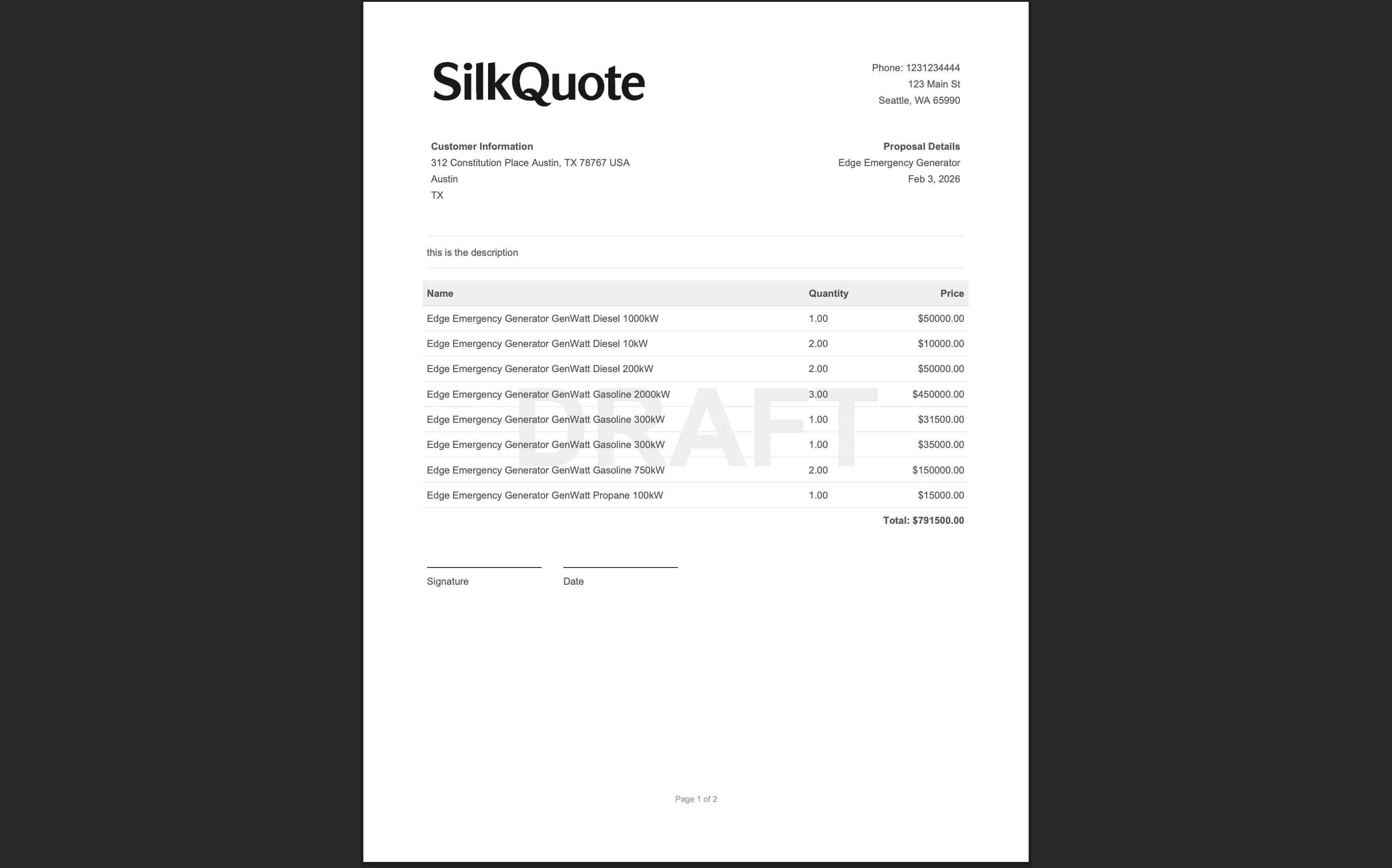
SilkQuote brings Salesforce quotation into the Opportunity workflow. Instead of exporting data and building a document in an external tool, reps generate a finished PDF quotation directly from the Opportunity record. The data is already in Salesforce. SilkQuote just turns it into a document.
Understanding Salesforce Quotation
In Salesforce, a quotation is a document that captures the offer being made to a prospect: what products or services are included, at what price, under what terms. The challenge is getting that information out of Salesforce and into a presentable format quickly and accurately.
Native Salesforce has a Quotes object, but it requires creating a separate record and keeping it in sync with the Opportunity, an extra step that adds friction without adding value for most teams. SilkQuote takes a different approach: it reads Opportunity data at generation time and renders it into a PDF immediately, with no intermediate record required.
The result is a quotation that always reflects the current state of the Opportunity, with no sync errors, no copy-paste risk, and no external tools needed.
Why Accurate Quotations Matter
An inaccurate quotation creates problems at every stage of the deal. A price that doesn’t match what was discussed erodes trust. A missing line item creates a dispute at contract time. An outdated discount figure forces an awkward conversation.
SilkQuote addresses accuracy at the source: every field in the quotation is pulled directly from Salesforce. If the Opportunity has the correct price, the quotation has the correct price. There is no intermediate step where data can be mistyped or left stale. For teams with complex pricing or frequent updates, this is the most reliable way to ensure quotation accuracy.
Key Features of SilkQuote for Salesforce Quotation
Customizable quotation templates. Templates control the layout, sections, and field mapping for every generated quotation. Admins configure them once in the SilkQuote Configuration Manager; reps use them on every deal. See Salesforce Quote Template: How to Build and Customize Yours for the full setup guide.
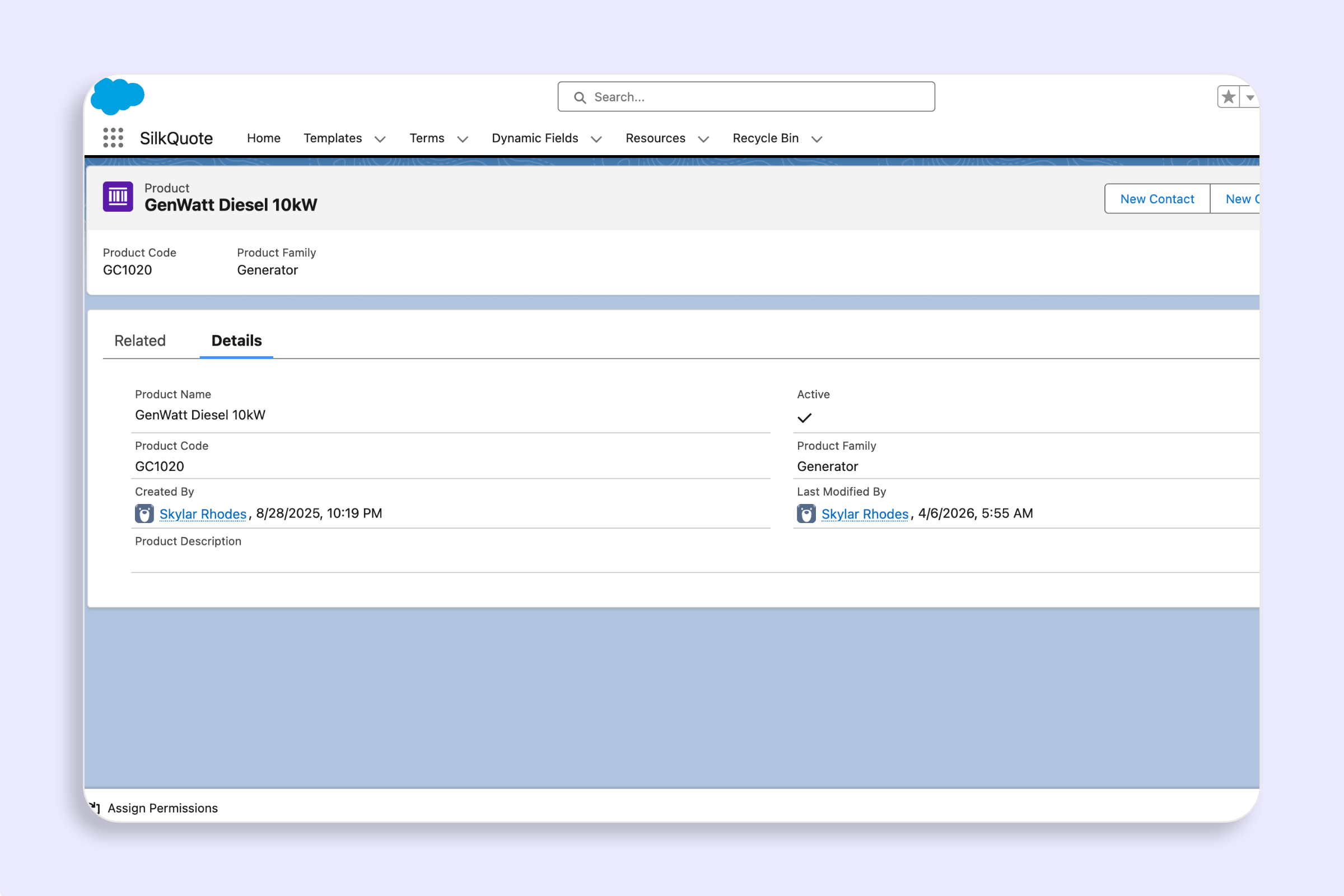
Field mapping from any related object. Map standard or custom fields from Opportunity, Account, Contact, and Opportunity Products into any section of the quotation. Company details, contact information, line items, and totals all pull from their native Salesforce locations.
Line items table with configurable columns. The product section maps Opportunity Product fields (product name, quantity, unit price, total, description) into a formatted table. Column order is configurable. Subtotal and grand total rows pull from Opportunity amount fields.
Branding per template. Each template supports its own logo (via Salesforce Static Resource), accent color, and paper size. This makes it straightforward to maintain separate quotation formats for different brands, regions, or product lines.
Conditional field rendering. Fields can be set to appear only when a condition is met. For example, only show a discount row when Discount__c is greater than zero. This prevents empty rows from appearing in the quotation when data is absent.
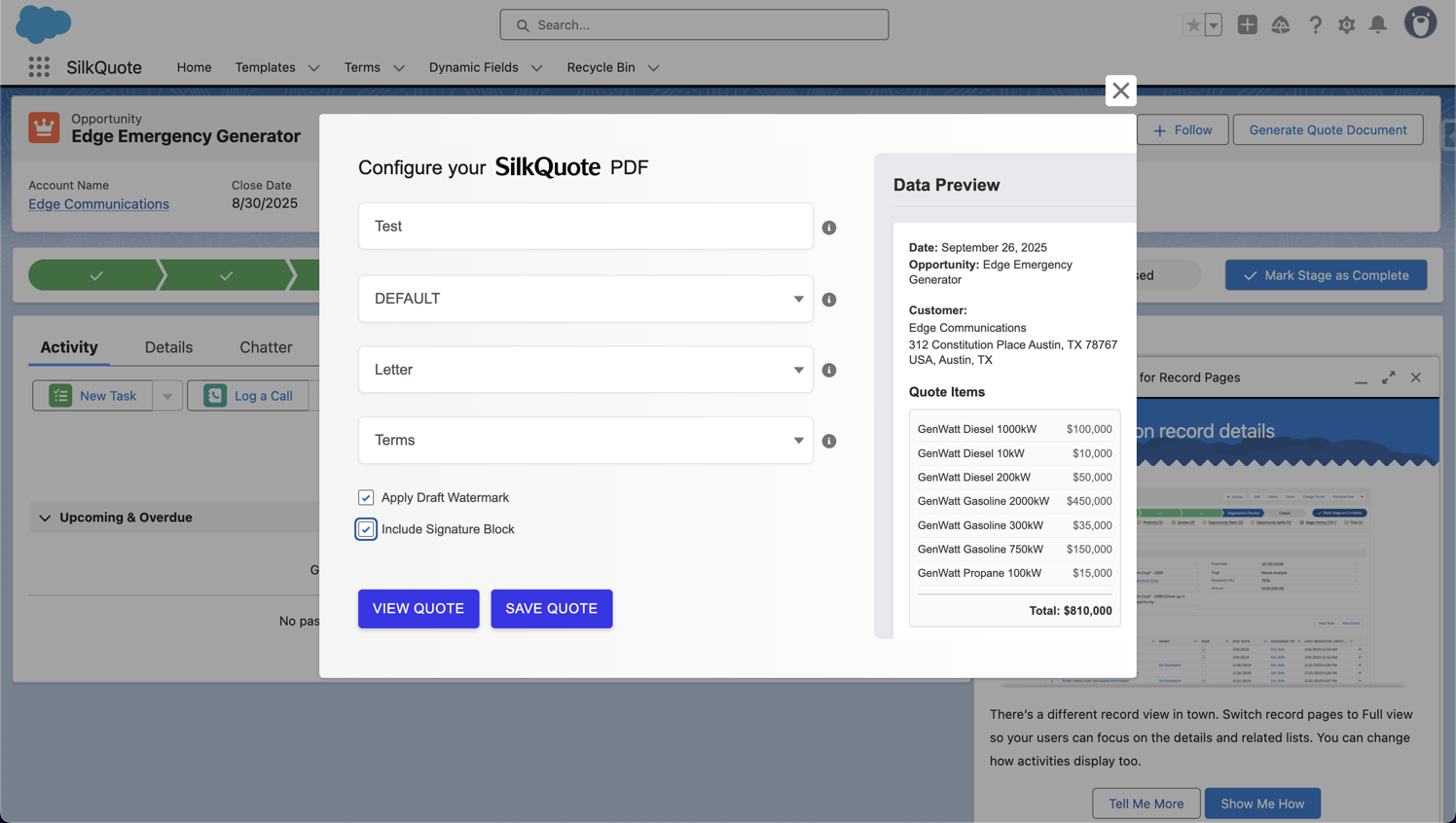
One-click generation from the Opportunity. Reps do not leave the Opportunity record. The SilkQuote button opens a dialog, the rep selects a template, and the quotation downloads as a PDF. See Salesforce Quote Generator for how this works in practice.
Setting Up a Salesforce Quotation Template
The template is the foundation of every quotation. A well-configured template means reps never have to think about formatting. They just generate.
Step 1: Open the SilkQuote Configuration Manager from the Salesforce App Launcher.
Step 2: Create a new template and set the name, accent color, logo, and paper size.
Step 3: Add sections (Company, Customer, Quote Details, Item Columns, Totals, Description) and configure the fields in each. For each field, set the label, the Salesforce API name, the source object, and the display order.
Step 4: Preview the template against a real Opportunity to confirm the output looks correct before rolling it out to the team.
Full documentation: Configure Template Sections & Fields and Preview a Template with Real Data.
Best Practices for Salesforce Quotations
Map fields to their authoritative source. Pull pricing from Opportunity amount fields, contact details from Contact, company details from Account. Avoid custom text fields that someone has to remember to update manually.
Use conditions to keep the quotation clean. If some deals include a discount and others don’t, use a condition on the discount row so it only appears when relevant. A quotation with empty rows looks incomplete.
Use short, clear column labels. In the line items table, column headers like “Product”, “Qty”, “Unit Price”, and “Total” are clearer and more space-efficient than longer alternatives. Long headers compress the value columns.
Test against edge cases before deploying. Generate a preview against an Opportunity with many line items (to check pagination) and one with minimal data (to check conditional fields). Adjust the template before reps start using it.
Create separate templates for distinct audiences. A new business quotation typically includes a full scope description, all contact details, and formal terms. A renewal quotation might be a single page focused on the updated pricing. Configure separate templates rather than trying to make one template serve all scenarios.
Automating Salesforce Quotation with SilkQuote
SilkQuote’s core automation is the generation itself: field population, formatting, and PDF rendering happen automatically at the moment the rep clicks generate. There is no manual data entry step.
For teams that want to go further, SilkQuote supports auto-template selection based on Opportunity field values. You can configure rules so that, for example, a deal on the Enterprise record type automatically uses the Enterprise quotation template, while an SMB deal uses the SMB template. Reps still confirm the selection, but the default is already set correctly.
This removes a decision point from the generation workflow and reduces the chance of a rep sending the wrong template format to the wrong type of prospect.
How SilkQuote Integrates with Salesforce
SilkQuote is a native Salesforce AppExchange application. It lives entirely within your org and reads data from the same records your team already manages. There is no external system to sync with, no separate database to maintain, and no API connection to configure.
Because quotation data comes directly from Salesforce at generation time, there is no lag or synchronization issue. The quotation always reflects the current state of the Opportunity. If a rep updates the pricing on the Opportunity and generates a new quotation, the new document shows the updated figures.
Common Quotation Challenges and How SilkQuote Solves Them
Inconsistent quotation formatting across the team. When reps build quotes manually, every document looks different. SilkQuote enforces consistency: every quotation generated from the same template has the same layout, branding, and structure, regardless of which rep produced it.
Pricing errors from manual data entry. Copying a price from Salesforce into a document introduces transcription risk. SilkQuote eliminates the copy step. Pricing fields map directly from the Opportunity, so the figure in the document is the figure in the record.
Slow turnaround on quotation requests. A rep who needs to build a quotation manually may take 20 to 30 minutes per document. SilkQuote reduces that to under a minute, which matters when a prospect is waiting or comparing responses from multiple vendors.
Template drift over time. When quotation documents live as files on individual laptops, templates go out of date as branding changes or new terms are added. SilkQuote templates are admin-managed and centrally stored. When the admin updates a template, every quotation generated afterward reflects the change.
Next Steps
A Salesforce quotation is a professional document sent to a prospect that details the products or services being offered, pricing, and terms. In SilkQuote, quotations are generated directly from the Opportunity record, pulling fields from Opportunity, Account, Contact, and Opportunity Products, and rendered as a branded PDF in one click.
SilkQuote reads field values from the Opportunity and related records at the moment of generation and populates a pre-configured PDF template. The rep opens the Opportunity, clicks the SilkQuote button, selects a template, and downloads the finished quotation. No manual data entry is involved.
Yes. SilkQuote supports multiple templates. For example, a new business quotation, a renewal quote, and a product-specific format. Templates can be selected manually by the rep or auto-selected based on Opportunity field values such as record type or product category.
Any standard or custom field from Opportunity, Account, Contact, or Opportunity Products can be mapped into a quotation section. This covers company information, contact details, deal metadata, line items with pricing, subtotals, and totals.
Yes. SilkQuote works with standard Opportunity and Opportunity Product records. CPQ is not required. If your team manages pricing through standard price books and Opportunity Products, SilkQuote can generate accurate quotations from that data without any additional configuration.
Consistency comes from the template. When every rep generates from the same SilkQuote template, the formatting, field order, branding, and structure are identical regardless of who created the quote. Admins manage templates centrally in the Configuration Manager.