
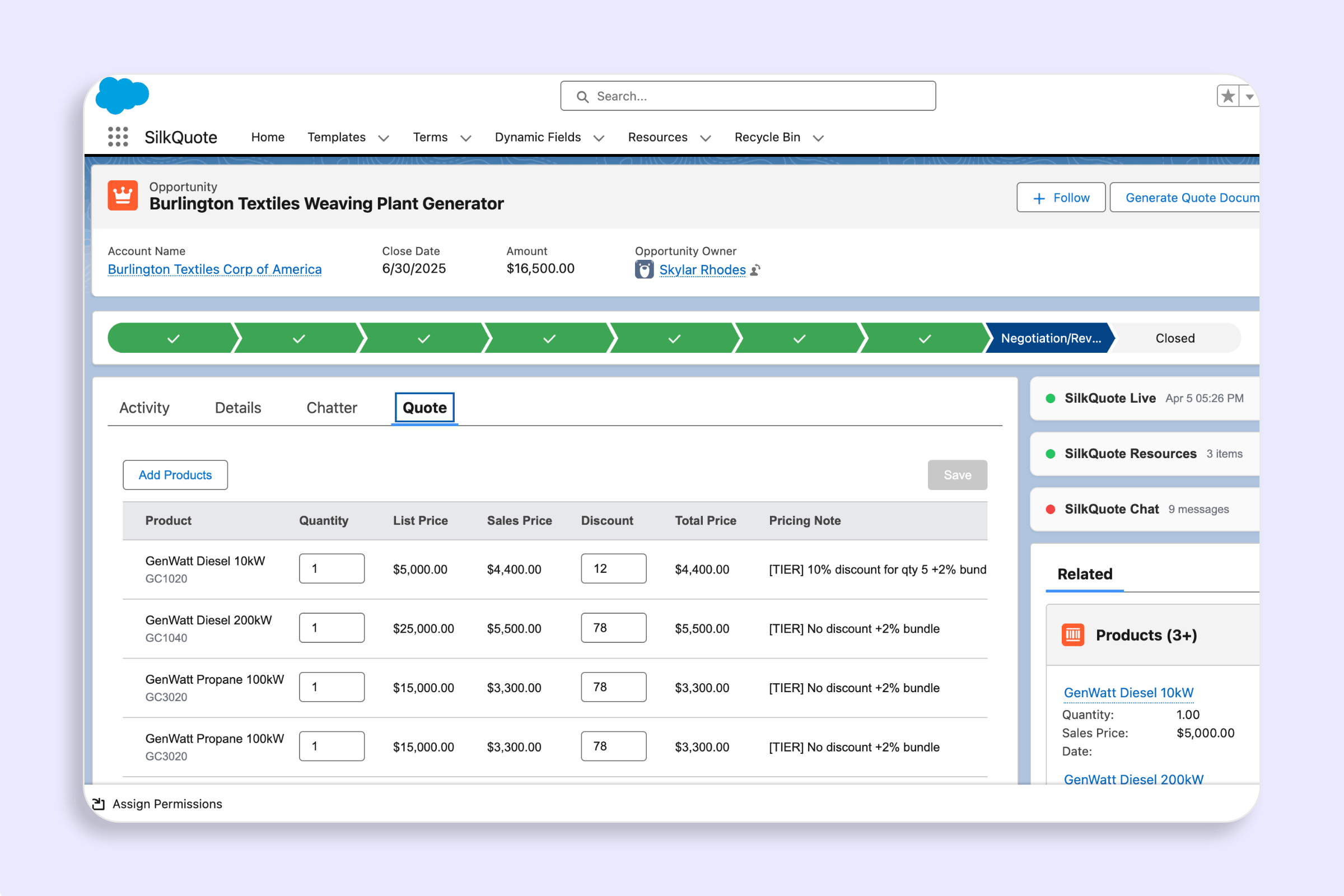
Salesforce stores all the data you need for a professional quote: the account, the contact, the products, the pricing. What it does not do by default is turn that data into a document your buyers want to receive. Standard Quote Templates are rigid, hard to design, and produce generic PDFs that undermine the professionalism you are working to project.
SilkQuote solves this. It is a free native Salesforce app that generates branded, professional PDF quotes in one click from any Opportunity record. This guide walks through the complete process: installing SilkQuote, designing a template, and generating your first quote.
What Makes a Professional Salesforce Quote
Before configuring anything, it is worth being clear about what a professional quote actually is. The difference between a generic PDF and a professional quote is not just aesthetics. It is buyer confidence.
A professional quote:
- Opens with your company brand (logo, colors, identity)
- Is addressed to a specific person at a specific company
- Shows exactly what is being proposed, organized clearly
- Displays pricing transparently with line items and totals
- Includes terms and conditions that are readable, not buried
- Has an expiration date so the prospect understands urgency
- Is easy to accept or decline without emailing back and forth
SilkQuote templates handle all of this through configuration: no code, no external design tools.
Step 1: Install SilkQuote from the AppExchange
- Search “SilkQuote” on the Salesforce AppExchange
- Click Get It Now
- Log in with your Salesforce admin credentials
- Choose to install in your production org or sandbox
- Select Install for All Users or a specific profile group
- Click Install
Installation takes 2–5 minutes. No code is deployed; SilkQuote is a managed package.
After installation, assign the SilkQuote Permission Set to users who will design templates or generate quotes. See the permission set guide for detailed steps.
Step 2: Open the Configuration Manager
- Click the App Launcher (nine-dot grid in the Salesforce header)
- Search for “SilkQuote Configuration Manager” and open it
The Configuration Manager is where all template design happens. You will build and manage all quote templates from this interface.
Step 3: Create a New Template
- In the Configuration Manager, click New Template
- Enter a template name (e.g., “Standard Proposal Template”)
- Set the paper size (Letter for US, A4 for international)
- Upload your company logo
- Set an accent color using the hex code picker (this controls heading colors and highlights)
- Click Save
You now have a blank template ready for content configuration.
Step 4: Add and Configure Sections
Sections are the building blocks of your quote. Each section maps to a distinct part of the document: the cover, the products table, the pricing summary, the terms.
To add a section:
- Click Add Section in the template editor
- Choose a section type (Header, Line Items, Text, Signature Block, etc.)
- Name the section and configure its fields
Recommended section structure for most quotes:
| Section | Content |
|---|---|
| Cover / Header | Account Name, Contact, Quote Date, Expiry, Rep Name |
| Executive Summary | Optional free-text description of the proposal |
| Products / Line Items | Opportunity Products with quantity, unit price, total |
| Pricing Summary | Subtotal, discount, tax, total |
| Terms & Conditions | Static text or merged from a field |
To configure Line Items:
- Add a Line Items section
- Select which Opportunity Product fields to show (Product Name, Quantity, Unit Price, Total Price, etc.)
- Enable line item grouping if you want products organized by Product Family or a custom field
- Enable automatic group subtotals if needed
Conditional display: For any section, click Conditional Display and set rules based on Opportunity field values. For example, hide the “Multi-Year Pricing” section unless Opportunity.Contract_Length__c equals “Multi-Year.”
Step 5: Add the Quick Action to the Opportunity Layout
The “Generate Quote Document” Quick Action gives reps the button they need on the Opportunity record.
- Go to Setup → Object Manager → Opportunity → Page Layouts
- Open your Opportunity page layout
- In the Quick Actions section, find “Generate Quote Document” and drag it to the Salesforce Mobile and Lightning Experience Actions section
- Click Save
Reps can now see and click the Quick Action directly from any Opportunity record.
Step 6: Generate Your First Quote
- Open any Opportunity with at least one Opportunity Product
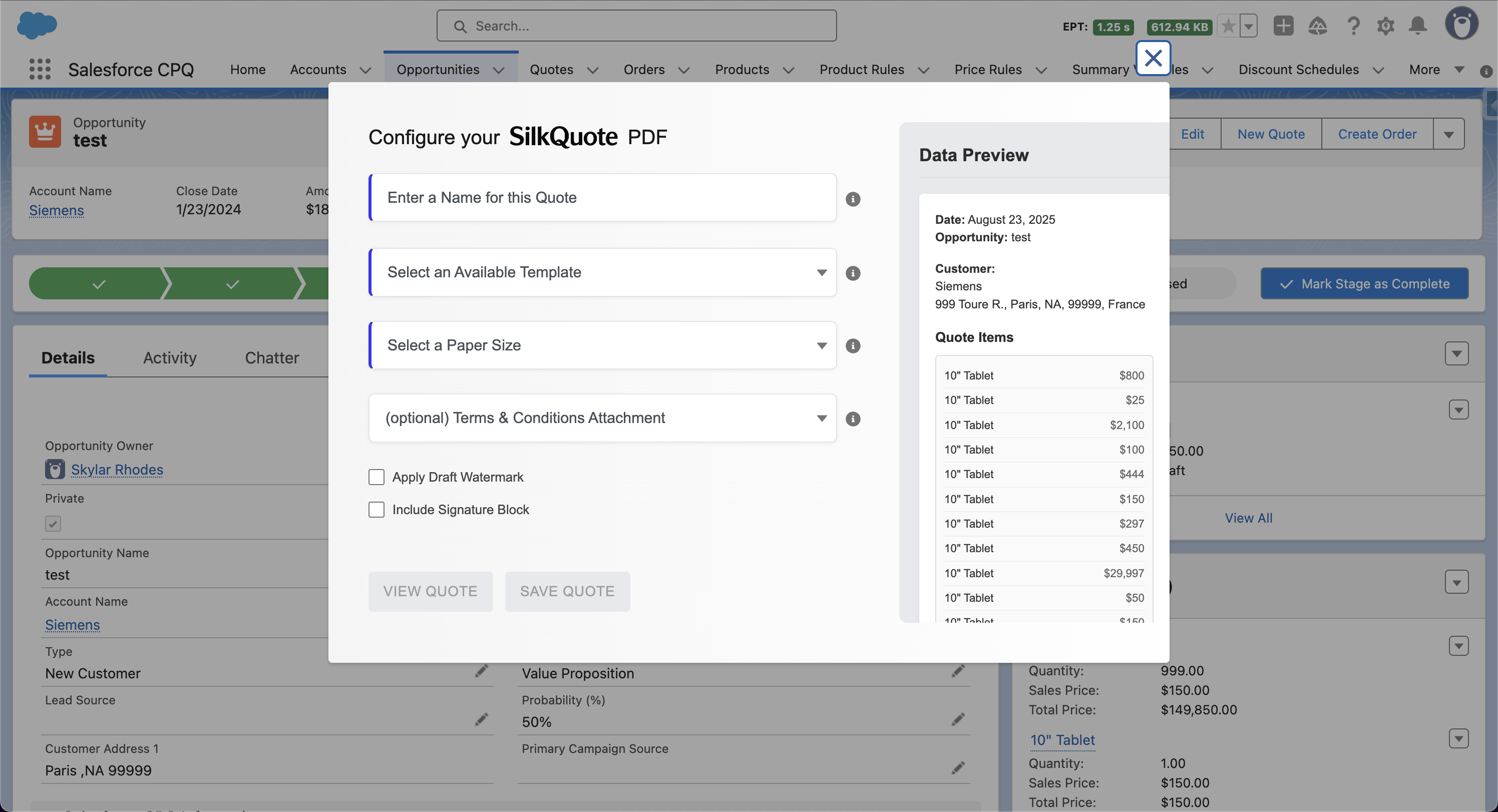
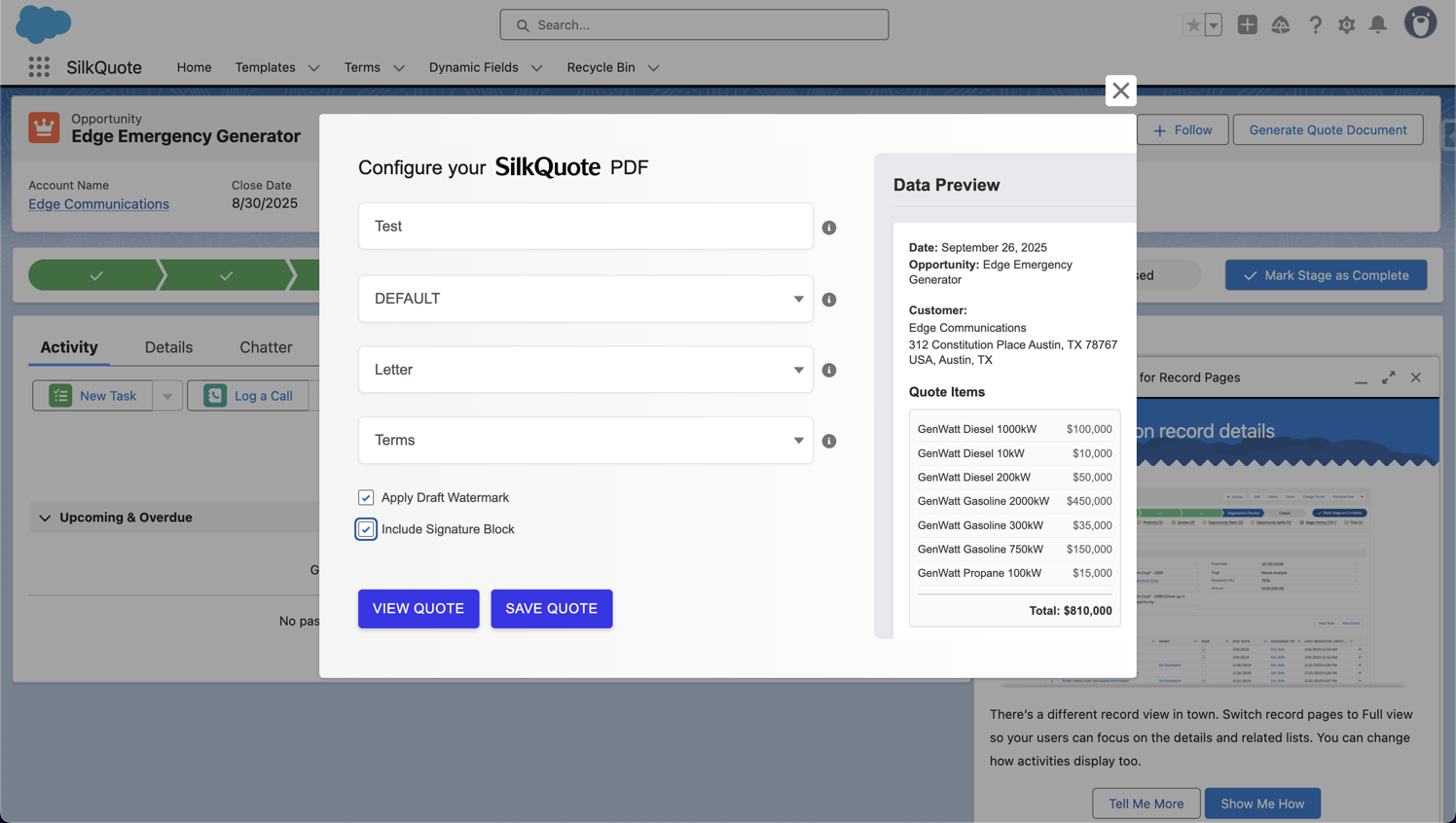
- Click the Generate Quote Document Quick Action button
- In the dialog:
- Select your template from the dropdown
- Enter a quote name (e.g., “Acme Corp - Proposal Q1 2026”)
- Optionally enable the Draft Watermark
- Optionally select a Terms and Conditions document
- Click Save PDF
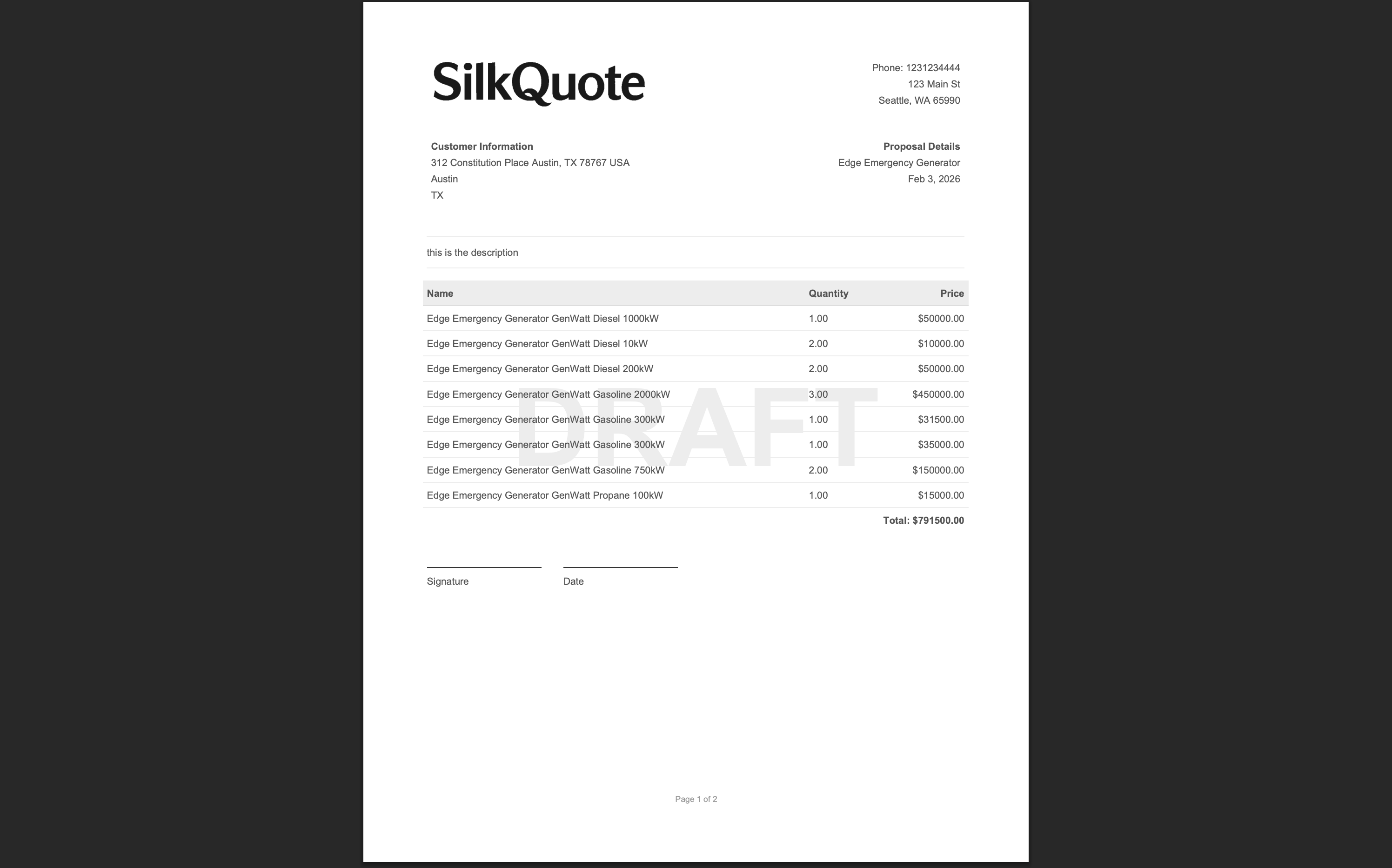
The PDF generates in seconds and attaches to the Opportunity as a Salesforce Content Document. It is immediately visible in the Files section on the Opportunity record.
Step 7: Share the Quote with Your Prospect
Instead of downloading the PDF and attaching it to an email, use SilkQuote’s link sharing:
- Click the share icon on the generated quote
- Copy the hosted quote link
- Paste the link into your outreach email to the prospect
The prospect opens the link in their browser, views the PDF, and can accept or decline with a single click. Every action (view, accept, decline) logs automatically as an activity on the Opportunity.
Next Steps: Automation and Advanced Templates
Once you have your basic template working, explore these next-level capabilities:
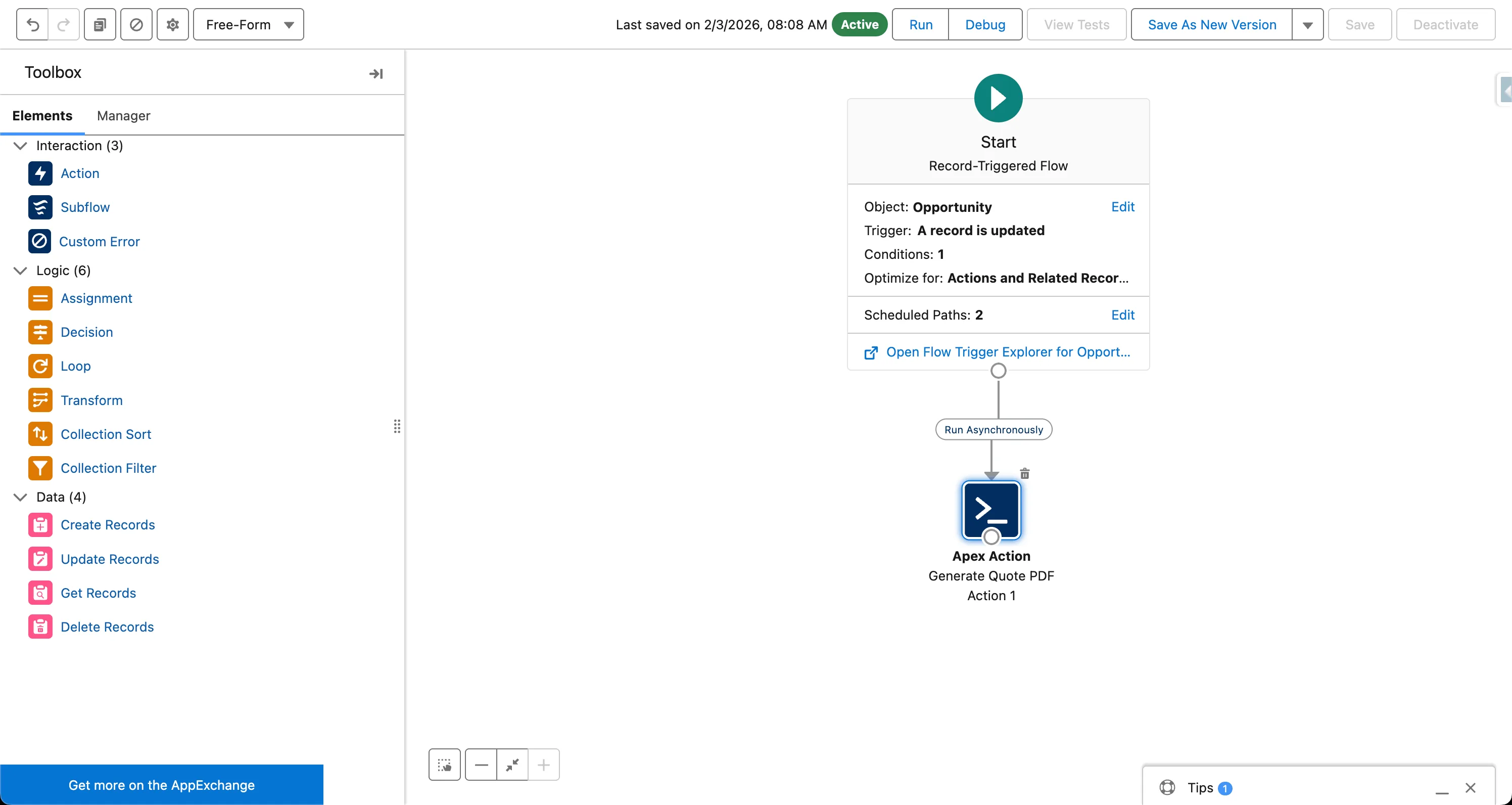
- Automate generation with Flow: See the Salesforce Flow tutorial to trigger quote generation automatically on stage change
- Advanced template design: See the template builder guide for conditional sections, logo configuration, and signature blocks
- Quoting best practices: See Salesforce quoting best practices for design tips that improve acceptance rates
Install SilkQuote free from the AppExchange and generate your first professional PDF quote today.
Yes. Salesforce includes a native Quote Templates feature that generates basic PDFs from the Quotes object. The output is functional but limited in design. SilkQuote replaces this with a professional drag-and-drop template designer and generates PDFs directly from Opportunities without a separate Quote record.
Most teams configure SilkQuote and generate their first quote in under two hours. Installation takes minutes; template design takes 30–60 minutes for a basic layout; the first quote generates in under 30 seconds.
No. SilkQuote generates a public-facing link that any prospect can open in their browser. They can review the PDF, accept it, or decline it without logging into Salesforce or creating an account.
Any field from the Opportunity, Account, Contact, or Opportunity Products object can be mapped into a SilkQuote template. Custom fields are fully supported. You can display any combination of standard and custom data in your quote layout.
Yes. SilkQuote generates PDFs directly from the Opportunity record using a Quick Action. You do not need to create a separate Quote record. Line items come from Opportunity Products.