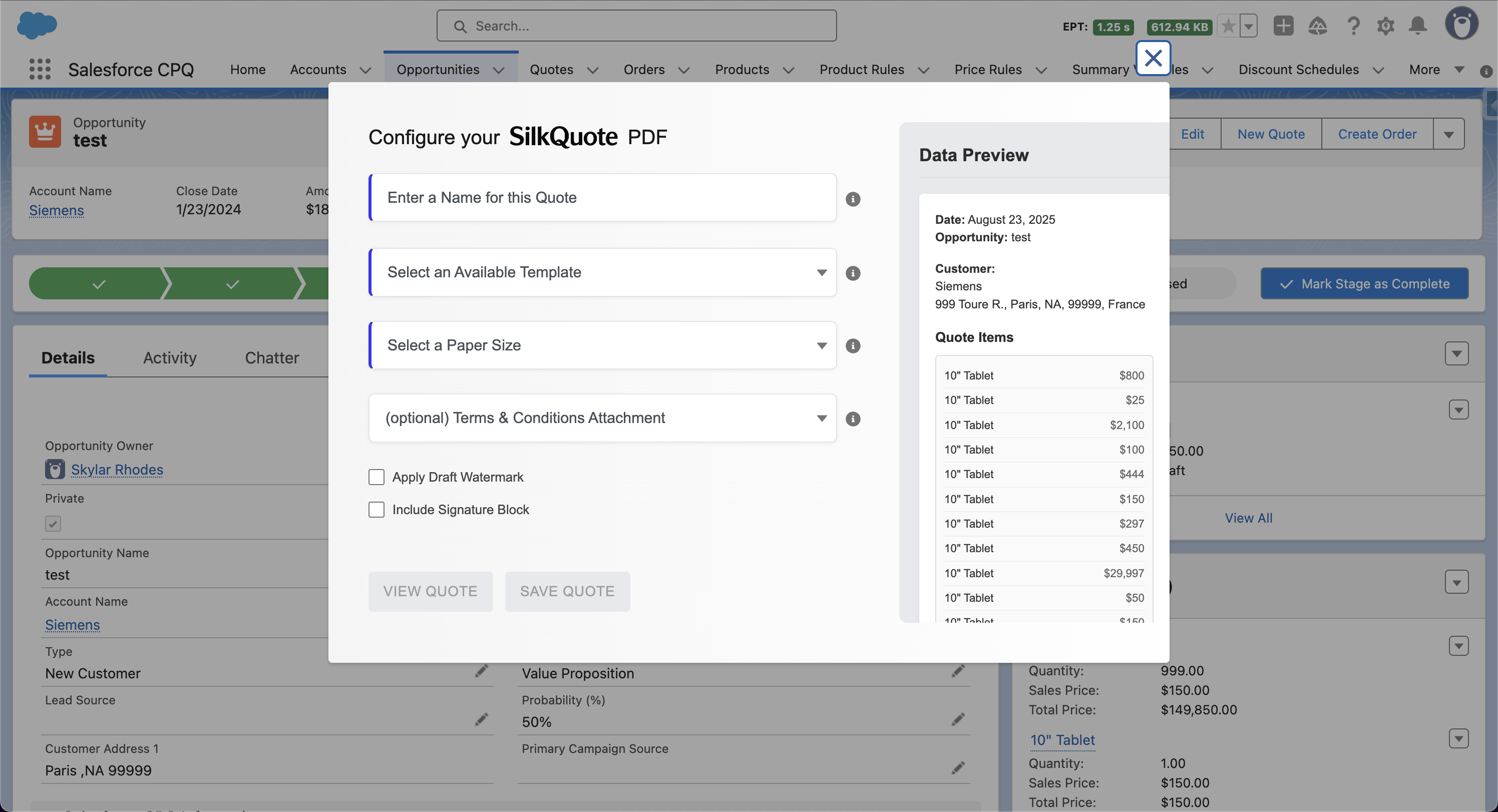

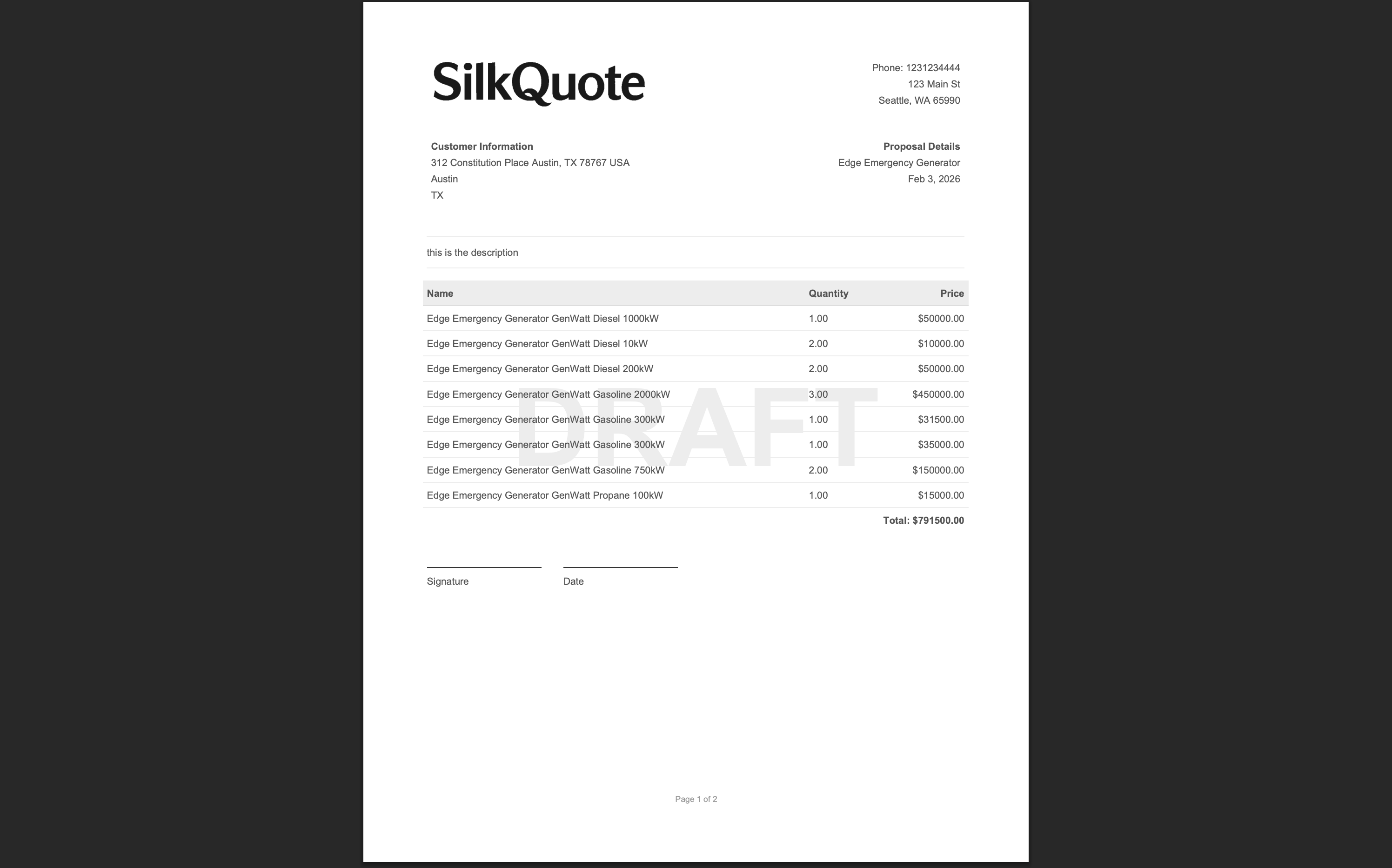
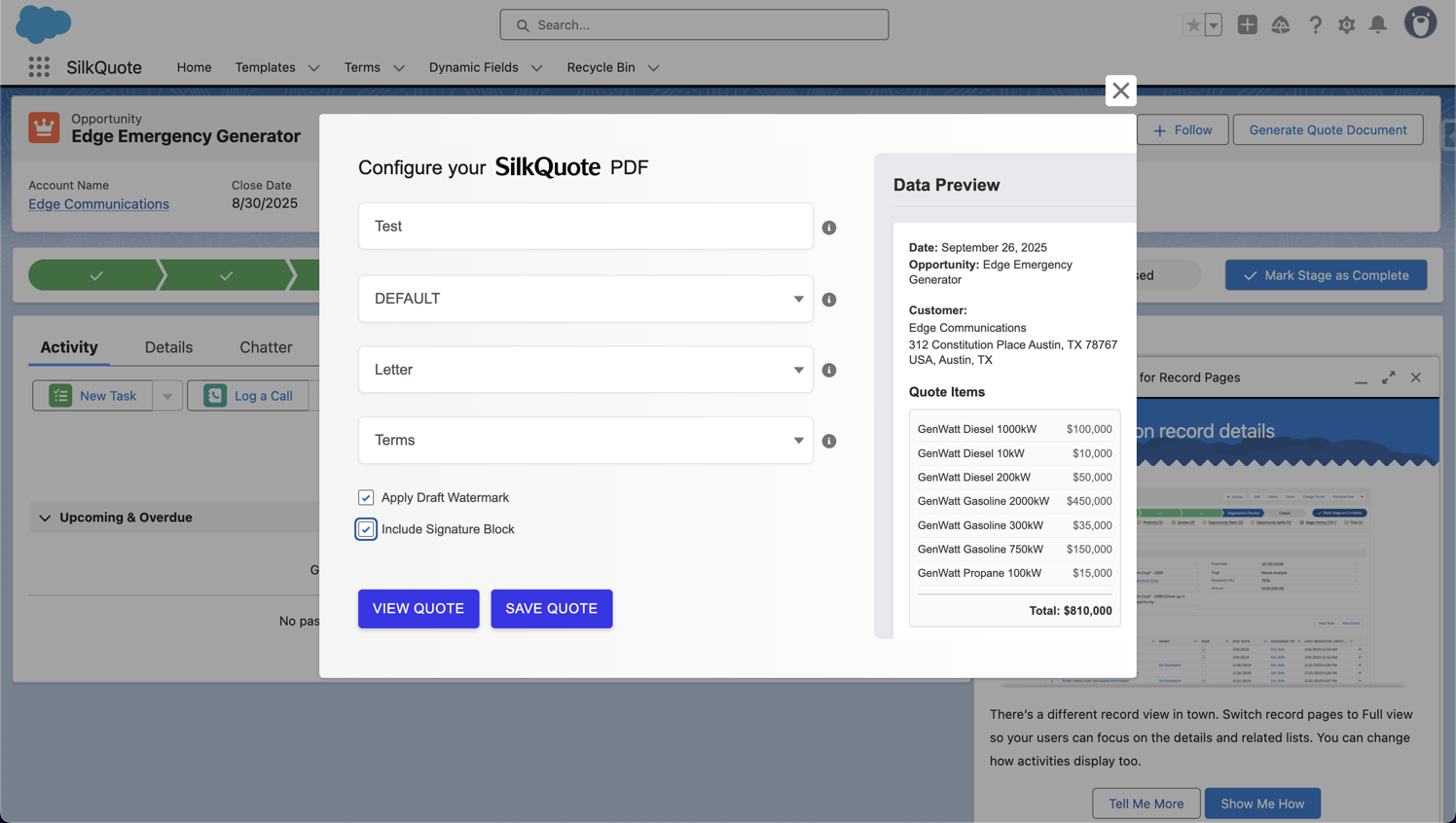
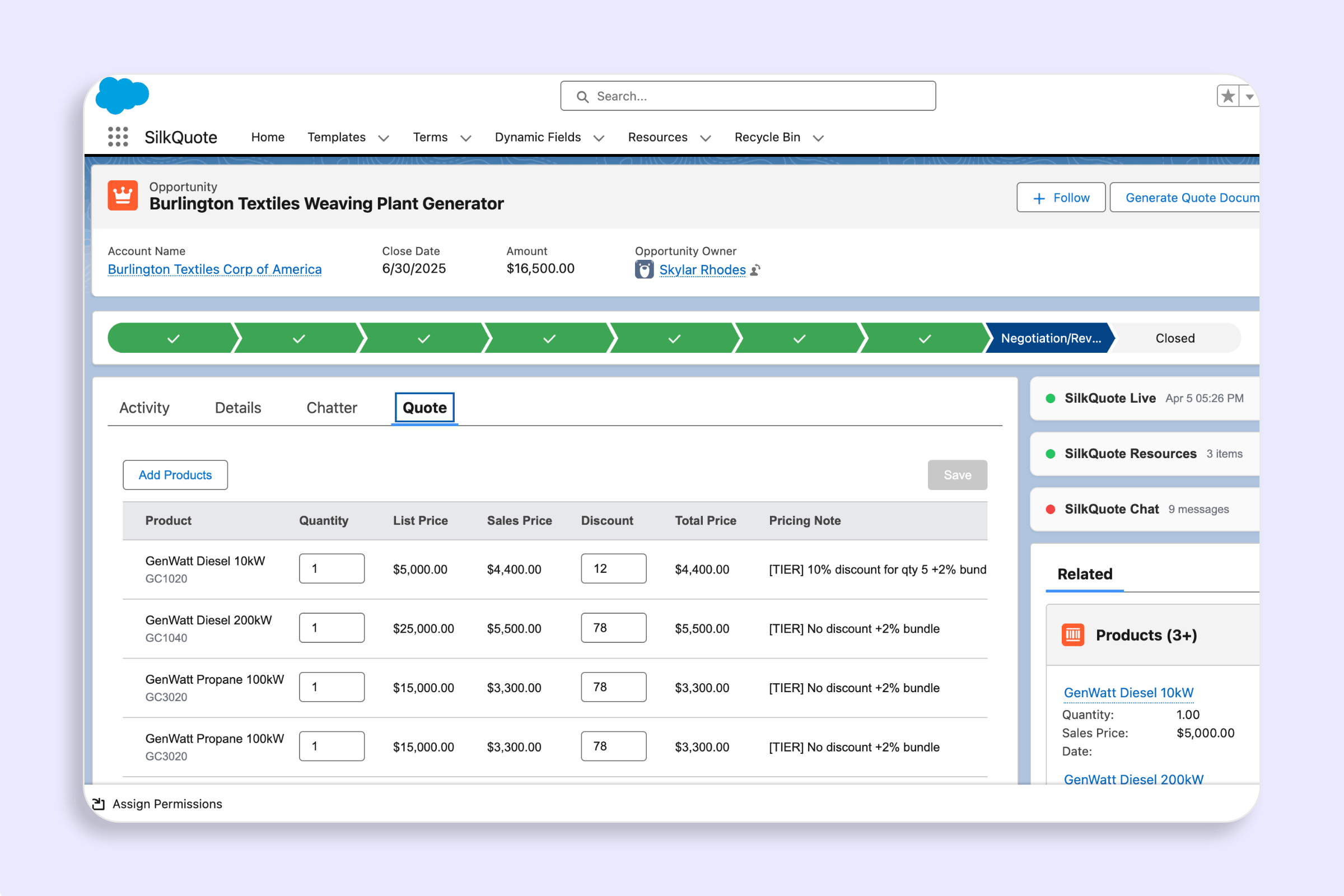
Salesforce Flow is the most powerful automation tool available without writing code. Combined with SilkQuote, Flow lets you trigger professional quote PDF generation automatically, with no rep action required. When an Opportunity reaches the proposal stage, a Flow fires, SilkQuote generates the PDF, and the document is attached to the record before the rep picks up the phone.
This tutorial walks through building a record-triggered Flow from scratch to automate quote generation with SilkQuote.
Prerequisites
Before building the Flow, confirm you have:
- SilkQuote installed in your Salesforce org. See the install guide if you have not completed this step.
- At least one SilkQuote template configured. Open the Configuration Manager from the App Launcher and create a template if you do not have one.
- The template’s record ID. In the Configuration Manager, find your template and note its Salesforce ID. You will use this in the Flow.
- System Administrator or appropriate Flow Builder permissions.
Overview: How the Flow Works
The Flow you will build follows this logic:
- Fire when an Opportunity record is updated
- Check if the Stage changed to “Proposal/Price Quote” (or your target stage)
- Call the SilkQuote “Generate Quote Document” invocable action with the Opportunity ID and template ID
- The action generates a PDF and attaches it to the Opportunity as a Content Document
The entire process runs in the background. Reps see the PDF attached to the record when they open it.
Step 1: Create a New Record-Triggered Flow
- Go to Setup → Process Automation → Flows
- Click New Flow
- Select Record-Triggered Flow
- Click Create
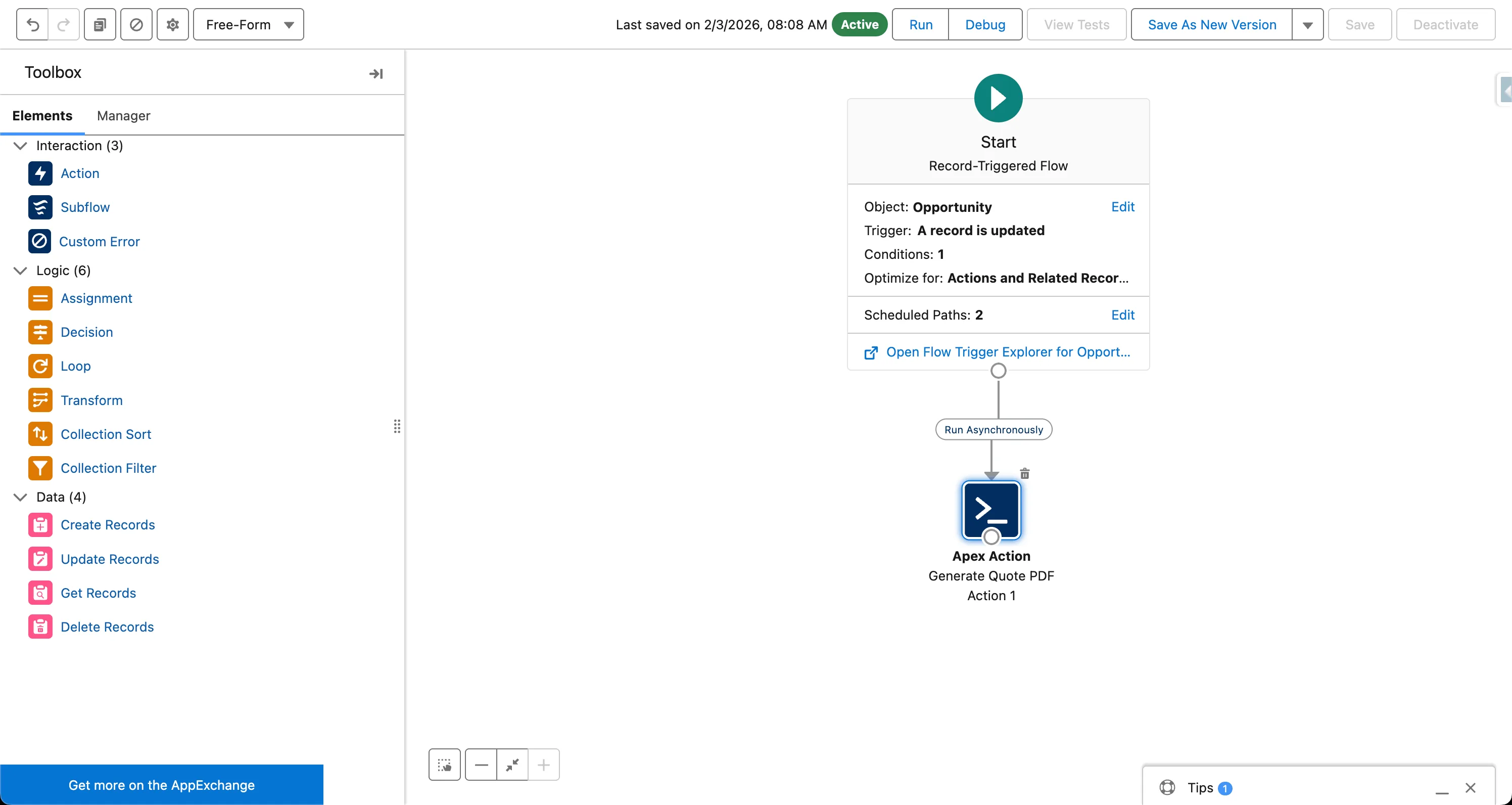
In the Start configuration:
- Object: Opportunity
- Trigger: A record is updated
- Entry Conditions: All Conditions Are Met
- Field:
Stage - Operator:
Equals - Value:
Proposal/Price Quote(or your preferred stage name)
- Field:
- When to Run the Flow Actions: Only when a record is updated to meet the condition requirements
- Optimize the Flow for: Actions and Related Records
Click Done.
Step 2: Add the Generate Quote Document Action
Click the + button below the Start element to add a new element.
- Select Action
- In the search box, type “Generate Quote Document”
- Select the Generate Quote Document action from the SilkQuote namespace
- Give the action a label, e.g., “Generate Proposal Quote”
Configure the action inputs:
- Opportunity ID: Click the input field, select Reference, then choose
{!$Record.Id}(this is the ID of the Opportunity that triggered the Flow) - Template ID: Enter your SilkQuote template ID directly (e.g.,
a0B...) or use a resource variable if you are using dynamic template selection - Quote Name: Use a formula or fixed text. For example:
{!$Record.Name} - Proposalto automatically name the quote after the Opportunity
Click Done.
Step 3: (Optional) Notify the Rep
After the Generate Quote Document action, add an email notification so the rep knows the quote is ready.
- Click + below the action element
- Select Action → Send Email or Email Alert
- Configure the recipient as the Opportunity Owner
- Set the subject: “Quote ready: {!$Record.Name}”
- Set the body: “The proposal quote has been automatically generated and attached to this Opportunity. Open it in Salesforce to review before sending.”
This step is optional but recommended for teams adopting automation incrementally. Reps receive a prompt to review the auto-generated quote before sending to the prospect.
Step 4: Save and Activate the Flow
- Click Save in the Flow Builder toolbar
- Give the Flow a clear name: “Opportunity: Auto-Generate Proposal Quote”
- Add a description for documentation purposes
- Click Save
- Click Activate
The Flow is now live. The next time an Opportunity Stage changes to “Proposal/Price Quote,” the Flow fires, SilkQuote generates the PDF, and the document appears as an attachment on the Opportunity record.
Testing the Flow
Before deploying to production, test in a sandbox:
- Open a test Opportunity record
- Change the Stage to “Proposal/Price Quote” and save
- Navigate to the Files section on the Opportunity record
- Confirm the PDF is attached with the correct name
- Open the PDF and verify the content reflects the Opportunity data
If the PDF does not appear, check the Flow’s debug log in Setup → Flows → select your Flow → View Run History.
Advanced: Dynamic Template Selection
If you have multiple templates for different deal types, extend the Flow with a Decision element before the action.
- Add a Decision element after the Start
- Create outcome paths based on Opportunity fields:
- “Enterprise” path:
Account.Type = Customer, Annual_Revenue__c >= 500000 - “SMB” path: All other records
- “Enterprise” path:
- On each path, use an Assignment element to set a variable (e.g.,
{!TemplateId}) to the appropriate template ID - Merge the paths to a single Generate Quote Document action that uses
{!TemplateId}as the template input
This pattern centralizes quote generation logic in the Flow rather than in each rep’s template selection judgment.
Connecting to the Broader Automation Workflow
This Flow handles generation. To automate the full quoting process, including sharing, acceptance tracking, and follow-up, see the quote automation workflows and automated quote generation guides.
For a comprehensive overview of quoting automation tools and patterns in Salesforce, see automating your Salesforce quoting process.
Install SilkQuote free from the AppExchange and start building your automated quoting Flow today.
No. SilkQuote exposes a standard Salesforce Flow invocable action. Everything is configured through Flow Builder's point-and-click interface. No Apex code is required.
SilkQuote's Flow invocable action works with Salesforce Lightning Experience on Professional Edition and above. Record-Triggered Flows require Salesforce Enterprise Edition or above in some configurations.
Yes. After the Generate Quote Document action, add a Send Email action or Email Alert to notify the rep or send the quote link directly to the prospect. Salesforce Flow supports chaining these actions in the same Flow.
In SilkQuote's Configuration Manager, each template displays its Salesforce record ID. Copy this ID and paste it into the Flow's invocable action input. You can also use a Get Records element in the Flow to dynamically retrieve the template based on a name or custom field.
Yes. Use a Decision element in the Flow to evaluate Opportunity fields (deal size, account type, product family, or any custom field). Assign the appropriate template ID for each path, then call the invocable action with the dynamically selected template.