Building a quote template in Salesforce has historically required developer involvement. Custom Visualforce pages, Apex controllers, PDF rendering libraries, and custom Quick Actions were the standard stack for any team that needed more than basic quote formatting. The result was templates that worked but were expensive to build and difficult to maintain.
SilkQuote replaces this entire stack with a visual template builder that any Salesforce admin can use. The SilkQuote Configuration Manager is a native Salesforce app that lets admins design professional quote templates through drag-and-drop section management, point-and-click field mapping, and conditional display rules. No code required.
This page covers how the template builder works, what each section type does, and how to handle the advanced configurations that most quoting scenarios require.
What a Quote Template Builder Does in Salesforce
A quote template builder has one job: let non-technical users design the layout, content, and logic of a document that will be populated with Salesforce data and rendered as a PDF.
The key capabilities a template builder needs to support:
Section management: The ability to define the structural sections of a quote (header, recipient block, line items, totals, terms, signature) and control their order.
Field mapping: A way to connect template placeholders to live Salesforce fields without hardcoding values. The template defines where data appears; the field mapping defines what data fills each position.
Conditional logic: Rules that determine whether a section is included in the final PDF based on field values on the Opportunity. This is how a single template produces meaningfully different outputs for different deal types.
Branding: Controls for logo, label text, column headers, and content formatting so the output document looks like a company-produced document rather than a generic Salesforce export.
Preview: A way to test the template output against real Opportunity data before publishing it to the sales team.
SilkQuote’s Configuration Manager covers all five. For context on how templates fit into the broader quote generation workflow, see the Salesforce quote generator overview.
Inside SilkQuote’s Drag-and-Drop Template Builder
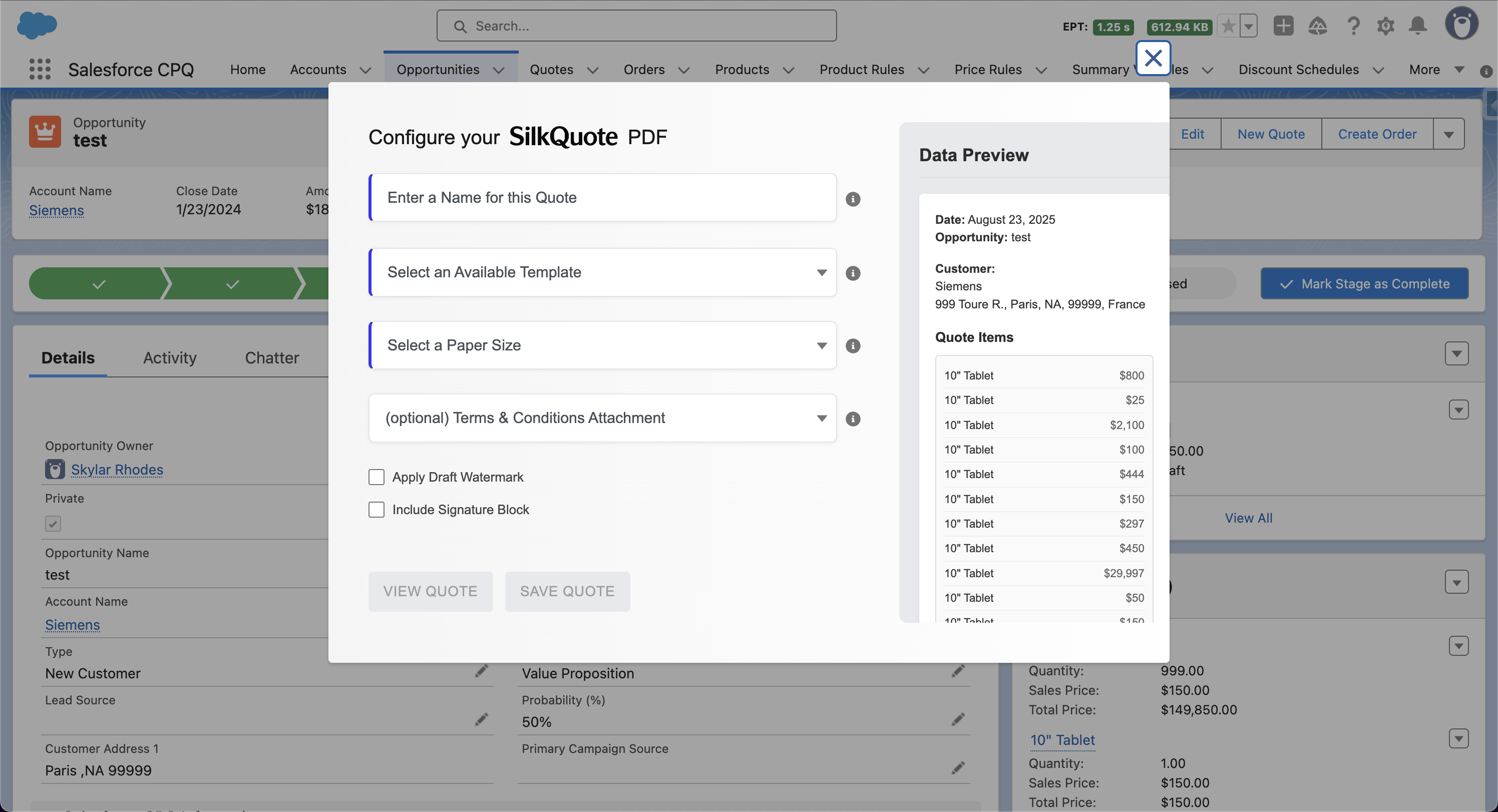
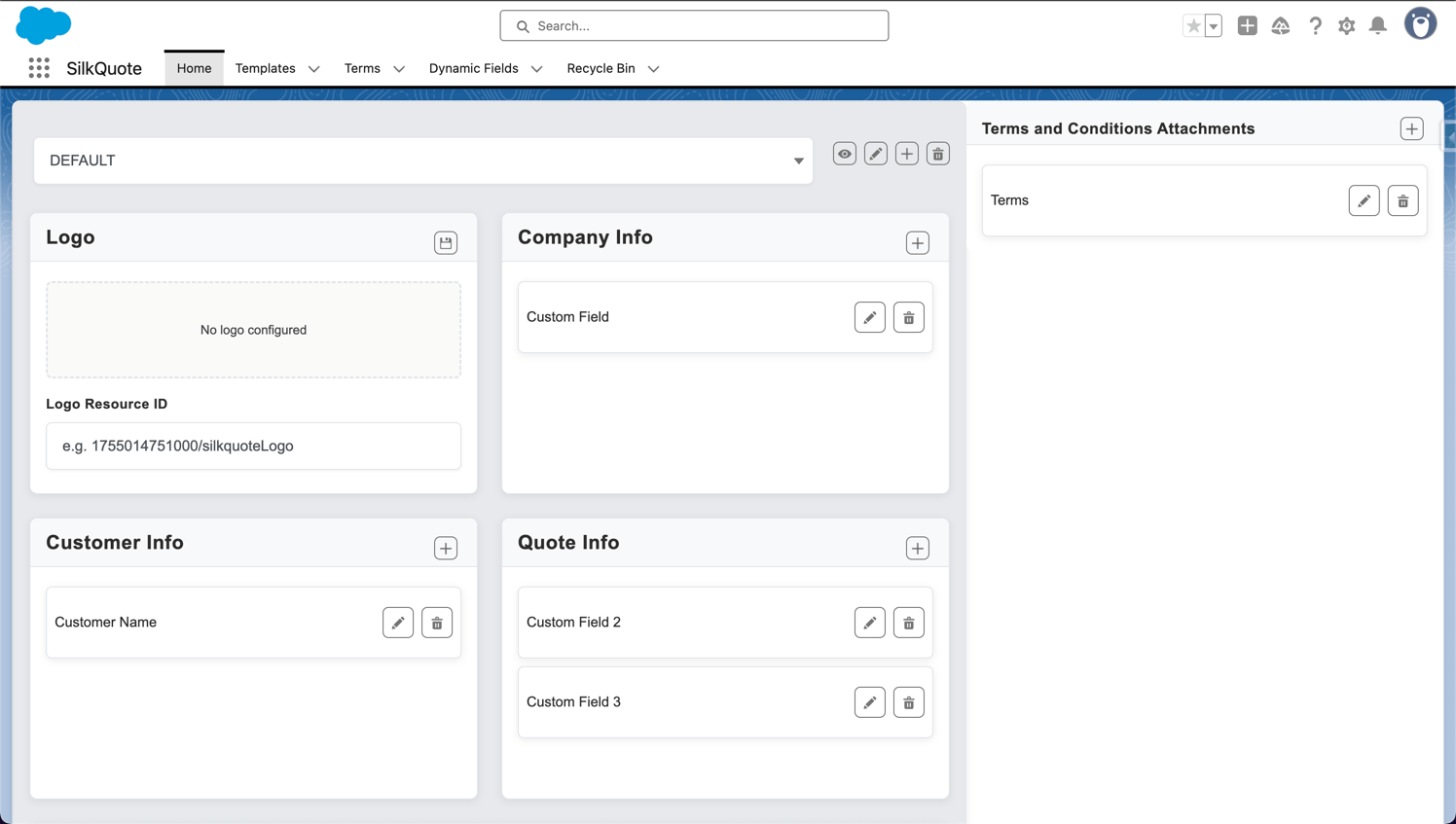
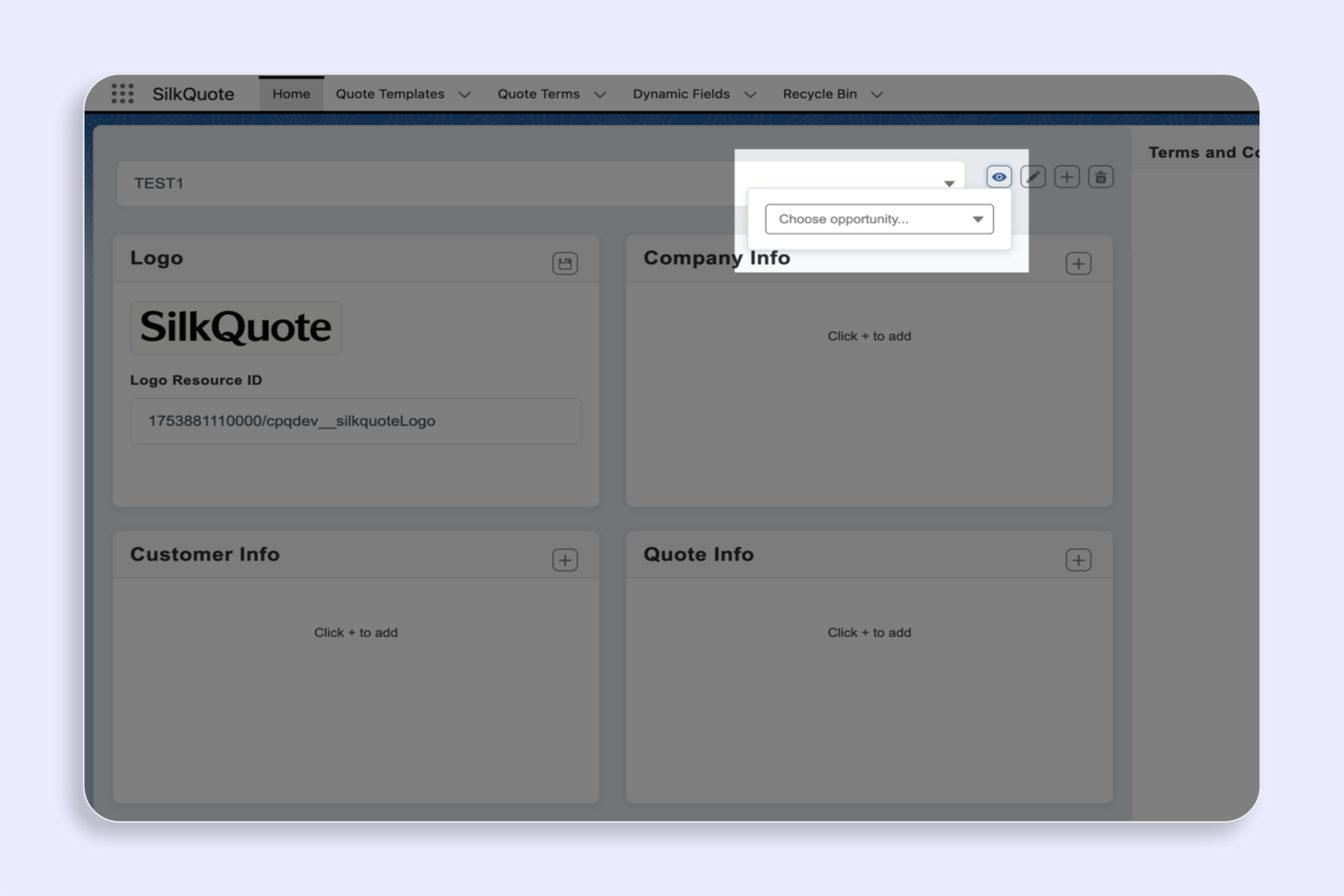
The Configuration Manager is accessible from the Salesforce App Launcher. Opening it displays the template list for your org. Creating a new template starts with a name, a description, and paper size selection (Letter or A4).
The template editor uses a section-based layout. On the left panel, a list of available section types is displayed. To add a section to the template, you click or drag it into the template body. Sections stack vertically and can be reordered by dragging them up or down.
Each section has its own configuration panel that opens when you click the section. Configuration options vary by section type. A logo section has upload and alignment controls. A line items section has column selection and grouping controls. A conditional section has rule configuration.
Changes are saved manually with a Save button. The Preview button renders the template with real data without requiring you to navigate to an Opportunity record.
Most admin users can learn the basics of the template builder in a single session. There is no markup language to learn, no properties file to edit, and no deployment step required for template changes.
Section Types: Header, Line Items, Totals, Terms, and Signature
Each section type in SilkQuote’s template builder serves a specific structural role.
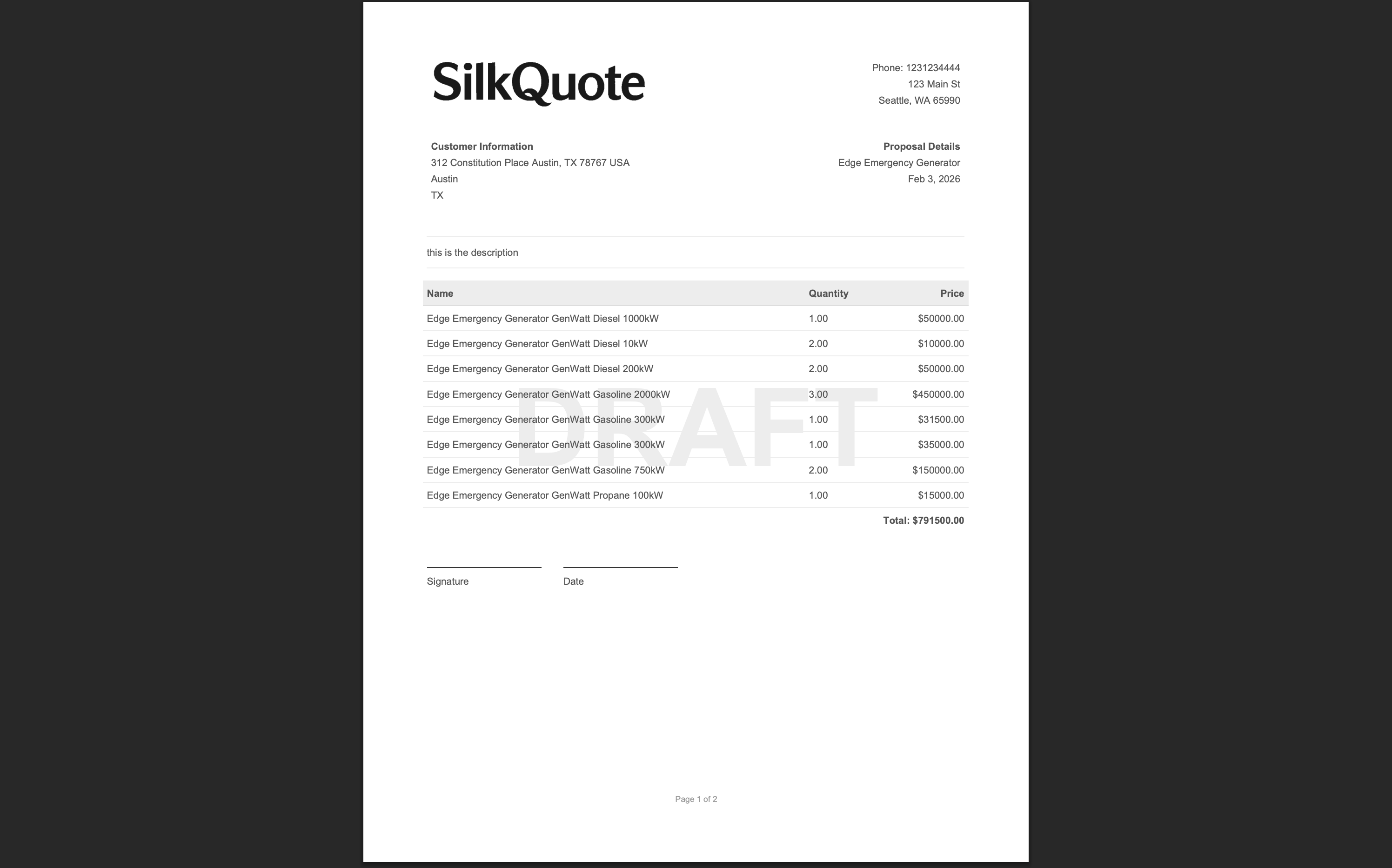
Header section: Appears at the top of the document. Configured with the company logo, document title (e.g., “Sales Proposal” or “Quote”), and document metadata fields like quote number, quote date, and valid-through date. The header can be set to repeat on every page or appear only on the first page.
Recipient section: Displays the customer-facing address block: company name, contact name, address, phone, and email. Fields are mapped from the Account and Contact records linked to the Opportunity. Layout options include single-column and two-column variants.
Introductory text section: A free-form rich text block that appears before the line items. Common uses include an executive summary paragraph, a scope statement, or a personalized opening that references the customer by name using a merged field.
Line items section: The core of most quotes. Renders the Opportunity Products as a formatted table. Column selection, column order, column widths, and number formatting are all configurable. Columns available include product name, product code, description, quantity, list price, unit price, discount, and line total, plus any custom fields on the Opportunity Product record. Grouping is covered in a dedicated section below.
Subtotals and totals section: Displays calculated values: subtotal before discount, discount amount, net total, tax (if applicable), and the final deal value. All amounts pull from Opportunity fields. Tax line configuration supports fixed-rate and field-driven tax values.
Terms and Conditions section: Renders the body of a terms document. Multiple terms documents can be associated with a template, with selection controlled by conditional rules or manual rep selection at generation time. Terms content supports rich text formatting.
Signature block section: Adds a printable signature area with labeled lines for customer name, title, signature, and date. Used for print-and-sign workflows where a formal e-signature integration is not required.
Field Mapping: Connecting Salesforce Data to Template Elements
Field mapping is the mechanism that connects the template’s placeholders to live Salesforce data. In SilkQuote’s template builder, field mapping is handled through a field picker UI. No merge syntax, no formula notation, and no API name memorization required.
How field mapping works:
Each text element in a template section has a field picker button. Clicking the button opens a searchable field browser organized by object: Opportunity, Account, Contact, Opportunity Products. Selecting a field inserts it as a placeholder in the template element. At generation time, SilkQuote resolves the placeholder to the actual field value on the current Opportunity record.
Supported field types:
- Text and text area fields
- Picklist and multi-select picklist fields (display values)
- Currency fields (with configurable format: symbol, decimal places, thousands separator)
- Number and percent fields
- Date and datetime fields (with configurable format strings)
- Checkbox fields (display as Yes/No or custom labels)
- Formula fields (display the formula result)
Label customization:
Every mapped field has an associated label that appears in the template. By default, the label is the Salesforce field label. You can override the label with any text. This allows internal field names to display as customer-facing terminology in the finished PDF without changing anything in your Salesforce org.
Handling empty fields:
Field mapping rules support an “if empty” fallback. If a mapped field is blank on the Opportunity, the template can either leave that area blank, suppress the label entirely, or display a default value you specify. This prevents awkward empty cells or unlabeled blank spaces in the finished PDF.
The full field mapping capability means that whatever data already lives in your Salesforce records can appear in your quotes. For a broader look at which Salesforce objects and fields SilkQuote can draw from, see the Salesforce quote templates overview.
Conditional Logic: Rules That Change Template Output Per Deal
Conditional logic is what allows a single template to serve multiple deal scenarios without requiring a separate template for each case.
In the template builder, each section can have a visibility rule attached to it. The rule evaluates a field on the Opportunity at the moment the quote is generated. If the condition is met, the section is included in the PDF. If not, the section is omitted.
Rule structure:
A conditional rule has three parts: a field selector, an operator, and a value. Examples:
-
Field: Opportunity.TypeOperator: EqualsValue: New Business -
Field: Opportunity.AmountOperator: Greater thanValue: 50000 -
Field: Account.BillingCountryOperator: Not equal toValue: United States
Multiple rules can be combined with AND (all conditions must be true) or OR (any condition must be true) logic.
Common use cases:
- Show a “Professional Services” section only when service products are on the Opportunity
- Include the international shipping terms section only for non-domestic accounts
- Show a “Special Discount Approval” notice section when the Opportunity discount exceeds a defined threshold
- Include a signature block only for deal types that require written customer acceptance
Conditional logic is evaluated every time the quote is generated. If the Opportunity data changes between quote versions, the sections that appear may differ. This is expected behavior for templates designed to respond to the actual deal state.
Grouping Line Items and Controlling Totals Display
For quotes with many products, a flat undifferentiated line item table is hard to read. SilkQuote’s line items section supports grouping by any field on the Opportunity Product record. This organizes the table into labeled subsections with group-level subtotals.
How grouping works:
In the line items section configuration, select a grouping field (typically Product Family, a custom category field, or a product type picklist). SilkQuote reads the value of that field on each Opportunity Product and renders products with the same value together in a named group.
Each group renders as a contiguous block in the table, with the group name as a header row and a subtotal row at the bottom of the group. The final totals section below the line items shows the rolled-up total across all groups.
Common grouping scenarios:
- Group by Product Family: separate sections for Hardware, Software, and Services with independent subtotals
- Group by project phase: Phase 1 and Phase 2 deliverables with separate pricing
- Group by subscription term: Year 1, Year 2, and Year 3 commitments as distinct sections
Totals display options:
The totals section supports configuring which rows appear: subtotal, discount line, net subtotal, tax, and grand total. Each row can be labeled with custom text. Currency formatting is applied consistently with the line items section.
For a deep-dive on the full template design workflow, review the Salesforce quoting best practices guide. For how templates interact with automated generation, see the quote automation workflows page.
Publishing, Versioning, and Updating Live Templates
Once a template is built and previewed, publishing it makes it available to the sales team for quote generation. Deactivating a template removes it from the rep-facing dialog without deleting the template or its history.
Template states:
- Draft: Template is under construction. Not visible to reps in the generation dialog.
- Active: Template is visible to reps whose Opportunities match the template’s smart selection rules.
- Inactive: Template is hidden from reps but preserved in the Configuration Manager for reference or reactivation.
Updating live templates:
When a template needs to change, admins edit it directly in the Configuration Manager. Updated branding, new fields, revised terms: changes take effect immediately for new quotes generated after the save. Existing generated PDFs are not affected because each PDF is a static file saved at generation time.
There is no risk in updating a template mid-quarter. Historical quotes in the rep’s Files list reflect the template as it existed when those quotes were generated. Future quotes use the updated template.
Duplicating templates:
Templates can be duplicated in the Configuration Manager. Duplication copies all section configuration, field mappings, and conditional rules. Admins commonly duplicate a base template and customize the copy for a specific region, product line, or deal type rather than building every template from scratch.
For teams evaluating SilkQuote relative to CPQ’s template management capabilities, the Salesforce CPQ alternative page covers the comparison in detail. For step-by-step instructions on building a first template, the how-to guide for PDF quote generation walks through the full process with screenshots.
Build Professional Quote Templates Without Writing Code
SilkQuote’s drag-and-drop template builder gives Salesforce admins complete control over quote layout, branding, field mapping, and conditional logic. Build once, deploy to the entire team, and iterate without developer involvement.
Install SilkQuote from the AppExchange and build your first Salesforce quote template today.
Frequently Asked Questions
Do I need a Salesforce developer to use the template builder?
No. SilkQuote's template builder is designed for Salesforce admins, not developers. Every step — adding sections, mapping fields, configuring conditional logic, and uploading branding — is done through a point-and-click interface in the SilkQuote Configuration Manager. No Apex, no Visualforce, and no code of any kind is required.
Can the template builder pull data from custom Salesforce objects?
Yes. SilkQuote supports field mapping from Opportunity, Account, Contact, Opportunity Products, and related custom objects that are accessible from the Opportunity record. Standard and custom fields from these objects can be mapped into any template section.
How do I update a template without breaking existing quotes?
Updating a SilkQuote template does not affect previously generated PDFs. Each PDF is saved as a static Content Document at the time of generation. When you update the template, new quotes generated after the update use the new version. Historical quotes are preserved exactly as they were generated.
Can I group line items by product category in the template?
Yes. SilkQuote's line items section supports grouping by any field on the Opportunity Product record, including Product Family, custom category fields, or any other picklist or text field. Each group renders as a separate table section with its own subtotal row.
Is there a live preview while building templates?
Yes. The SilkQuote Configuration Manager includes a live preview feature. Admins select an existing Salesforce Opportunity to use as preview data and click Preview to render a full PDF of the template using that Opportunity's data. The preview updates each time you save changes, allowing rapid iteration on template design without navigating away from the builder.