Every sales team using Salesforce eventually hits the same wall: the built-in quoting tools produce functional but generic PDFs that require too much manual assembly. Reps copy data into documents, format them outside Salesforce, and re-attach the result. The feedback loop breaks down. Quotes go stale. Versions accumulate. The process slows.
A Salesforce quote generator solves this at the source. Instead of exporting data and building documents manually, reps trigger a branded, data-populated PDF directly from the Opportunity record in one click. SilkQuote is built specifically for this purpose. It is a native, no-code quote generator that works inside Salesforce without middleware, without custom code, and without an expensive CPQ implementation.
This guide covers how Salesforce quote generation works, what to look for in a quoting tool, and how SilkQuote addresses every step of the process from template design to prospect acceptance.
What a Salesforce Quote Generator Does (and What It Should Not Require of Your Team)
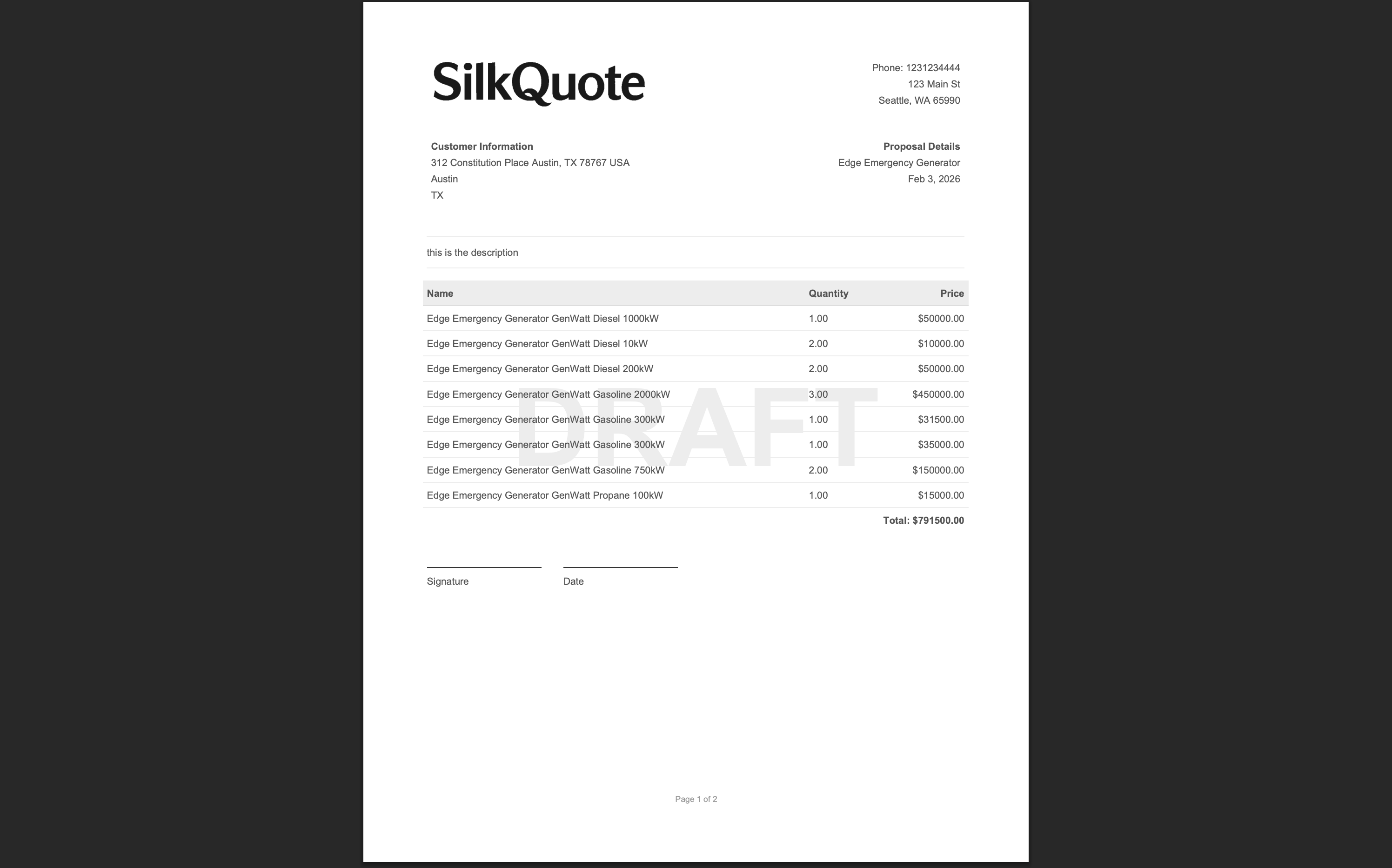
A Salesforce quote generator takes the data already stored in your Salesforce Opportunity and renders it into a formatted, professional document. This includes the account name, contact, line items, pricing, and custom fields. The goal is zero manual data entry at quote time. Everything the rep needs is already in Salesforce; the generator pulls it into the right layout.
What a good quote generator should not require:
- Custom Apex code to render documents
- External integrations with document generation services that sync data outside Salesforce
- Per-user or per-quote licensing fees that scale costs unpredictably
- Training sessions before reps can use it effectively
- Admin involvement every time a template needs a minor adjustment
Most teams that start with custom Flow-based document generation eventually outgrow it. Flows are flexible, but building a maintainable, production-quality quoting process in Flow requires significant effort. Field mapping, section logic, PDF rendering, and file attachment all need custom components. SilkQuote replaces this complexity with a purpose-built tool that handles every step.
How SilkQuote Works as a Native Salesforce Quote Generator
SilkQuote runs entirely inside Salesforce Lightning Experience. There is no external app to log into, no data sync to manage, and no middleware between your Salesforce data and the PDF output. The entire workflow lives inside the org.
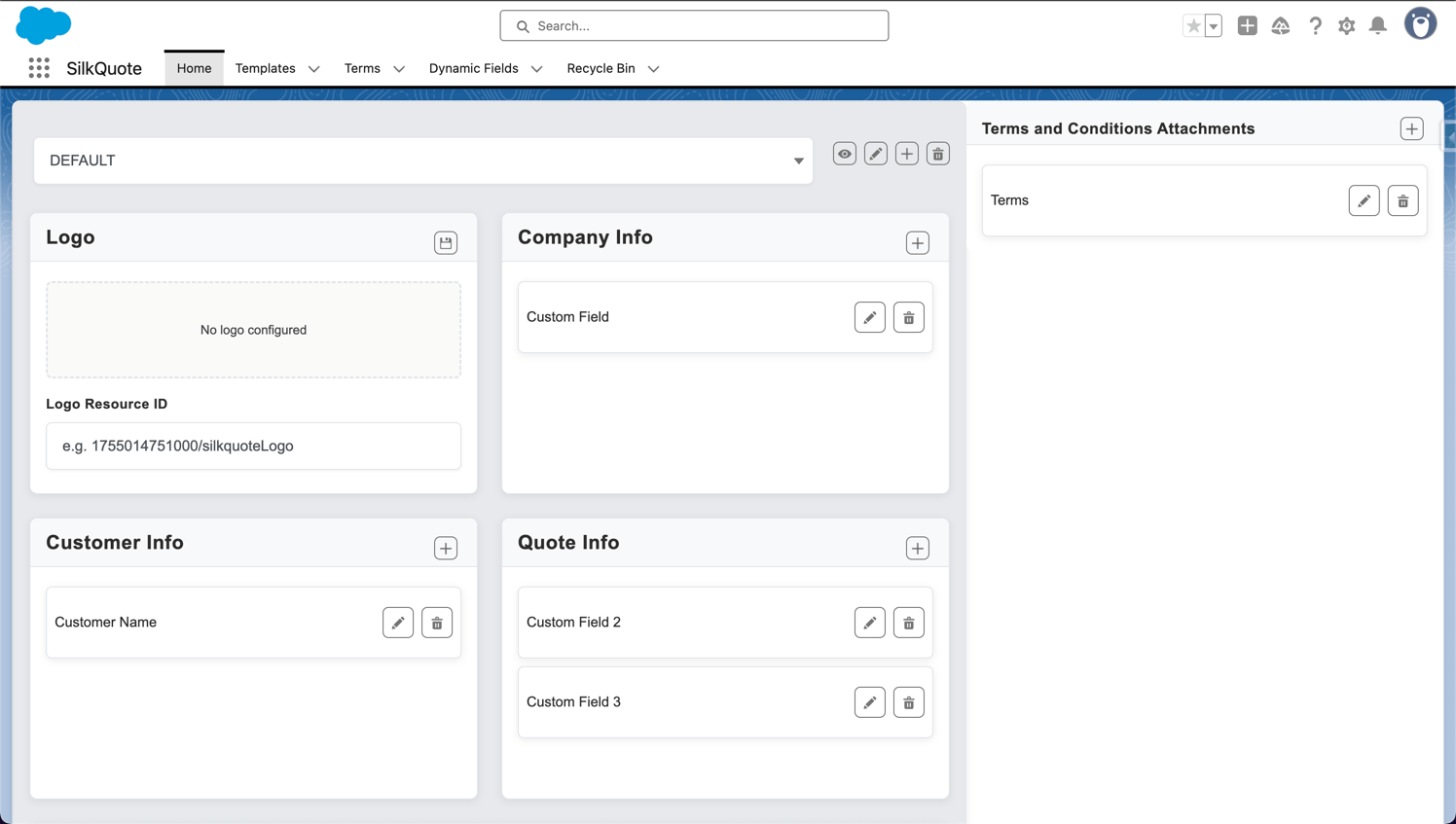
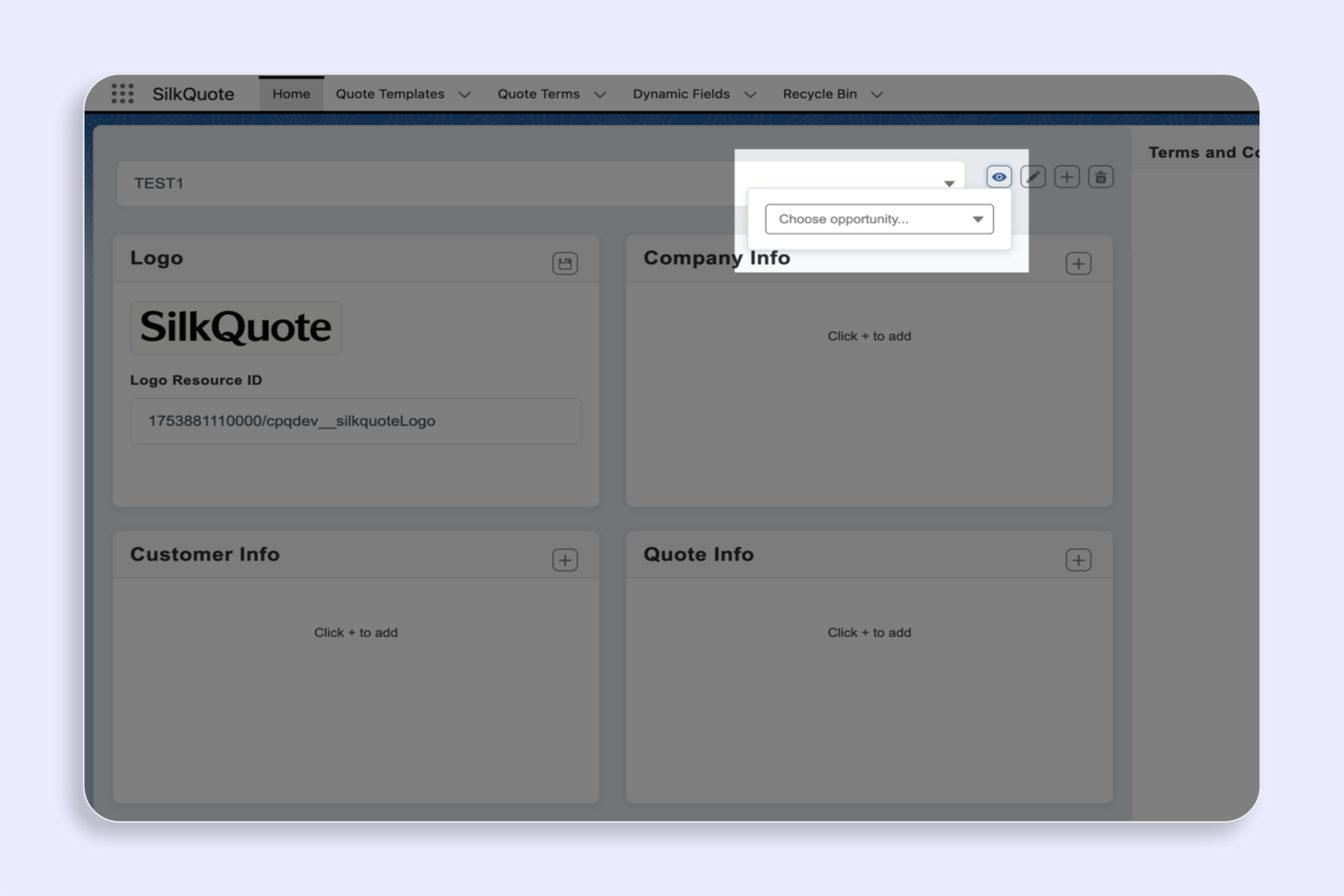
Template design happens in the SilkQuote Configuration Manager, an admin tool available in the App Launcher. Admins build quote layouts by dragging and dropping sections, mapping Salesforce fields, uploading logos, and setting conditional display rules. No code is written at any point.
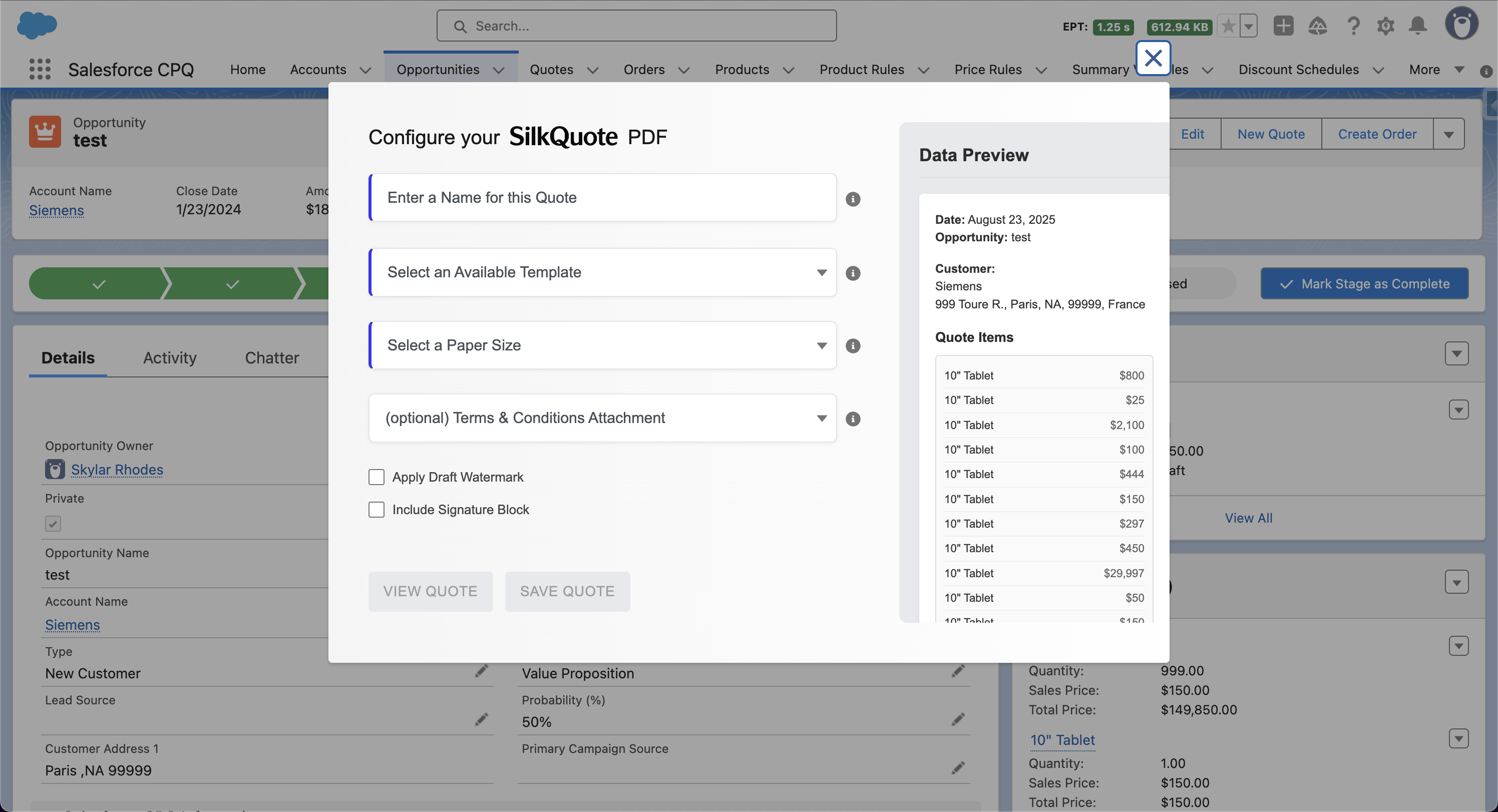
Quote generation happens on the Opportunity record. A Quick Action called “Generate Quote Document” gives reps a simple form: choose a template, enter a quote name, and optionally add a draft watermark or terms and conditions. Clicking “Save PDF” generates the document in seconds and attaches it directly to the Opportunity as a Salesforce Content Document.
Sharing and tracking happens through a built-in link-sharing system. Reps send prospects a hosted link to their quote. Prospects can view, accept, or decline the quote without creating a Salesforce account. Every action (email open, view, acceptance, decline) logs as an activity on the Opportunity.
For the full step-by-step setup process, see the guide to generating professional PDF quotes in Salesforce.
Quote Generator vs. Standard Salesforce Quotes: What Changes
Salesforce includes a native Quotes object that produces PDF documents using Quote Templates. This works for simple scenarios but has significant limitations in practice.
Standard Salesforce Quotes:
- Require separate Quote records linked to the Opportunity
- Use a rigid template editor with limited layout control
- Produce PDFs with minimal branding customization
- Do not support conditional sections or line item grouping
- Require reps to navigate to the Quote record to generate the PDF
SilkQuote:
- Generates directly from the Opportunity with no intermediate record required
- Uses a drag-and-drop designer with full control over section order, field placement, and styling
- Supports logo upload, accent colors, and branded headers
- Shows or hides entire sections based on Opportunity field values
- Groups line items by any field with automatic subtotals per group
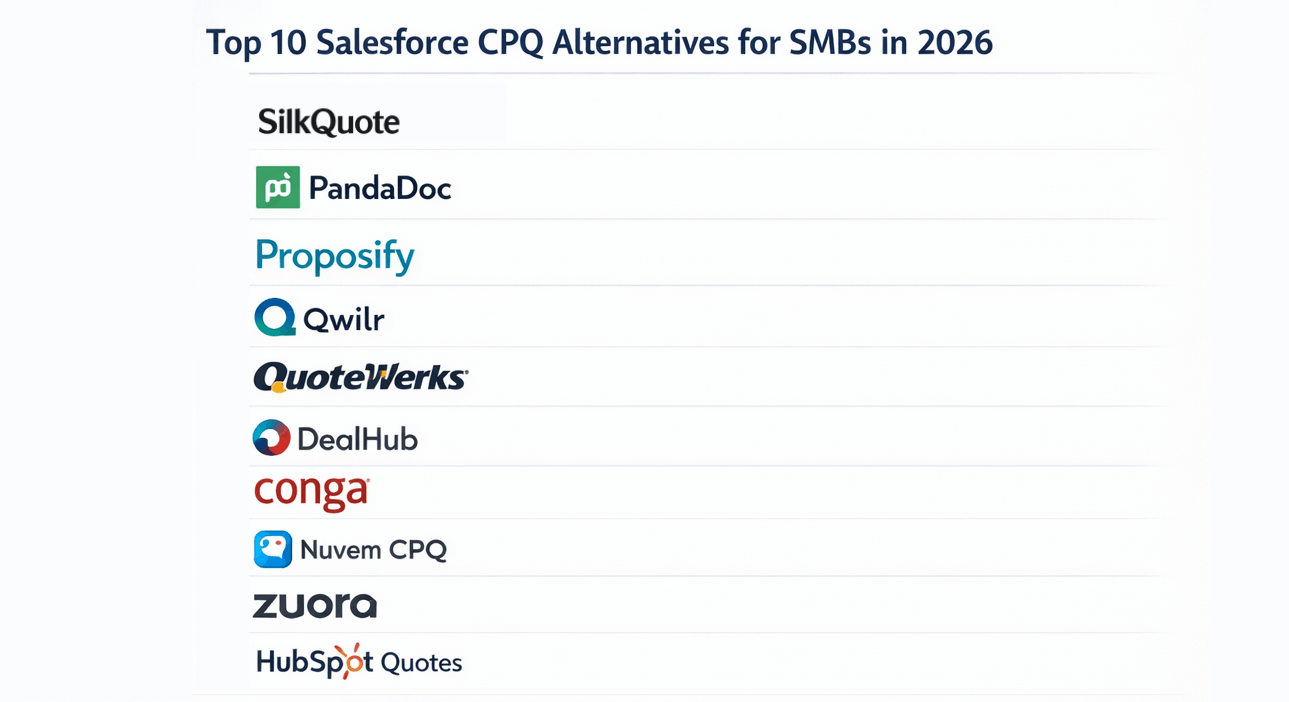
For teams that have outgrown standard Salesforce quotes but are not ready for the complexity of CPQ, SilkQuote occupies the exact middle ground. See the Salesforce CPQ alternative page for a direct comparison of when each approach makes sense.
Key Capabilities Every Salesforce Quote Generator Should Have
Before selecting a quote generation tool, evaluate it against these capabilities:
Dynamic field mapping. The tool should pull data from Opportunities, Accounts, Contacts, Products, and custom objects. Hard-coded field values are a red flag; everything should be configurable through the UI.
Conditional content. Not every quote looks the same. Enterprise deals include different terms than SMB deals. Product-specific sections should appear only when the relevant products are on the quote. The generator should support show/hide logic based on field values.
Line item handling. The tool must handle Opportunity Products with quantities, unit prices, discounts, and totals. Grouping line items by product family or category is a significant usability improvement for complex deals.
Branding control. Reps should send quotes that look like they came from your company, not from a third-party app. Logo upload, color customization, and layout control are non-negotiable for professional output.
Version history. Quotes change as deals evolve. The generator should preserve all past versions attached to the Opportunity so there is a clear record of what was sent and when.
Stale quote detection. If the Opportunity data changes after a quote is generated, the rep should know the quote is outdated before sending it. SilkQuote flags PDFs as stale when the underlying data has changed.
The Salesforce quoting tool overview covers how to evaluate these capabilities in more detail across different tool options.
Setting Up Your First Quote in Under an Hour
SilkQuote is designed to go live the same day it is installed. The setup process has four steps:
Step 1: Install from the AppExchange
Install SilkQuote from the Salesforce AppExchange. The installation takes minutes and requires no custom code or configuration outside of standard AppExchange installation steps.
Step 2: Assign the Permission Set
Assign the SilkQuote Permission Set to users who will design templates or generate quotes. This can be done individually or through a Permission Set Group.
Step 3: Build a Template
Open the SilkQuote Configuration Manager from the App Launcher. Create a new template, name it, and begin adding sections using the drag-and-drop editor. Map Salesforce fields from your Opportunity, Account, Contact, and Products objects. Upload a logo, set a paper size, and save.
Step 4: Generate Your First Quote
Open any Opportunity record. Click the “Generate Quote Document” Quick Action. Select the template you just built, enter a quote name, and click “Save PDF.” The PDF attaches to the Opportunity immediately.
The quote template builder walkthrough covers the template design step in more detail, including conditional field configuration and line item grouping.
Connecting the Quote Generator to Salesforce Flow
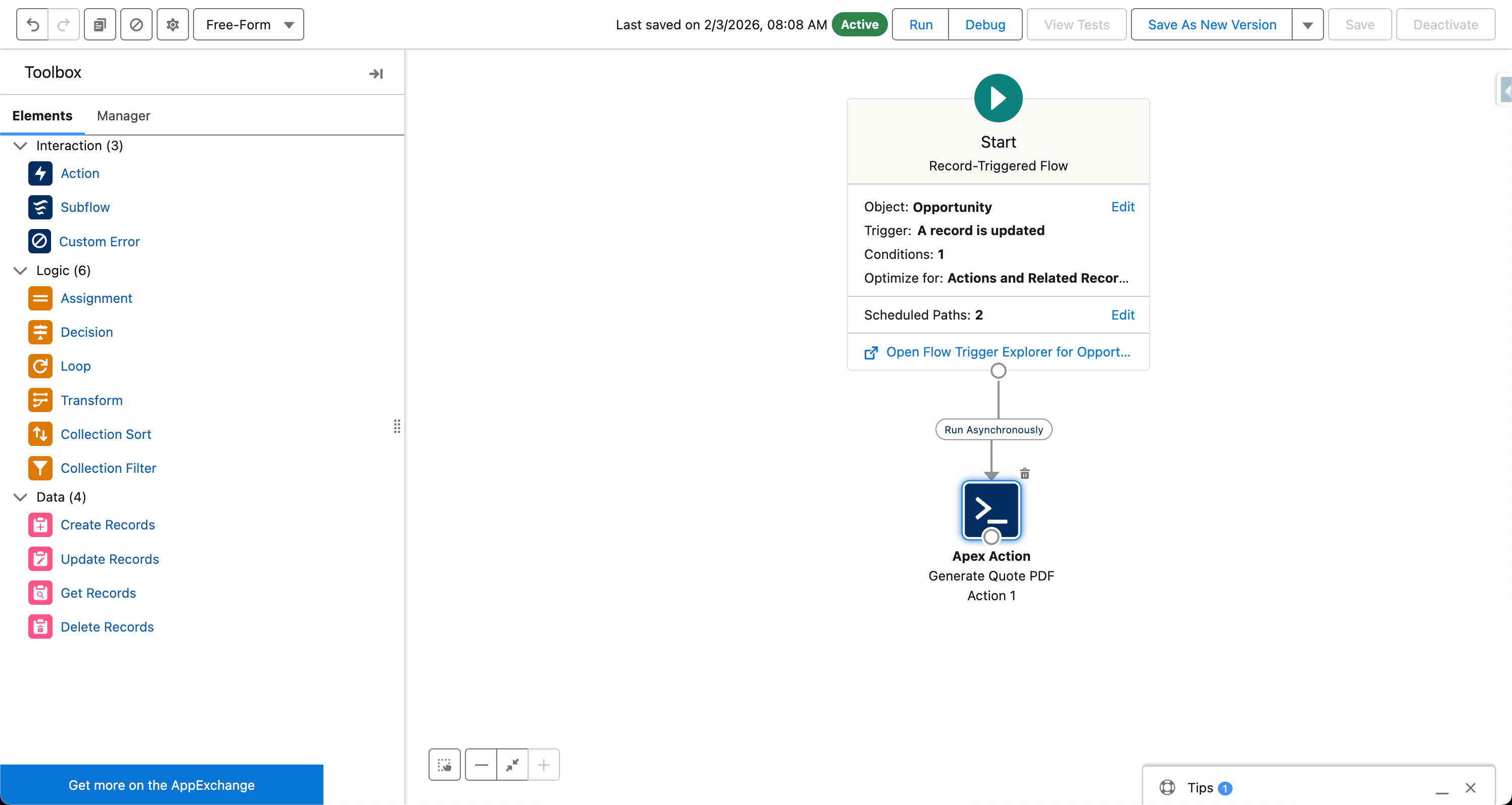
Manual quote generation handles most day-to-day scenarios, but high-volume teams and complex sales processes benefit from automation. SilkQuote includes a Flow invocable action that lets admins trigger quote generation from any Salesforce Flow.
Common automation patterns include:
Stage-based generation. Automatically generate a quote when an Opportunity reaches a specific stage, such as “Proposal.” The Flow detects the stage change, calls the SilkQuote invocable action with the appropriate template ID, and attaches the PDF to the Opportunity without rep involvement.
Criteria-based generation. Generate different quote documents based on Opportunity field values. A Flow can evaluate the deal size, product line, or region, then select the appropriate template and trigger generation. This removes template selection decisions from reps entirely.
Approval-integrated generation. Build an approval process that generates a pre-approved quote PDF as part of the approval outcome. When the approval is granted, the Flow generates the final quote automatically and logs the action.
The automated quote generation page covers how to configure each of these patterns in Salesforce Flow. For a step-by-step Flow tutorial, see the Salesforce Flow automation guide.
Quote Tracking, Version History, and Stale Quote Alerts
Generating a quote is only the beginning. After the PDF is sent, teams need visibility into what happens next.
Version history. Every quote generated through SilkQuote is saved as a Content Document on the Opportunity. Multiple versions accumulate over the course of a deal. Reps can always access the complete quote history without leaving the Opportunity record.
Stale quote indicator. If an Opportunity’s line items, pricing, or key fields change after a quote is generated, SilkQuote flags the PDF as stale in the Opportunity interface. Reps see at a glance that the quote they sent no longer reflects the current deal. This prevents the common scenario where a prospect accepts a quote that the rep has already mentally superseded.
Email open tracking. When a rep shares a quote via email from SilkQuote, the system tracks whether the prospect opened the email. This surfaces in the Opportunity activity timeline so reps know when prospects have engaged with their quote.
Prospect acceptance. Prospects who receive a shared quote link can accept or decline it directly in their browser without creating a Salesforce account. Acceptance events log automatically on the Opportunity and can trigger downstream Flows.
Activity logging. Every quote event (generated, sent, viewed, accepted, declined) appears as an activity record on the Opportunity. This gives managers full pipeline visibility without requiring separate reporting tools.
Detailed coverage of tracking, automation, and acceptance workflows is available on the quote automation workflows page.
Start Generating Quotes Directly from Salesforce
SilkQuote gives Salesforce teams a complete quote generation system. Templates, one-click PDF output, sharing, and tracking are all included without CPQ complexity, licensing costs, or custom code. It is free on the AppExchange and designed to go live the same day you install it.
Install SilkQuote from the AppExchange and start generating professional quotes from your Opportunities today.
Frequently Asked Questions
Is SilkQuote's Salesforce quote generator free?
Yes. SilkQuote is completely free on the Salesforce AppExchange. Every feature is included with no user limits, no quote limits, and no expiration. Optional expert services are available for teams that want hands-on setup and customization.
Does SilkQuote work with Salesforce Professional Edition?
Yes. SilkQuote supports Salesforce Professional, Enterprise, Unlimited, Developer, and Performance editions.
Can I generate quotes automatically without rep involvement?
Yes. SilkQuote includes a Flow invocable action that lets you trigger quote generation automatically from any Salesforce Flow. You can generate PDFs based on stage changes, field criteria, or any other Flow trigger without a rep clicking anything.
How is SilkQuote different from Salesforce's built-in quote tool?
Salesforce's native quote object generates basic quote PDFs with limited layout control. SilkQuote adds a drag-and-drop template designer, conditional sections, line item grouping, one-click generation from Opportunities, prospect acceptance tracking, and Flow automation — all natively inside Salesforce.
Can I have multiple quote templates for different business units?
Yes. SilkQuote supports unlimited templates. You can configure smart template selection rules so the right template automatically applies based on Opportunity field values such as record type, region, or product category.