
Salesforce stores everything you need for a professional quote: account details, contact information, line items, pricing, and custom deal data. What it does not do natively is turn that data into a polished, branded PDF without significant effort. The built-in Quote PDF templates are limited in layout control, and custom Flow-based approaches require ongoing maintenance.
SilkQuote solves the PDF generation problem directly. It is a native Salesforce app that renders professional PDF quotes from Opportunity data with a single click. No external services. No custom code. No manual formatting. The PDF generates in seconds, attaches to the Opportunity, and is ready to share.
This page covers how PDF generation works in SilkQuote, what you can control in the output, and how the document moves from generation to delivery to the prospect.
The PDF Quote Problem in Salesforce: Why the Default Falls Short
Salesforce’s native quoting uses the Quotes object with Quote Templates. This approach works for basic use cases but introduces friction that compounds over time:
Separate record navigation. Reps must navigate to a Quote record linked to the Opportunity rather than generating from the Opportunity itself. This adds steps and creates confusion about which quote version is current.
Limited layout control. The built-in Quote Template editor uses a section-based layout with minimal styling options. Logo placement, font control, and section reordering are limited. The output typically looks like a Salesforce form rather than a branded business document.
No conditional content. Every quote using the same template looks structurally identical, regardless of deal type, product line, or customer segment. Showing different sections for different deals requires multiple templates.
No tracking. Native Salesforce quotes have no built-in mechanism to track whether a prospect opened the email, viewed the PDF, or responded. Teams resort to manual follow-up.
SilkQuote addresses all of these gaps while remaining entirely native to Salesforce. It does not require an external document generation service or a custom Apex implementation. For a broader comparison of quote generation approaches, see the Salesforce quote generator overview.
How SilkQuote Generates PDFs Natively in Salesforce
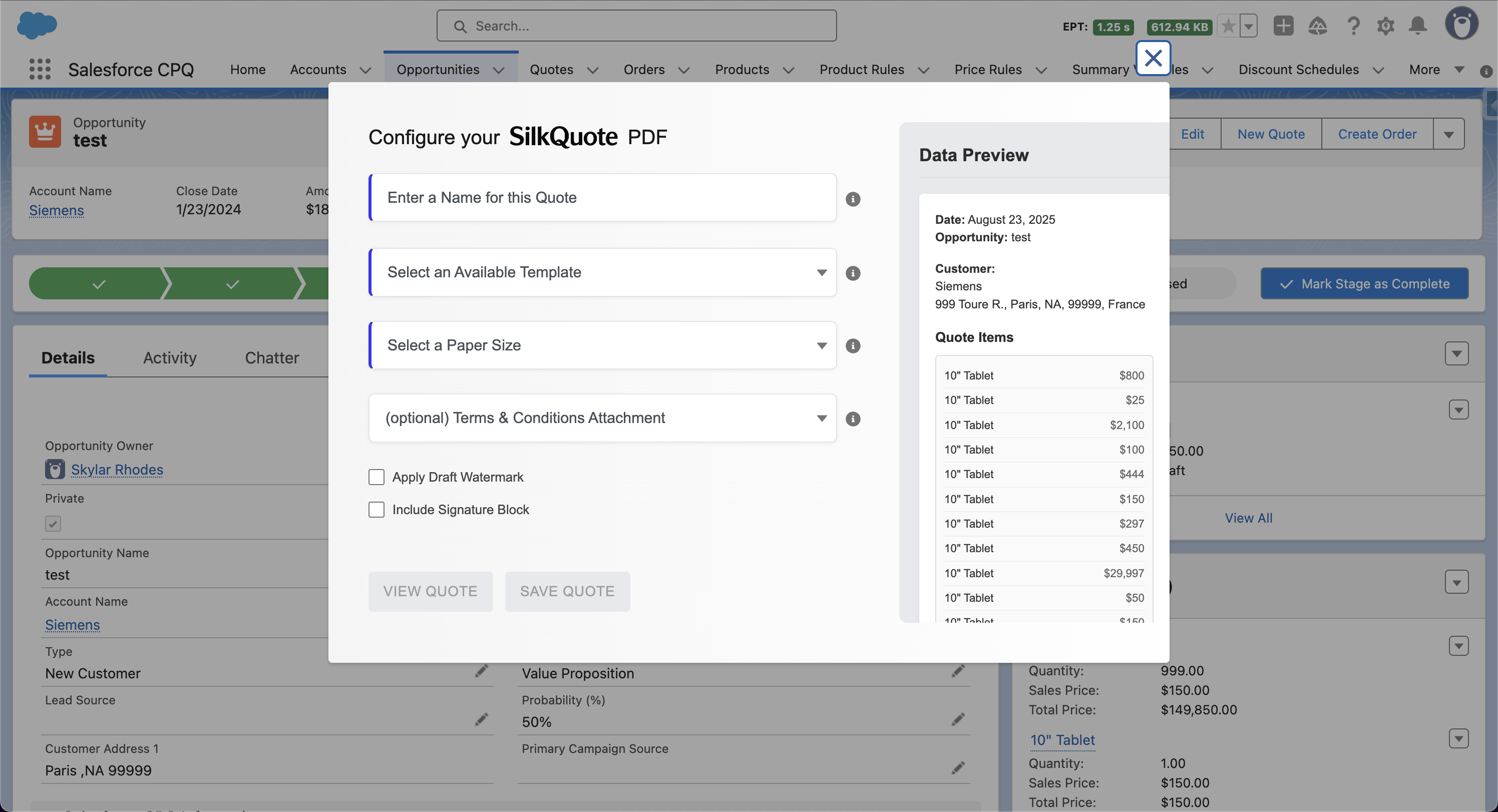
PDF generation in SilkQuote starts from the Opportunity record. A Quick Action button called “Generate Quote Document” appears in the Opportunity action bar. Clicking it opens the generation dialog.
The dialog asks for three things:
- Quote Name: A label for this version of the quote (e.g., “Initial Proposal” or “Revised Pricing”)
- Template: The quote template to use (pre-filtered based on smart template rules if configured)
- Paper Size: Letter or A4, depending on the template configuration
Optional settings in the dialog include:
- Draft watermark: Stamps the PDF as a draft before internal review is complete
- Terms and Conditions: Attaches a specific terms document to this version of the quote
- Signature block: Includes a signature field at the bottom of the document
After clicking “Save PDF,” SilkQuote renders the document server-side using the Opportunity’s live data and attaches the PDF as a Content Document on the Opportunity. A success notification appears with a direct link to the file. The entire process takes seconds.
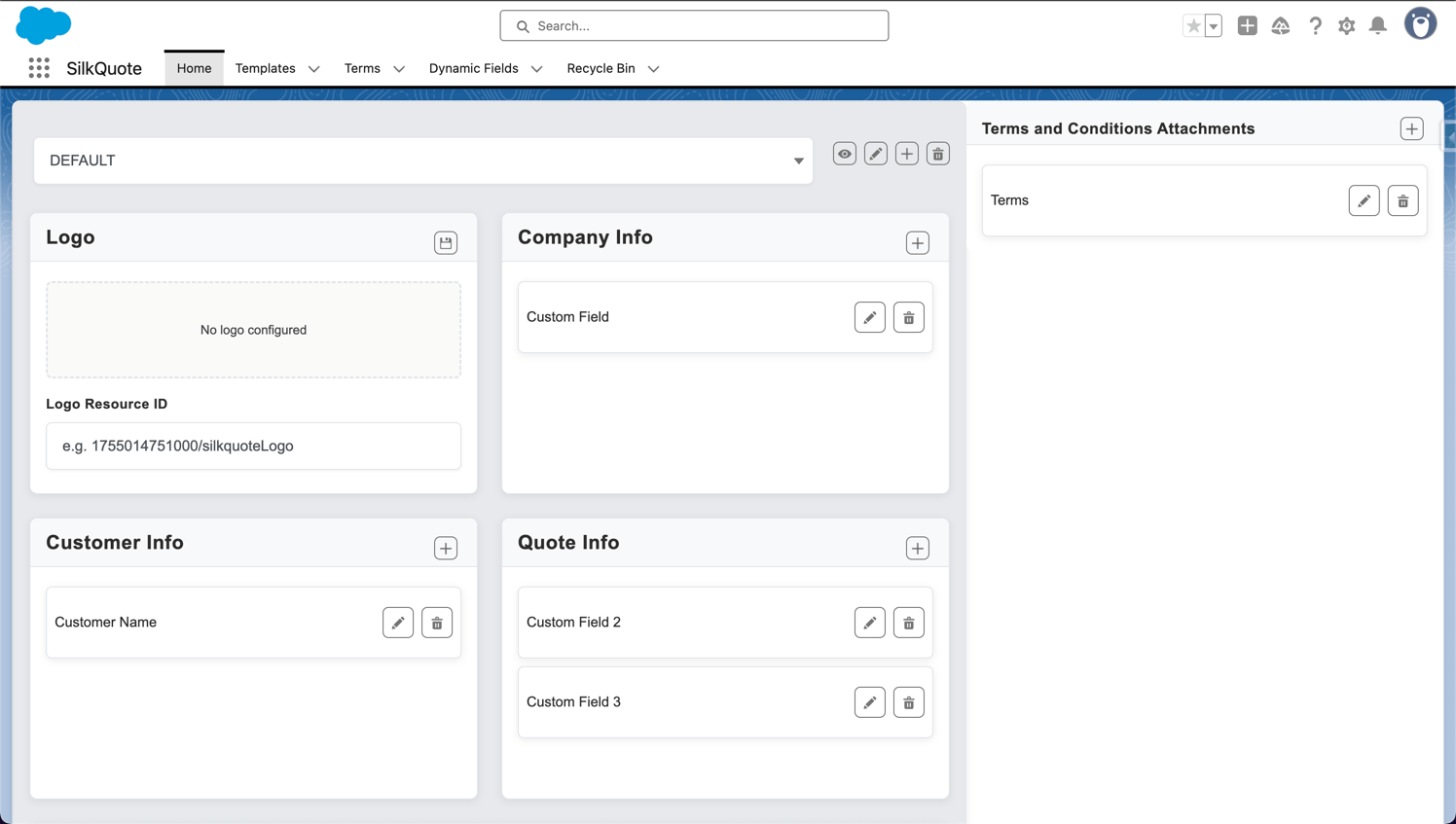
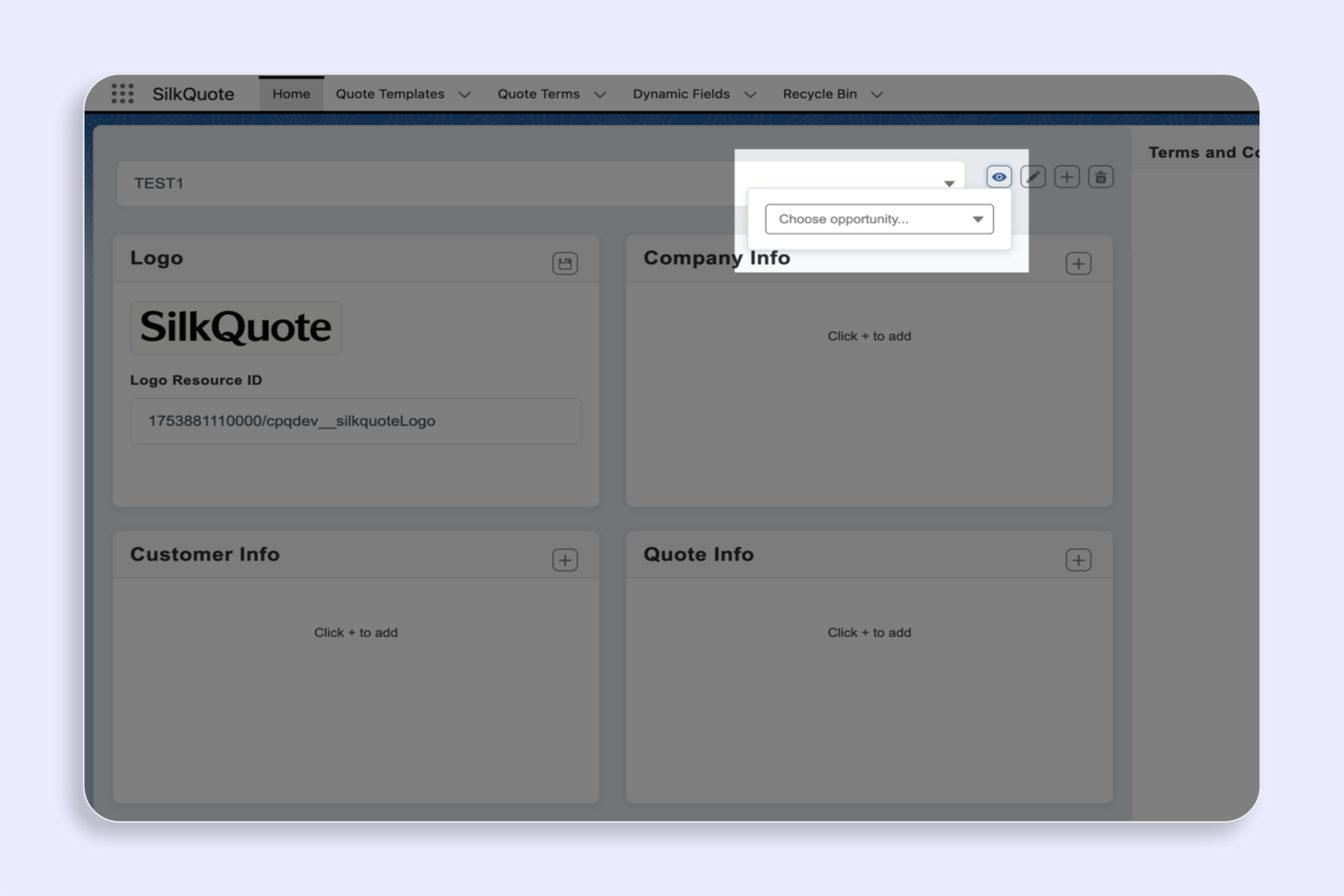
The quote template builder controls what appears in the PDF. This includes which fields, which sections, which branding elements, and which conditional logic determines what shows up for each deal.
Paper Size, Page Layout, and Print-Ready Formatting
SilkQuote produces print-ready PDFs that look consistent however the prospect opens the file: in a browser, in Adobe Reader, or printed on paper.
Page size is set per template and can be overridden at generation time. Letter is standard for North American teams; A4 is standard for EMEA and APAC operations. Multi-region teams typically create separate templates for each paper size to ensure consistent margins and layout.
Margins and padding are managed at the template level. Section spacing, content padding, and header/footer margins are all configurable in the template designer.
Font rendering is handled server-side, so the PDF looks identical for every recipient regardless of their device or font installation. The output is deterministic. The same template and the same Opportunity data always produce the same document.
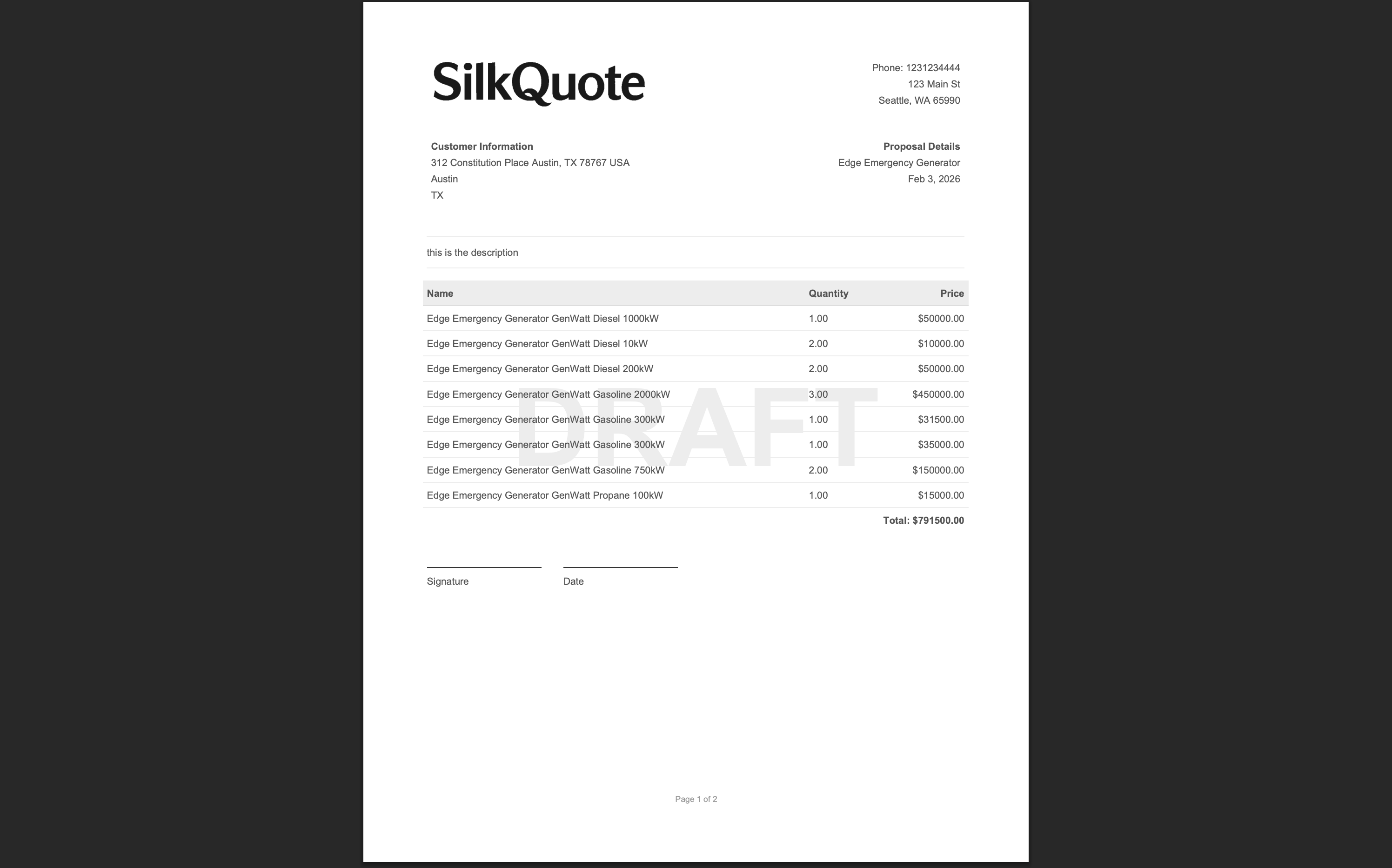
Multi-page handling is automatic. If the line item table or content sections exceed one page, SilkQuote continues onto additional pages with consistent headers and footers. Long quotes with many products render cleanly without manual page break management.
Watermarks, Signature Blocks, and Document Controls
SilkQuote includes several document control features that support real-world quote workflows:
Draft watermark. A diagonal “DRAFT” stamp overlaid on all pages of the PDF. Use this for quotes in internal review or sent to prospects for preliminary pricing discussion. The watermark is toggled in the generation dialog, not baked into the template, so the same template produces both draft and final versions.
Signature block. An optional section at the bottom of the PDF with fields for the prospect’s name, title, signature, and date. This is distinct from e-signature integration (DocuSign, Adobe Sign). The signature block produces a printable signature area for traditional signed-and-scanned workflows.
Terms and Conditions. SilkQuote supports multiple Terms documents managed separately from templates. Reps select which terms to attach at generation time, or terms are attached automatically based on template rules. The terms content is appended to the quote PDF rather than linked separately. For details on conditional terms configuration, see the Salesforce quote templates page.
Quote naming and versioning. Every generated PDF is named with the quote name entered at generation time. Multiple versions accumulate on the Opportunity record in chronological order. There is no limit on the number of versions per Opportunity.
File Attachment: Where the PDF Lives in Salesforce
SilkQuote saves the generated PDF as a Salesforce Content Document, the same format used by all file attachments in Salesforce. This means:
- The file appears in the Files related list on the Opportunity record
- It is accessible in Salesforce Files globally and through the standard Files tab
- It follows Salesforce’s standard sharing and visibility rules (only users with access to the Opportunity can access the file)
- It is included in any data exports or backups of your Salesforce org
- It integrates with Salesforce’s versioning system for Content Documents, allowing multiple quote versions to be managed together
No external storage service is used. Files are not sent to AWS S3, Google Drive, or any third-party system. Everything stays inside your Salesforce org, which simplifies data governance and compliance requirements.
After the PDF is attached, reps can open it directly from the success notification, from the Files related list, or from the Opportunity’s activity timeline. The document is immediately ready to share.
Preview Mode: Checking Output Before Sending
One of the most common quoting problems is sending a quote and then discovering a formatting error or a stale field value. SilkQuote’s preview mode prevents this.
How preview works: In the generation dialog, instead of clicking “Save PDF,” the rep clicks “Preview.” SilkQuote renders the full PDF using live Opportunity data and opens it in the browser for review. The preview matches the final document exactly: same layout, same field values, same pagination, same formatting.
If the rep spots an issue (a missing line item, an incorrect field value, a layout problem), they close the preview, make corrections in the Opportunity record or template, and preview again. No PDF is saved until the rep explicitly clicks “Save PDF.”
This is especially useful during template setup. Admins building a new template can select an existing Opportunity and preview the output in real time, iterating on the template design until the result looks right before publishing the template to the team.
The live preview capability is also available in the Configuration Manager itself. Admins can preview template output during the design phase without needing to navigate to an Opportunity record.
Sending the PDF: Email, Secure Link, and E-Signature Options
Once the PDF is generated and attached, SilkQuote provides several ways to deliver it to the prospect.
Direct email from Opportunity. Reps can send the PDF as an email attachment using Salesforce’s standard Send Email action. The file is already attached to the Opportunity record, so it appears in the Files picker immediately.
Shared quote link. SilkQuote generates a hosted, secure URL for each quote. Reps share this link directly with the prospect. When the prospect opens the link, they see a branded page displaying the quote. They can review, accept, or decline it with no Salesforce account required. Every interaction (open, view, accept, decline) is logged back to the Opportunity as an activity record.
E-signature integration. SilkQuote works alongside DocuSign, Adobe Sign, and other e-signature tools. The PDF is generated by SilkQuote and then sent through the e-signature platform’s Salesforce integration. This gives you SilkQuote’s template quality combined with your existing e-signature workflow. For full coverage of e-signature setup, see integrating e-signatures with Salesforce quotes.
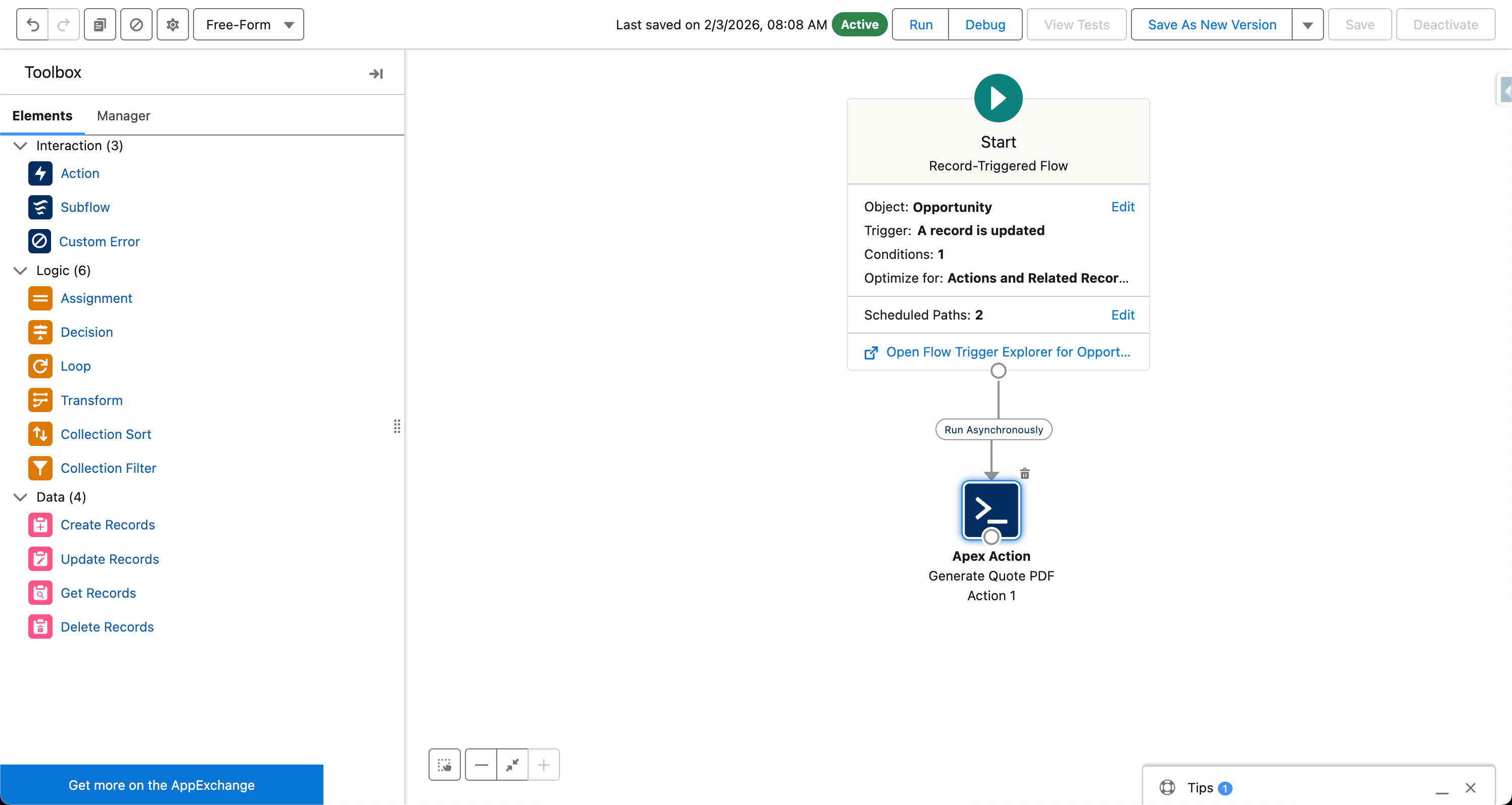
Automation-triggered delivery. Using Salesforce Flow, you can build workflows that generate the PDF and email it to the prospect automatically. A Flow can trigger when an Opportunity stage changes to “Proposal Sent,” generate the quote using SilkQuote’s invocable action, and send the shared link email to the primary contact. See the automated quote generation page for how to set this up.
Generate Professional PDF Quotes from Every Salesforce Opportunity
SilkQuote replaces the manual document assembly process with one-click PDF generation directly inside Salesforce. Branded templates, conditional content, preview mode, version history, and prospect tracking are all included at no cost.
Install SilkQuote from the AppExchange and start producing professional PDF quotes from your Salesforce Opportunities today.
Frequently Asked Questions
Where does the generated PDF save in Salesforce?
SilkQuote saves the generated PDF as a Content Document directly on the Opportunity record. It appears in the Files section of the Opportunity and is accessible to anyone with access to that record. No external storage or manual file upload is required.
Can I add a watermark to draft Salesforce PDF quotes?
Yes. The quote generation dialog includes a 'Draft' watermark option. When enabled, the PDF displays a diagonal 'DRAFT' watermark across the document. This is useful for sending preliminary quotes for review before the final version is approved and sent.
What paper sizes does SilkQuote support?
SilkQuote supports Letter (8.5x11 inches) and A4 (210x297mm) paper sizes. The size is set at template creation time and can be changed by the rep in the quote generation dialog if multiple sizes are configured.
Can reps preview the PDF before attaching it to the record?
Yes. SilkQuote includes a preview mode that renders the PDF using live Opportunity data without saving it to the record. Reps can verify the output — field values, layout, totals, and terms — before committing the document. The preview matches the final PDF exactly.