HubSpot to Salesforce migration projects tend to go well until the first rep asks how to send a quote. The CRM data is live, the pipeline is synced, everyone is oriented to the new platform, but the quoting workflow that was smooth in HubSpot has no direct equivalent in out-of-the-box Salesforce.
This is one of the most predictable friction points in migrating from HubSpot to Salesforce. HubSpot’s quoting tool is built into the CRM and works from day one. Salesforce’s native quoting is functional but limited. Salesforce CPQ is the canonical right answer in most Salesforce documentation, but it costs $75-$200 per user per month and takes months to implement, which is a disproportionate ask for a team that just finished a migration and needs to send quotes now.
There is a faster path.
The Problem: Quoting in Salesforce After a HubSpot Migration
When teams finish migrating from HubSpot to Salesforce, the quoting gap typically looks like this: Salesforce has a Quotes object and basic PDF generation, but the output is unstyled, template customization is limited, and there is no hosted acceptance flow. Reps revert to assembling quotes in Word or Google Docs and manually attaching them to Opportunity records, which defeats the purpose of being in Salesforce.
The standard Salesforce recommendation for this problem is CPQ. But for a team coming off a HubSpot migration that did not use a configure-price-quote tool before, CPQ’s implementation overhead, licensing cost, and complexity are all disproportionate to the actual need.
What teams completing a HubSpot to Salesforce migration actually need is the same thing HubSpot gave them: a clean template, a branded PDF, and a way for the prospect to accept. Nothing more.
What You Actually Need
The HubSpot quoting experience breaks down into three components that any Salesforce quoting solution should cover:
A branded PDF with your logo, line items, and totals. HubSpot generates this cleanly from deal data. In Salesforce, the equivalent is a SilkQuote template that pulls from the Opportunity and Opportunity Products into a formatted PDF. Same concept, same output.
Template control. In HubSpot, you control which sections appear, in what order, and what they contain. SilkQuote’s drag-and-drop template designer gives you the same control in Salesforce: conditional sections, custom text blocks, field label customization, and column layout. No code required.
Prospect acceptance. HubSpot’s quote module includes a hosted quote page where the prospect can review and accept. SilkQuote generates the same thing: a hosted URL the prospect can open in any browser, review, and click to accept. Acceptance is logged to the Opportunity record automatically.
None of these requirements involve a pricing engine, a product configurator, or a CPQ implementation. A focused quoting tool covers all of them.
Step-by-Step: SilkQuote Setup After a HubSpot Migration
Teams completing a HubSpot to Salesforce migration can have SilkQuote generating professional quotes in under an hour.
Step 1: Install SilkQuote from the AppExchange. Go to the AppExchange listing, click Get It Now, and follow the installation prompts. Choose Install for All Users or specific profiles depending on your Salesforce permission structure.
Step 2: Assign permissions. In Salesforce Setup, go to Permission Sets and assign the SilkQuote Admin permission set to admins and the SilkQuote User permission set to sales reps. This controls who can configure templates and who can generate quotes.
Step 3: Build your first template. Open the SilkQuote Configuration Manager from the App Launcher. Click New Template. In the drag-and-drop designer:
- Upload your logo and set the header layout
- Map the Account name, contact information, and billing address to the recipient section
- Configure the line items section with the columns your quotes need (product name, quantity, unit price, total)
- Add a totals section with subtotal, discount if applicable, and grand total
- Add a Terms and Conditions section with your standard terms
- Optionally add a signature block for print-and-sign workflows
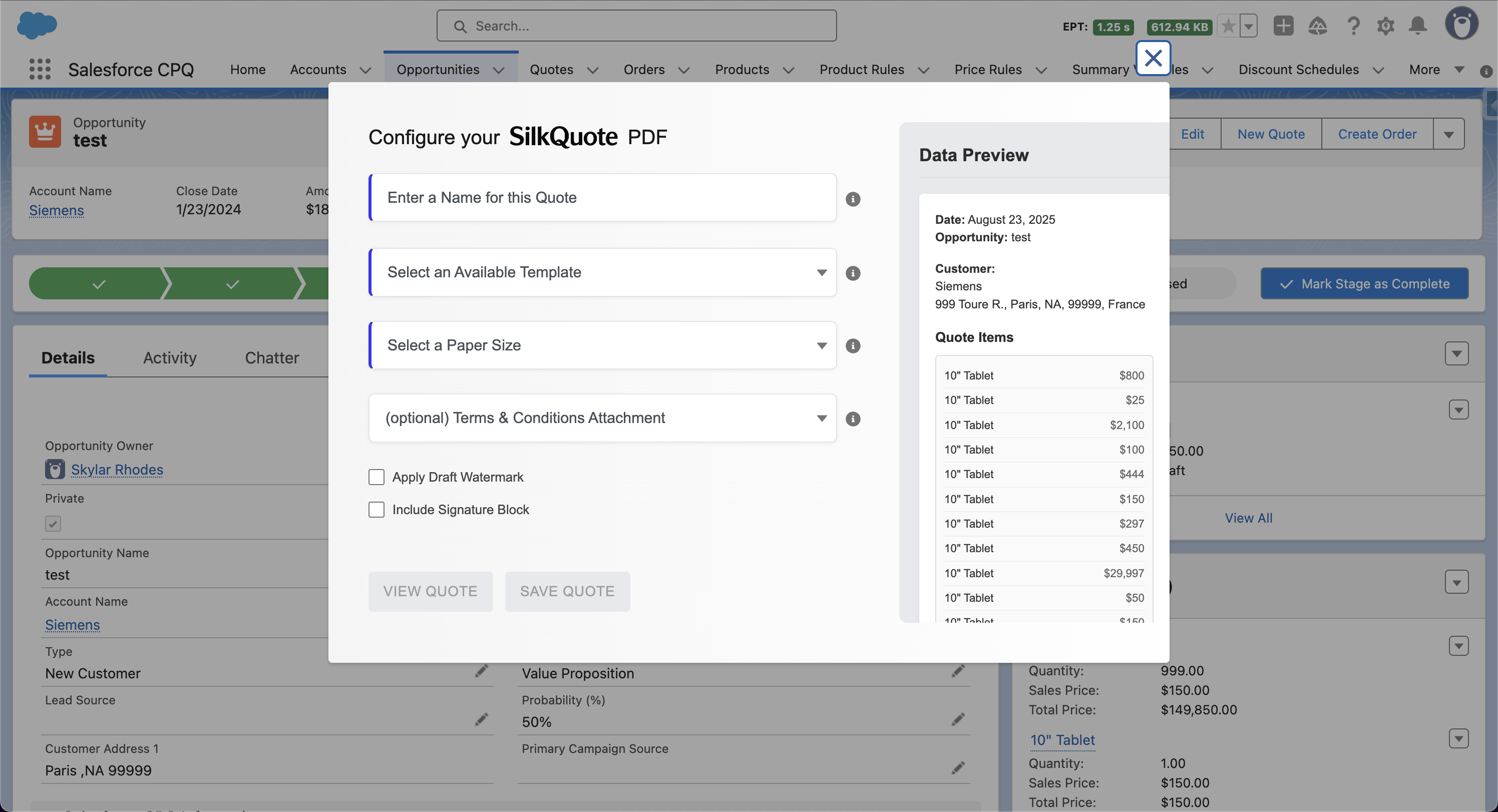
Step 4: Generate your first quote. Open any Opportunity in Salesforce with Products added. Click the Generate Quote Document button on the Opportunity record. Select your template, preview the output with live Opportunity data, and save it. The PDF attaches to the Opportunity as a Content Document and a hosted quote link is generated.
Step 5: Share with the prospect. Send the hosted quote link by email. The prospect opens it in a browser, reviews the quote, and clicks Accept. The acceptance appears on the Opportunity record in Salesforce immediately.
For the complete overview of what you can configure in a SilkQuote template, including field mapping, conditional sections, branding controls, and Terms and Conditions logic, see the Salesforce quote templates guide. For the full feature list including approval routing compatibility and activity tracking, see SilkQuote features.
Install SilkQuote Free After Your HubSpot Migration
SilkQuote is free on the AppExchange. Every feature is available at no cost: no per-user fees, no trial limitations, no CPQ required. For teams that have just finished migrating from HubSpot to Salesforce and need to close the quoting gap quickly, this is the fastest path from migration complete to sending professional quotes.
Install SilkQuote from the AppExchange and have your team quoting in Salesforce in under an hour.
Frequently Asked Questions
Does Salesforce have built-in quoting after a HubSpot migration?
Salesforce includes basic quoting through the standard Quotes object. It allows you to create quote records linked to Opportunities and generate simple PDF outputs. However, standard Salesforce quoting has meaningful limitations: limited template customization, no conditional sections, minimal branding control, and no built-in prospect acceptance flow. Most teams migrating from HubSpot find the out-of-the-box Salesforce quoting insufficient and look for a purpose-built solution.
Do I need Salesforce CPQ after migrating from HubSpot?
Almost certainly not. Most teams migrating from HubSpot have straightforward quoting needs: branded PDFs, a clean template, and a way to get the prospect's acceptance. CPQ adds pricing engine complexity, product configuration, and implementation overhead that is not needed for this use case. SilkQuote covers the quoting workflow at no cost and can be set up in hours rather than months.
How long does SilkQuote take to set up after a HubSpot migration?
Most teams are live with SilkQuote in under an hour. Installation takes a few minutes. Assigning permission sets and initial configuration takes another 15-30 minutes. Building a complete quote template takes one to three hours depending on complexity. For teams that just finished migrating from HubSpot to Salesforce and need to be quoting quickly, this is a meaningful advantage over CPQ.
Can SilkQuote replicate the quote experience from HubSpot?
SilkQuote provides branded PDF quotes with prospect-facing acceptance links, which is the core HubSpot quoting experience running natively inside Salesforce. For organizations that used HubSpot's payment collection or deep e-signature integration specifically, those can be handled through Stripe or DocuSign alongside SilkQuote. The core flow of generate, share, and capture acceptance is fully covered.