A quote template is the foundation of every professional quote your team sends. It determines the layout, the branding, the sections, and the data that appears in the finished PDF. When templates are well-designed, every quote looks consistent and professional regardless of which rep generated it. When templates are poorly designed or teams lack a proper template system entirely, quotes become inconsistent, manual, and error-prone.
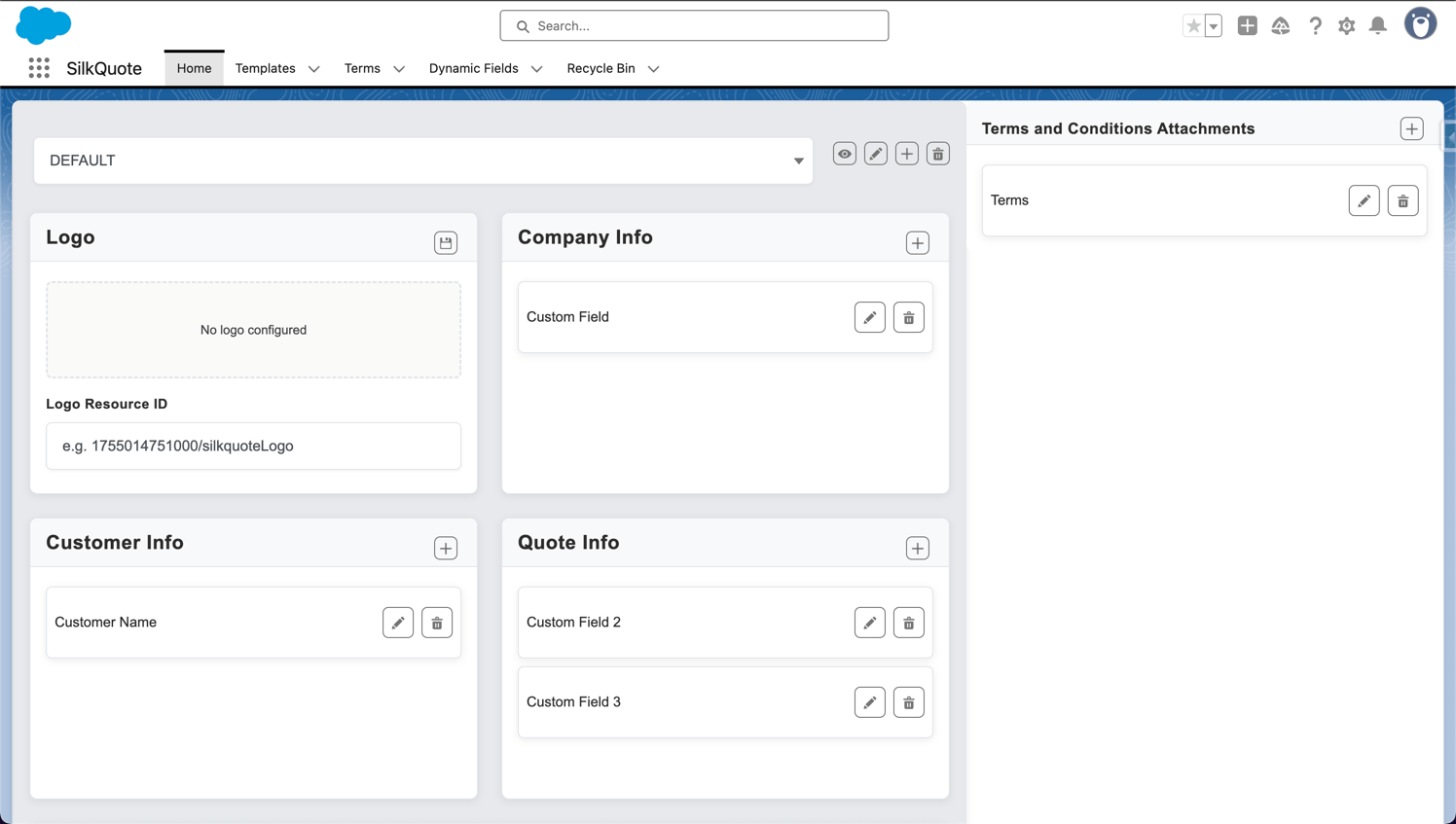
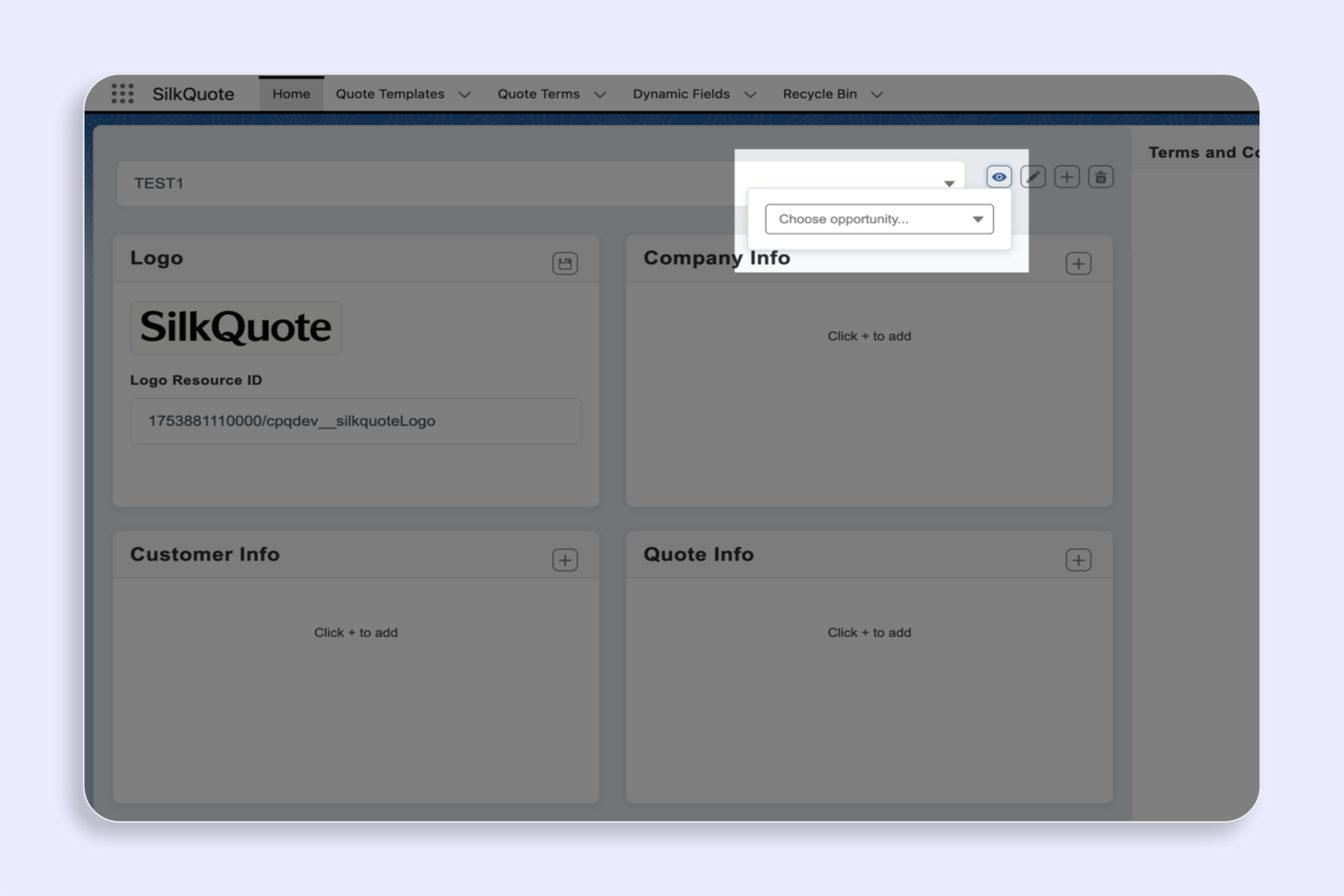
SilkQuote gives Salesforce teams a visual template designer that requires no code. Admins build quote templates in the SilkQuote Configuration Manager by dragging and dropping sections, mapping fields directly from Salesforce objects, uploading logos, setting conditional rules, and previewing the output with live Opportunity data. The result is a reusable template that reps activate with a single click.
This page covers everything you can configure in a SilkQuote quote template, how dynamic field mapping works, and how to manage multiple templates for different scenarios.
Why Salesforce Quote Template Design Matters for Close Rates
The appearance and content of a quote communicates more than pricing. A well-structured quote signals that the seller is organized, understands the deal, and respects the buyer’s time. Poorly formatted quotes create doubt at exactly the wrong moment in the sales cycle. Misaligned columns, generic terms, and missing customer details are all warning signs buyers notice.
The connection between quote quality and close rate is practical rather than theoretical. Deals where quotes arrive quickly, look professional, and accurately reflect the agreement in Salesforce tend to close faster. Delays caused by manual document assembly introduce friction. Formatting errors that require resending slow things down further. Terms that seem copy-pasted from a generic contract can kill deals outright.
A proper template system addresses each of these risks. Once a template is built and tested, every subsequent quote from that template is consistent. Reps do not make formatting decisions. The template makes them. Field values come from Salesforce directly, so there is no copy-paste error risk. The output is predictable.
For the broader context on how templates fit into a Salesforce quoting workflow, see the Salesforce quote generator overview. For guidance on designing templates that cover advanced use cases, see quote template builder.
What You Can Configure in a SilkQuote Template
Every SilkQuote template is built from a set of configurable sections. Each section has its own layout rules and field mapping configuration. The sections stack vertically in the order you arrange them.
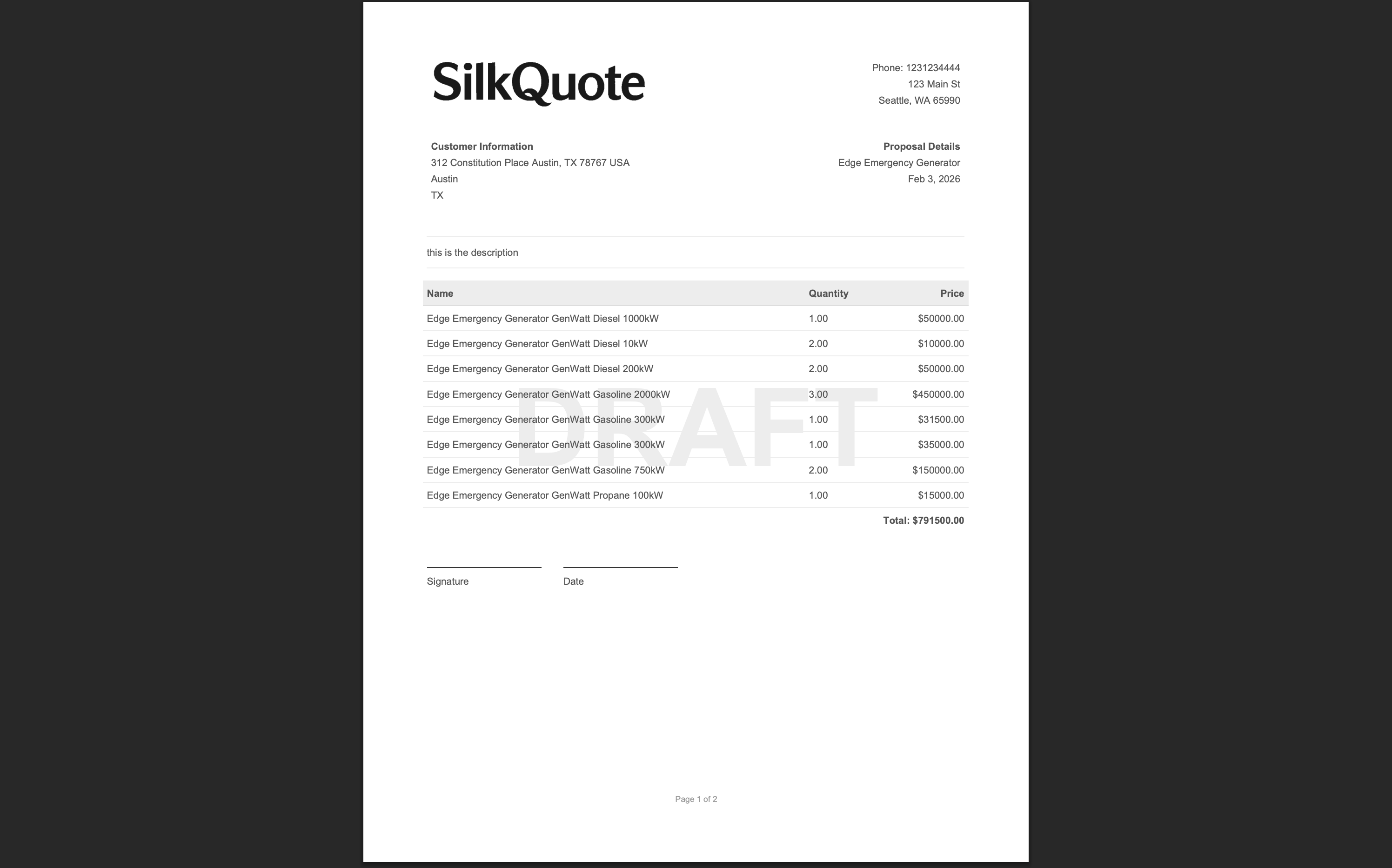
Header section: Displays the seller’s logo, company name, and document title. Includes fields for quote number, date, and rep information. Logo upload supports PNG, JPG, and SVG formats with configurable width.
Recipient section: Displays the customer’s name, company, address, and contact details pulled from the Opportunity’s Account and Contact records.
Line items section: Renders the Opportunity Products as a table. Column selection, column headers, column widths, and number formatting are all configurable. Supports quantity, unit price, discount, and total columns as well as any custom fields on the Opportunity Product record.
Totals section: Displays subtotals, discount amounts, tax lines, and a final total. Fields are drawn from the Opportunity record and can include custom calculated fields.
Terms and Conditions section: Renders plain text or rich text terms content. Multiple terms documents can be created and attached to templates with conditional rules.
Signature block section: Adds a customer signature area with name, title, signature line, and date fields. Used for traditional print-and-sign workflows.
Custom text sections: Free-form content blocks for introductory paragraphs, value propositions, scope statements, or any other narrative content that should appear consistently in quotes using this template.
Dynamic Field Mapping: Pulling Live Salesforce Data Into Templates
The power of a Salesforce quote template is that every field value in the PDF comes directly from the live Salesforce record at the moment the quote is generated. There is no manual data entry, no copy-paste, and no risk of stale information.
SilkQuote supports field mapping from these Salesforce objects:
- Opportunity: Close date, amount, stage, owner, custom fields
- Account: Company name, billing address, industry, custom fields
- Contact: First name, last name, email, phone, title, custom fields
- Opportunity Products (Line Items): Product name, quantity, unit price, list price, discount, total price, product code, description, custom fields
- Quote: If a Salesforce Quote record is linked to the Opportunity, Quote fields can be mapped as well
Field labels in the template are fully customizable. If your Salesforce org uses field names that are internal shorthand, you can rename them to customer-facing labels in the template without changing anything in Salesforce. “Opp Amount” becomes “Total Value.” “Acct Name” becomes “Company.”
Numeric fields support formatting options including currency symbol, decimal precision, and thousands separators. Date fields support format strings. This allows the PDF to display data in the format that matches your business context without requiring field formula customization in Salesforce.
Conditional Sections: Show the Right Content for Every Deal
Not every quote should look identical. Enterprise deals have different scopes, terms, and product configurations than SMB deals. Service agreements require different sections than product orders. A single rigid template does not handle this well. Teams end up creating too many nearly-identical templates or accepting quotes that include irrelevant content.
SilkQuote addresses this with conditional section visibility. Each section in a template can have a display rule that evaluates an Opportunity field value and shows or hides the section accordingly.
Examples of conditional section rules:
- Show the “Professional Services” line items section only when the Opportunity includes a product from the Services product family
- Show the enterprise-specific terms section when the Opportunity amount exceeds a defined threshold
- Show the international shipping and duties section when the Account’s billing country is outside the domestic region
- Hide the signature block section when the opportunity type is “Renewal” and signatures are handled separately
Rules can evaluate text fields, picklist values, checkbox fields, currency amounts, and numeric values. Multiple rules can be combined using AND/OR logic to create precise conditions.
This approach allows a single template to produce meaningfully different outputs for different deal types, which reduces template proliferation and simplifies template maintenance.
For conditional terms specifically, rules that attach different terms documents based on Opportunity data, see the next section.
Branding Controls: Logo, Colors, and Layout
A SilkQuote template produces a document that looks like it came from your company, not from a Salesforce-connected app.
Logo: Upload a PNG, JPG, or SVG logo to each template. Configure the display width and placement (left-aligned, centered, or right-aligned in the header). The logo renders crisply in the PDF regardless of scale.
Labels and field names: Every field label in the template is editable. Replace internal Salesforce field API names with the customer-facing language your sales team uses. Rename “Opportunity.Amount” to “Total Contract Value.” Rename “Product2.ProductCode” to “Item Number.” Labels apply globally to the template.
Custom text sections: Insert free-form rich text blocks anywhere in the template. Use these for an introductory paragraph, a scope statement, or a call-to-action above the signature block.
Header and footer content: Control what appears at the top and bottom of every page. Common header content includes the logo, document title, and quote date. Common footer content includes page numbers, company contact information, and document version.
Column layout: In the line items section, configure which columns appear, in what order, and at what width. A product-only quote might show Name, Quantity, and Total. A services quote might show Name, Description, Hours, Rate, and Total. Column selection and ordering are controlled per template.
Terms and Conditions: Rules-Based Attachment Logic
Terms and Conditions in SilkQuote are managed as separate documents from templates. This allows multiple templates to share the same terms content and allows terms to be updated without editing each template individually.
Creating Terms documents: Terms content is entered in the SilkQuote Configuration Manager as a standalone document. Rich text formatting is supported. A single terms document can be attached to multiple templates.
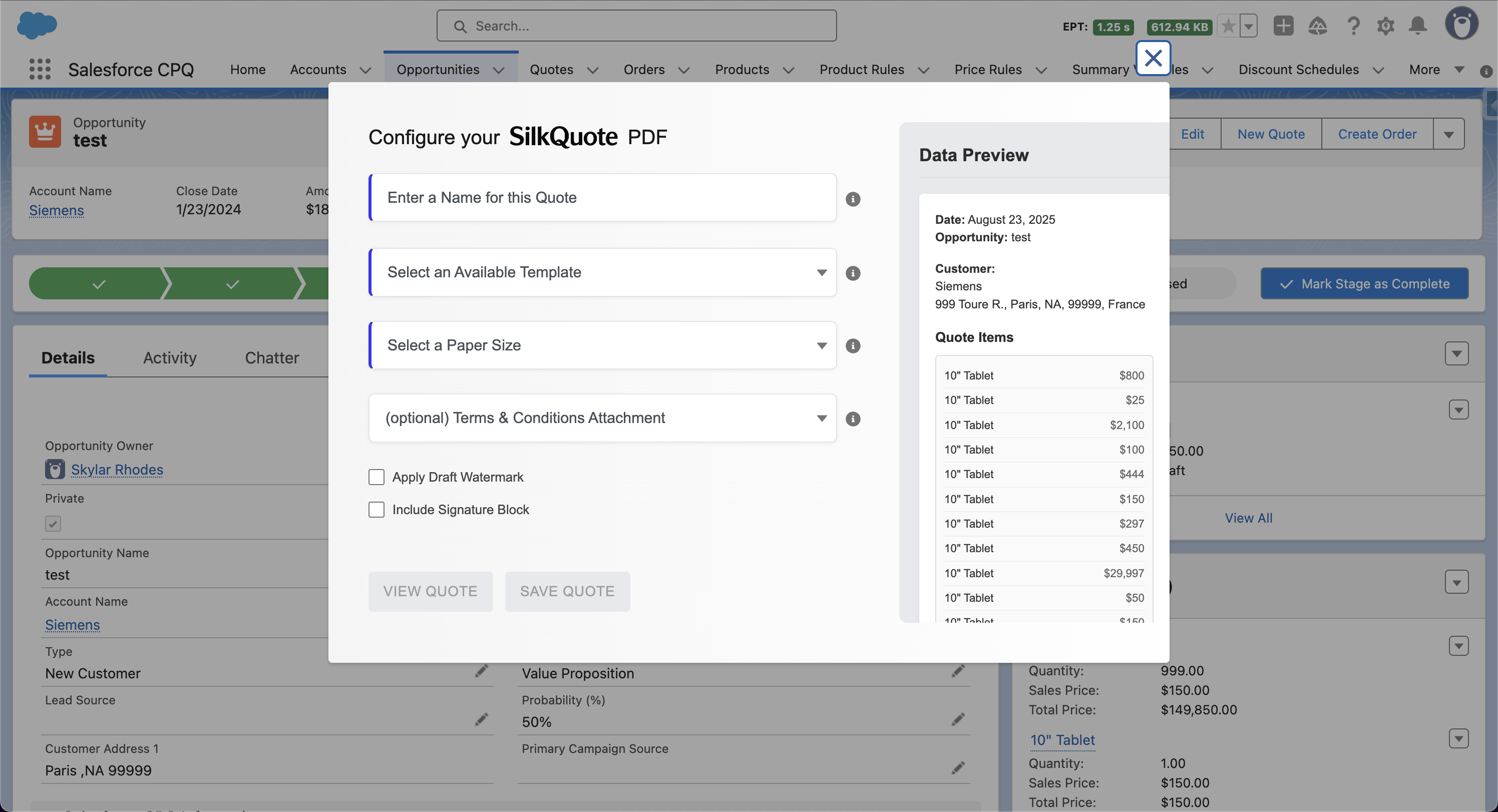
Manual attachment: In the quote generation dialog, reps can select a terms document from a dropdown. This works for teams where the rep determines which terms apply to each deal.
Conditional attachment: Template rules can automatically attach specific terms based on Opportunity field values. When the rule evaluates as true at generation time, the matching terms document is included in the PDF automatically. Common rules include attaching enterprise SLAs when the deal size exceeds a threshold, attaching jurisdiction-specific terms based on the Account’s billing region, or attaching product-specific terms when certain products appear in the Opportunity.
The conditional approach eliminates the need for reps to remember which terms document applies to which deal type. It also prevents the common error of attaching the wrong terms to a quote.
Managing Multiple Templates Across Teams and Regions
Most organizations with more than one product line or sales segment benefit from multiple templates. SilkQuote handles this without creating complexity for reps through smart template selection.
Smart template selection: Each template can have selection criteria configured in the Configuration Manager. When a rep opens the generation dialog, SilkQuote evaluates the current Opportunity against all template selection criteria and presents only the templates that match. A rep working on an enterprise software deal sees only the templates relevant to that deal type. A rep working on a services engagement sees services templates.
Template management: All templates are managed in the Configuration Manager with a searchable list view. Templates can be activated, deactivated, duplicated, or edited. Deactivated templates remain in the system with their history but are no longer available for new quote generation.
Version control for templates: When a template needs to be updated, admins can edit the template directly. New branding, updated terms, additional fields: all changes are made in place. Existing generated PDFs are not affected because each PDF is saved as a static file at the time of generation. Historical quotes retain the layout they were generated with.
For a focused walkthrough of the template builder interface and its drag-and-drop functionality, see the Salesforce quote template builder page. For guidance on connecting templates to automated generation workflows, see the quote automation workflows page. Teams considering SilkQuote as a replacement for CPQ-managed templates should review the Salesforce CPQ alternative analysis.
Build Your First Quote Template in Salesforce Today
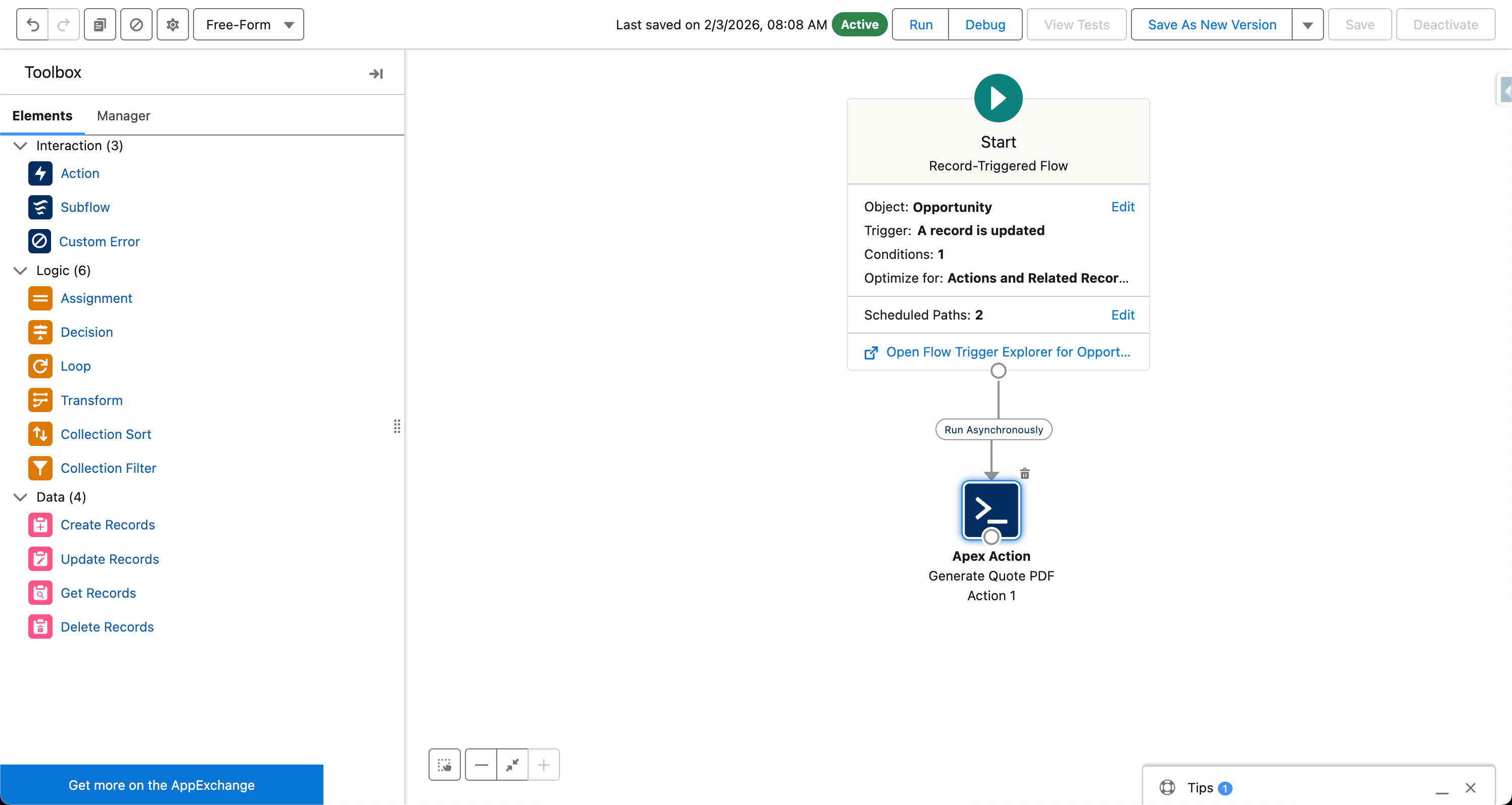
SilkQuote’s template designer gives Salesforce admins complete control over quote layout, branding, field mapping, and conditional logic. No code required. Templates are reusable, version-controlled, and immediately available to every rep with the SilkQuote permission set.
Install SilkQuote from the AppExchange and build your first professional Salesforce quote template today.
Frequently Asked Questions
Can I build Salesforce quote templates without a developer?
Yes. SilkQuote's template designer is entirely point-and-click. Admins build templates by dragging sections, mapping fields, uploading logos, and setting display rules — no Apex, no Visualforce, and no custom code required at any point.
How many templates can I create in SilkQuote?
There is no limit on the number of templates. Teams commonly maintain separate templates for different products, regions, deal types, or business units. Smart template selection rules filter the available templates based on Opportunity field values so reps always see the relevant options.
Can templates automatically apply different terms based on deal type?
Yes. SilkQuote supports conditional Terms and Conditions attachment. You can configure rules that attach specific terms documents based on Opportunity field values such as record type, industry, region, or any custom field. The correct terms are applied automatically without rep intervention.
Does SilkQuote support logos and custom branding?
Yes. Each template supports an uploaded logo with configurable size and placement. You can set accent colors, control header layout, and customize labels so internal Salesforce field names display as customer-friendly text in the finished PDF.